
1. Introduction
Thank you for choosing the isYoung Smart Bird Feeder with Camera. This device allows you to observe and interact with birds in your backyard through an intelligent camera system. Equipped with AI bird identification, solar power, and app control, it offers a unique bird-watching experience. This manual provides essential information for the proper setup, operation, and maintenance of your bird feeder.
2. Important Safety Information
Please read and follow these safety guidelines to ensure safe operation and prevent damage to the product or harm to wildlife.
- Ensure the feeder is securely mounted to prevent it from falling or being dislodged by animals or weather conditions.
- Avoid placing the feeder in areas where it may pose a hazard to birds, such as too close to windows or areas with high predator activity.
- Regularly clean the feeder to prevent the spread of diseases among birds.
- Do not use abrasive cleaners or harsh chemicals on any part of the feeder.
- Keep the solar panel clean to ensure optimal charging performance.
- Ensure the camera's rubber seal is properly seated after accessing the charging port or memory card slot to maintain its IP65 waterproof rating.
3. Package Contents
Verify that all items are present in your package:
- Smart Bird Feeder Unit with Integrated Camera
- Solar Panel with USB-C Cable
- Mounting Bracket for Feeder
- Mounting Bracket for Solar Panel
- USB-C Charging Cable
- Installation Screws and Wall Anchors
- Hex Key (Allen Wrench)
- Reset Pin
- User Manual
4. Product Overview
The isYoung Smart Bird Feeder G08mini is designed to provide an immersive bird-watching experience with advanced features.
Key Features:
- AI Bird Identification: Capable of identifying over 10,000 bird species.
- 2K HD Video Camera: 1080p high-resolution with a 140° wide-angle lens for clear footage.
- Color Night Vision: Captures clear images and videos day and night.
- Motion Detection: Automatically records and sends notifications when birds are detected.
- Solar Powered: Includes a 5W solar panel for continuous operation and reduced charging needs.
- Smart App Control: Compatible with the "VicoHome" app (2.4GHz WiFi) for real-time viewing, two-way voice, and siren alarm.
- Cloud Storage: Automatically uploads photos and videos to the cloud (30 days free trial included).
- Weatherproof Design: IP65 rated to protect the camera and seeds from rain.
- Large Seed Capacity: Holds 5.5 cups or 1.3 liters of bird seed.
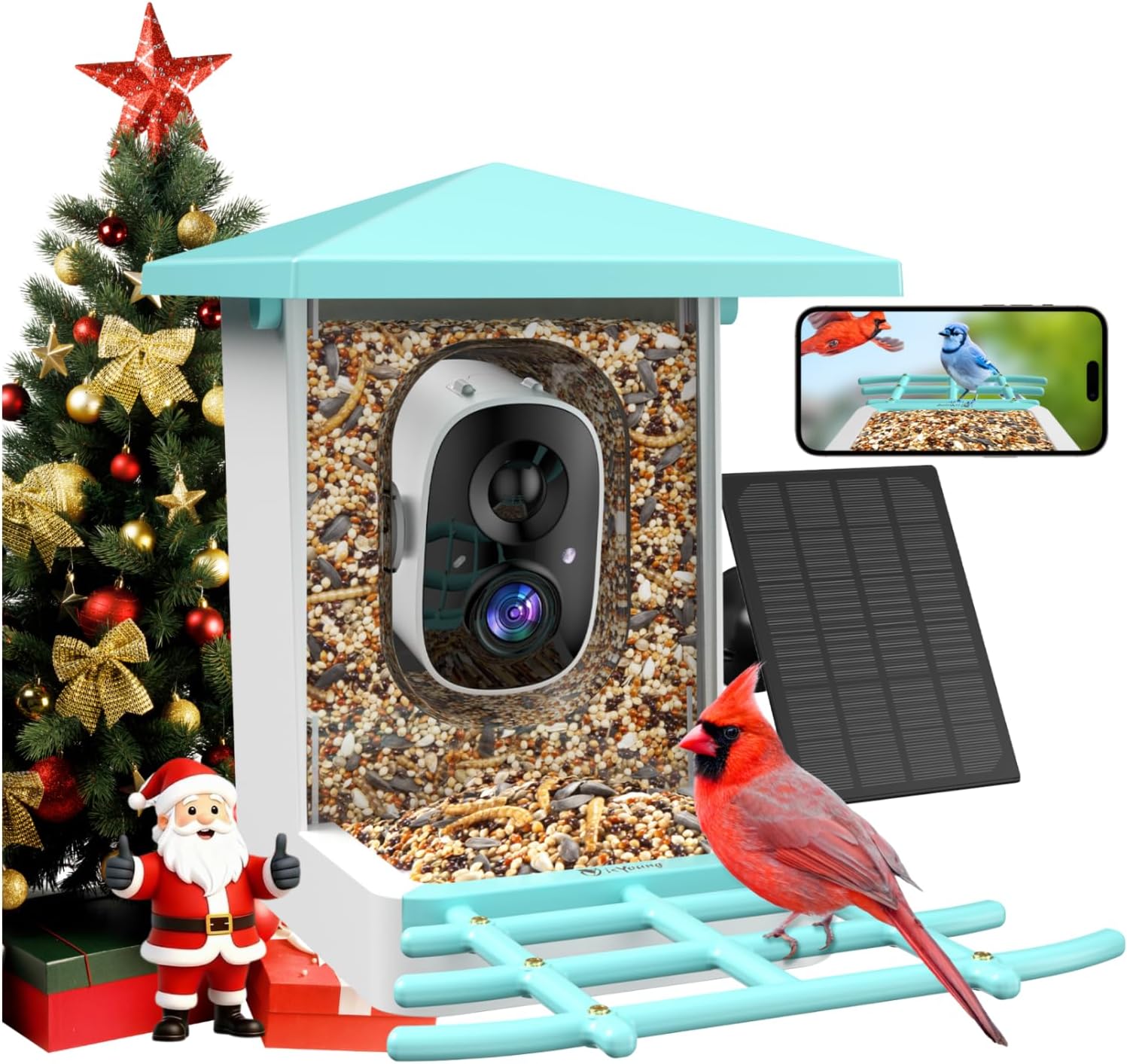
Image: The isYoung Smart Bird Feeder with Camera, showcasing its design and integrated camera.
5. Setup and Installation
Follow these steps to assemble and install your smart bird feeder.
5.1 Unboxing and Initial Assembly
Upon opening the box, you will find the main bird feeder unit, the solar panel, and a separate box containing accessories. The user manual is typically located at the top.
- Remove the user manual and protective foam inserts.
- Take out the main bird feeder unit.
- Open the accessory box to retrieve the solar panel, various mounting brackets, screws, a USB-C cable, a hex key, and a reset pin.
- Attach the perches and any additional feeders (e.g., water basin, hummingbird feeder) to the main unit. These typically snap into place.
5.2 Camera Preparation
- Gently push the camera module forward to access its ports.
- Remove the rubber cover to reveal the memory card slot (Micro SD card not included), USB-C charging port, power on/off button, and reset button.
- Insert a Micro SD card (if desired for local storage).
- Charge the camera fully using the provided USB-C cable before first use.
- Press the power button to turn on the camera.
5.3 App Connection
- Download the "VicoHome" app from your smartphone's app store.
- Create an account or log in.
- Follow the in-app instructions to add your new device. This typically involves scanning a QR code displayed by the camera or connecting via Wi-Fi. Ensure your phone is connected to a 2.4GHz Wi-Fi network.
- Once connected, you will see the live feed from the camera in the app.
5.4 Mounting Options
The feeder offers multiple installation options:
- Pole Mount: Use the L-shaped bracket to attach the feeder to a pole.
- Tree Mount: Secure the feeder to a tree using the provided strap and bracket.
- Wall Mount: Attach the feeder to a wall using the appropriate bracket and screws.
The solar panel should be mounted in a location that receives direct sunlight for most of the day to ensure continuous charging. Connect the solar panel's USB-C cable to the camera's charging port, ensuring the rubber cover is securely closed around the cable to maintain weather resistance.

Image: Illustration of the 170° wide-angle view and various installation methods including pole, tree, and wall mounts.

Image: Depicts different mounting configurations for the smart bird feeder, including pole, tree, and wall mounts.
5.5 Filling the Feeder
Open the top lid of the feeder and pour in your desired bird seed. The feeder has a capacity of 5.5 cups or 1.3 liters.
Video: An unboxing and assembly guide for the G08-Smart Bird Feeder with Camera, demonstrating how to set up the components.
6. Operation
Utilize the "VicoHome" app to access and control your smart bird feeder.
6.1 Real-time Viewing and Notifications
- Open the VicoHome app to view a live stream from your bird feeder camera.
- Receive instant notifications on your phone when motion is detected, indicating a bird's presence.
6.2 AI Bird Identification
The camera's advanced AI can identify over 10,000 bird species. When a bird is detected, the app will attempt to identify the species and provide information.

Image: Demonstrates the AI feature identifying a bird species and displaying it on a smartphone screen.
6.3 Video Recording and Storage
- The camera automatically records video clips when motion is detected.
- Recordings are uploaded to the cloud (30 days free trial) and can also be stored on a local Micro SD card (if installed).
- Access recorded footage through the app's library.

Image: A collage of images showing various birds captured by the feeder camera at different times of the year.
6.4 Two-Way Voice and Siren Alarm
- Use the two-way voice feature in the app to speak through the feeder's speaker.
- Activate the siren alarm from the app to deter unwanted visitors like squirrels.
6.5 Night Vision
The camera provides full-color night vision, allowing for clear observation of birds even in low-light conditions.

Image: Highlights the 6-layer Full HD optical lens and compares day and night vision quality, including color night vision.
Video: Shows various birds visiting the smart bird feeder, demonstrating its functionality in capturing wildlife.
7. Maintenance
Regular maintenance ensures the longevity and optimal performance of your bird feeder.
- Cleaning: Periodically clean the feeder with mild soap and water to remove old seeds, droppings, and debris. Rinse thoroughly and allow to dry completely before refilling.
- Refilling: Keep the seed reservoir filled to attract birds. The feeder has a 1.3-liter capacity.
- Solar Panel: Wipe the solar panel regularly to remove dust, dirt, or leaves that may obstruct sunlight and reduce charging efficiency.
- Camera Lens: Gently clean the camera lens with a soft, lint-free cloth to ensure clear image quality.

Image: Highlights the IP65 weatherproof design of the feeder and the solar panel for continuous operation, along with the camera's charging port.
8. Troubleshooting
If you encounter issues with your isYoung Smart Bird Feeder, refer to the following common solutions:
- No Power: Ensure the camera is fully charged. Check the solar panel for obstructions and ensure it receives adequate sunlight.
- Wi-Fi Connection Issues: Verify that your Wi-Fi network is 2.4GHz. Ensure the feeder is within range of your Wi-Fi router. Try restarting your router and the camera.
- App Connection Failure: Re-attempt the pairing process in the VicoHome app. Use the reset pin to reset the camera if necessary.
- Poor Video Quality: Clean the camera lens. Ensure there are no obstructions in front of the camera. Check your Wi-Fi signal strength.
- Motion Detection Not Working: Check the motion detection settings in the VicoHome app. Ensure the camera's view is not obstructed.
- Birds Not Visiting: Ensure the feeder is placed in a safe, visible location. Use fresh, high-quality bird seed.
For further assistance, please contact isYoung customer support.
9. Specifications
| Feature | Detail |
|---|---|
| Brand | isYoung |
| Model Number | G08mini |
| Target Species | Hummingbird, BlueJay, Cardinal, Dove, Finch, Robin, Pigeon, Wren, Junco |
| Material | Acrylonitrile Butadiene Styrene (ABS) |
| Special Feature | 360 Degree Perch |
| Mounting Type | Freestanding |
| Product Dimensions | 14.84"L x 10.5"W x 9.84"H |
| Power Source | Solar Powered |
| Capacity | 1.25 Liters (5.5 cups) |
| Item Weight | 4.05 pounds |
| Camera Resolution | 2K HD (1080p) |
| Camera View Angle | 140° Wide-Angle |
| Waterproof Rating | IP65 |
10. Warranty and Support
For warranty information, product support, or to report any issues, please contact isYoung customer service through the contact details provided with your purchase or on the official isYoung website. Please have your model number (G08mini) and purchase details ready when contacting support.


