
1. Introduction
Thank you for choosing the Honeywell HC35W25R3 5MP IR Fixed Micro WDR IP Dome Camera. This camera is designed for reliable security surveillance, offering high-quality video results with a 5MP resolution, Wide Dynamic Range (WDR), and infrared (IR) capabilities for clear imaging in various lighting conditions. This manual provides essential information for the proper installation, operation, and maintenance of your camera.
2. Safety Information
Please read all safety instructions carefully before installation and operation. Failure to follow these instructions may result in damage to the product or personal injury.
- Ensure the power supply voltage is within the specified range for the camera.
- Do not expose the camera to water or moisture.
- Avoid placing the camera in direct sunlight or near heat sources.
- Handle the camera with care to prevent physical damage.
- Installation should be performed by qualified personnel in accordance with local electrical codes.
3. Package Contents
Verify that all items are present in the package. If any items are missing or damaged, contact your supplier.
- Honeywell HC35W25R3 IP Dome Camera
- Mounting Screws and Wall Plugs
- Installation Template
- Quick Start Guide
- Waterproof Connector (for network cable)
4. Setup
4.1 Physical Installation
The HC35W25R3 camera supports both ceiling and wall mount installations. Choose a location that provides the desired surveillance coverage and is within reach of power and network connections.
- Use the provided installation template to mark drilling points on the mounting surface.
- Drill holes and insert wall plugs if necessary.
- Secure the camera base to the mounting surface using the provided screws.
- Adjust the camera's angle and orientation for optimal viewing.
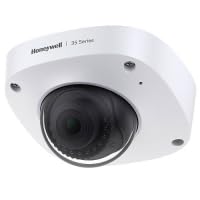
Figure 1: Illustrative diagram of the camera's mounting points and adjustable dome.
4.2 Network Connection
The camera supports wired Ethernet connectivity and Wi-Fi. For initial setup, a wired connection is recommended.
- Wired Connection: Connect an Ethernet cable from your network router/switch to the camera's RJ45 port. Ensure the connection is secure, especially if using the waterproof connector for outdoor installations.
- Wi-Fi Connection: After initial wired setup, you can configure Wi-Fi settings through the camera's web interface. Navigate to Network Settings and select your Wi-Fi network, then enter the password.
4.3 Initial Configuration
After connecting the camera to your network and power, you can access its web interface for configuration.
- Use a network scanner tool or refer to your router's connected devices list to find the camera's IP address.
- Open a web browser and enter the camera's IP address.
- Log in using the default username and password (refer to the Quick Start Guide or product documentation for default credentials).
- Change the default password immediately for security purposes.
- Follow the on-screen prompts to set up basic parameters like date, time, and video resolution.
Figure 2: Close-up view of the camera's network and power ports for connection.
5. Operating
5.1 Basic Operation
Once configured, you can access the camera's live view and settings through its web interface or compatible surveillance software.
- Live View: The main interface typically displays the real-time video feed.
- Playback: Access recorded footage from the storage device (if installed).
- Settings: Modify various camera parameters, including video quality, network settings, and user management.
5.2 Advanced Features
- Wide Dynamic Range (WDR): This feature helps the camera capture clear images in scenes with both very bright and very dark areas, balancing exposure to reveal details in both. Enable WDR in the image settings if your environment has high contrast lighting.
- Infrared (IR) Illumination: The camera is equipped with IR LEDs for night vision. These automatically activate in low-light conditions, providing clear black-and-white video up to a certain range.
- Motion Detection: Configure motion detection zones and sensitivity to trigger alarms or recording when movement is detected.
5.3 Video Recording
The camera supports various recording methods:
- Continuous Recording: Records video constantly.
- Motion-Activated Recording: Records only when motion is detected.
- Scheduled Recording: Records during specific time periods.
Recording typically requires a Network Video Recorder (NVR), a local storage device (e.g., microSD card, if supported by the model), or cloud storage services.
Figure 3: Example of the camera's web interface showing live video feed and control options.
6. Maintenance
6.1 Cleaning
- Regularly clean the camera lens and housing with a soft, dry cloth.
- For stubborn dirt, use a cloth lightly dampened with water or a mild lens cleaning solution. Avoid abrasive cleaners.
6.2 Firmware Updates
Periodically check the Honeywell support website for firmware updates. Keeping your camera's firmware updated ensures optimal performance, security, and access to new features.
- Download the latest firmware from the official Honeywell support page.
- Access the camera's web interface and navigate to the System or Maintenance section.
- Follow the instructions to upload and install the new firmware. Do not power off the camera during the update process.
7. Troubleshooting
| Problem | Possible Cause | Solution |
|---|---|---|
| No power | Power adapter disconnected or faulty. | Check power connections. Ensure the power adapter is working. |
| No network connection | Ethernet cable loose/damaged, incorrect IP settings, Wi-Fi issues. | Verify cable connection. Check network settings (IP address, gateway). Reconfigure Wi-Fi. |
| Poor image quality | Dirty lens, incorrect focus, low light, WDR not enabled. | Clean the lens. Adjust focus if applicable. Ensure adequate lighting or enable WDR. |
| Cannot access web interface | Incorrect IP address, network firewall, browser issues. | Confirm IP address. Check firewall settings. Try a different browser. |
8. Specifications
| Feature | Detail |
|---|---|
| Model | HC35W25R3 |
| Effective Still Resolution | 5 MP (2592 x 1944) |
| Lens | 2.80 mm fixed focal length |
| Aperture | f/2.0 maximum |
| Connectivity Technology | Wired, Wi-Fi |
| Special Features | Wide Dynamic Range (WDR), Infrared (IR) |
| Indoor/Outdoor Usage | Indoor |
| Form Factor | Dome |
| Mount Type | Ceiling Mount, Wall Mount |
| Power Consumption | 8 watts |
| Video Capture Format | MPEG-4 |
| UPC | 085267982306 |
9. Warranty and Support
For warranty information, please refer to the warranty card included with your product or visit the official Honeywell website. For technical support, product registration, or to download the latest software and documentation, please visit the Honeywell support portal or contact their customer service.
Honeywell Support: www.honeywell.com/us/en/support


