
1. Introduction
Thank you for choosing the blurams Indoor Security Camera. This manual provides detailed instructions to help you set up, operate, and maintain your camera, ensuring optimal performance and security for your home.
This advanced camera features 5GHz/2.4GHz Dual-Band Wi-Fi connectivity for stable performance, 2K PZT (Pan/Tilt/Zoom) capabilities for 360° coverage, 2-Way Audio for communication, Motion Tracking with real-time alerts, and enhanced Night Vision. It offers flexible storage options including local SD card and cloud storage.
2. What's in the Box
- blurams Indoor Pet Camera
- USB Cable
- Power Adapter
- Screw Accessory Pack
- Plotting Sheet (for mounting)
- User Manual (this document)
3. Product Overview

Figure 1: blurams Indoor Security Camera (Front View)
Camera Components:
- Lens: Captures 2K resolution video.
- Infrared LEDs: 6 built-in IR LEDs for clear night vision.
- Microphone: For two-way audio communication and sound detection.
- Speaker: For two-way audio communication and siren.
- Status Indicator Light: Indicates camera status (e.g., connecting, online).
- Power Port (Micro USB): Connects to the USB cable and power adapter.
- Reset Button: Used for resetting the camera during setup or troubleshooting.
- Micro SD Card Slot: Supports local storage up to 128GB (card not included).

Figure 2: SD Card Slot Location (underneath the lens when tilted up)
4. Setup Guide
4.1 App Installation
Download the "blurams" app from the App Store (iOS) or Google Play Store (Android). You can also scan the QR code provided in the quick start guide.

Figure 3: blurams App Download Options
4.2 Powering On & Network Connection
- Connect the USB cable to the camera's power port and the power adapter.
- Plug the power adapter into a wall outlet. The camera will power on and the status indicator light will begin to flash.
- Open the blurams app and follow the on-screen instructions to add your device. The camera supports both 2.4GHz and 5GHz Wi-Fi networks.
- When prompted, hold the reset button until the red light flashes, then scan the QR code displayed on your phone screen with the camera lens.

Video 1: Unboxing and App Tutorial. This video demonstrates the unboxing process and initial app setup, including connecting the camera to Wi-Fi and pairing it with the blurams app.
Video 2: blurams 5GHz & 2.4GHz Dual-Band Indoor Security Camera. This video highlights the dual-band Wi-Fi capability and other key features of the camera.
4.3 Mounting the Camera
The camera can be placed on a flat surface or mounted to a wall or ceiling. Use the included screw accessory pack and plotting sheet for accurate mounting.
Video 3: BLURAMS Indoor 2-Way Security Camera. This video demonstrates the camera's features and shows how it can be mounted.
5. Operating the Camera
5.1 Live View & Control
Once connected, open the blurams app to access the live video feed. Use the on-screen controls to pan (horizontal), tilt (vertical), and zoom the camera for a comprehensive view of your space. The camera offers 360° vision with no blind spots.

Figure 4: 360° Full Coverage
5.2 Two-Way Audio
Utilize the built-in microphone and speaker to talk to family members or pets from anywhere, anytime, directly through the mobile app. This feature allows for seamless two-way communication.
Video 4: 2K Indoor Security Camera, Pet-Friendly, Dual-Band Wi-Fi. This video demonstrates the two-way audio feature, allowing interaction with pets or family members.
5.3 Motion Tracking & Real-Time Alerts
The camera features advanced motion detection and tracking. Once motion is detected, the camera will automatically track the movement and send a real-time notification to your phone. You can also enable a siren alarm via the app if needed.
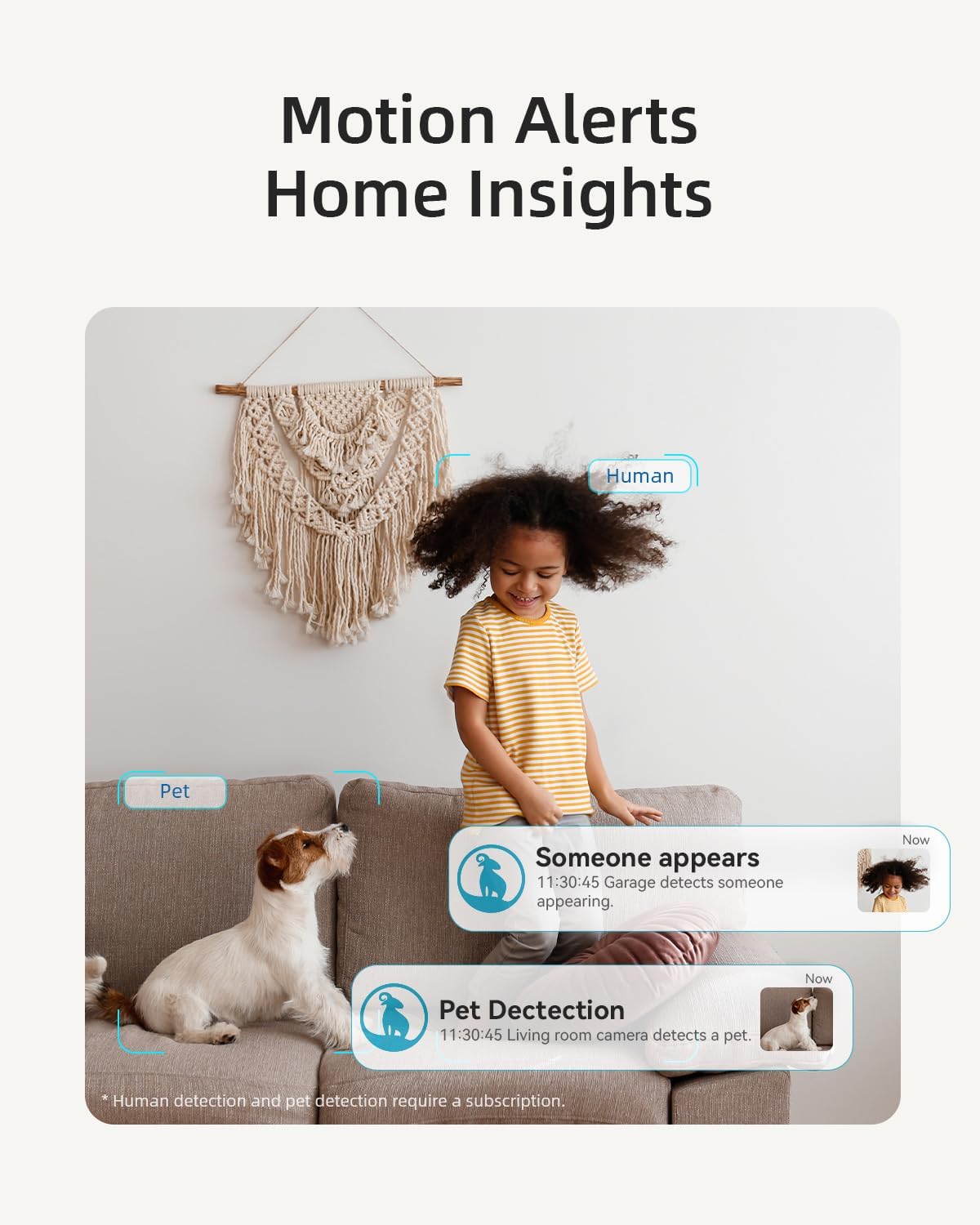
Figure 5: Motion Alerts and Home Insights
5.4 Night Vision
Equipped with 6 infrared LEDs, the camera provides clear images even in low light conditions. It supports both standard IR night vision (black and white) and intelligent night vision for enhanced clarity.

Figure 6: 40ft Infrared Night Vision
5.5 Privacy Mode
Easily block the camera lens to prevent any unwanted recording during private moments. Conveniently schedule and control privacy settings for added peace of mind directly from the app.
6. Storage Options
The blurams camera offers flexible storage solutions to secure your video data.
6.1 Micro SD Card Storage
The camera supports local storage on a Micro SD card (not included) up to 128GB. This allows you to save event recordings directly to the device without a subscription.
6.2 Cloud Storage
Optional cloud storage is available for enhanced security. The camera can save events (up to 12 seconds) in the last 24 hours even without a card or subscription. For longer video recordings and additional features, a cloud subscription is available.

Figure 7: Flexible Storage Options
7. Smart Integration
The blurams camera is compatible with popular smart home platforms for voice control and enhanced connectivity.
- Works with Amazon Alexa
- Works with Google Assistant
- Works with IFTTT (If This Then That)
8. Troubleshooting
Common Issues & Solutions:
- Camera Offline: Ensure the camera is powered on and within Wi-Fi range. Check your router's internet connection. Try restarting the camera and your router.
- Poor Video Quality: Check your Wi-Fi signal strength. Ensure the camera lens is clean. Adjust resolution settings in the app (2K resolution requires sufficient bandwidth).
- Motion Detection Not Working: Verify motion detection is enabled in the app settings. Adjust sensitivity levels. Ensure the camera's view is not obstructed.
- Two-Way Audio Issues: Check microphone and speaker settings in the app. Ensure volume levels are adequate.
9. Specifications
| Feature | Specification |
|---|---|
| Model Number | 5GHz&2.4GHz Dual-Band Dome Nexa Cam A33 |
| Indoor/Outdoor Usage | Indoor |
| Video Capture Resolution | 2K Full HD |
| Connectivity Technology | 5GHz & 2.4GHz Dual-Band Wi-Fi |
| Field Of View | 360 Degrees |
| Alert Type | Motion and Sound Detection |
| Power Source | Wired Camera |
| Item Weight | 12 ounces |
| Product Dimensions | 3.46 x 6.38 x 3.46 inches |
10. Maintenance
Cleaning:
Gently wipe the camera lens and body with a soft, dry cloth. Avoid using harsh chemicals or abrasive materials that could damage the device.
Firmware Updates:
Regularly check the blurams app for available firmware updates. Keeping your camera's firmware up-to-date ensures optimal performance, security, and access to new features.
11. Warranty and Support
For warranty information and technical support, please refer to the official blurams website or contact their customer service directly. Details can typically be found in the "Support" or "About Us" sections of the blurams app or website.
You can also visit the blurams Store on Amazon for more information and product updates.