
eufy Robovac G50 (T2210)
Contents
eufy G50 Robot Vacuum Cleaner User Manual
Model: Robovac G50 (T2210) | Brand: eufy
Introduction
The eufy G50 Robot Vacuum Cleaner is designed to provide efficient and quiet floor cleaning for your home. Featuring 4,000 Pa strong suction, a Pro-Detangle Comb roller brush, and dynamic navigation, it effectively removes pet hair, dust, and debris from various floor types. This manual provides essential information for setting up, operating, maintaining, and troubleshooting your eufy G50.

Figure 1: eufy G50 Robot Vacuum Cleaner and its companion app interface.
What's in the Box
Verify that all components are present in the package:
- Robot Vacuum (includes Roller Brush, Side Brush, and Dust Bin)
- Home Base Charger with Power Cord
- Safety Manual
- Cleaning Tool

Figure 2: Included components of the eufy G50 Robot Vacuum Cleaner package.
Setup
1. Charging Station Placement
Place the charging station against a wall in an open, uncluttered area. Ensure there is at least 0.5 meters (1.6 feet) of clear space on either side and 2 meters (6.5 feet) in front of the charging station for optimal navigation and return.
2. Initial Charging
Before first use, fully charge the robot vacuum. Connect the power cord to the charging station and plug it into a wall outlet. Place the eufy G50 onto the charging station, ensuring the charging pins align. The indicator lights on the robot will show charging status.
3. App Connection
Download the eufy Clean app from your mobile device's app store. Open the app and follow the on-screen instructions to connect your eufy G50 via Bluetooth. Ensure your Wi-Fi router is configured to support a 2.4GHz frequency band, as the G50 does not support 5GHz.

Figure 3: Connecting the eufy G50 to the eufy Clean app for customized cleaning.
Operating Instructions
Cleaning Modes
- Dynamic Navigation: The G50 methodically navigates your space to ensure comprehensive cleaning coverage.
- BoostIQ Technology: Automatically increases suction power when transitioning from hard floors to carpets for more efficient cleaning.
- Spot Cleaning: Focuses on a specific area for intensive cleaning.
- Scheduled Cleaning: Set specific times for the robot to clean automatically via the eufy Clean app.
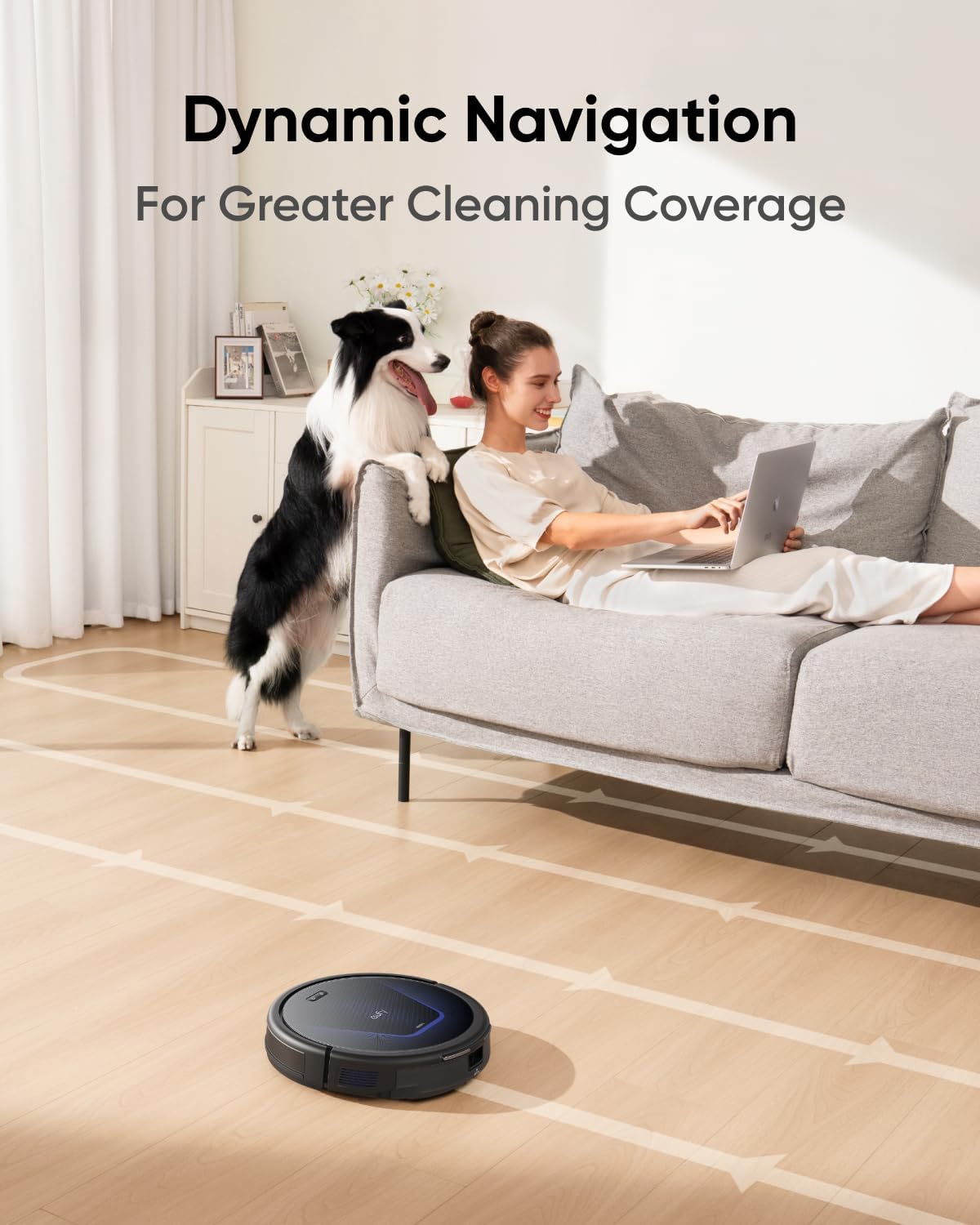
Figure 4: The eufy G50 utilizes dynamic navigation for thorough cleaning coverage.
Starting and Stopping Cleaning
Press the power button on the robot or use the eufy Clean app to start or pause a cleaning cycle. To send the robot back to its charging station, press the home button on the robot or select "Recharge" in the app.
Automatic Recharging
When the battery level is low, the G50 will automatically return to its charging station. After recharging, it will resume cleaning from where it left off.

Figure 5: The eufy G50 automatically returns to its charging station to recharge and then resumes cleaning.
Quiet Operation
The eufy G50 operates at a low noise level of approximately 55 dB, allowing for cleaning without significant disturbance to your activities or rest.
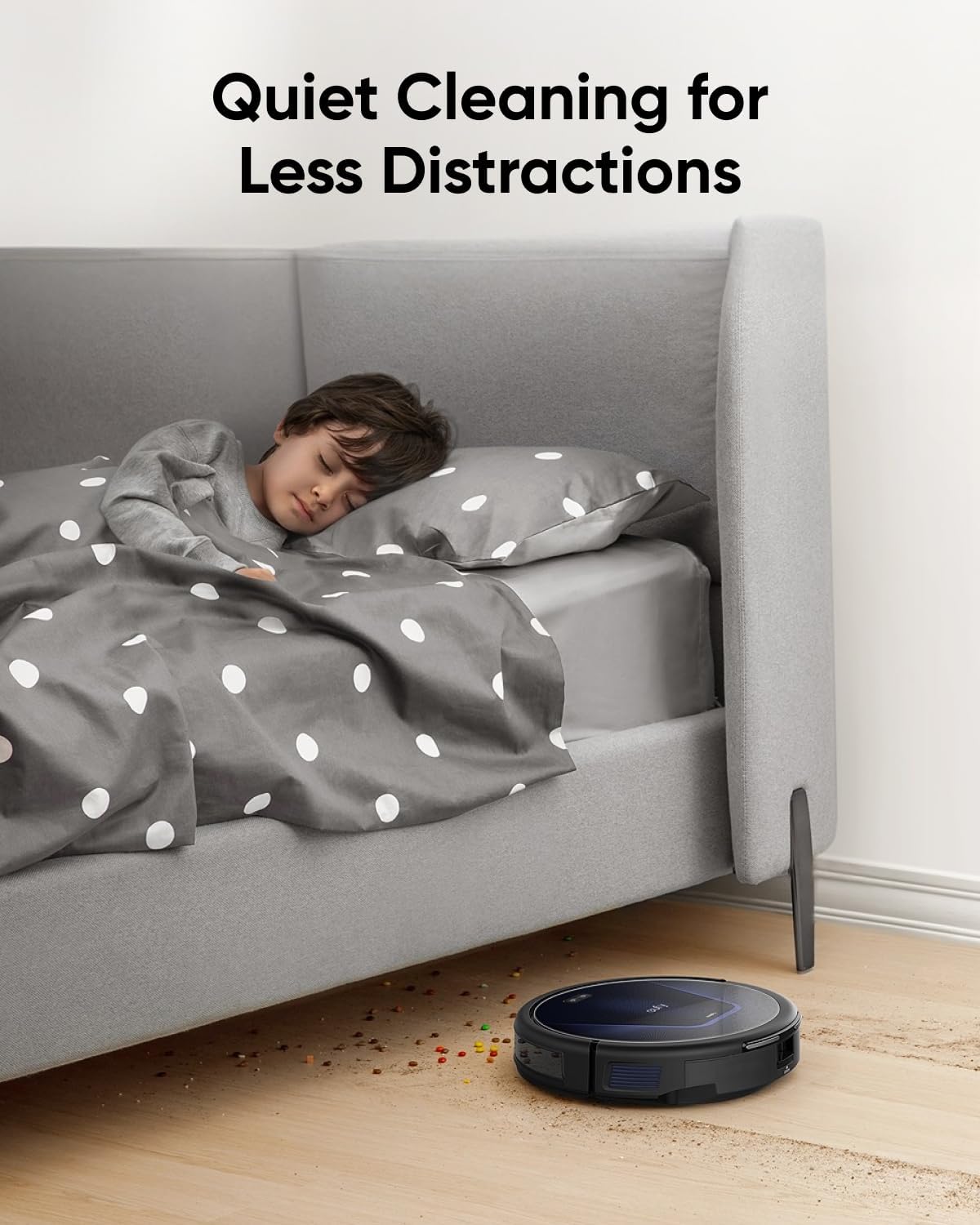
Figure 6: The eufy G50's quiet operation ensures minimal disturbance during cleaning.
Maintenance
Regular maintenance ensures optimal performance of your eufy G50.
1. Emptying the Dust Bin
The 600 ml dust bin should be emptied regularly, ideally after each cleaning cycle, especially if you have pets. Press the release button to remove the dust bin, open it, and discard the contents. Clean the filter as needed.
2. Cleaning the Roller Brush
The G50 features a Pro-Detangle Comb on its roller brush to automatically remove tangled hair. However, periodic manual cleaning is still recommended. Use the provided cleaning tool to remove any remaining hair or debris from the roller brush.
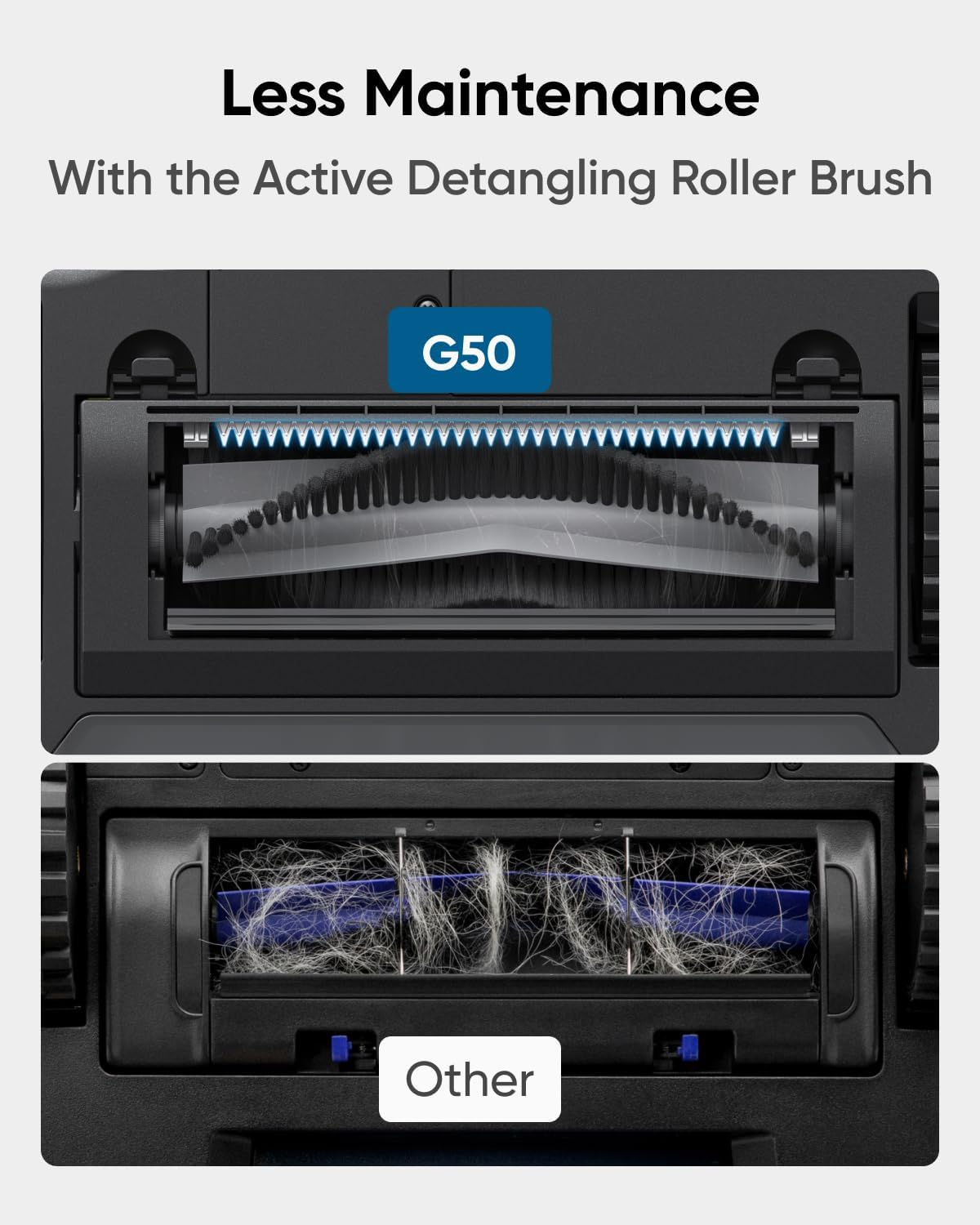
Figure 7: Comparison showing the effectiveness of the G50's Pro-Detangle Comb in preventing hair tangles on the roller brush.
3. Cleaning Side Brushes and Sensors
Inspect and clean the side brushes regularly for tangled hair or debris. Wipe the sensors on the robot's underside and front bumper with a clean, dry cloth to ensure proper navigation.
Troubleshooting
| Problem | Solution |
|---|---|
| Robot frequently gets stuck under furniture. | Ensure the device's firmware is updated to the latest version. Consider setting physical barriers in areas where the device often gets stuck to help prevent this issue. |
| Cannot connect to Wi-Fi. | Verify you are using a 2.4GHz router or a dual-band router configured for 2.4GHz. The G50 does not support 5GHz frequency band. Ensure the robot is within Wi-Fi range. |
| Robot not charging. | Check that the charging pins on both the robot and the charging station are clean and making proper contact. Ensure the power cord is securely plugged in. |
| Reduced suction power. | Empty the dust bin and clean the filter. Check the roller brush and side brushes for tangled hair or debris. Ensure there are no blockages in the suction inlet. |
Specifications
| Feature | Detail |
|---|---|
| Brand | eufy |
| Model Name | eufy G50 Robot Vacuum Cleaner |
| Model Number | T2210 |
| Suction Power | Up to 4,000 Pa |
| Dust Bin Capacity | 600 Millilitres |
| Runtime | Up to 120 minutes (on smooth hard flooring using standard mode) |
| Noise Level | Approx. 55 dB |
| Dimensions (L x W x H) | 32.5 x 32.5 x 8.1 cm (12.8 x 12.8 x 3.19 inches) |
| Weight | 3.27 kg (7.21 lbs) |
| Connectivity | Bluetooth, 2.4GHz Wi-Fi |
| Special Features | Easy App Control, Cordless, BoostIQ Technology, Quiet Performance, Ultra Strong Suction, Pro-Detangle Comb, Dynamic Navigation |
Safety Information
Always refer to the included Safety Manual for comprehensive safety guidelines. Key safety points include:
- Keep loose cables, rugs, and small objects off the floor to prevent entanglement.
- Do not use the robot vacuum in wet environments or near liquids.
- Supervise children and pets when the robot is operating.
- Use only the original charging station and power adapter.
Warranty and Support
For warranty information, technical support, or service inquiries, please refer to the official eufy website or contact eufy customer service directly. The product comes with a standard manufacturer's warranty. Keep your purchase receipt for warranty claims.
Official Product Videos
No official product videos from the seller were found in the provided data to embed in this manual.
Ask a question about this manual
Ask about setup, troubleshooting, compatibility, parts, safety, or missing instructions. Manuals+ will review the question and use this page’s manual context to help answer it.