1. Introduction
The InHand FWA02 5G Router is a high-performance wireless device designed to provide ultra-fast and reliable internet connectivity for business offices and homes. Featuring Wi-Fi 6 technology, dual 2.5G ports, and support for cellular failover and load balancing, this router ensures uninterrupted and high-speed network access. Its high-gain antennas enhance signal strength, making it an ideal 5G gateway solution.

Figure 1: InHand FWA02 5G Router
2. Package Contents
Verify that all items are present in your package:
- InHand FWA02 5G Router
- Power Supply
- High-Gain Antennas (quantity may vary, typically 6)
- Ethernet Cable
- Quick Start Guide / User Manual
3. Key Features
- Next-Gen 5G Speed: Boost your internet with up to 4.76Gbps download speeds. Ideal for bandwidth-intensive tasks like 4K streaming and video conferencing.
- Wi-Fi 6 AX3600 Technology: Supports up to 128 devices simultaneously with Wi-Fi 6, ensuring low latency and high-speed coverage throughout your workspace.
- Advanced Link Reliability: Features 5G to Wired failover and Dual-SIM backup to ensure your business stays online 24/7 without interruption.
- Dual 2.5Gbps Ethernet Ports: Switchable WAN/LAN ports provide massive wired throughput for high-end PCs, servers, or mesh nodes.
- Secure Enterprise VPN: Built-in IPsec/L2TP VPN and firewall protect your data, making it a secure alternative to traditional cable/fiber.

Figure 2: Overview of InHand FWA02 key features.

Figure 3: Enterprise-grade firewall capabilities.
4. Setup Guide
4.1. Physical Installation
- Insert SIM Cards: Locate the SIM card slots on the router. Insert your activated Nano-SIM cards into the designated slots. Ensure they are correctly oriented and click into place. The FWA02 supports dual SIMs for redundancy.
- Attach Antennas: Carefully screw the high-gain antennas onto their respective connectors on the router. Ensure they are finger-tight.
- Power On: Connect the power supply to the router's DC input port and then plug it into a power outlet. The router will begin to power on.
- Initial Connection: For initial setup, you can connect your computer to one of the router's LAN ports using an Ethernet cable, or connect wirelessly to the default Wi-Fi network (SSID and password usually found on a label on the router).

Figure 4: Inserting a SIM card for plug-and-play operation.
4.2. Initial Configuration (Web Interface)
- Open a web browser on your connected device.
- Enter the default IP address (e.g., 192.168.8.1) into the address bar and press Enter.
- Log in using the default username and password (refer to the router's label or Quick Start Guide for credentials).
- Follow the on-screen wizard to set up your internet connection, change default Wi-Fi SSID and password, and configure other basic settings.
4.3. Official Product Overview Video
Video 1: An overview of the InHand FWA 5G Router, highlighting its features and design.
5. Operating the Router
5.1. Connecting Devices
- Wi-Fi Connection: Search for your configured Wi-Fi network (SSID) on your devices (smartphones, laptops, tablets) and enter the password. The router supports Wi-Fi 6 for optimal performance.
- Wired Connection: Use Ethernet cables to connect devices like PCs, servers, or gaming consoles to the router's LAN ports for stable, high-speed connections. The dual 2.5Gbps ports offer enhanced wired throughput.

Figure 5: The FWA02 supports up to 128 devices simultaneously.
5.2. Advanced Features
- Cellular Failover: The router can automatically switch from a wired WAN connection to 5G cellular data if the primary internet connection fails, ensuring continuous uptime.
- Load Balancing: Utilize multiple internet connections (e.g., two SIMs or one SIM and one wired WAN) to distribute network traffic and maximize bandwidth.
- VPN: Configure VPN settings (IPsec/L2TP) via the web interface for secure remote access and data protection.
- Cloud Management: The router supports app/cloud management for remote configuration and monitoring.

Figure 6: Remote configuration and monitoring via cloud on mobile.
6. Maintenance
- Keep Clean: Regularly wipe the router with a soft, dry cloth. Avoid using liquid cleaners or aerosols.
- Ventilation: Ensure the router is placed in a well-ventilated area to prevent overheating. Do not block the ventilation holes.
- Firmware Updates: Periodically check the InHand Networks website for firmware updates to ensure optimal performance and security.
- Reset: If the router experiences persistent issues, a factory reset may resolve them. Refer to the full user manual for instructions on performing a factory reset.
7. Troubleshooting
7.1. No Internet Connection
- Check if the SIM cards are properly inserted and activated.
- Verify that the router's LED indicators show a stable cellular or WAN connection.
- Restart the router and your connected devices.
- Log into the web interface to check the internet status and configuration.
7.2. Slow Wi-Fi Speed
- Ensure your devices are Wi-Fi 6 compatible to utilize the router's full speed potential.
- Reduce the distance between your devices and the router, and minimize obstacles.
- Check for interference from other electronic devices.
- Limit the number of connected devices or bandwidth-intensive activities.
7.3. Wi-Fi Network Not Visible
- Ensure the router is powered on and the Wi-Fi LED indicator is active.
- Check your device's Wi-Fi settings to ensure it's scanning for networks.
- If you changed the SSID, ensure you are looking for the correct network name.
8. Specifications
| Feature | Detail |
|---|---|
| Model Number | FWA02 |
| Brand | inhandgo |
| 5G Speed | Up to 4.76Gbps (Download) |
| Wi-Fi Standard | Wi-Fi 6 (802.11a/b/g/n/ac/ax) |
| Frequency Band Class | Dual-Band (2.4GHz, 5GHz) |
| Ethernet Ports | Dual 2.5Gbps (Switchable WAN/LAN) |
| SIM Support | Dual Nano SIM |
| Antennas | High-Gain External Antennas |
| Special Features | QoS, Cellular Failover, Load Balancing, Enterprise VPN (IPsec/L2TP), Firewall, App/Cloud Management |
| Max Devices | Up to 128 |
| Dimensions | 12.17 x 10.63 x 2.72 inches |
| Item Weight | 7.1 ounces (200 Grams) |
| Color | White |
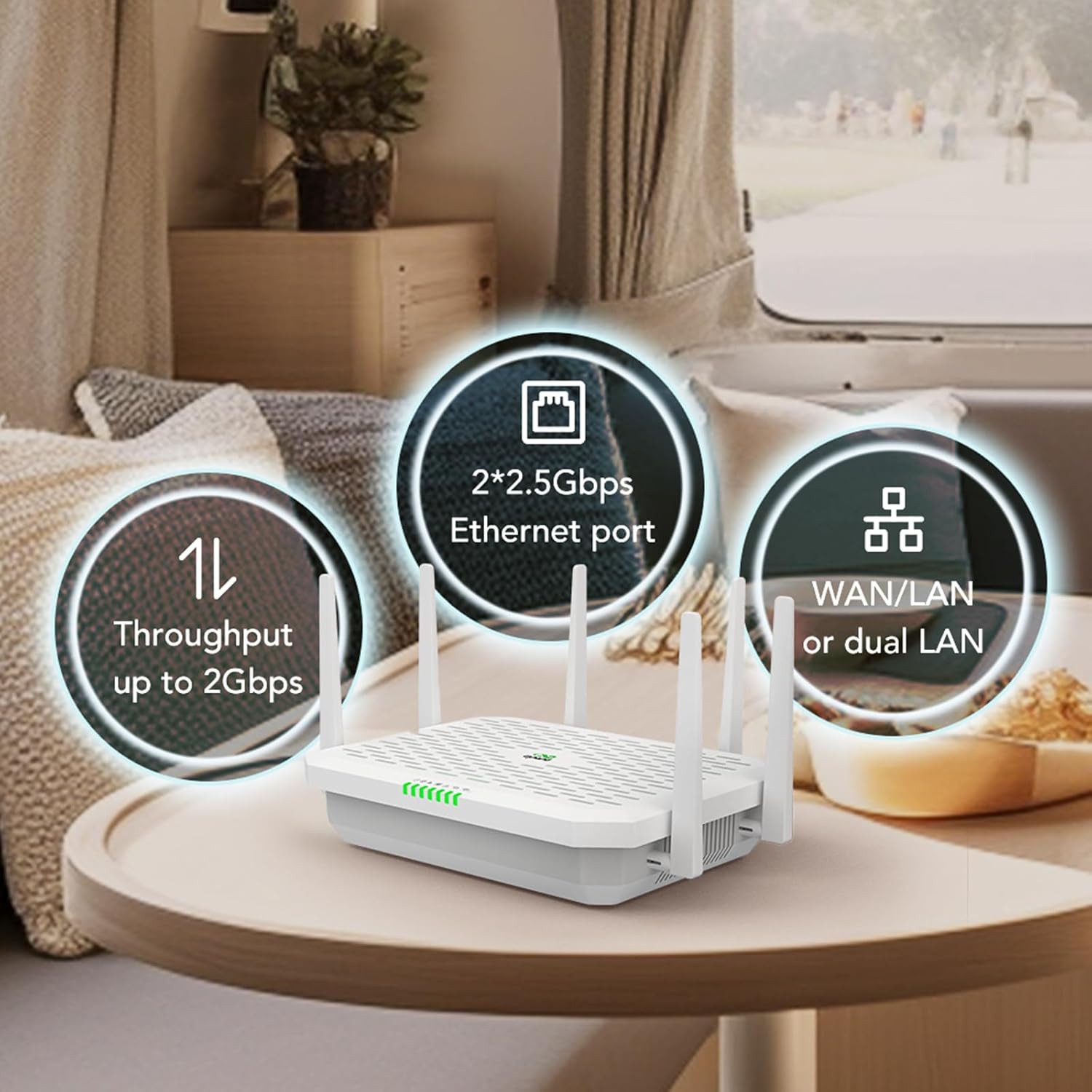
Figure 7: Detail of the dual 2.5Gbps Ethernet ports.
9. Warranty and Support
For warranty information and technical support, please refer to the official InHand Networks website or contact their customer service. Keep your purchase receipt for warranty claims.
Manufacturer: InHand Networks
Website: InHand Networks Store on Amazon


