
1. Introduction
This manual provides detailed instructions for the setup, operation, and maintenance of your CHROX HK1 RBOX K8 Android 13.0 TV Box. This device is designed to transform your television into a smart entertainment hub, offering access to various streaming services, applications, and media playback capabilities. Please read this manual thoroughly before using the product to ensure optimal performance and longevity.

Image 1.1: CHROX HK1 RBOX K8 Android TV Box, standard remote control, and wireless mini keyboard.
2. Package Contents
Verify that all items listed below are included in your package. If any items are missing or damaged, please contact customer support.
- 1x CHROX HK1 RBOX K8 Android 13.0 TV Box
- 1x Remote Control
- 1x HD Cable (HDMI Cable)
- 1x Power Adapter (DC 5V/2.5A)
- 1x User Manual (this document)
- 1x Wireless Mini Keyboard

Image 2.1: Visual representation of the CHROX HK1 RBOX K8 package contents.
3. Product Overview
3.1. Device Features
The CHROX HK1 RBOX K8 is equipped with advanced features for a superior media experience:
- Operating System: Android 13.0
- Processor: RK3528 Quad-Core 64bit Cortex-A53 CPU
- Graphics: Mali-450 Penta-Core GPU
- Memory: 4GB SDRAM
- Storage: 32GB ROM FLASH (expandable via Micro SD card)
- Wireless Connectivity: Dual-band 2.4G/5G WiFi 6 (802.11 a/b/g/n), Bluetooth 5.0
- Video Decoding: Supports 4K VP9, H.265/H.264, 8K video decoding, HDR10
- Ethernet: 10/100M Standard RJ-45
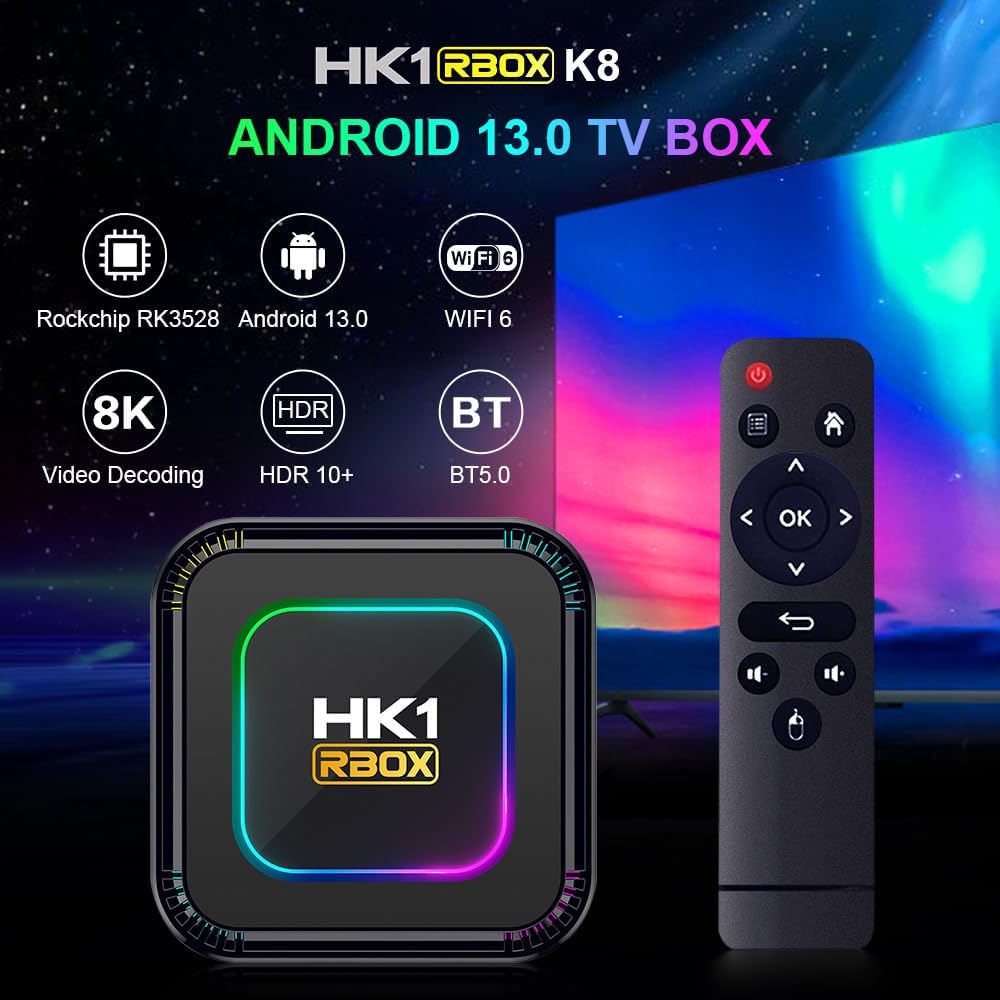
Image 3.1: Key features of the HK1 RBOX K8 Android TV Box.
3.2. Ports and Interfaces
Familiarize yourself with the various ports on your TV Box:
- USB 3.0: 1 port for high-speed data transfer.
- USB 2.0: 1 port for connecting peripherals.
- HDMI 2.0a: 1 port for video output up to 4K@60Hz.
- AV: 1 port for analog audio/video output.
- Micro SD Card Reader: 1 slot for expandable storage.
- Power DC 5V/2.5A: 1 port for power input.
- LAN (Ethernet): 1 port for wired network connection.
- SPDIF: 1 port for digital audio output.

Image 3.2: Overview of the CHROX HK1 RBOX K8 interfaces.
4. Setup Guide
4.1. Connecting the TV Box
- Connect to TV: Use the provided HDMI cable to connect the HDMI port on the TV Box to an HDMI input port on your television.
- Connect Power: Plug the power adapter into the DC 5V port on the TV Box, then plug the adapter into a wall outlet.
- Power On: The TV Box should automatically power on, or you may need to press the power button on the remote control.
- Select Input: On your television, select the correct HDMI input source using your TV's remote control.
4.2. Initial Setup and Network Connection
- Language Selection: Follow the on-screen prompts to select your preferred language.
- Network Connection:
- Wi-Fi: Go to Settings > Network & Internet > Wi-Fi. Select your Wi-Fi network from the list, enter the password, and connect. The device supports dual-band 2.4G/5G WiFi 6 for faster and more reliable connections.
- Ethernet (Wired): Connect an Ethernet cable from your router to the LAN port on the TV Box. The device will automatically detect and connect to the wired network.
- Time Zone: Set the correct time zone for your location.
- Google Account: Sign in with your Google account to access the Google Play Store and other Google services.

Image 4.1: The TV Box supports WiFi 6 and Bluetooth 5.0 for enhanced connectivity.
5. Operating Instructions
5.1. Using the Remote Control and Mini Keyboard
The TV Box comes with a standard IR remote control and a wireless mini keyboard for navigation.
- Standard Remote: Use the directional pad (up, down, left, right) and the "OK" button to navigate menus. The "Back" button returns to the previous screen, and the "Home" button returns to the main interface.
- Wireless Mini Keyboard: Connect the USB dongle of the mini keyboard to one of the USB ports on the TV Box. This keyboard provides a full QWERTY layout and a touchpad for easier text input and navigation, especially useful for web browsing and app searches.
5.2. Media Playback
The CHROX HK1 RBOX K8 supports a wide range of media formats and resolutions.
- Video Formats: Avi, Ts, Vob, Mkv, Mov, ISO, wmv, asf, flv, dat, mpg, mpeg.
- Audio Formats: MP3, WMA, AAC, WAV, OGG, DDP, HD, FLAC, APE.
- Photo Formats: HD JPEG, BMP, GIF, PNG, TIFF.
- High Resolution Support: Enjoy content in 4K, 8K, and with HDR10 for enhanced visual quality. The device utilizes H.265 decoding for efficient playback of high-definition content.
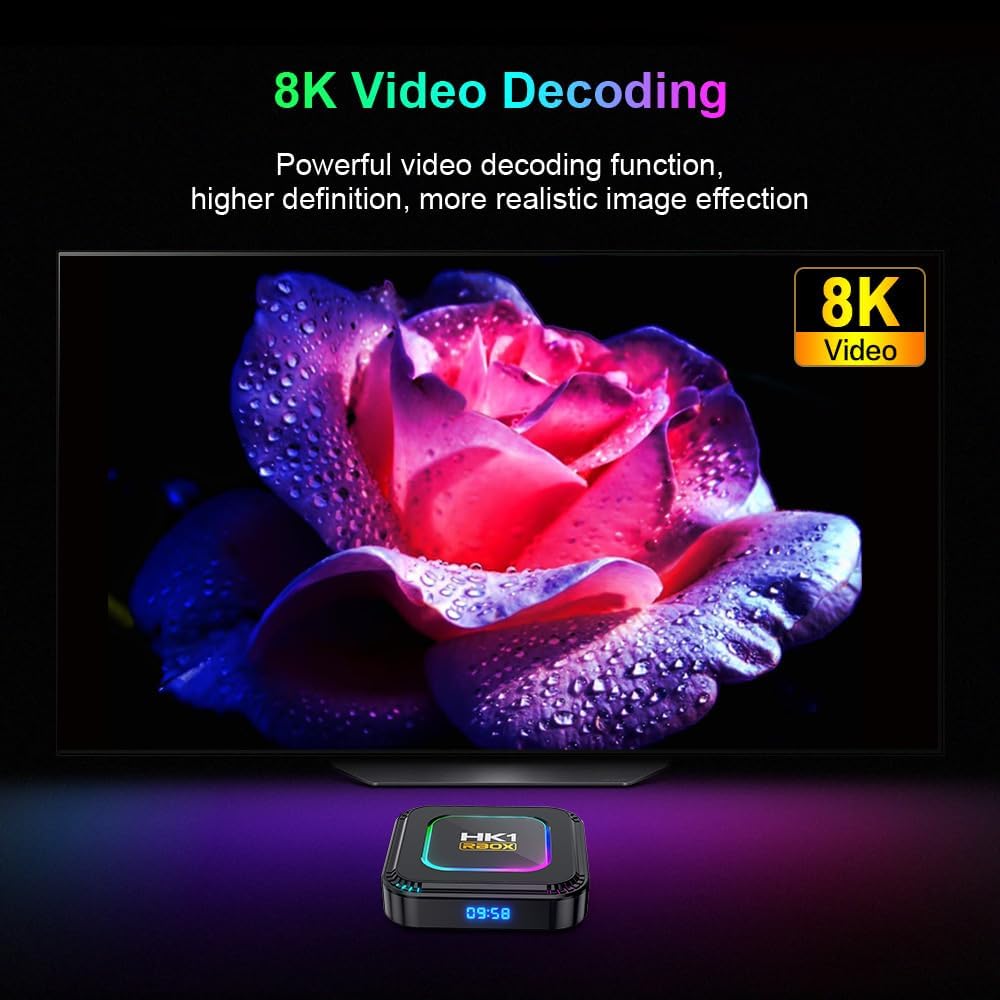
Image 5.1: The TV Box supports 8K video decoding for superior image quality.

Image 5.2: HDR10 support provides a wider range of colors and deeper contrast.
5.3. Installing Applications
Access the Google Play Store to download and install a variety of applications, including streaming services, games, and utilities.
- From the home screen, navigate to the Google Play Store icon.
- Browse or search for your desired application.
- Select the app and click Install.
- Once installed, the app will appear on your home screen or in the app drawer.
6. Specifications
Detailed technical specifications for the CHROX HK1 RBOX K8 Android 13.0 TV Box:
| Feature | Specification |
|---|---|
| Operating System | Android 13.0 |
| CPU | RK3528 Quad-Core 64bit Cortex-A53 |
| GPU | Mali-450 Penta-Core |
| SDRAM | 4GB |
| ROM FLASH | 32GB |
| Wi-Fi | 2.4G/5G Dual-band WiFi 6 (802.11 a/b/g/n) |
| Bluetooth | 4.0 (Note: Product description states 5.0, but specifications list 4.0. Please refer to product packaging for definitive version.) |
| LAN Ethernet | 10/100M Standard RJ-45 |
| USB Ports | 1x USB 3.0, 1x USB 2.0 |
| HDMI Output | HDMI 2.0a for 4K@60Hz |
| Video Decoder | 4K VP9, H.265/H.264, 1080P (VC-1, MPEG-1/2/4, VP6/8) |
| Power Supply | DC 5V/2.5A |
| Supported Languages | English, French, German, Spanish, Italian, etc. |

Image 6.1: Internal components and memory configurations of the HK1 RBOX K8.
7. Maintenance
To ensure the longevity and optimal performance of your CHROX HK1 RBOX K8 TV Box, follow these maintenance guidelines:
- Cleaning: Use a soft, dry cloth to clean the exterior of the device. Avoid using liquid cleaners or abrasive materials.
- Ventilation: Ensure the TV Box is placed in a well-ventilated area to prevent overheating. Do not block ventilation openings.
- Software Updates: Periodically check for system updates in the Settings menu to ensure you have the latest features and security patches.
- Power Cycle: If the device becomes unresponsive, disconnect the power adapter, wait 10 seconds, and then reconnect it to perform a power cycle.
- Storage Management: Regularly clear cache and uninstall unused applications to free up storage space and improve performance.
8. Troubleshooting
If you encounter issues with your TV Box, refer to the following common problems and solutions:
| Problem | Solution |
|---|---|
| No Power |
|
| No Picture on TV |
|
| No Wi-Fi Connection |
|
| Remote Control Not Working |
|
| Slow Performance / Freezing |
|
9. Warranty and Support
For warranty information and customer support, please refer to the warranty card included with your product or contact CHROX customer service directly.
Online Support: Visit the official CHROX website for FAQs, software updates, and additional support resources.