
Introduction
Thank you for choosing the Verilux Wireless Mouse M103. This manual provides detailed instructions for setting up, operating, and maintaining your new mouse. Please read this manual carefully before use to ensure optimal performance and longevity of your device.
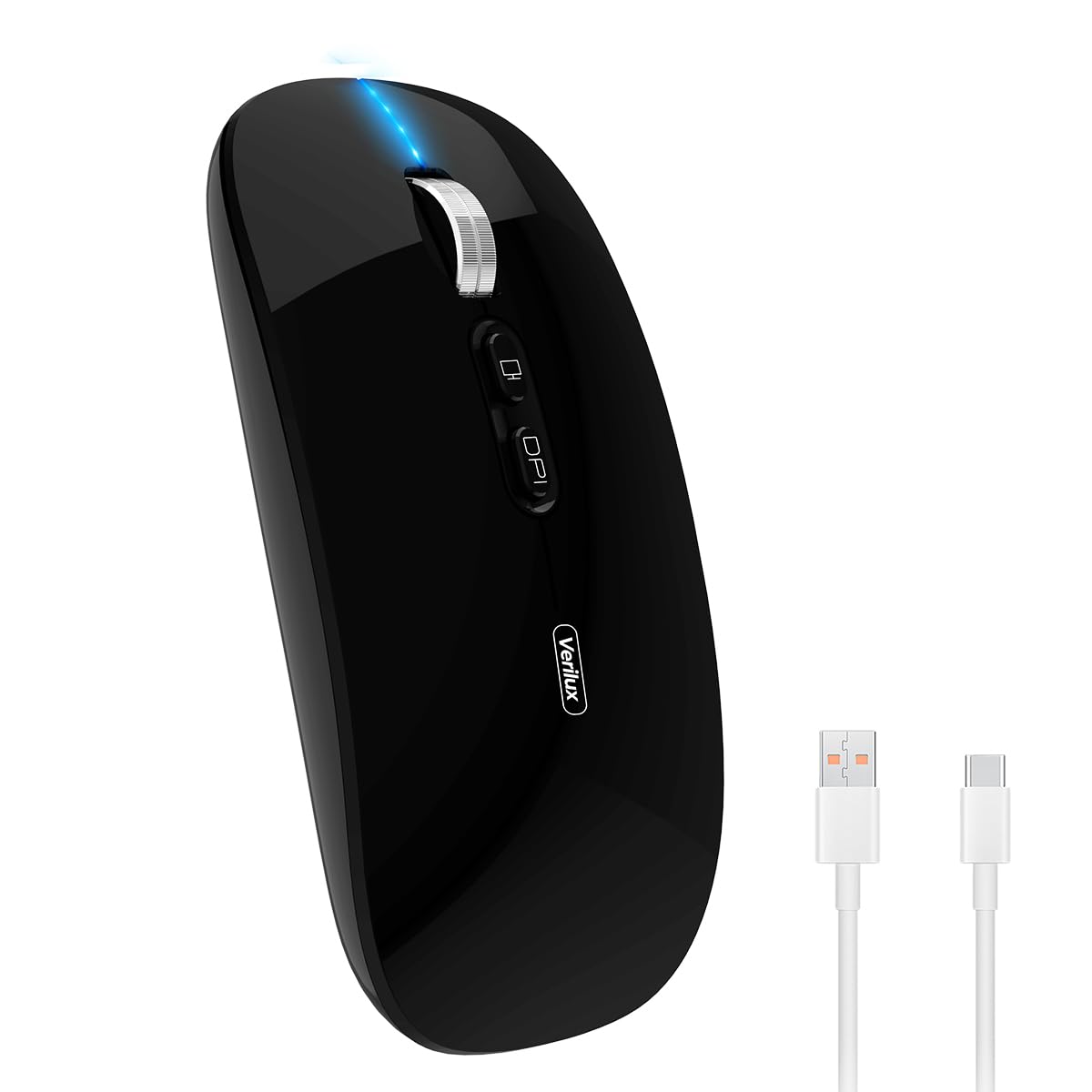
Image: Verilux Wireless Mouse M103 in black.
Product Overview
The Verilux M103 is a versatile wireless mouse offering dual-mode connectivity (2.4G USB and Bluetooth 5.1), a rechargeable battery, and an ergonomic, silent design. It is compatible with a wide range of devices and operating systems.

Image: The Verilux M103 mouse demonstrating its dual Bluetooth connectivity with a laptop and tablet.
Key Features:
- Dual Mode Connectivity: Seamlessly switch between 2.4G USB and Bluetooth 5.1.
- Rechargeable Battery: Built-in 500mAh battery with 4-level power indicator.
- Ergonomic & Silent Design: Comfortable grip with silent clicks for a quiet working environment.
- Universal Compatibility: Supports Android, Windows, MacOS, iOS 12 and above, PC, laptops, and tablets.
- Adjustable DPI: Customize mouse sensitivity for precise control.
Setup
1. 2.4G Mode Setup:
- Locate the USB receiver stored in the mouse's bottom compartment.
- Plug the USB receiver into an available USB port on your device (laptop, PC).
- Turn on the mouse using the On/Off switch located on the bottom.
- The mouse should automatically connect to your device.
Video: Demonstrates unboxing, identifying the USB receiver, and connecting the mouse via 2.4G USB to a laptop.
2. Bluetooth Mode Setup:
The mouse supports two Bluetooth channels: Bluetooth 3.0 and Bluetooth 5.1.
- Turn on the mouse using the On/Off switch on the bottom.
- Switch the mode selector on the bottom of the mouse to either BT3.0 (center blue light) or BT5.1 (right blue light).
- Activate Bluetooth on your device (laptop, PC, iPad, phone).
- Search for available Bluetooth devices and select 'BT5.1 Mouse' to connect.
- If the indicator light blinks and the connection is unsuccessful, restart both your device and the mouse, then try again.
Operating Instructions
Mouse Buttons:
- Left Click: Standard selection.
- Right Click: Context menu.
- Scroll Wheel (Middle Button/Roller): Scroll up/down, click for middle-click functions.
- DPI Button: Adjusts mouse sensitivity (DPI).
- One-Click Desktop Button: Quickly minimizes all open windows to show the desktop.

Image: Close-up of the Verilux M103 mouse, highlighting the scroll wheel, DPI button, and one-click desktop button.
DPI Adjustment:
Press the DPI button (located behind the scroll wheel) to cycle through different sensitivity levels (e.g., 800, 1200, 1600 DPI). Choose the setting that best suits your preference and task.
Charging and Battery
The Verilux M103 mouse features a built-in 500mAh rechargeable battery. It is equipped with 4-level power indicator lights to show the remaining battery life.
Charging Instructions:
- Connect the mouse to a power source using the provided USB-C charging cable. The charging port is located at the front of the mouse.
- A flashing light on the mouse indicates normal charging.
- Charge the mouse using a 5V 1A, 5V 2A, or an adapter with no more than 10W of power. It can also be charged by connecting it to a computer's USB port.
- The mouse can be used while charging.
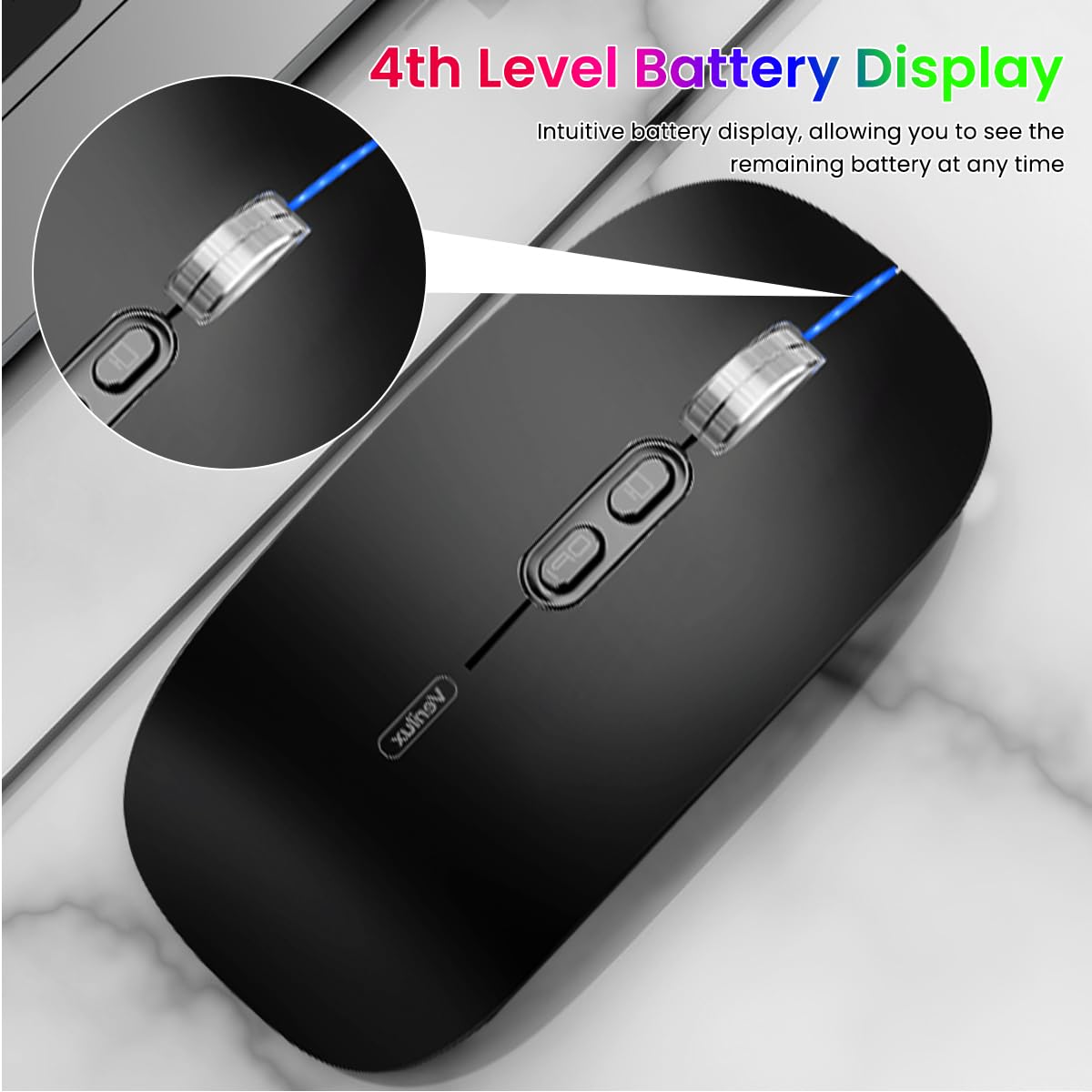
Image: The Verilux M103 mouse displaying its 4-level battery indicator lights.

Image: The Verilux M103 mouse connected to a laptop for charging via its USB-C port.
Compatibility
The Verilux M103 Wireless Mouse offers broad compatibility with various devices and operating systems:
- Operating Systems: Android, Windows (7, XP, 8, 10), MacOS, iOS 12 and above, Linux.
- Devices: Laptops, Personal Computers, Tablets, iPads, MacBooks.

Image: The Verilux M103 mouse shown with a laptop, desktop monitor, iPad, and smartphone, illustrating its wide compatibility.
Maintenance
To ensure the longevity and optimal performance of your Verilux Wireless Mouse M103, follow these maintenance guidelines:
- Cleaning: Use a soft, dry cloth to clean the mouse. For stubborn dirt, slightly dampen the cloth with water or a mild cleaning solution. Avoid harsh chemicals or abrasive materials.
- Storage: When not in use, especially during travel, store the USB receiver in its designated compartment at the bottom of the mouse to prevent loss.
- Battery Care: Avoid fully discharging the battery frequently. Charge the mouse when the power indicator shows low battery. Do not expose the mouse to extreme temperatures.
- Environmental Conditions: Keep the mouse away from excessive dust, moisture, and direct sunlight.
Troubleshooting
If you encounter issues with your Verilux Wireless Mouse M103, please refer to the following common solutions:
| Problem | Solution |
|---|---|
| Mouse not connecting (2.4G Mode) |
|
| Mouse not connecting (Bluetooth Mode) |
|
| Mouse cursor lagging or erratic movement |
|
| Mouse not charging |
|
Specifications
| Feature | Detail |
|---|---|
| Brand | Verilux |
| Model Number | M103 (AZEM4-0K5FZ5C) |
| Connectivity Technology | Bluetooth (3.0 & 5.1), 2.4G Wireless |
| Movement Detection Technology | Optical |
| DPI Settings | Up to 1600 DPI (Adjustable) |
| Battery | 500mAh Rechargeable |
| Power Source | Battery Powered (USB-C Charging) |
| Buttons | 4 (Left, Right, Scroll Wheel/Middle, DPI, One-Click Desktop) |
| Hand Orientation | Ambidextrous |
| Item Weight | 119 Grams |
| Item Dimensions (L x W) | 12L x 7W Centimeters |
| Color | Black (Standard Black variant) |
Warranty and Support
For warranty information and customer support, please refer to the documentation included with your product packaging or visit the official Verilux website. You may also contact the seller directly for assistance.
Manufacturer: Verilux, Yiwu Kaiming Industrial Co., Ltd.
Importer/Packer: Verilux
For further information, you can visit the Verilux Store on Amazon.