
Introduction
This manual provides detailed instructions for the installation, operation, and maintenance of your Avatto WiFi 16A Smart Socket and Light Switch. This device allows you to control connected lights and appliances remotely via a smartphone application or voice commands, enhancing your home automation experience.
Product Features
- Remote APP Control: Manage the socket and light switch from anywhere using the Smart Life or Tuya Smart application on your phone or tablet.
- Hands-Free Voice Control: Compatible with Amazon Alexa and Google Home for convenient voice commands.
- Scheduling and Countdown Function: Create custom schedules and countdown timers to automate your devices.
- Individual Control: The light switch and socket can be controlled independently via manual operation, the app, or voice commands.
- Family Sharing: Share control of the device with family members, allowing them to manage smart home functions.
- Restart Status Definition: Configure the device's state (On, Off, or Last Status) after a power outage.
- Backlight On/Off Option: The switch backlight can be turned off to create a more comfortable sleeping environment.
- Group Control: Combine multiple switches and sockets into groups for simultaneous control.
Setup
1. Installation
Warning: Installation should be performed by a qualified electrician to ensure safety and compliance with local electrical codes. Always turn off power at the circuit breaker before installation.
- Ensure the main power supply to the installation area is turned off.
- Remove the existing wall plate and switch/socket.
- Connect the wires to the Avatto Smart Socket and Light Switch according to the wiring diagram provided with the product packaging. Ensure all connections are secure.
- Mount the device into the wall box and secure it with screws.
- Attach the tempered glass panel.
- Restore power at the circuit breaker. The device indicator light should illuminate.
2. App Pairing
To control your device via the app, you need to pair it with the Smart Life or Tuya Smart application.
- Download the "Smart Life" or "Tuya Smart" app from your smartphone's app store (iOS or Android).
- Register or log in to your account.
- Ensure your smartphone is connected to a 2.4GHz WiFi network.
- In the app, tap the "+" icon to add a new device.
- Select the appropriate device type (e.g., "Wall Switch" or "Socket").
- Follow the on-screen instructions to put the device into pairing mode (usually by pressing and holding a button on the switch until the indicator light blinks rapidly).
- Confirm the indicator light is blinking rapidly in the app and proceed with the pairing process.
- Once successfully added, you can rename the device and assign it to a room.
Operating Instructions
1. APP Remote Control
After successful pairing, you can control the socket and light switch from anywhere using the Smart Life or Tuya Smart app.
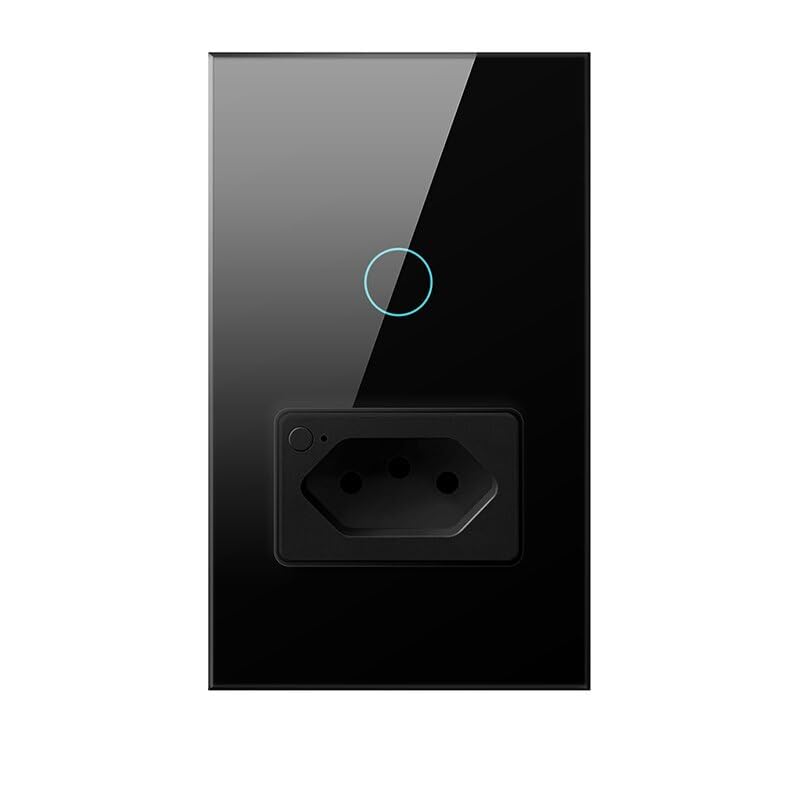
Image: The Smart Life app interface showing controls for the smart socket and light switch, demonstrating remote control capabilities.
Open the app, select your device, and use the on-screen buttons to turn the light or socket on/off. You can also access advanced features like scheduling and countdowns.
2. Voice Control
The Avatto Smart Socket and Light Switch is compatible with Amazon Alexa and Google Home. Link your Smart Life/Tuya Smart account to your voice assistant app.

Image: An illustration showing a user interacting with voice assistants (Alexa and Google Home) to control the smart switch, highlighting the voice control feature.
Once linked, you can use commands such as:
- "Alexa, turn on the living room lights."
- "Hey Google, turn off the kitchen socket."
3. Individual Control of Socket and Light Switch
The light switch and the socket on the device can be controlled independently.
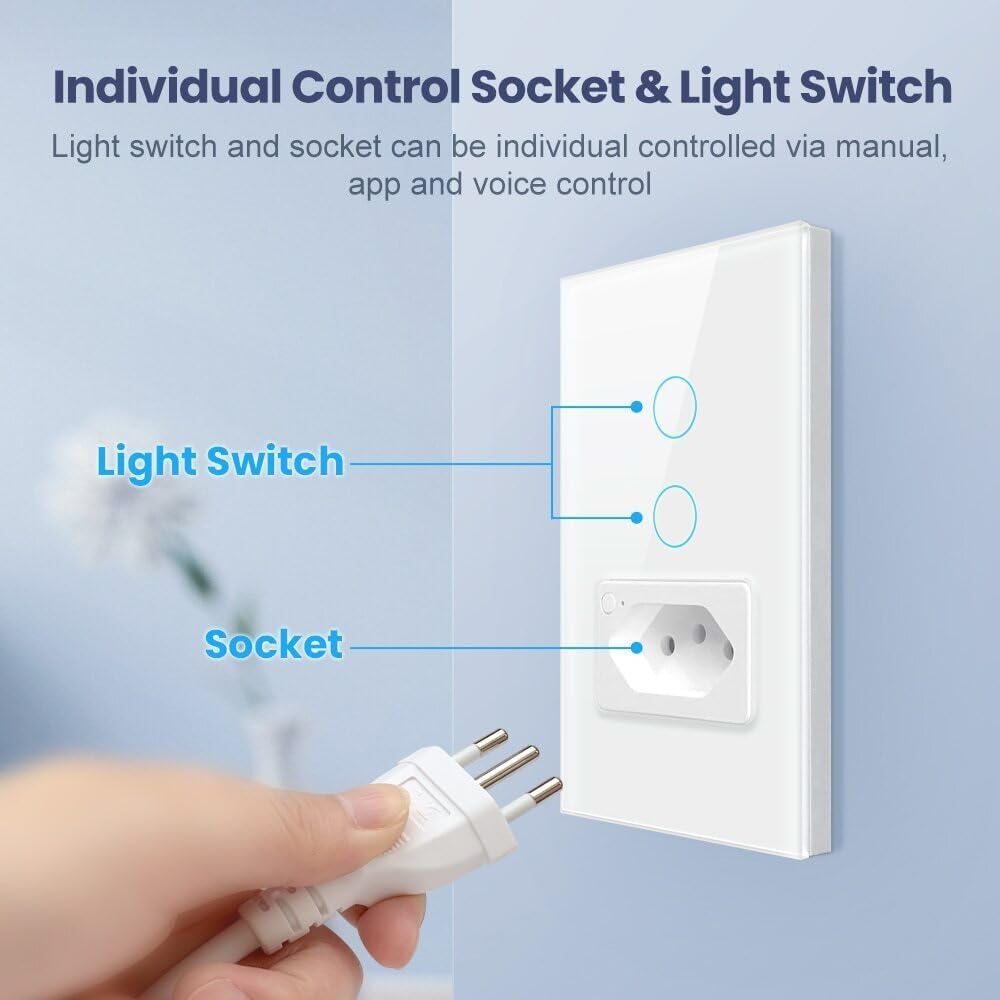
Image: A detailed view of the smart device, illustrating how the light switch buttons and the power socket can be operated separately.
You can operate them separately using the physical buttons on the device, through the mobile app, or via voice commands.
4. Family Sharing Function
Share control of your smart devices with family members.

Image: A family interacting with smart devices, demonstrating the app's family sharing feature where multiple users can manage the smart home.
In the Smart Life/Tuya Smart app, navigate to the device settings and select "Share Device" to invite family members to control the switch and socket.
5. Restart Status Definition
Configure how the device behaves after a power interruption.

Image: The app interface displaying the 'Restart Status' options, allowing users to define the device's state after a power cycle.
In the app settings for the device, you can choose to set the restart status to "On," "Off," or "Keep as last status."
6. Backlight On/Off Option
Adjust the backlight of the switch for comfort.

Image: A bedroom scene at night, illustrating the ability to turn off the switch's backlight via the app for a better sleeping environment.
The backlight of the light switch can be turned off via the app settings to create a more suitable environment for sleeping or to save energy.
Maintenance
The Avatto Smart Socket and Light Switch features a tempered glass panel for durability and easy cleaning.

Image: A demonstration of the tempered glass panel, highlighting its scratch-resistant and easy-to-clean surface.
- Cleaning: Use a soft, damp cloth to wipe the tempered glass panel. Avoid abrasive cleaners or solvents that could damage the surface.
- Inspection: Periodically check the device for any signs of damage or loose connections. If any issues are found, consult a qualified electrician.
Troubleshooting
- Device not responding: Check if the device has power. Ensure your WiFi network is active and the device is within range. Try restarting the device by turning off and on the circuit breaker.
- Unable to pair with app: Ensure your phone is connected to a 2.4GHz WiFi network. Make sure the device is in pairing mode (indicator light blinking rapidly). If issues persist, try resetting the device (refer to product packaging for specific reset instructions) and attempt pairing again.
- Voice control not working: Verify that your Smart Life/Tuya Smart account is correctly linked to your Alexa or Google Home app. Check your internet connection and ensure your voice assistant device is online.
- Intermittent connection: Ensure the device is not too far from your WiFi router. Obstructions like thick walls can affect signal strength. Consider using a WiFi extender if necessary.
Specifications
| Feature | Specification |
|---|---|
| APP Control | Smart Life / Tuya Smart |
| Voice Control | Amazon Alexa / Google Home |
| Input Voltage | 100V-240V 50/60Hz |
| Max. Load (Light) | 10A 800W/Gang |
| Max. Load (Socket) | 16A 3500W |
| WiFi Standard | WiFi 2.4GHz IEEE 802.11 b/g/n |
| Standby Power Consumption | <0.5W |
| Supported System | iOS / Android |
| Working Life | 100,000 times |
| Materials | Tempered Glass + PC |
| Switch Size | 120*72*43mm |


