
1. Introduction
Welcome to your new Pastigio 10.1 Inch Frameo Digital Photo Frame, Model R8. This manual provides detailed instructions for setting up and operating your device, ensuring you can easily share and enjoy your cherished memories. Please read this manual thoroughly before using the product.

Image 1.1: Pastigio 10.1 Inch Frameo Digital Photo Frame, Model R8.
2. Product Overview
2.1 Key Features
- Instant Sharing: Share photos and videos (up to 15 seconds) quickly via the Frameo app over Wi-Fi.
- Storage Capacity: 32GB built-in memory, expandable up to 32GB with external storage (Micro SD Card or USB-C Drive, FAT32 format only).
- High-Definition Display: 10.1-inch IPS touch screen with 1280x800 pixel resolution for vivid colors and clear details.
- User-Friendly Interface: Touch screen for convenient setup and photo viewing.
- Versatile Media Support: Supports JPG/JPEG/BMP/PNG image formats and MP4 video format.
- Smart Features: Includes 'React' feature for sending emojis, auto-rotate for portrait or landscape orientation, adjustable brightness and volume, and a sleep mode for energy saving.
- Non-WiFi Transmission: Upload photos via Micro SD Card, USB-C Drive, or directly from a computer using a USB-C cable.
- Official Frameo Partner: Utilizes the reliable Frameo app for seamless operation and continuous feature optimization.
2.2 Package Contents
The package includes the Pastigio 10.1 Inch Frameo Digital Photo Frame, a power adapter, and this user manual.

Image 2.1: Product packaging for the Pastigio Digital Photo Frame.
2.3 Device Components
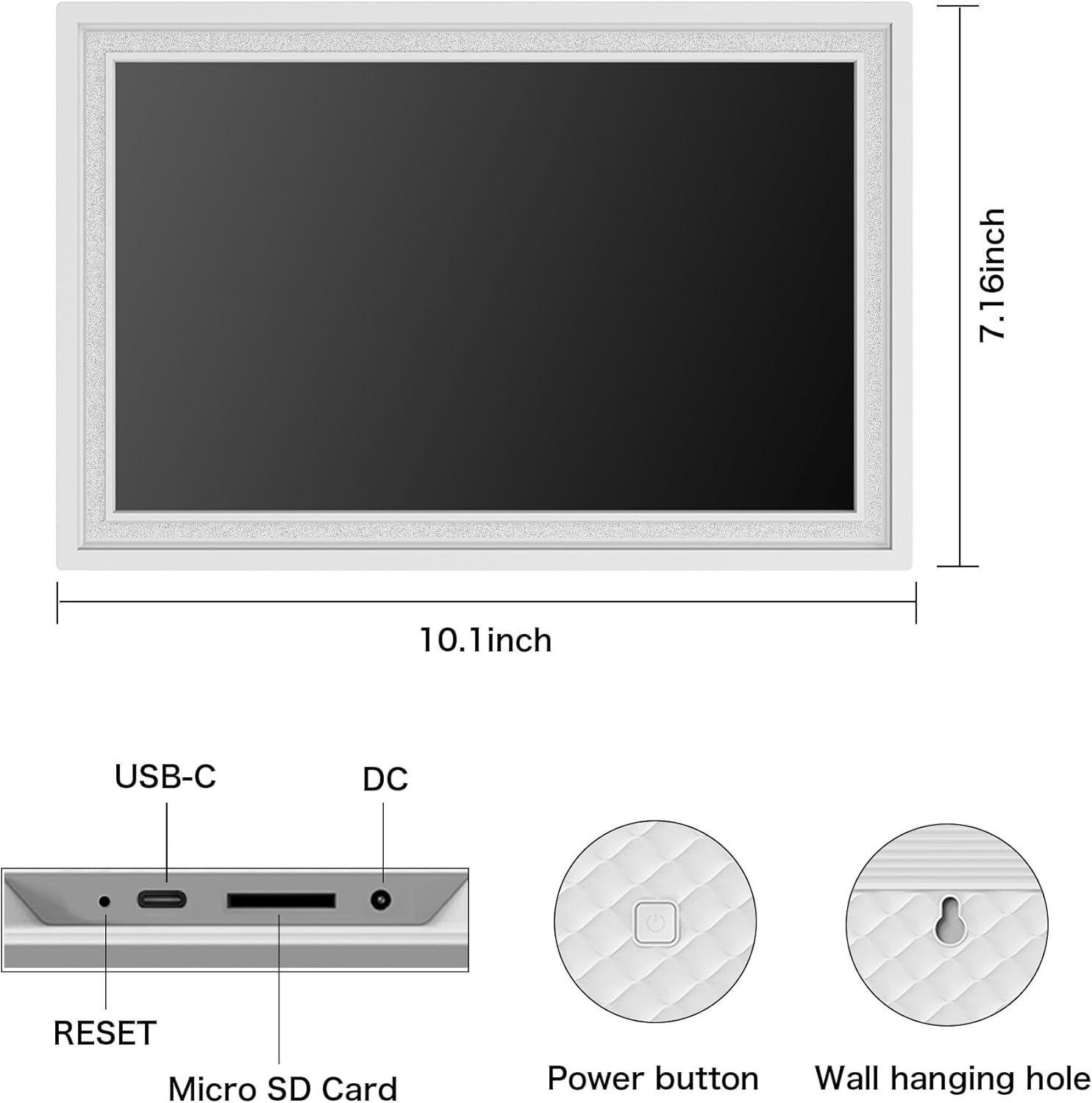
Image 2.2: Diagram showing the USB-C port, DC power input, Micro SD Card slot, Reset button, Power button, and Wall hanging hole.
- USB-C Port: For connecting to a computer for data transfer.
- DC Port: For connecting the power adapter.
- Micro SD Card Slot: For external storage and non-Wi-Fi photo/video transfer.
- RESET Button: To restart the device if it becomes unresponsive.
- Power Button: To turn the frame on/off or put it into sleep mode.
- Wall Hanging Hole: For mounting the frame on a wall.
3. Setup
3.1 Initial Power On
- Connect the power adapter to the DC port on the frame and plug it into a power outlet.
- The frame will automatically power on. If not, press and hold the Power button.
- Follow the on-screen prompts to select your preferred language and time zone.
3.2 Wi-Fi Connection
- On the touch screen, navigate to the Wi-Fi settings.
- Select your Wi-Fi network from the list.
- Enter your Wi-Fi password and tap 'Connect'.
- Once connected, the frame will display a confirmation message.
3.3 Frameo App Installation and Pairing
- Download the 'Frameo' app from your smartphone's app store (iOS App Store or Google Play Store).
- Open the Frameo app and create an account or log in.
- On your digital photo frame, tap the screen to access the menu, then select 'Add Friend' or 'Connect'. The frame will display a unique code.
- In the Frameo app on your smartphone, enter the unique code displayed on your frame to pair the devices.
- Once paired, you can start sending photos and videos to your frame.

Image 3.1: The Frameo app interface for managing and sending photos.
4. Operating Instructions
4.1 Sharing Photos and Videos via Frameo App (Wi-Fi)
- Ensure your frame is connected to Wi-Fi and paired with the Frameo app on your smartphone.
- Open the Frameo app on your smartphone.
- Select the photos or videos (up to 15 seconds) you wish to send.
- Choose your Pastigio frame as the recipient.
- Add a caption if desired and tap 'Send'. The media will appear on your frame shortly.

Image 4.1: Visual representation of sharing photos from a smartphone to the digital frame.
4.2 Non-Wi-Fi Transmission
If Wi-Fi is unavailable or preferred, you can transfer media using physical storage.
- Micro SD Card / USB-C Drive: Insert a Micro SD card or USB-C drive (formatted to FAT32) containing your photos and videos into the respective slot/port on the frame. The frame will detect the storage, allowing you to import media.
- Computer Connection: Connect the frame to a computer using a USB-C cable. The frame will appear as a removable storage device, allowing you to drag and drop files directly.

Image 4.2: Options for non-Wi-Fi media transmission: Micro SD Card, USB-C Drive, and computer connection.
4.3 Frame Features and Settings
- React Feature: When viewing a photo sent by a loved one, tap the screen to send emojis back in real-time, indicating your reaction.
- Auto-Rotate: The frame automatically adjusts the orientation of photos to portrait or landscape based on the frame's position.
- Brightness and Volume: Adjust screen brightness and speaker volume through the frame's settings menu.
- Sleep Mode: Set a schedule for the frame to automatically turn off and on, conserving energy.
- Photo Adjustment: Select the main part of a photo and adjust it to fill the frame for optimal display.

Image 4.3: The 'React' feature allowing users to send emojis in response to photos.
5. Maintenance
- Cleaning the Screen: Use a soft, dry, lint-free cloth to gently wipe the screen. For stubborn smudges, slightly dampen the cloth with water or a screen-cleaning solution. Avoid harsh chemicals.
- Software Updates: The Frameo app and your digital frame may receive periodic software updates to improve performance and add new features. Ensure your frame is connected to Wi-Fi to receive these updates automatically or manually check for them in the settings.
- Storage Management: Periodically review the photos and videos stored on your frame. Delete unwanted media to free up space, especially if you are nearing the 32GB internal storage limit.
6. Troubleshooting
| Issue | Possible Cause | Solution |
|---|---|---|
| Frame does not turn on | No power, faulty adapter | Ensure power adapter is securely connected and plugged into a working outlet. Try a different outlet. |
| Cannot connect to Wi-Fi | Incorrect password, weak signal, router issue | Double-check Wi-Fi password. Move frame closer to router. Restart router. |
| Photos/Videos not appearing | Not sent correctly, incorrect format, frame not paired | Verify media was sent via Frameo app. Check file formats (JPG/JPEG/BMP/PNG for images, MP4 for videos). Ensure frame is correctly paired with the app. |
| Touch screen unresponsive | Temporary software glitch | Press the RESET button on the back of the frame using a small pin or paperclip to restart the device. |
| External storage (SD/USB) not recognized | Incorrect format, faulty card/drive | Ensure storage is FAT32 formatted. Try a different Micro SD card or USB-C drive. |
7. Specifications
| Feature | Detail |
|---|---|
| Product Dimensions | 7.16 x 10.4 x 0.99 inches |
| Item Weight | 1.83 pounds |
| Item Model Number | R8 |
| Brand | Pastigio |
| Resolution | 1280x800p |
| Compatible Devices | Personal Computer, Smartphone, Tablet |
| Screen Size | 10.1 Inches |
| Internal Memory | 32GB |
| External Storage Support | Up to 32GB (Micro SD Card / USB-C Drive, FAT32 format) |
| Manufacturer | Pastigio |
8. Warranty and Support
Pastigio is committed to providing high-quality products and reliable customer support. We are direct manufacturers, ensuring quality control and value.
- Quality Assurance: We are responsible for any manufacturing defects.
- Technical Support: Our support team is available to assist you promptly should you encounter any issues. Please refer to the contact information provided with your product packaging or visit the official Pastigio website for assistance.


