
1. Introduction
The Amazon Fire TV Stick HD (New Generation) transforms any HD television into a smart TV, providing access to a vast array of streaming content, live TV, and music. Featuring the Alexa Voice Remote, it offers intuitive control and smart home integration, all in Full HD resolution.

Image: The Fire TV Stick HD device and its accompanying Alexa Voice Remote, highlighting the compact design and key control buttons.
2. Setup
2.1. What's Included
- Fire TV Stick HD device
- Alexa Voice Remote (2024 model)
- Power cable and power adapter
- HDMI extender
- 2 AAA batteries
- Quick Start Guide

Image: The Fire TV Stick HD retail packaging, displaying the device, remote, and included accessories.
2.2. Connecting Your Fire TV Stick HD
- Plug in the Fire TV Stick: Connect the Fire TV Stick HD directly into an available HDMI port on your television. If space is limited or the stick obstructs other ports, use the included HDMI extender.
- Connect to Power: Plug the small end of the power cable into the Fire TV Stick and the other end into the power adapter. Then, plug the power adapter into a wall outlet. Ensure the device receives sufficient power; using a TV's USB port for power may not be adequate.
- Insert Batteries into Remote: Open the battery compartment on the back of the Alexa Voice Remote and insert the two AAA batteries, observing the correct polarity.
2.3. Initial Setup and Pairing
- Select HDMI Input: Turn on your TV and select the HDMI input where your Fire TV Stick HD is connected.
- Pair the Remote: The remote should automatically pair with your Fire TV Stick. If not, press and hold the Home button (
 ) on the remote for 10 seconds until the LED indicator on the remote flashes blue.
 - Connect to Wi-Fi: Follow the on-screen instructions to connect your Fire TV Stick to your home Wi-Fi network. You will need your Wi-Fi network name (SSID) and password.
- Register Your Device: Sign in with your Amazon account credentials. If you don't have an Amazon account, you will be prompted to create one.
- Software Updates: The device may automatically download and install the latest software updates. This process can take several minutes. Do not unplug the device during this time.
- Remote Control Setup: The Fire TV Stick will guide you through setting up the Alexa Voice Remote to control your TV's power and volume. Follow the prompts to ensure full functionality.
3. Operating Your Fire TV Stick HD
3.1. Basic Navigation
Use the directional pad on the Alexa Voice Remote to navigate through menus and select items. The Select button (center of the directional pad) confirms choices. The Back button () returns to the previous screen, and the Home button () takes you to the home screen.
3.2. Using the Alexa Voice Remote
The Alexa Voice Remote allows for voice commands to search for content, launch apps, and control playback. Press and hold the Alexa Voice button () and speak your command. Release the button when you are finished speaking.
- "Alexa, open Prime Video."
- "Alexa, find action movies."
- "Alexa, play The Boys."
- "Alexa, fast forward 30 seconds."
Image: Close-up of the Alexa Voice Remote, showing the voice button and dedicated app buttons for popular streaming services like Prime Video and Netflix.
3.3. Streaming Content
Access thousands of movies, TV episodes, and millions of songs from various streaming services. Subscription fees may apply for certain services.
- Movies & TV Shows: Popular apps include Netflix, Prime Video, Disney+, Apple TV+, HBO Max, and more.
- Live TV: Watch live television, news, and sports through supported apps (e.g., Molotov, myCANAL, if available in your region).
- Music: Stream music from services like Amazon Music, Spotify, and others.
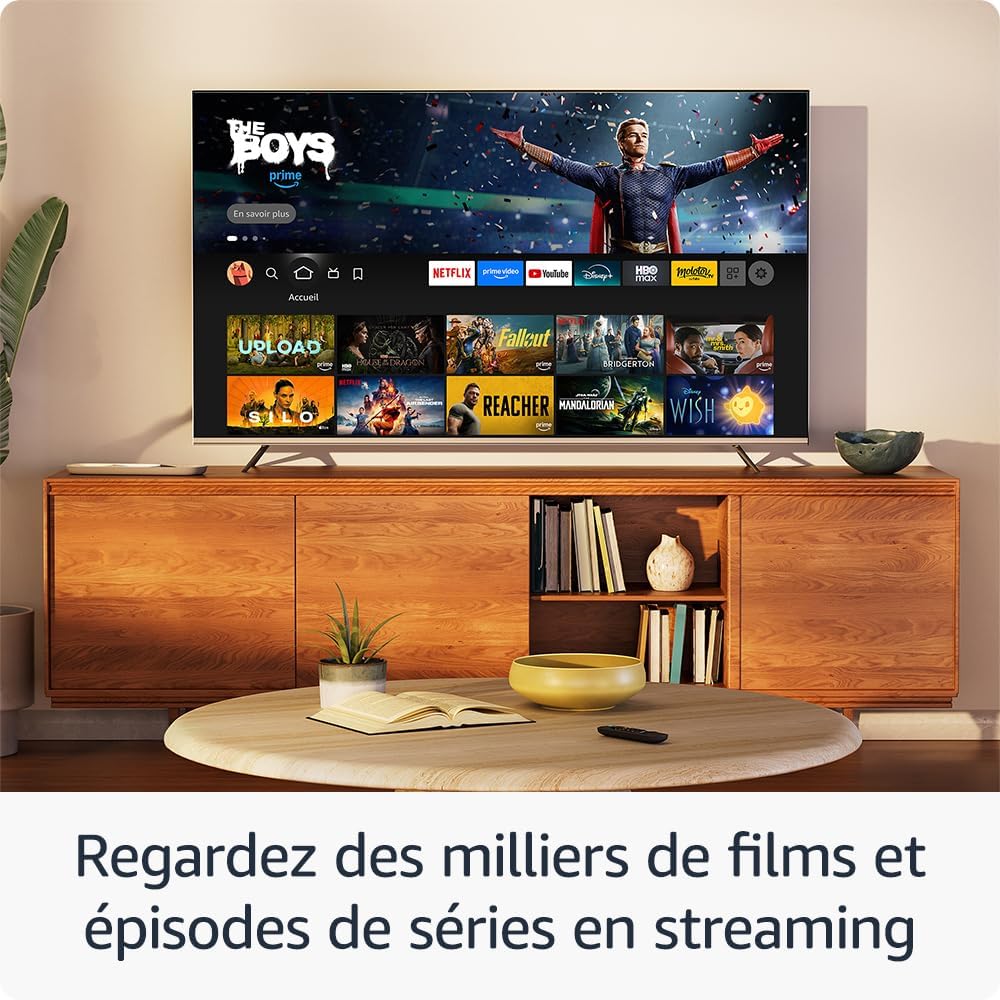
Image: A television screen showcasing the Fire TV interface with various streaming applications and content recommendations.
3.4. Smart Home Control
Use your Fire TV Stick HD to control compatible smart home devices. Ask Alexa to show live camera feeds, dim lights, or adjust thermostats.
- "Alexa, show me the front door camera."
- "Alexa, turn off the living room lights."
- "Alexa, set the thermostat to 22 degrees."
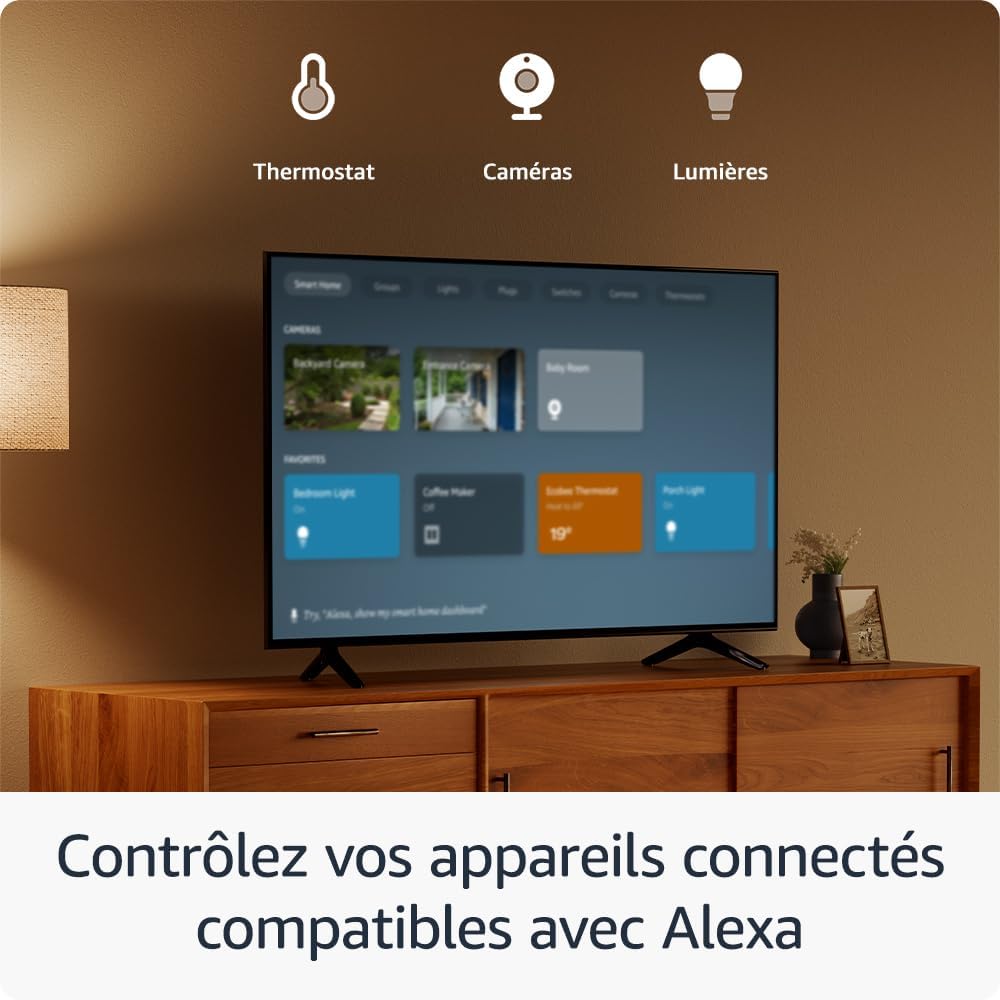
Image: A television screen displaying a smart home dashboard, showing controls for devices like thermostats, cameras, and lights.
3.5. Bluetooth Connectivity
Pair Bluetooth-enabled devices such as speakers, headphones, or game controllers with your Fire TV Stick HD for an enhanced experience.
- Go to Settings > Controllers & Bluetooth Devices.
- Select Other Bluetooth Devices.
- Choose Add Bluetooth Devices and follow the on-screen instructions to pair your device.
4. Maintenance
- Cleaning: Use a soft, dry, lint-free cloth to clean the Fire TV Stick and remote. Do not use abrasive cleaners or solvents.
- Software Updates: Ensure your Fire TV Stick is connected to the internet to receive automatic software updates. These updates provide new features, performance improvements, and security enhancements.
- Storage Management: Periodically check the device's internal storage. If storage is low, consider uninstalling unused apps to improve performance. Go to Settings > Applications > Manage Installed Applications.
- Environmental Conditions: Operate the device within recommended temperature ranges and avoid exposing it to extreme heat, cold, or humidity. Ensure adequate ventilation around the device.
5. Troubleshooting
| Issue | Possible Cause | Solution |
|---|---|---|
| No power/No signal on TV | Incorrect HDMI input, power cable disconnected, insufficient power from TV USB port. |
|
| Remote not responding | Low batteries, remote not paired, interference. |
|
| Wi-Fi connection issues | Incorrect password, router issues, weak signal. |
|
| App crashes or freezes | App error, low memory. |
|
6. Specifications

Image: Visual representation comparing standard definition (SD), high definition (HD), and 4K resolution, illustrating the clarity provided by HD on the Fire TV Stick.
| Feature | Detail |
|---|---|
| Dimensions (Device) | 86 x 30 x 13 mm |
| Weight (Device) | 32 g |
| Processor | Quad-core 1.7 GHz |
| GPU | IMG GE8300 |
| Internal Storage | 8 GB |
| Wi-Fi Connectivity | Dual-band, dual-antenna Wi-Fi (MIMO) for faster streaming and fewer dropped connections than standard Wi-Fi. Supports 802.11 a/b/g/n/ac Wi-Fi networks. |
| Bluetooth | Bluetooth 5.0 and Bluetooth Low Energy. Pair with compatible speakers, headphones, video game controllers, and more. |
| Voice Control Support | Yes, with the included Alexa Voice Remote or the free Fire TV app (downloadable on Fire OS, Android, and iOS). |
| IR Device Control | The Alexa Voice Remote can control your Fire TV Stick and certain functions (like power and volume) on a wide range of compatible IR-enabled devices, including TVs, soundbars, and AV receivers. |
| Cloud Storage | Free cloud storage for digital content purchased from Amazon. |
| Ports | HDMI output, micro-USB for power only. |
| Supported Audio Formats | Dolby encoded audio passthrough (AC-3 and E-AC-3) via HDMI. |
| Supported Video Formats | HDR10, HDR10+, HLG, H.265, H.264, Vp9. |
| Supported Output Resolution | 1080p and 720p up to 60 fps. |
| System Requirements | High-definition television with an available HDMI input, Wi-Fi internet connection, and a power outlet. |
| TV Compatibility | Compatible with HD TVs equipped with an HDMI port offering 1080p or 720p resolution at 60/50 Hz. |
7. Warranty and Support
7.1. Legal Warranty
This device benefits from the legal warranty of conformity on consumer goods as provided by applicable consumer protection laws, which covers defects of conformity appearing within 24 months from the date of product delivery (even if not immediately detectable at that date). Under the legal warranty, you are entitled to free repair or replacement of a device that does not conform to the sales contract.
7.2. Commercial Warranty
This device is also covered by a one-year commercial warranty provided by the manufacturer. The terms and conditions of this warranty are described in the dedicated booklet included in the product packaging and are also available by consulting the commercial warranty section on the Amazon website. This commercial warranty is also applicable when purchasing Amazon devices from authorized resellers.
7.3. Software Security Updates
This device receives guaranteed software security updates for at least four years following the device's removal from sale as a new item on Amazon websites. For more information on software security updates, please refer to the official Amazon support pages. If you already own a Fire TV device, visit Manage Your Content and Devices for specific information about your device.
7.4. Content Availability
Please note that some applications and services may be changed or removed at any time, may not be available in all countries or languages, and may require separate subscriptions.


