
Ascend Aeronautics ASC-2680
Contents
ASC-2680 Premium HD Video Drone User Manual
Model: ASC-2680 | Brand: Ascend Aeronautics
1. Introduction
The Ascend Aeronautics ASC-2680 Premium HD Video Drone is designed for an engaging flight experience, featuring an ultra-wide lens for superior aerial video and photography. Equipped with Optical Flow Technology, it offers stable flight and precise position holding, making it suitable for both beginner and intermediate pilots. Its compact folding design ensures easy portability.
2. Safety Information
- Age Recommendation: This product is recommended for ages 14 and up.
- Outdoor Use: Designed for outdoor use only.
- Clear Flight Path: Always ensure a clear flight path, free from obstacles, people, and animals.
- Weather Conditions: Avoid flying in strong winds, rain, or other adverse weather conditions.
- Battery Safety: Use only the provided charging cable and ensure proper battery installation. Do not overcharge.
- Propeller Safety: Keep fingers, hair, and loose clothing away from rotating propellers.
- Range Warning: Be aware of the drone's operational range to prevent loss of control.
3. What's in the Box
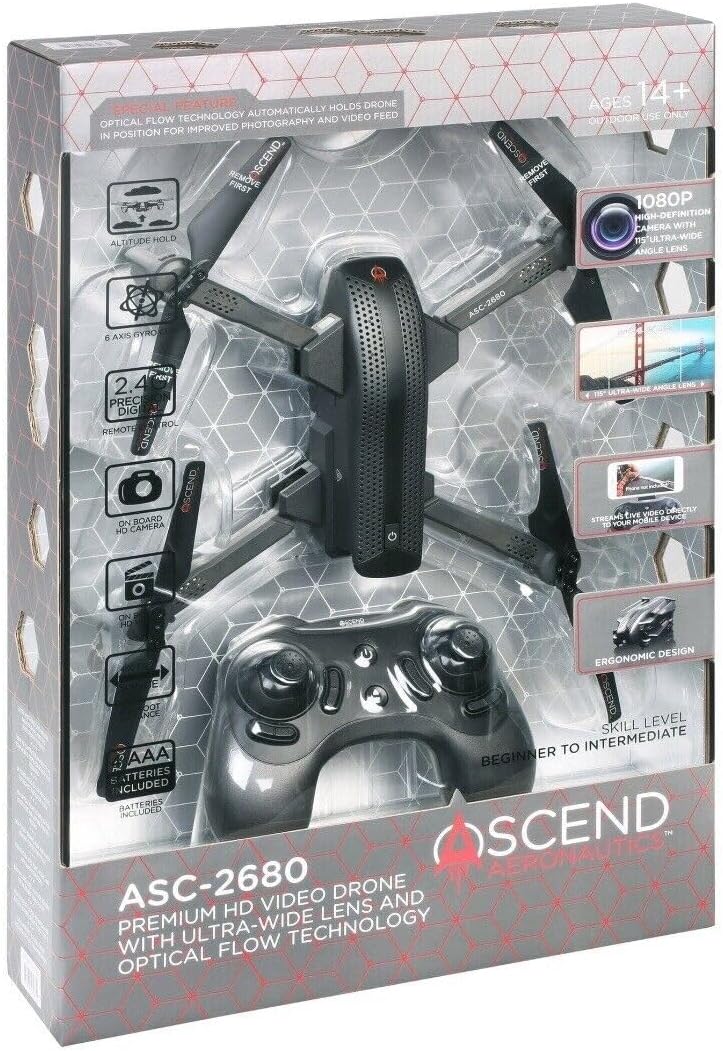
The retail packaging for the ASC-2680 Premium HD Video Drone, showcasing the drone and its remote control.
Your Ascend Aeronautics ASC-2680 Premium HD Video Drone package includes the following components:
- Drone (ASC-2680)
- Remote Control
- USB Charge Cord
- Rechargeable Lithium Battery (pre-installed in drone)
- Instruction Manual (this document)
4. Setup
4.1. Charging the Drone Battery
The drone is powered by a rechargeable Lithium battery. Ensure the battery is fully charged before first use for optimal flight time.
- Locate the rechargeable Lithium battery within the drone.
- Connect the provided USB charge cord to the battery's charging port.
- Plug the USB end of the cord into a compatible USB power source (e.g., computer USB port, USB wall adapter).
- The charging indicator light on the battery will illuminate during charging and turn off once fully charged.
4.2. Installing Remote Control Batteries
The remote control requires 4 AAA batteries (not included). Ensure correct polarity when installing.
- Locate the battery compartment on the back of the remote control.
- Use a small screwdriver (often included) to open the battery compartment cover.
- Insert 4 AAA batteries, observing the correct positive (+) and negative (-) terminals.
- Replace the battery compartment cover and secure it with the screw.
4.3. Unfolding the Drone
The ASC-2680 features a compact folding design for easy transport. To prepare for flight, unfold the drone's arms.

A hand holding the drone in its compact, folded state.

The drone fully unfolded, ready for flight, showing its four arms extended.
- Gently pull each of the four propeller arms outwards until they click into place.
- Ensure all arms are fully extended and locked before attempting to fly.
4.4. Connecting to the Mobile App
For live video streaming and advanced features, download the official Ascend Aeronautics app to your mobile device.
- Power on the drone and the remote control.
- On your mobile device, connect to the drone's Wi-Fi network (usually named "ASCEND" followed by numbers).
- Open the Ascend Aeronautics app. The app should automatically connect to the drone and display the live camera feed.
- Mount your mobile device securely onto the remote control's phone holder for convenient viewing during flight.
5. Operating Instructions
5.1. Basic Flight Controls
Familiarize yourself with the remote control's layout and functions:
- Left Joystick: Controls altitude (up/down) and rotation (left/right yaw).
- Right Joystick: Controls forward/backward and left/right movement.
- Auto Start/Land Button: Initiates automatic takeoff or landing with a single press.
- Trim Buttons: Used to fine-tune the drone's stability if it drifts in any direction.
- Speed Button: Adjusts flight speed for different skill levels (Beginner, Intermediate).

The ASC-2680 drone in flight, controlled by the remote with a smartphone attached for live video feed.
5.2. Auto Start, Hover, and Auto Land
The ASC-2680 features intelligent flight assistance for ease of use:
- Auto Start: Press the dedicated Auto Start button to initiate takeoff. The drone will automatically ascend to a stable hovering altitude.
- Optical Flow Technology: This feature helps the drone maintain its position (longitude and latitude) for stable hovering, especially useful for capturing clear photos and videos.
- Auto Land: Press the Auto Land button to initiate a controlled descent and landing. The drone will slowly lower itself and power off its motors upon touching down.
5.3. Taking Photos and Videos
Capture stunning aerial footage with the integrated 1080p HD camera.
- Live Stream: The 1080p HD camera streams directly to your mobile phone via the app for instant viewing.
- Recording: Use the dedicated buttons on the remote control or the app interface to start/stop video recording or capture still photos.
- Storage: Videos and photos can be recorded directly to your mobile device or to an on-board micro SD card (not included) for highest resolution video.
- Ultra-Wide Lens: The ultra-wide angle lens provides greater aerial video and photography coverage.
6. Maintenance
- Cleaning: Gently wipe the drone and remote control with a clean, dry cloth. Avoid using harsh chemicals.
- Propeller Inspection: Regularly inspect propellers for damage (cracks, bends). Replace damaged propellers immediately using the spare parts provided.
- Battery Care: Store batteries in a cool, dry place. Do not store fully charged or completely depleted for extended periods.
- Storage: When not in use, fold the drone's arms and store it in its original packaging or a protective case to prevent damage.
7. Troubleshooting
| Problem | Possible Cause | Solution |
|---|---|---|
| Drone does not power on. | Drone battery is not charged or not properly installed. | Ensure the drone battery is fully charged and securely inserted. |
| Remote control does not respond. | Remote control batteries are low or incorrectly installed. | Replace AAA batteries in the remote control, ensuring correct polarity. |
| Drone drifts during flight. | Needs calibration or trim adjustment. | Perform drone calibration as per the quick start guide. Use trim buttons to correct drift. |
| No live video feed in app. | Mobile device not connected to drone's Wi-Fi or app not launched correctly. | Verify Wi-Fi connection to the drone. Restart the app and drone if necessary. |
| Short flight time. | Battery not fully charged or aging battery. | Ensure battery is fully charged before each flight. Consider replacing the battery if performance degrades significantly over time. |
8. Specifications
- Model Name: ASC-2680
- Brand: Ascend Aeronautics
- Video Capture Resolution: 1080p
- Connectivity Technology: Wi-Fi
- Special Features: Ultra-wide-angle lens, Optical Flow Technology, New Flight Training Mode, Range Warning
- Age Range (Description): Adult (Recommended Ages: 14+)
- Color: Black
- Skill Level: Beginner, Intermediate
- Item Weight: 0.3 Pounds (4.8 ounces)
- Product Dimensions: 14.17"L x 13.39"W x 2.56"H
- Battery Type: Rechargeable Lithium Battery (in drone)
- Remote Control Batteries: 4 AAA (not included)
- Manufacturer: Amax Industrial Group
- UPC: 810031064830
9. Warranty and Support
For warranty information, technical support, or to purchase replacement parts, please contact Ascend Aeronautics customer service. Refer to the product packaging or the official Ascend Aeronautics website for the most current contact details.
Online Support: www.ascendaeronautics.com/support (Example Link - actual link may vary)
Documents and downloads
Ask a question about this manual
Ask about setup, troubleshooting, compatibility, parts, safety, or missing instructions. Manuals+ will review the question and use this page’s manual context to help answer it.