
1. Introduction
This manual provides essential information for the proper use, setup, and maintenance of your Genesis MANGAN 400 Wireless Gamepad. Please read this manual thoroughly before using the device to ensure optimal performance and longevity.
The MANGAN 400 is a versatile wireless gamepad designed for precision and adaptability across multiple platforms, including PC, Nintendo Switch, and mobile phones. It features customizable elements and advanced controls to enhance your gaming experience.
2. Product Overview and Features
The Genesis MANGAN 400 gamepad offers a range of features designed for an immersive and responsive gaming experience.

Figure 1: Front view of the MANGAN 400 Gamepad, showcasing its white finish, dual analog sticks, D-pad, action buttons (A, B, X, Y), and central function buttons.
Key Features:
- Multi-Platform Compatibility: Supports PC (X-Input/D-Input), Nintendo Switch, and mobile phones.
- Interchangeable Faceplate: Customize the gamepad's appearance with included alternative faceplates.
- Precision Joysticks: Designed for accurate and smooth movement control.
- Adjustable Vibration: Three available vibration modes for personalized haptic feedback.
- Adjustable Joystick Sensitivity: Fine-tune joystick response to match your preferences.
- Exact Triggers: Pressure-sensitive triggers for nuanced control in games.
- Illuminated Buttons: Buttons manufactured with double injection technology for durability and visibility, with an option to turn off lighting.
- Long Battery Life: Up to 15 hours of playtime on a single charge.
- Ergonomic Design: Rubberized handles prevent slipping during intense gameplay.
- Portable Storage: Includes a special case with a slot for the PC adapter for safe storage and transport.

Figure 2: Angled view of the MANGAN 400 Gamepad, highlighting the ergonomic shape and button layout.
3. Setup and Connection
Follow these steps to connect your MANGAN 400 gamepad to your desired device.
3.1. Charging the Gamepad
Before first use, fully charge the gamepad using the provided USB cable. Connect the small end of the USB cable to the gamepad's charging port and the larger end to a USB power source (e.g., computer USB port, USB wall adapter).
- A full charge provides up to 15 hours of playtime.
- The LED indicator will show charging status and turn off or change color when fully charged.
3.2. Connecting to PC (Wireless)
The MANGAN 400 includes a Bluetooth adapter for PC connection.
- Insert the included Bluetooth adapter into an available USB port on your PC.
- Turn on the MANGAN 400 gamepad by pressing the central Home button.
- The gamepad will automatically attempt to pair with the adapter. The LED indicators on the gamepad will flash during pairing and become solid once connected.
- Your PC should recognize the gamepad as an X-Input or D-Input device.

Figure 3: The MANGAN 400 Gamepad with its dedicated storage case, which includes a slot for the PC Bluetooth adapter.
3.3. Connecting to Nintendo Switch
- On your Nintendo Switch, navigate to the HOME Menu.
- Select "Controllers" then "Change Grip/Order".
- Press and hold the pairing button on the MANGAN 400 gamepad (refer to the diagram in Section 4 for button location) until the LED indicators begin to flash rapidly.
- Once the gamepad appears on the Switch screen, release the button. The gamepad will connect, and the player indicator LEDs will light up.
3.4. Connecting to Mobile Phone (Bluetooth)
- Ensure Bluetooth is enabled on your mobile phone.
- Turn on the MANGAN 400 gamepad.
- Press and hold the pairing button on the gamepad until the LED indicators flash rapidly.
- On your phone, go to Bluetooth settings and search for new devices.
- Select "MANGAN 400" from the list of available devices to pair.
- The LED indicators on the gamepad will become solid once connected.
4. Operating the Gamepad
This section details the functions of the gamepad's buttons and how to utilize its customizable features.
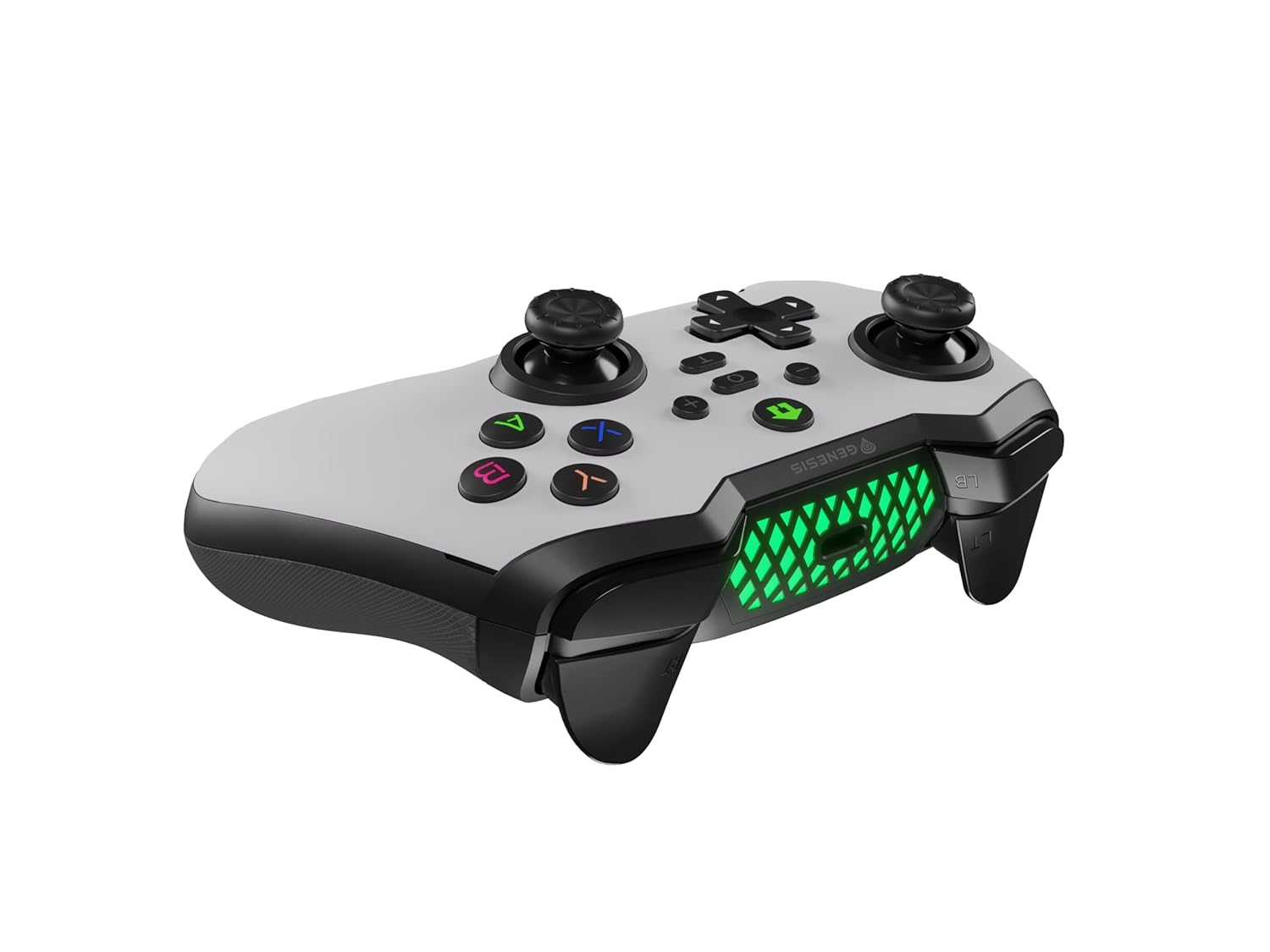
Figure 4: Top-down view of the MANGAN 400 Gamepad, illustrating the layout of the dual analog sticks, D-pad, action buttons, shoulder buttons, and triggers.
4.1. Button Functions
- Left Analog Stick: Movement, camera control.
- Right Analog Stick: Camera control, aiming.
- D-Pad: Directional input, menu navigation.
- Action Buttons (A, B, X, Y): In-game actions, menu selections.
- Shoulder Buttons (L1/LB, R1/RB): Various in-game functions.
- Triggers (L2/LT, R2/RT): Pressure-sensitive input for acceleration, shooting, etc.
- Home Button: Power on/off, access system menus.
- Select/Minus Button: Access in-game menus, system functions.
- Start/Plus Button: Pause game, access in-game menus.
- Turbo Button (T): Activates turbo function for selected buttons.
4.2. Customization Options
- Adjustable Vibration: The gamepad features three vibration modes. Consult the full manual or product website for specific button combinations to cycle through or adjust vibration intensity.
- Adjustable Joystick Sensitivity: You can fine-tune the sensitivity of the joysticks. This allows for more precise control, especially useful in games that do not offer in-game sensitivity settings. Refer to the product's official documentation for instructions on adjusting sensitivity.
- Illuminated Buttons: The buttons are illuminated for better visibility. This lighting can be turned off if preferred. Specific instructions for toggling button illumination can be found in the detailed product guide.
- Interchangeable Faceplate: The MANGAN 400 comes with an alternative faceplate. To change it, carefully detach the current faceplate and snap the new one into place. Ensure it is securely fastened.

Figure 5: An exploded view of the MANGAN 400 Gamepad, illustrating the removable faceplate and internal structure, including the illuminated elements.
5. Maintenance and Care
Proper maintenance ensures the longevity and optimal performance of your MANGAN 400 gamepad.
- Cleaning: Use a soft, dry cloth to wipe the surface of the gamepad. For stubborn dirt, slightly dampen the cloth with water. Avoid using harsh chemicals, solvents, or abrasive cleaners.
- Storage: When not in use, store the gamepad in its special case to protect it from dust, spills, and physical damage. Keep it in a cool, dry place away from direct sunlight and extreme temperatures.
- Battery Care: To prolong battery life, avoid fully discharging the gamepad frequently. If storing for an extended period, charge the battery to approximately 50% every few months.
- Avoid Drops: Do not drop or subject the gamepad to strong impacts, as this can damage internal components.

Figure 6: Side view of the MANGAN 400 Gamepad, showing the textured rubberized grips designed for comfort and to prevent slipping.
6. Troubleshooting
If you encounter issues with your MANGAN 400 gamepad, refer to the following common problems and solutions.
| Problem | Possible Cause | Solution |
|---|---|---|
| Gamepad does not turn on. | Low battery. | Charge the gamepad fully using the provided USB cable. |
| Gamepad does not connect to PC/Switch/Mobile. | Not in pairing mode; Bluetooth interference; Adapter issue (PC). |
|
| Buttons or joysticks are unresponsive. | Connection issue; Software glitch; Physical damage. |
|
| Vibration not working or too weak/strong. | Vibration settings; Game does not support vibration. |
|
7. Technical Specifications
| Feature | Detail |
|---|---|
| Model | MANGAN 400 |
| Brand | Genesis |
| Connectivity | Wireless (Bluetooth with included adapter for PC) |
| Compatibility | PC (X-Input/D-Input), Nintendo Switch, Mobile Phone |
| Battery Life | Up to 15 hours (single charge) |
| Item Weight | 15.2 ounces (approx. 430g) |
| Special Features | Interchangeable faceplate, Adjustable vibration, Adjustable joystick sensitivity, Illuminated buttons, Rubberized grips, Dedicated storage case with adapter slot. |
8. Warranty and Support
For warranty information, please refer to the warranty card included with your product or visit the official Genesis website. Keep your proof of purchase for warranty claims.
If you require technical assistance or have questions not covered in this manual, please contact Genesis customer support through their official website or the contact information provided in your product packaging.
Manufacturer: Genesis
Date First Available: March 25, 2024


