
1. Introduction
The UGREEN USB 3.0 HDMI KVM Switch (Model 15707A) allows two computers to share a single monitor and up to four USB 3.0 devices. This device is designed to streamline your workspace by enabling seamless switching between two host computers, utilizing one display, keyboard, mouse, and other peripherals. It supports high-resolution video output up to 4K@60Hz.
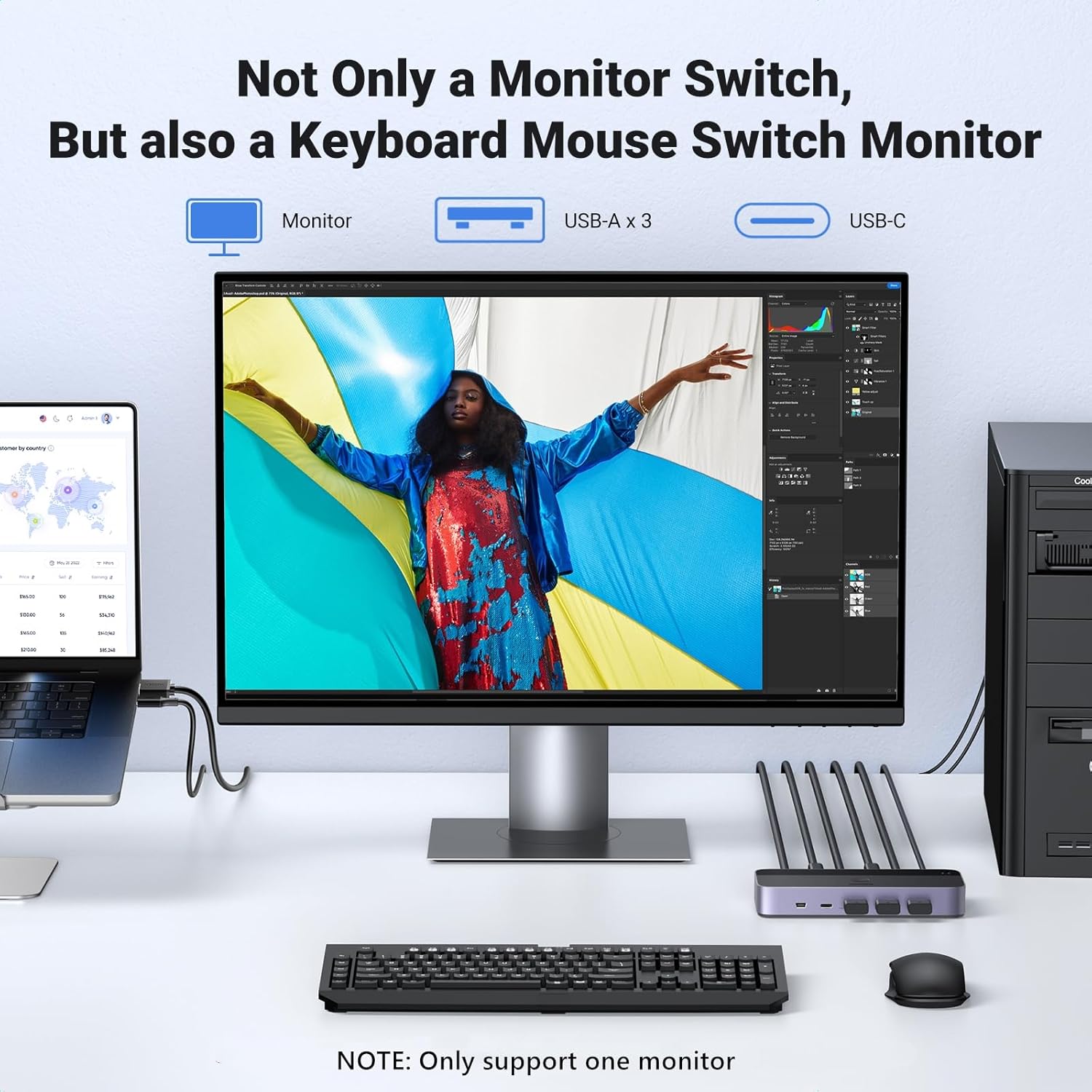
Image: The UGREEN KVM Switch facilitating a tidy workspace by allowing two computers to share a single monitor, keyboard, and mouse.
2. Package Contents
Please verify that all items are present in your package:
- 1x UGREEN HDMI KVM Switch
- 2x USB A to B Cables (5FT)
- 2x HDMI Cables (3.3FT)
- 1x Desktop Controller (5FT)
- 1x User Guide
Note: A USB-C power cable or power adapter is NOT included and must be supplied separately if required.

Image: All components included in the UGREEN KVM Switch package.
3. Important Notes
- Cable Connection: Both USB A to B cables must be connected for proper power supply and data transfer.
- Power for High-Power Equipment: Ensure USB-C charging to a power source when connecting high-power equipment (e.g., external hard drives) to ensure stable performance.
- Hotkey Switching: Hotkey switching is NOT supported by this model.
- KVM Type: This KVM switch is an HDMI KVM switch and is NOT a DisplayPort (DP) KVM switch or a USB-C KVM switch.
- Monitor Support: This KVM switch supports only ONE monitor.
- Resolution Consistency: For optimal display, ensure that the resolution of the two input devices (computers) and the output device (monitor) is consistent and does not exceed 4K@60Hz.
4. Product Overview
The UGREEN KVM Switch features multiple ports for connecting your computers, monitor, and USB peripherals. Understanding the port layout is essential for correct setup.

Image: Detailed diagram of the KVM switch ports and their functions.
Port Descriptions:
- HDMI IN 1 & 2: Connect to the HDMI output of your two computers.
- USB IN 1 & 2: Connect to the USB-A ports of your two computers using the provided USB A to B cables. These ports handle data transfer and power.
- HDMI OUT: Connect to your single monitor.
- USB 3.0 Ports (3x USB-A, 1x USB-C): Connect your keyboard, mouse, printer, USB flash drives, external hard drives, and other USB peripherals.
- CONTROL Port: Connect the desktop controller for remote switching.
- USB-C Power Port: For optional external power when connecting high-power USB devices.
5. Setup Instructions
Follow these steps to set up your UGREEN KVM Switch:
- Connect Monitor: Connect your monitor to the HDMI OUT port on the KVM switch using one of the provided HDMI cables.
- Connect Computers (Video): Connect the HDMI output of your first computer to HDMI IN 1 on the KVM switch. Connect the HDMI output of your second computer to HDMI IN 2. Use the provided HDMI cables.
- Connect Computers (USB Data/Power): Connect a USB A to B cable from a USB-A port on your first computer to USB IN 1 on the KVM switch. Repeat this for your second computer, connecting it to USB IN 2. Both USB A to B cables must be connected.
- Connect USB Peripherals: Connect your keyboard, mouse, printer, USB flash drives, or other USB 2.0/3.0 devices to the available USB 3.0 ports (3x USB-A, 1x USB-C) on the KVM switch.
- Connect Desktop Controller (Optional): If desired, connect the desktop controller to the CONTROL port on the KVM switch. This allows for convenient remote switching.
- Connect External Power (If Needed): If you are connecting high-power USB devices (e.g., external hard drives), connect a USB-C power cable (not included) to the USB-C Power Port on the KVM switch and to a suitable power adapter (5V/1A or higher recommended).

Image: A visual guide to connecting two computers, a monitor, and USB peripherals to the KVM switch.

Image: Connecting external USB-C power for high-power devices.
6. Operating Instructions
Once all connections are made, you can switch between your two computers using one of the following methods:
- Button on the KVM Switch: Press the button located on the top of the KVM switch to toggle between Computer 1 and Computer 2.
- Desktop Controller: Press the button on the wired desktop controller to switch between computers. This is convenient if the KVM switch is not easily accessible.
Important: Hotkey switching via keyboard commands is not supported by this KVM switch.

Image: Two ways to switch between connected computers.
7. Features
- High Resolution: Supports resolutions up to 4K@60Hz, and is backward compatible with 4K@30Hz, 2560*1440@120Hz, and 1920*1080@240Hz.
- Advanced Video Support: Compatible with HDMI 2.0, HDCP2.2/1.4, 3D, CEC, and HDR for enhanced visual quality.
- Fast Data Transfer: Equipped with 3 USB-A 3.0 ports and 1 USB-C 3.0 port, offering data transfer speeds of up to 5Gbps, significantly faster than USB 2.0 (480Mbps).
- Broad Compatibility: Driver-free plug-and-play operation with Windows 11/10/8.1/8/7/Vista/XP, Mac OS, and Linux systems. Compatible with various HDMI source devices including PCs, laptops, gaming consoles (PS5/4/3, Xbox One, Nintendo Switch), and TV boxes.
- Durable Construction: Features an aluminum casing for fast heat dissipation and long-term stability.
- LED Indicator: Clearly shows which HDMI source is currently active.

Image: Visual demonstration of 4K@60Hz high resolution support.
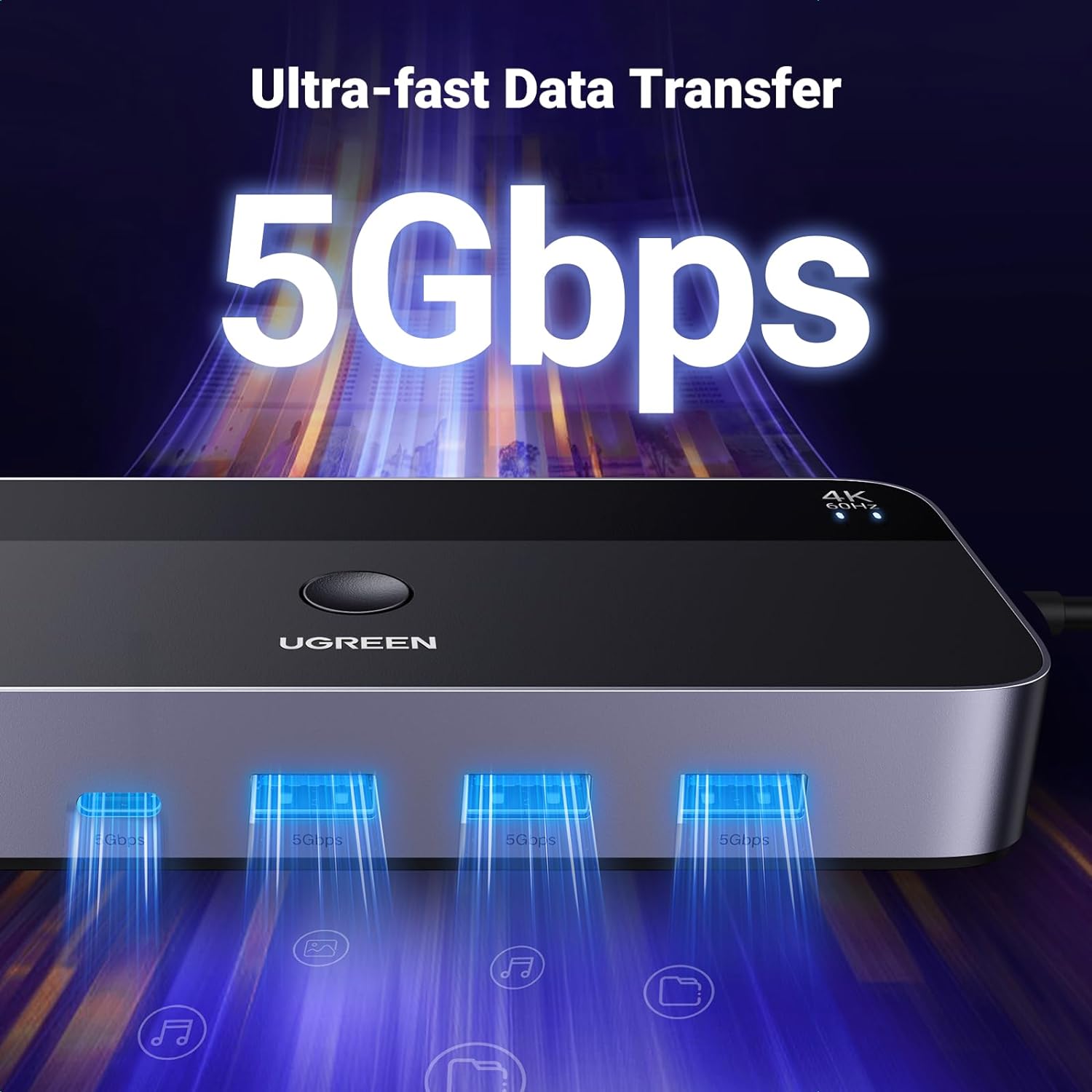
Image: Highlighting the 5Gbps ultra-fast data transfer capability.

Image: The KVM switch offers broad compatibility across various operating systems.

Image: Key internal and external features of the KVM switch.
8. Maintenance
To ensure the longevity and optimal performance of your UGREEN KVM Switch, consider the following maintenance guidelines:
- Cleaning: Use a soft, dry cloth to clean the device. Avoid liquid cleaners or abrasive materials.
- Environment: Keep the KVM switch in a cool, dry place, away from direct sunlight, excessive heat, and moisture.
- Cable Management: Ensure cables are not excessively bent or strained, which can lead to damage over time.
- Ventilation: Do not block the ventilation openings on the device to prevent overheating.
9. Troubleshooting
If you encounter issues with your KVM switch, refer to the following common troubleshooting steps:
- No Display on Monitor:
- Ensure all HDMI cables are securely connected to the KVM switch and your monitor/computers.
- Verify that the KVM switch is powered correctly via the USB A to B cables from both computers.
- Check the input source on your monitor to ensure it is set to the correct HDMI input.
- Confirm that the resolution settings on your computers are compatible with 4K@60Hz or lower.
- USB Devices Not Working:
- Ensure both USB A to B cables are firmly connected from your computers to the KVM switch. These cables provide data and power for USB peripherals.
- If using high-power USB devices (e.g., external hard drives), connect an external USB-C power source to the KVM switch.
- Try connecting the USB device directly to the computer to confirm it is functional.
- Resolution or Refresh Rate Issues:
- Ensure that the resolution and refresh rate settings on both connected computers are consistent and do not exceed 4K@60Hz.
- Verify that your HDMI cables are capable of supporting the desired resolution and refresh rate. Refer to the cable length recommendations.

Image: Recommended HDMI cable lengths for various resolutions.
- Switching Not Working:
- Ensure the desktop controller is properly connected to the KVM switch's CONTROL port.
- Confirm that the KVM switch itself is receiving power.
10. Specifications
| Feature | Specification |
|---|---|
| Model Number | 15707A |
| Brand | UGREEN |
| Input Ports | 2x HDMI In, 2x USB B In |
| Output Ports | 1x HDMI Out |
| USB Peripheral Ports | 3x USB-A 3.0, 1x USB-C 3.0 |
| Video Resolution | Up to 4K@60Hz (backward compatible) |
| HDMI Standard | HDMI 2.0 |
| HDCP Support | HDCP 2.2/1.4 |
| Other Video Features | 3D, CEC, HDR |
| USB Data Transfer Speed | Up to 5Gbps (USB 3.0) |
| Operating Voltage | 5 Volts |
| Current Rating | 1 Amps |
| Control Method | Push Button (on device or desktop controller) |
| Material | Aluminum |
| Dimensions (L x W x H) | 3.7 x 2.2 x 0.9 inches |
| Item Weight | 1.5 pounds |
| Compatibility | Windows, Mac OS, Linux |
11. Warranty and Support
For warranty information and technical support, please refer to the official UGREEN website or contact UGREEN customer service directly. Details regarding product registration, warranty claims, and support resources can typically be found on the manufacturer's support pages.
UGREEN Official Website: www.ugreen.com
Please have your product model number (15707A) and purchase details ready when contacting support.