1. Introduction
This manual provides detailed instructions for the installation, operation, and maintenance of your Hikity Android 15 Car Stereo. Please read this manual thoroughly before using the product to ensure proper function and to prevent damage.
2. Compatibility
This car stereo is designed for direct compatibility with Honda Odyssey models manufactured between 2005 and 2010 (US version, Left-Hand Drive). Ensure your vehicle's dashboard matches the compatible configuration shown below.

Image: Compatibility check for Honda Odyssey 2005-2010. The top image shows the Hikity stereo installed. The bottom left image shows a compatible original radio (green check), and the bottom right shows an incompatible original radio (red cross).
3. Package Contents
Verify that all items listed below are included in your package:
- Hikity Android Stereo Unit for Honda Odyssey
- Dual Power Cable
- RCA Cable
- GPS Antenna
- AHD Backup Camera
- External Microphone
- Rear Camera Input Cable
- Dual USB Cable
- Installation Tool

Image: Contents of the product package, including the main unit and various cables and accessories.
4. Product Features
- Operating System: Android 15
- Processor: 8-Core
- Memory: 6GB RAM + 128GB ROM
- Display: 10.1-inch HD IPS Touchscreen (1280x720 resolution), supports 1080P video playback
- Connectivity: Wireless Carplay, Android Auto, 5G WiFi, Bluetooth 5.0, Mirror Link (Android/iOS)
- Audio: Built-in DSP (Digital Signal Processor), 32-band Equalizer (EQ), FM/RDS Radio
- Navigation: Built-in GPS with support for online and offline maps
- Control: Steering Wheel Control (SWC) compatibility, Voice Control
- Camera Support: AHD Backup Camera input (camera included)
- Multitasking: Three Split Screen functionality
5. Installation Guide
Installation of the car stereo requires basic automotive knowledge. If you are unsure about any steps, it is recommended to seek professional installation.
5.1. General Installation Steps
- Disconnect Battery: Before starting, disconnect the negative terminal of your vehicle's battery to prevent electrical shorts.
- Remove Original Radio: Carefully remove the trim panels and screws securing your factory radio. Disconnect all wiring harnesses and antenna cables from the original unit.
- Connect Wiring Harness: Connect the provided wiring harness to the vehicle's factory harness. Ensure all connections are secure.
- Connect Accessories: Connect the GPS antenna, USB cables, external microphone, and AHD backup camera (if installing) to the corresponding ports on the new stereo unit.
- Mount New Unit: Secure the Hikity car stereo into the dashboard opening.
- Reconnect Battery: Reconnect the negative terminal of your vehicle's battery.
- Test Functionality: Power on the unit and test all functions (radio, audio, touch screen, steering wheel controls, camera, etc.) before reassembling the dashboard trim.
- Reassemble Dashboard: Once all functions are verified, reassemble the dashboard trim panels.
5.2. Wiring Diagram
Refer to the diagram below for detailed port connections on the rear of the unit and the wiring harness connections.

Image: Port details and wiring connections for the Hikity car stereo. Labels indicate Power Cable, RCA Input/Output, USB Cable, Reversing Camera Input, GPS Antenna, and Radio Antenna.
6. Initial Setup
After successful installation and powering on the unit for the first time, follow these steps:
- Language Selection: Choose your preferred system language.
- Date and Time: Set the correct date and time, or enable automatic synchronization via GPS/network.
- Wi-Fi Connection: Connect to an available Wi-Fi network (e.g., your phone's hotspot) to enable online features, app downloads, and system updates.
- GPS Calibration: Ensure the GPS antenna is properly positioned for optimal signal reception.
7. Operating Instructions
7.1. Wireless Carplay & Android Auto
Connect your smartphone via Bluetooth or USB to access Carplay (for iOS) or Android Auto (for Android). This allows for navigation, music, calls, and messaging directly from the stereo display.
- Ensure Bluetooth is enabled on your phone and the car stereo.
- Pair your phone with the stereo.
- Launch the Carplay or Android Auto application on the stereo.
- Use voice commands like 'Hey Siri' or 'OK Google' for hands-free operation.

Image: Wireless Carplay and Android Auto functionality, demonstrating smartphone integration with the car stereo.
7.2. GPS Navigation
The unit features built-in GPS for navigation. You can use pre-installed offline maps or download online navigation applications via Wi-Fi.
- Access navigation apps from the main menu.
- Input your destination for turn-by-turn directions.
- Online maps provide real-time traffic information (requires Wi-Fi connection).

Image: GPS Navigation in use, alongside icons representing Wi-Fi connectivity, FM/RDS radio, and Bluetooth 5.0.
7.3. Wi-Fi Connectivity
Connect the stereo to a Wi-Fi hotspot (e.g., from your smartphone) to access the internet, download apps, and stream content.
- Go to Settings > Network & Internet > Wi-Fi.
- Select your desired network and enter the password.
7.4. Bluetooth 5.0
The built-in Bluetooth 5.0 module enables hands-free calling and wireless audio streaming from your smartphone.
- Enable Bluetooth on both the stereo and your phone.
- Search for available devices on the stereo and select your phone.
- Confirm the pairing code.
- Once connected, you can make/receive calls and play music wirelessly.
7.5. FM/RDS Radio
Access local radio stations with the integrated FM/RDS tuner. RDS (Radio Data System) provides additional information like station name and song title where available.
- Open the Radio application.
- Use the scan function to find available stations.
- Save your favorite stations as presets.
7.6. DSP & 32-Band EQ
The Digital Signal Processor (DSP) and 32-band Equalizer allow for precise audio customization to enhance your listening experience and reduce noise.
- Access the DSP/EQ settings from the audio menu.
- Adjust frequency bands, balance, fader, and other audio parameters.
- Select from various preset sound modes or create custom profiles.
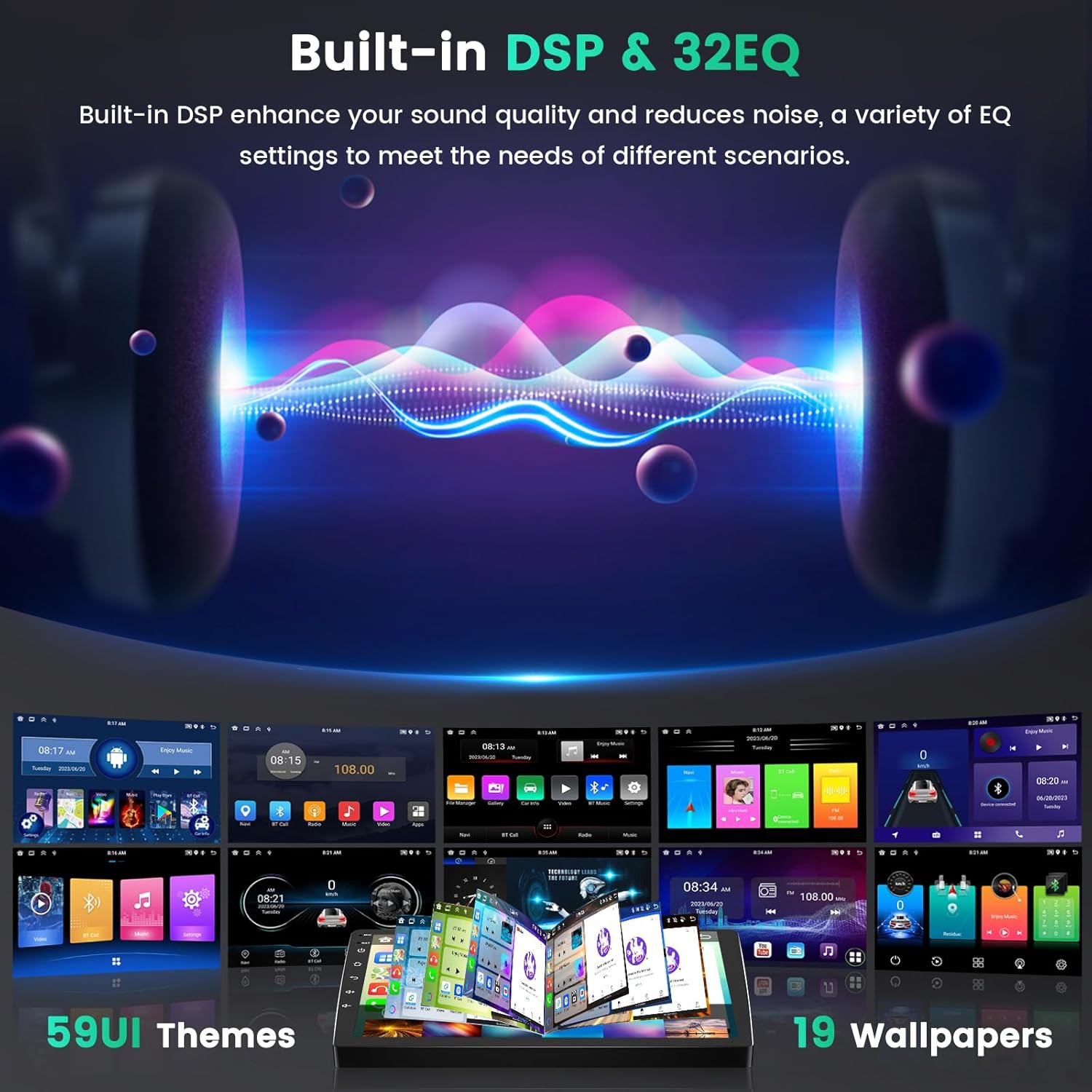
Image: Built-in DSP and 32-band EQ interface, demonstrating audio adjustment capabilities and various UI themes.
7.7. Mirror Link Function
Mirror Link allows you to display your smartphone's screen directly on the car stereo. This function supports both Android and iOS devices, though some specific phone models (e.g., Huawei, Samsung) may not be fully compatible.
- Connect your phone via USB or Wi-Fi.
- Open the Mirror Link application on the stereo.
- Follow on-screen prompts to establish the connection.
7.8. Steering Wheel Control (SWC)
The stereo supports learning your vehicle's existing steering wheel controls, allowing you to manage audio and other functions without taking your hands off the wheel.
- Go to Settings > Steering Wheel Control.
- Follow the on-screen instructions to program each button (e.g., press 'Volume+' on the screen, then press the Volume Up button on your steering wheel).
- Save the settings once all buttons are programmed.

Image: Steering Wheel Control (SWC) interface, illustrating how to program vehicle steering wheel buttons to control the stereo.
7.9. AHD Rear View Camera
The included AHD backup camera provides a clear view of the area behind your vehicle when reversing, enhancing safety. The stereo automatically displays the camera feed when the vehicle is in reverse gear.
- Ensure the camera is properly installed and connected to the 'Reversing Camera Input' port on the stereo.
- The camera feed will appear automatically when shifting into reverse.
7.10. Voice Control
Utilize voice commands for various functions, such as playing music, opening navigation, or making calls, by saying 'Hey Siri' or 'OK Google' (when connected to Carplay/Android Auto).
- Activate voice control through the dedicated button or by saying the wake phrase.
- Speak clearly into the external microphone.
7.11. Split Screen
The split-screen feature allows you to run two applications simultaneously on the display, such as navigation and music playback.
- Long-press the recent apps button or drag an app to one side of the screen to activate split-screen mode.
- Select a second app to occupy the other half of the screen.
8. Maintenance
To ensure the longevity and optimal performance of your car stereo, follow these maintenance guidelines:
- Screen Cleaning: Use a soft, lint-free cloth slightly dampened with water or a screen cleaner specifically designed for electronics. Avoid harsh chemicals or abrasive materials.
- Software Updates: Periodically check for system software updates via the settings menu (requires Wi-Fi connection). Updates can improve performance and add new features.
- Avoid Extreme Temperatures: Do not expose the unit to prolonged direct sunlight or extreme cold, as this can affect performance and display life.
- Cable Connections: Periodically check all cable connections to ensure they are secure and free from damage.
9. Troubleshooting
If you encounter issues with your Hikity car stereo, refer to the following common troubleshooting steps:
| Problem | Possible Solution |
|---|---|
| No Power | Check power cable connections. Ensure the vehicle's fuse for the radio is not blown. Verify battery connection. |
| No Sound | Check speaker wire connections. Ensure volume is not muted or set to zero. Verify audio settings (balance/fader). |
| GPS Signal Loss | Ensure GPS antenna is properly installed and has a clear view of the sky. Move the antenna if necessary. |
| Bluetooth Connection Issues | Ensure Bluetooth is enabled on both devices. Delete previous pairings and re-pair. Restart both devices. |
| Steering Wheel Controls Not Working | Re-program the SWC buttons in the settings menu. Ensure the SWC wires are correctly connected. |
| Touchscreen Unresponsive | Restart the unit. If the problem persists, a factory reset might be necessary (note: this will erase all user data). |
If these steps do not resolve the issue, please contact customer support for further assistance.
10. Specifications
| Feature | Detail |
|---|---|
| Item Weight | 3.67 pounds |
| Product Dimensions | 14.76 x 7.28 x 3.15 inches |
| Display Size | 10.1 Inches |
| Display Resolution | 1280 x 720 |
| Operating System | Android 15 |
| Processor | 8-Core |
| RAM | 6GB |
| ROM | 128GB |
| Connectivity Technology | Bluetooth, USB, Wi-Fi |
| Bluetooth Version | 5.0 |
| Special Features | Wireless Carplay, Android Auto, Mirror Link, 5G WiFi, GPS Navigation, SWC, FM/RDS, EQ/DSP, Reversing Camera, Microphone, Split Screen |
| Audio Output Mode | Stereo |
| Mounting Type | Dashboard Mount |
11. Warranty and Support
Hikity provides the following support for this product:
- Money-Back Guarantee: 30-Days
- Replacement Warranty: 2-Years
- Technical Support: Life-Time
For installation or usage issues, please contact the Hikity Flagship Store via the product page on Amazon or email us at hikityoffice@163.com. We aim to reply within 24 hours.


