1. Introduction
This manual provides detailed instructions for the installation, operation, and maintenance of your ZOSI C528M Dual-Lens Wi-Fi Security Camera. Please read this manual thoroughly before using the product to ensure proper functionality and safety. Keep this manual for future reference.
2. Product Overview
The ZOSI C528M is an innovative indoor PTZ (Pan-Tilt-Zoom) security camera featuring a dual-lens system and an integrated monitor. It is designed for comprehensive indoor surveillance, including monitoring babies, children, and pets.
- Dual-Lens System: Combines two lenses for enhanced coverage. The upper lens offers 360° horizontal and 108° vertical rotation, while the lower lens captures panoramic views.
- Integrated Monitor: Displays date, weather information, and facilitates direct calls.
- High-Resolution Imaging: Delivers sharp 6MP images with two high-quality 2K lenses.
- 360° Coverage: Monitor every corner of your home via the dedicated app.
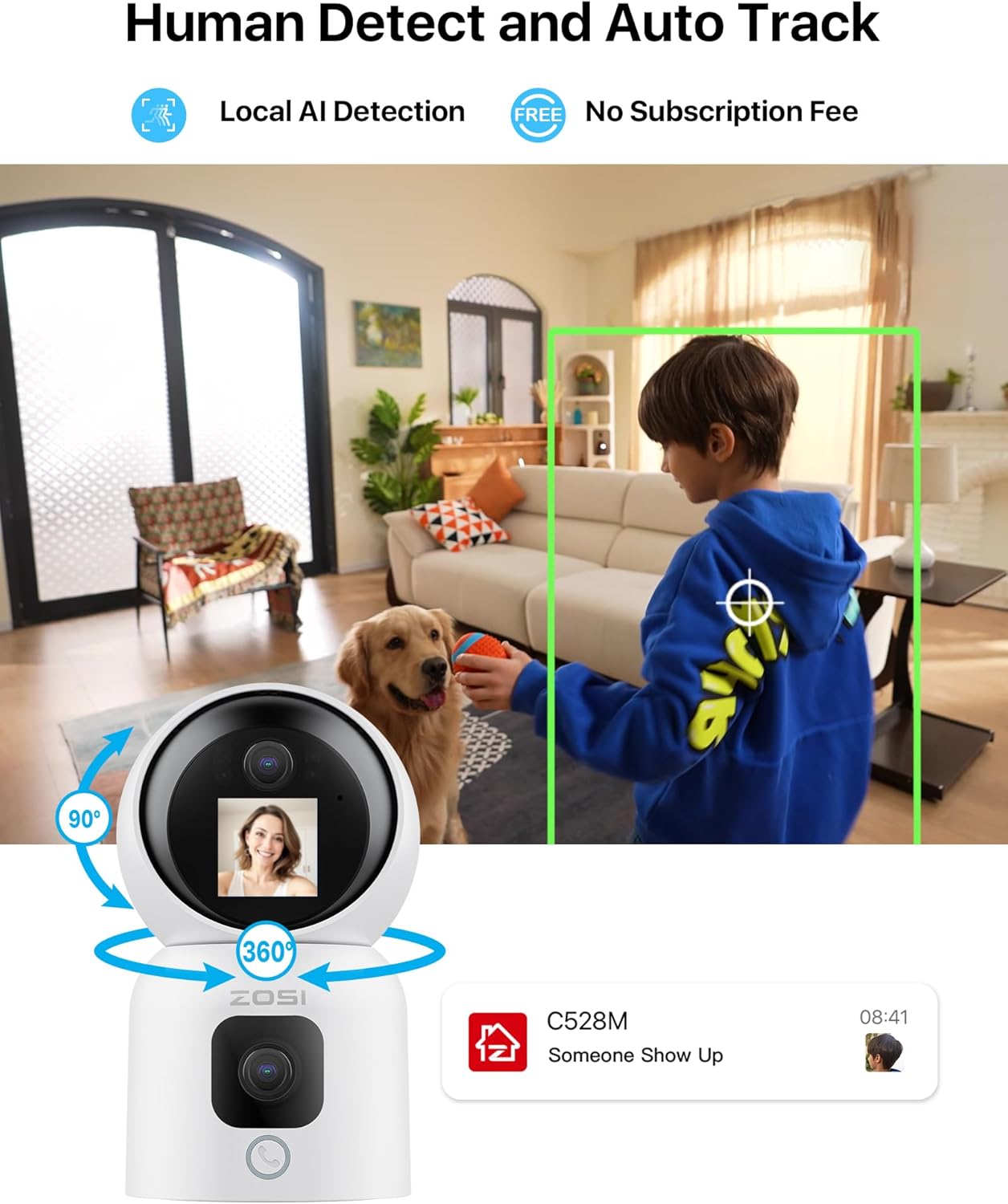
- AI Human Recognition & Auto-Tracking: Accurately distinguishes people from other objects, sending instant notifications via app push or email upon motion detection. The camera automatically tracks moving individuals.
- Two-Way Video & Call Function: Initiate direct communication through the app by pressing the call button on the camera or making an 'OK' gesture in front of the lens.
- Dual-Band Wi-Fi: Supports 2.4/5 GHz Wi-Fi connectivity for stable performance.
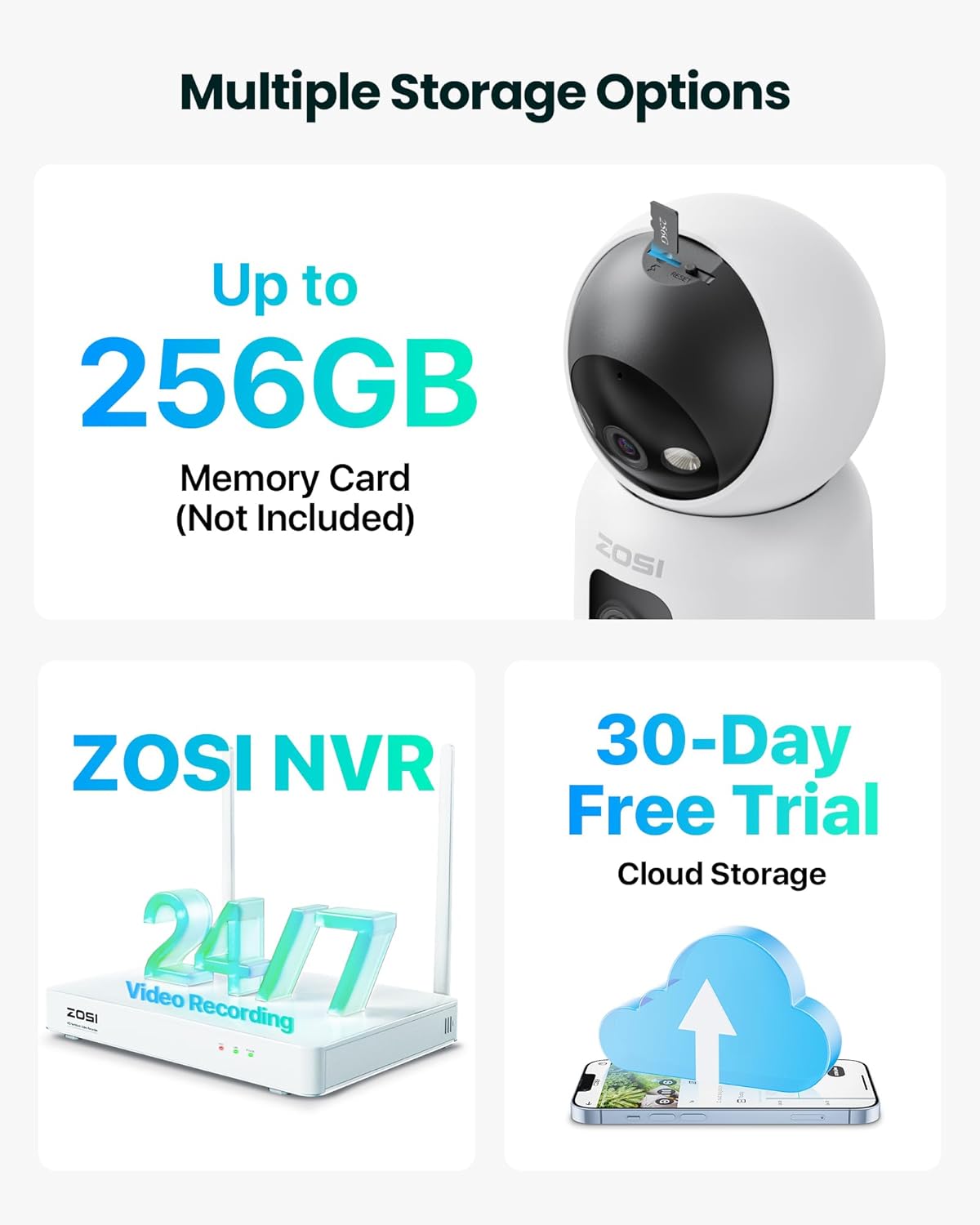
- Flexible Storage Options: Supports Micro-SD card (up to 256GB, not included), ZOSI NVR, or cloud storage.
3. Package Contents
Verify that all items listed below are included in your package. If any items are missing or damaged, please contact customer support.
- ZOSI C528M Camera (x1)
- Quick Start Guide (x1)
- Mounting Template (x1)
- Mounting Plate (x1)
- Mounting Screws (x1 set)
- Power Adapter (x1)
- USB Cable (x1)

4. Setup and Installation
Follow these steps to set up your ZOSI C528M camera.
4.1 Powering On the Camera
- Connect the power adapter to the camera's power input port.
- Plug the power adapter into a wall outlet. The camera will power on and initiate its startup sequence.
4.2 App Installation and Initial Connection
To use the camera, you need to download the ZOSI Smart app on your smartphone.
- Download the ZOSI Smart app from your device's app store (iOS or Android).
- Open the app and create an account or log in.
- Follow the in-app instructions to add a new device.
- Step 1: Scan QR Code on Camera. The app will prompt you to scan a QR code located on the camera itself.
- Step 2: Connect to 2.4G/5G WiFi. Ensure your smartphone is connected to a 2.4GHz or 5GHz Wi-Fi network. The camera supports both bands. Enter your Wi-Fi network name (SSID) and password when prompted. Example: SSID: Xiaomi_5G; Password: 88888888.
- Step 3: Connect to Device Hotspot. The app may instruct you to connect your phone to the camera's temporary hotspot for initial configuration. Follow the on-screen prompts.
- Once connected, the camera will link to your home Wi-Fi network.

4.3 Mounting the Camera
The ZOSI C528M is designed for tabletop mounting. Ensure it is placed on a stable, flat surface within Wi-Fi range.
- Choose a suitable location indoors with a clear view of the area you wish to monitor.
- Place the camera on a flat, stable surface.
- If wall or ceiling mounting is desired (optional, using the provided mounting plate and screws):
- Use the mounting template to mark drill holes on the desired surface.
- Drill holes and insert wall anchors if necessary.
- Secure the mounting plate to the surface using the provided screws.
- Attach the camera to the mounting plate, ensuring it is securely fastened.

5. Operating Instructions
5.1 Live View and Pan-Tilt Control
Access the live feed and control the camera's movement through the ZOSI Smart app.
- Open the ZOSI Smart app and select your C528M camera.
- The app will display the live view from both lenses.
- Use the on-screen controls to pan (horizontal) and tilt (vertical) the upper lens for desired viewing angles.


5.2 Two-Way Communication
The camera supports two-way audio and video calls.
- Initiating a Call from the Camera: Users near the camera can press the call button on the device or make an 'OK' hand gesture in front of the lens to initiate a video call to the connected smartphone app.
- Responding to a Call: When a call is initiated from the camera, your smartphone will receive a real-time video call notification through the ZOSI Smart app. Answer the call to engage in two-way communication.


5.3 AI Human Detection and Auto-Tracking
The camera's AI algorithm enhances security by focusing on human activity.
- When a human figure is detected, the camera sends an immediate notification to your app.
- The camera will automatically track the detected person's movement within its field of view, ensuring continuous monitoring of their activities.
5.4 Video Storage Options
The ZOSI C528M offers multiple ways to store your video recordings.
- Micro-SD Card: Insert a Micro-SD card (up to 256GB, not included) into the designated slot on the camera for local storage.
- ZOSI NVR: Connect the camera to a ZOSI Network Video Recorder (NVR) for continuous 24/7 recording and centralized management.
- Cloud Storage: Utilize the optional cloud storage service for remote access and backup of your recordings. A 30-day free trial may be available.
6. Maintenance
Regular maintenance ensures optimal performance and longevity of your camera.
- Cleaning: Gently wipe the camera lens and body with a soft, dry cloth. Avoid using harsh chemicals or abrasive cleaners.
- Firmware Updates: Periodically check the ZOSI Smart app for available firmware updates. Keeping the firmware updated ensures access to the latest features and security enhancements.
- Power Supply: Ensure the camera is connected to a stable power source. Avoid using non-original power adapters.
- Network Stability: Maintain a strong and stable Wi-Fi connection for uninterrupted monitoring and recording.
7. Troubleshooting
If you encounter issues with your ZOSI C528M camera, refer to the following common problems and solutions.
- Camera not connecting to Wi-Fi:
- Ensure your Wi-Fi network is 2.4GHz or 5GHz and the password is correct.
- Move the camera closer to your Wi-Fi router to improve signal strength.
- Restart the camera and your router.
- Perform a factory reset on the camera (refer to the Quick Start Guide for specific steps) and try the setup process again.
- No video feed in the app:
- Check if the camera is powered on and connected to Wi-Fi.
- Ensure your smartphone has an active internet connection.
- Close and reopen the ZOSI Smart app.
- Restart the camera.
- Motion detection not working:
- Verify that motion detection is enabled in the app settings for your camera.
- Adjust the motion detection sensitivity settings.
- Ensure there are no obstructions blocking the camera's view.
- Two-way audio issues:
- Check the volume settings on both your smartphone and within the app.
- Ensure the microphone and speaker permissions are granted to the ZOSI Smart app on your phone.
- Reduce background noise near the camera and your phone.
For further assistance, please contact ZOSI customer support.
8. Specifications
| Feature | Specification |
|---|---|
| Model Number | 1NC-528M6W-EU |
| Video Recording Resolution | 1296p (6MP Dual-Lens) |
| Color | White |
| Wireless Communication Technology | Wi-Fi (2.4GHz / 5GHz) |
| Form Factor | Dome |
| Viewing Angle | 360 Degrees (Pan), 108 Degrees (Tilt) |
| Night Vision Range | 10 Meters |
| Frame Rate | 15 images_per_second |
| Material | Metal |
| Item Dimensions (L x W x H) | 21.2 x 9.4 x 9.3 cm |
| Weight | 570 g |
| Water Resistance Level | Water-resistant (for indoor use) |
| Power Source | Corded Electric |
| Special Features | 2-way audio, One-Touch call button, PTZ technology |
| Usage Environment | Indoor |
| Mounting Type | Tabletop Mount |

9. Warranty and Support
For warranty information and technical support, please refer to the official ZOSI website or contact their customer service directly. Details can typically be found in the Quick Start Guide included with your product or on the manufacturer's website.
10. Safety Information
- Use only the original power adapter provided with the camera.
- Do not expose the camera to extreme temperatures, humidity, or direct sunlight.
- Avoid placing the camera near strong magnetic fields.
- Keep the camera out of reach of children and pets.
- Do not attempt to disassemble or repair the camera yourself. Contact qualified personnel for service.


