
1. Introduction
This manual provides detailed instructions for the setup, operation, and maintenance of your Bmax B6 Power Mini PC. This compact desktop computer is designed for various applications, from office tasks to multimedia consumption, offering a balance of performance and space efficiency.

Image 1.1: The Bmax B6 Power Mini PC, showcasing its compact design and front ports.
2. What's in the Box
Please check the contents of your package to ensure all items are present:
- 1 x Bmax B6 Power Mini PC (16GB+1TB configuration)
- 1 x HDMI cable
- 1 x User Manual
- 1 x US Power Adapter
- 1 x VESA Mount with Screws
3. Product Overview
The Bmax B6 Power Mini PC is equipped with advanced components for efficient performance.

Image 3.1: Overview of key features including processor, memory, storage, and connectivity.
3.1 Key Features
- Processor: Intel Core i7-1060NG7, 4 Cores/8 Threads, up to 3.8GHz.
- Memory: 16GB LPDDR4 RAM.
- Storage: 1TB NVMe SSD, with support for dual NVMe SSDs and expandable up to 2TB via 2.5" HDD (SATA cable included).
- Graphics: Intel Iris Xe Graphics, supporting 4K@60Hz output.
- Display Output: Supports three simultaneous displays via 2x HDMI 2.0 and 1x Full-Featured Type-C port.
- Wireless Connectivity: Wi-Fi 6 (2.4G/5G 802.11a/b/g/n/ac) and Bluetooth 5.2.
- Wired Connectivity: 1x Gigabit Ethernet (RJ45).
- Ports: 3x USB 3.0, 1x Full-Featured Type-C, 2x HDMI 2.0, 1x Earphone/Microphone Jack, 1x DC Power Input.
- Additional Features: VESA mount compatibility, Wake On LAN, PXE Boot, RTC Wake, Auto Power On, One-key Smart Recovery.

Image 3.2: Detailed diagram of the front and rear ports and their functions.
4. Setup Guide
4.1 Connecting Peripherals
- Connect Display: Use the provided HDMI cable to connect your monitor or TV to one of the HDMI ports on the Mini PC. Alternatively, use a compatible USB-C to display cable for the Type-C port.
- Connect Keyboard and Mouse: Plug your USB keyboard and mouse into the available USB 3.0 ports. For wireless devices, ensure Bluetooth is enabled and pair them as per their instructions.
- Connect Network (Optional): For a wired internet connection, connect an Ethernet cable from your router or modem to the RJ45 port on the Mini PC.
- Connect Power: Plug the US Power Adapter into the DC power input port on the Mini PC, then plug the adapter into a power outlet.
4.2 Initial Power On
- Ensure all peripherals are connected.
- Press the power button located on the front of the Mini PC.
- The system will boot up. Follow the on-screen instructions to complete the Windows setup process. It is recommended to keep the Ethernet cable unplugged during the first boot for faster setup if prompted.
5. Operating Instructions
5.1 Basic Operation
- Power On/Off: Press the power button to turn on the PC. To turn off, use the Windows Shut Down option or press and hold the power button for 5 seconds.
- Restart: Use the Windows Restart option.
- Sleep Mode: Use the Windows Sleep option or briefly press the power button.
5.2 Display Configuration
The Bmax B6 Power supports up to three 4K@60Hz displays simultaneously.
- Connect your displays to the available HDMI 2.0 ports and the Full-Featured Type-C port.
- In Windows, right-click on the desktop and select "Display settings" to configure multiple displays (extend, duplicate, or show only on one).

Image 5.1: Illustration of the Mini PC connected to multiple displays, demonstrating its multi-tasking capabilities.
5.3 Network Connectivity
- Wi-Fi: To connect to a wireless network, click the Wi-Fi icon in the taskbar, select your network, and enter the password.
- Ethernet: If an Ethernet cable is connected, the PC will automatically establish a wired network connection.
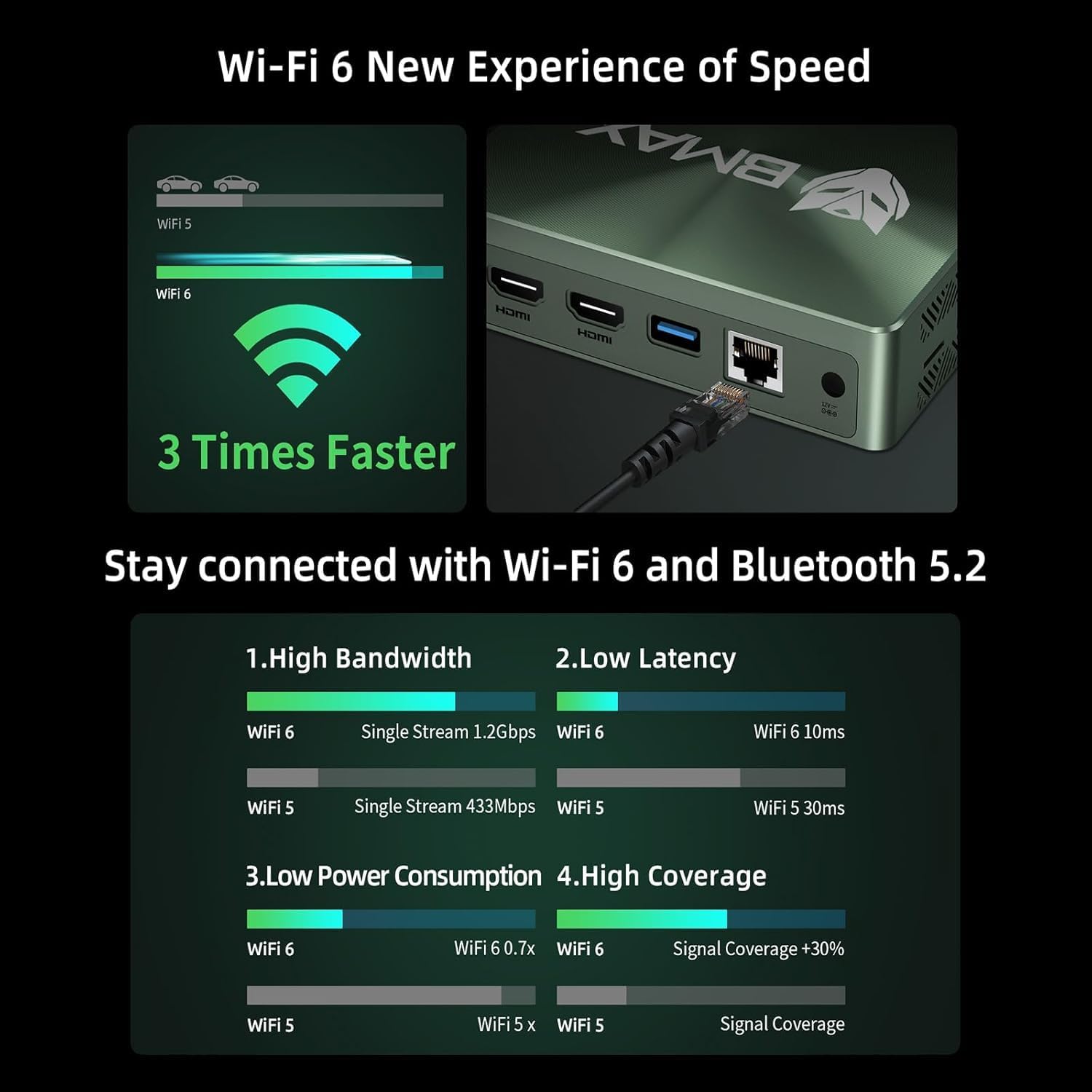
Image 5.2: Visual representation of Wi-Fi 6 and Bluetooth 5.2 capabilities, highlighting speed and connectivity benefits.
6. Maintenance
6.1 Cleaning
- Ensure the Mini PC is powered off and unplugged before cleaning.
- Use a soft, dry cloth to wipe the exterior.
- For dust accumulation in vents, use compressed air. Do not insert objects into the vents.
6.2 Storage Expansion
The Bmax B6 Power supports additional storage. You can install a second M.2 NVMe SSD or a 2.5-inch HDD/SSD.
- Refer to the detailed instructions in the included user manual for safe installation of additional storage devices.
- Ensure the device is powered off and unplugged before opening the chassis.

Image 6.1: Diagram illustrating the M.2 NVMe SSD slot and the option for expanded storage.
7. Troubleshooting
7.1 No Power
- Check if the power adapter is securely connected to both the Mini PC and the power outlet.
- Ensure the power outlet is functional.
- Try a different power outlet.
7.2 No Display Output
- Verify that the HDMI or USB-C cable is securely connected to both the Mini PC and the monitor.
- Ensure the monitor is powered on and set to the correct input source.
- Try a different display cable or monitor if available.
7.3 System Recovery (One-key Smart Recovery)
If your Windows operating system encounters issues, the Bmax B6 Power features a "Smart Recovery" environment to restore factory settings.
- Step 1: Power On Mini PC.
- Step 2: Enter Recovery Mode. As soon as the screen lights up, immediately and repeatedly press the F9 key until the System Recovery menu appears.
- Step 3: Start the Recovery. You have two options:
- Using Keyboard: Press the 'Y' key to begin the Factory Reset.
- Using Mouse: Click the [Restore System] button.
- Step 4: Set Up Windows Once Complete. You will be greeted by the initial Windows setup screen. Simply follow the on-screen instructions to set up your fresh system.

Image 7.1: Screenshot of the Bmax Smart Recovery environment, showing options for Factory Reset and Exit.
8. Specifications
| Feature | Detail |
|---|---|
| Brand | Bmax |
| Model Number | B6 Power |
| Processor | Intel Core i7-1060NG7 (4C/8T, up to 3.8 GHz) |
| RAM | 16 GB LPDDR4 |
| Storage | 1 TB NVMe SSD (expandable up to 2 TB via 2.5" HDD/SSD) |
| Graphics | Intel Iris Xe Graphics (Integrated) |
| Max Screen Resolution | 3840 x 2160 pixels (4K) |
| Display Output | 2x HDMI 2.0, 1x Full-Featured Type-C (supports triple 4K@60Hz displays) |
| Wireless Connectivity | Wi-Fi 6 (802.11a/b/g/n/ac), Bluetooth 5.2 |
| Wired Connectivity | 1x Gigabit Ethernet (RJ45) |
| USB Ports | 3x USB 3.0, 1x Full-Featured Type-C |
| Audio | 1x Earphone/Microphone Jack |
| Operating System | OS (Typically Windows, specific version may vary) |
| Item Weight | 1.61 pounds |
| Color | Black |
| Special Features | VESA Mount, Wake On LAN, PXE Boot, RTC Wake, Auto Power On, Smart Recovery |
9. Warranty and Support
Bmax provides comprehensive support for your Mini PC.
- Warranty: Your Bmax Mini PC comes with a 12-month warranty.
- Returns: A 30-day return policy is available.
- Customer Service: 7x24-hour customer service support is provided.
- Technical Support: Lifetime technical support is available.
9.1 How to Contact Support
For inquiries, system updates, or troubleshooting assistance, please contact customer service through your Amazon account:
- Log in to Amazon.
- Go to "Your Account".
- Navigate to "Your Orders".
- Select the Bmax B6 Power Mini PC order and click "Ask Product Question".

Image 9.1: Information on contacting Bmax after-sales support via Amazon.


