Introduction
This manual provides comprehensive instructions for the setup, operation, and maintenance of your Blaupunkt 43QD7050 43-inch 4K Ultra HD QLED Google TV. Please read this manual thoroughly before using the television to ensure proper functionality and safety.

Image: Front view of the Blaupunkt 43QD7050 QLED Google TV, highlighting its display and features.
Important Safety Information
Always follow basic safety precautions when using this television to reduce the risk of fire, electric shock, and injury. Keep this manual for future reference.
- Do not expose the television to rain or moisture.
- Do not block ventilation openings.
- Ensure proper grounding for the power cord.
- Unplug the television during lightning storms or when unused for long periods.
- Refer all servicing to qualified service personnel.
What's in the Box
Verify that all components are present upon unpacking your television.
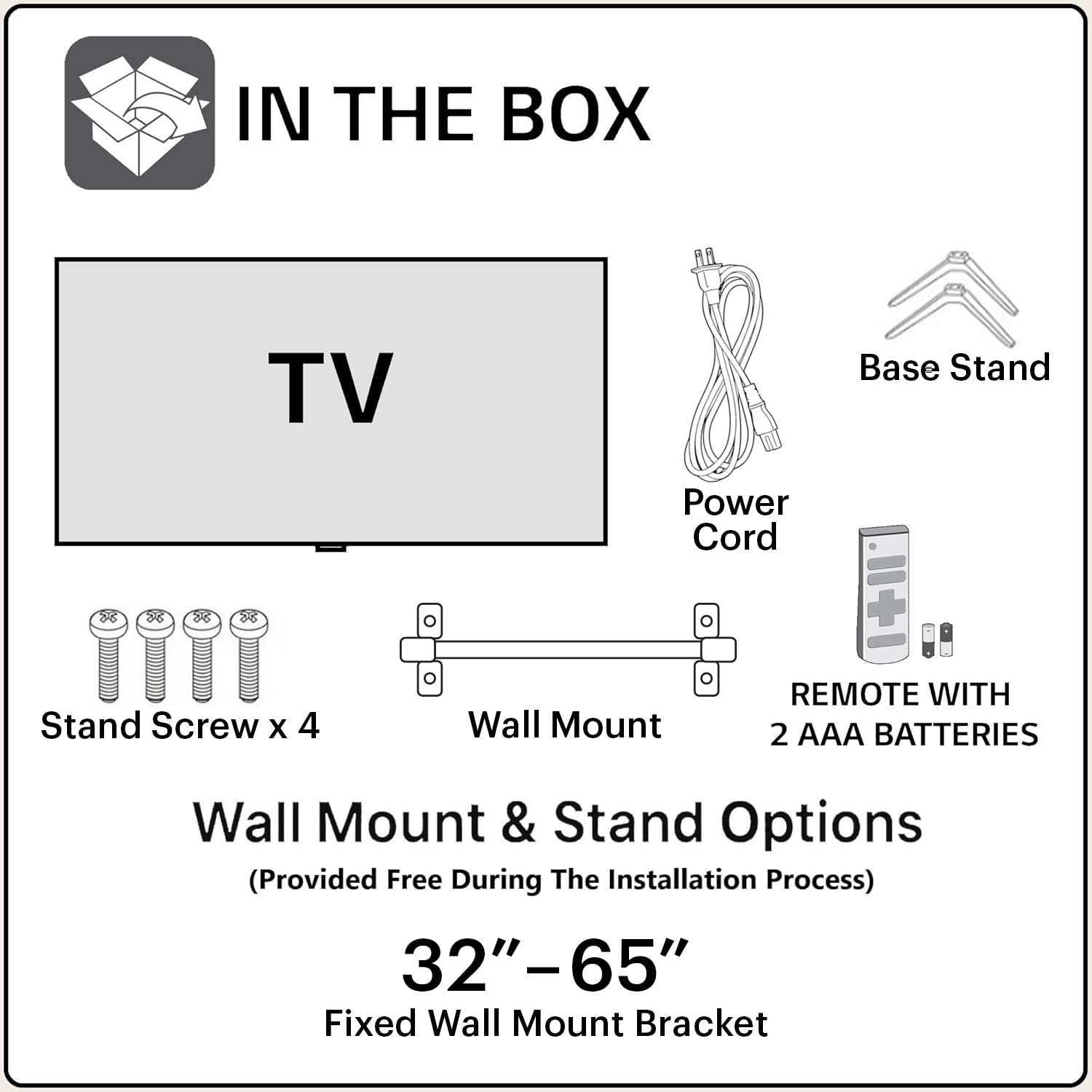
Image: Diagram showing the items included in the product packaging: TV, remote control, wall mount, stand screws, power cord, and AAA batteries.
- 1 x Blaupunkt 43QD7050 LED TV
- 1 x Remote Control
- 1 x Wall Mount Bracket (for 32"-65" models)
- 2 x AAA Batteries (for remote control)
- 1 x Power Cord
- 1 x Base Stand Set (with 4 stand screws)
- User Manual (this document)
Physical Overview
Front View

Image: Front view of the television, showcasing the screen and minimal bezels.
Side View

Image: Side profile of the television, illustrating its slim design.
Rear View and Ports

Image: Rear view of the television, detailing the location of various input and output ports.
The rear panel of the TV includes various ports for connectivity:
- HDMI Ports (x3): For connecting devices like gaming consoles, set-top boxes, and Blu-ray players. One port supports eARC.
- USB Ports (x2): For connecting USB storage devices.
- Ethernet Port: For wired internet connection.
- Antenna/Cable Input: For connecting an antenna or cable TV.
- Audio Out: For connecting external audio systems.
- Power Input: For connecting the power cord.
Setup Guide
1. Stand Installation (Optional)
If you choose to place the TV on a stand, follow these steps:
- Carefully place the TV face-down on a soft, flat surface to prevent screen damage.
- Align the base stands with the screw holes on the bottom of the TV.
- Secure each stand with the provided screws.
2. Wall Mounting (Optional)
The TV comes with a wall mount bracket. Professional installation is recommended for wall mounting. Ensure the wall can support the weight of the TV.
- Refer to the wall mount bracket's instructions for specific installation details.
- Ensure adequate ventilation around the mounted TV.
3. Connecting Peripherals
Connect your external devices to the appropriate ports on the TV's rear panel.
- HDMI: Use HDMI cables to connect devices like set-top boxes, gaming consoles, or Blu-ray players.
- USB: Insert USB drives for media playback.
- Ethernet: Connect an Ethernet cable for a stable wired internet connection.
- Power: Connect the power cord to the TV's power input and then to a wall outlet.

Image: Visual representation of the TV's connectivity options including HDMI, Bluetooth, Dual Band Wi-Fi, and USB.
4. Initial Power On and Google TV Setup
- Plug the TV into a power outlet.
- Press the Power button on the remote control or the TV.
- Follow the on-screen instructions to complete the initial setup, including language selection, network connection (Wi-Fi or Ethernet), and Google account sign-in.
Operating Instructions
Remote Control Functions

Image: Layout of the Blaupunkt TV remote control, showing buttons for power, navigation, volume, and quick access to streaming services.
The remote control allows you to navigate the TV's features:
- Power Button: Turns the TV on or off.
- Navigation Pad (Up/Down/Left/Right/OK): For menu navigation and selection.
- Back Button: Returns to the previous screen.
- Home Button: Accesses the Google TV home screen.
- Volume Up/Down: Adjusts the volume level.
- Mute Button: Mutes or unmutes the sound.
- Quick Access Buttons: Dedicated buttons for Netflix, Prime Video, YouTube, and other services.
- Google Assistant Button: Activates voice control.
Google TV Interface Navigation
Google TV organizes your content from various streaming services into a personalized home screen.

Image: Screenshot of the Google TV interface, displaying personalized movie and show recommendations and a unified watchlist.
- Use the navigation pad to browse through recommended content, apps, and settings.
- Select an item by pressing the OK button.
- Access the full list of installed apps from the "Apps" tab.
Smart Features
- Voice Control (Google Assistant): Press the Google Assistant button on your remote and speak commands to search for content, control smart home devices, or get information.
- Screen Mirroring: Cast content from your compatible smartphone or tablet to the TV using the built-in casting feature.
- Apps & Games: Access a wide range of applications and games from the Google Play Store.

Image: Display of the TV screen showcasing a selection of over 10,000 available apps and games, including popular streaming services.
Maintenance
- Cleaning the Screen: Gently wipe the screen with a soft, lint-free cloth. For stubborn marks, use a screen cleaner specifically designed for televisions, applied to the cloth, not directly to the screen.
- Cleaning the Cabinet: Use a soft, dry cloth to wipe the TV cabinet. Do not use abrasive cleaners or solvents.
- Software Updates: The TV may receive automatic software updates. Ensure your TV is connected to the internet to receive these updates, which improve performance and add new features.
Troubleshooting
Refer to this section for solutions to common issues.
| Problem | Possible Solution |
|---|---|
| No power | Ensure the power cord is securely plugged into both the TV and a working electrical outlet. Check the power indicator light on the TV. |
| No picture, but sound is present | Check the input source. Press the "Input" button on the remote to cycle through sources. Ensure external devices are powered on and connected correctly. |
| No sound, but picture is present | Check the volume level and ensure the TV is not muted. Verify audio settings in the TV menu. If using external speakers, check their connections and power. |
| Remote control not working | Replace the batteries in the remote control. Ensure there are no obstructions between the remote and the TV's IR sensor. |
| Poor picture quality | Check the cable connections. Adjust picture settings (brightness, contrast, sharpness) in the TV menu. For external devices, ensure they are outputting at the correct resolution. |
| Wi-Fi connection issues | Restart your router and modem. Go to the TV's network settings and reconnect to your Wi-Fi network. Ensure the TV is within range of your router. |
Specifications
Detailed technical specifications for the Blaupunkt 43QD7050 QLED Google TV.

Image: Diagram illustrating the physical dimensions of the Blaupunkt 43QD7050 TV, including screen size, width, height, and depth.
| Feature | Detail |
|---|---|
| Model | 43QD7050 |
| Screen Size | 43 Inches (108 cm) |
| Display Technology | QLED |
| Resolution | 4K Ultra HD (3840 x 2160) |
| Refresh Rate | 60 Hz |
| Operating System | Google TV |
| Sound Output | 60 Watts |
| Audio Features | Dolby Digital Plus, DTS TruSurround, CyberSound Gen2 Technology |
| Connectivity | Dual Band Wi-Fi, 3 HDMI ports (eARC support), 2 USB ports, Ethernet, Bluetooth |
| Special Features | 4K HDR, Google Assistant, Screen Mirroring, HDR 10+ |
| Memory (RAM/Storage) | 2 GB RAM / 16 GB Storage |
| Product Dimensions (LxWxH) | 97 x 10 x 55 cm (without stand) |
| Item Weight | 5.9 kg |
| Model Year | 2024 |

Image: Representation of the MediaTek MT9602 processor, highlighting its quad-core ARM Cortex A53 CPU and Mali-G52MC1 GPU for performance.
Warranty and Support
Your Blaupunkt 43QD7050 television comes with a manufacturer's warranty.
- Product Warranty: 1 year from the date of purchase.
- Remote Accessories Warranty: 6 months from the date of purchase.
- Warranty Claim: The brand warranty can be availed using the purchase invoice.
- Items Not Covered: Light bleeding and dot issues (Mura issues) occurring within acceptable Mura Inspection standards (2% guideline) are not considered panel defects and are not covered.
For customer support, service requests, or further inquiries, please contact:
- Toll-Free Contact: 1800-274-4342
- Email ID: consumercare@blaupunkttv.in
- Manufacturer Address: B-29,30,31, Phase-II, Noida, Gautam Buddha Nagar, Uttar Pradesh, 201301, India.
Please have your product model number (43QD7050) and purchase invoice ready when contacting support.


