
Introduction
This manual provides essential information for the setup, operation, maintenance, and troubleshooting of your Blaupunkt CyberSound G2 Series 43-inch Full HD LED Smart Android TV. Please read this manual thoroughly before using your television to ensure proper and safe operation.
What's in the Box
Carefully unpack the box and ensure all the following items are present:
- 1N LED TV
- 1N Remote Control
- 1N User Manual (this document)
- 2N AAA Batteries (for remote)
- 1N Wall Mounting Bracket (Fixed)
- Base Stands (2 units)
- Stand Screws (4 units)
- Power Cord
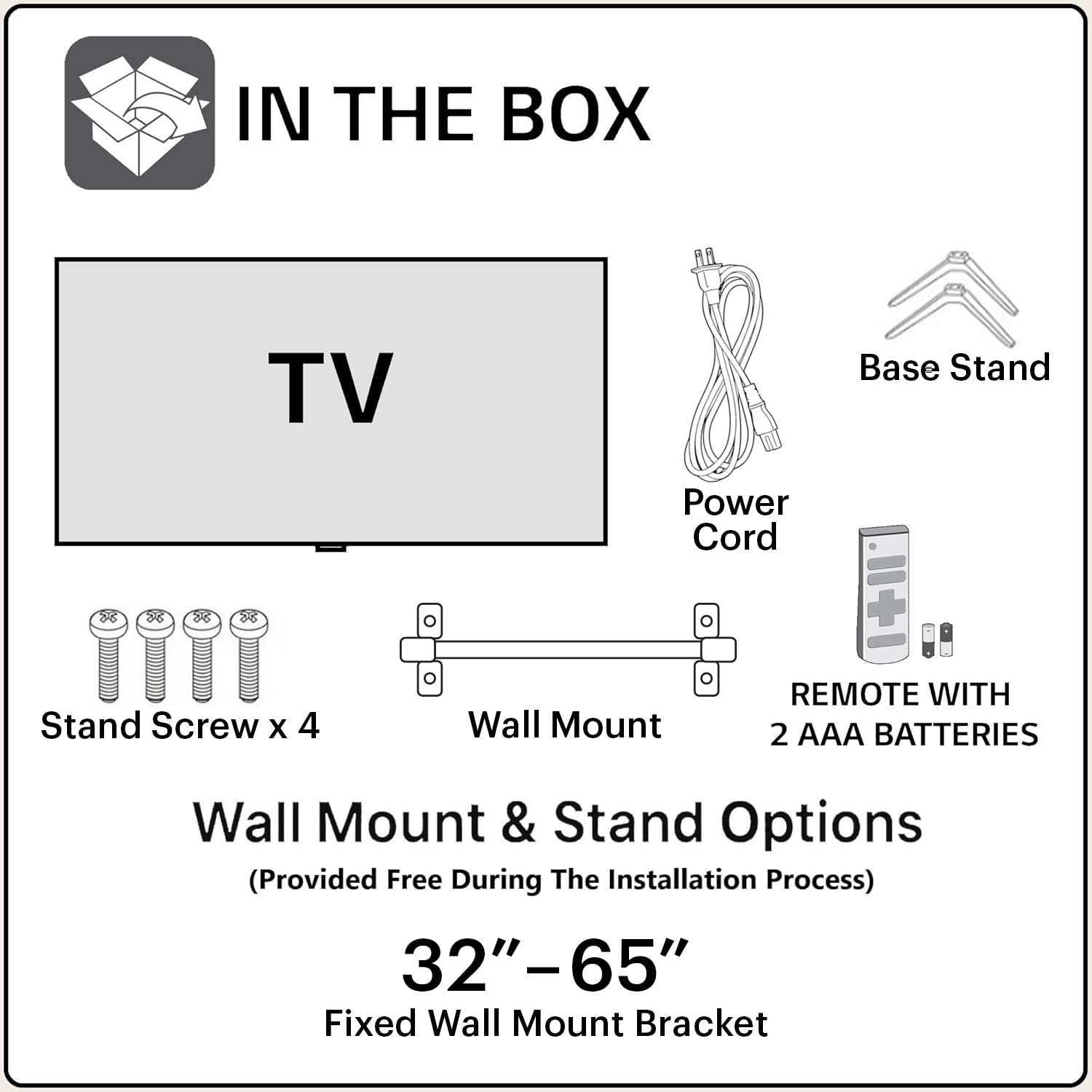
Image: Contents of the TV packaging, showing the television, remote control, power cord, base stands, stand screws, and wall mount bracket.
Setup
1. Attaching the Stand or Wall Mounting
You can either place the TV on a flat surface using the provided base stands or mount it on a wall. Ensure the TV is placed on a stable surface or securely mounted to prevent accidental falls.
- For Stand Installation:
- Carefully place the TV face down on a soft, clean surface to prevent screen damage.
- Align the base stands with the corresponding screw holes on the bottom of the TV.
- Secure each stand with the provided screws.

Image: Front view of the Blaupunkt TV with its base stands installed.
- For Wall Mounting:
- Refer to the instructions provided with the wall mounting bracket.
- Ensure the wall can support the weight of the TV and the mount.
- The VESA mount standard for this TV is 200 x 200 mm.
2. Connecting Peripherals
Connect your external devices to the TV using the available ports.

Image: Back panel of the TV displaying HDMI, USB, and other connectivity ports.
- HDMI: Connect gaming consoles, set-top boxes, or Blu-ray players to the 3 HDMI ports.
- USB: Connect hard drives or other USB devices to the 2 USB ports.
- Ethernet: For a wired internet connection.
- Power: Connect the power cord to the TV and then to a power outlet.
3. Initial Power-On and Setup
After connecting all necessary cables, plug the TV into a power source and press the power button on the remote control or TV. Follow the on-screen instructions for initial setup, including language selection, network connection, and Google account login.
Operating the TV
Remote Control Functions
The provided remote control allows you to navigate the TV's features. Insert the two AAA batteries into the remote, ensuring correct polarity.

Image: The TV remote control, highlighting buttons for power, home, back, navigation, volume, Google Assistant, Netflix, Prime Video, YouTube, and Google Play.
- Power Button: Turns the TV on or off.
- Navigation Pad (OK button): Used to navigate menus and confirm selections.
- Volume Buttons (+/-): Adjusts the volume level.
- Google Assistant Button: Activates voice control for commands and searches.
- Dedicated App Buttons: Quick access to Netflix, Prime Video, YouTube, and Google Play.
- Home Button: Returns to the main Android TV home screen.
- Back Button: Returns to the previous screen or menu.
Smart TV Features (Android 11 OS)
Your TV runs on Android 11 OS, providing access to a wide range of smart features:
- In-Built Wi-Fi: Connect to your home wireless network for internet access.
- Screen Mirroring: Cast content from your mobile devices to the TV.
- Supported Apps: Access popular streaming services like Netflix, Prime Video, YouTube, Disney+Hotstar, Apple TV, and more.
- Google Assistant: Use voice commands for hands-free control, search, and information.
- Chromecast Built-in: Stream content directly from compatible apps on your phone or tablet.

Image: An astronaut holding the TV remote, demonstrating voice command functionality with Google Assistant.

Image: A visual representation of the TV's seamless connectivity, showing content mirrored from a laptop and a smartphone to the television screen.
Display and Audio Settings
Access the TV settings menu to customize your viewing and listening experience.
- Picture Modes: Adjust brightness, contrast, color, and sharpness.
- Sound Modes: Select from various audio presets or customize equalizer settings. The TV features 48 Watts output with Dolby Digital Plus and DTS TruSurround for enhanced audio.
Maintenance
Cleaning the TV
- Always unplug the TV before cleaning.
- Use a soft, dry, lint-free cloth to gently wipe the screen and cabinet.
- For stubborn marks, lightly dampen the cloth with water or a mild, non-abrasive screen cleaner. Do not spray cleaner directly onto the screen.
- Avoid using harsh chemicals, abrasive pads, or solvents as they can damage the TV's surface.
Software Updates
Your Android TV may receive software updates periodically. It is recommended to keep your TV connected to the internet to receive these updates, which can improve performance and add new features. You can usually check for updates in the TV's settings menu.
Troubleshooting
If you encounter issues with your TV, refer to the following common solutions before contacting support.
| Problem | Possible Solution |
|---|---|
| No Power | Ensure the power cord is securely plugged into both the TV and a working power outlet. Check if the power outlet is active. |
| No Picture, but Sound is Present | Check the input source. Ensure the connected device (e.g., set-top box) is powered on and functioning correctly. Try a different HDMI cable. |
| No Sound, but Picture is Present | Check the volume level and ensure the TV is not muted. Verify audio settings and external audio device connections if applicable. |
| Remote Control Not Responding | Replace the batteries in the remote control. Ensure there are no obstructions between the remote and the TV's IR sensor. |
| Cannot Connect to Wi-Fi | Ensure your Wi-Fi router is on and working. Re-enter the Wi-Fi password. Try restarting both the TV and the router. |
| Picture Quality Issues (e.g., Mura, light bleeding) | Minor light bleeding and Mura issues on certain grey scales are considered acceptable as per industry standards and are not covered under warranty as panel defects. |
Specifications
| Feature | Detail |
|---|---|
| Model Name | CyberSound G2 |
| Model Number | 43CSG7105 |
| Screen Size | 43 Inches (108 cm) |
| Display Technology | LED |
| Resolution | Full HD (1920 x 1080) |
| Refresh Rate | 60 Hz |
| Sound Output | 48 Watts |
| Audio Technology | Dolby Digital Plus, DTS TruSurround |
| Operating System | Android 11 OS |
| Connectivity | Dual Band Wi-Fi, 3 HDMI ports, 2 USB ports, Ethernet, Bluetooth |
| Special Features | Google Assistant, Chromecast built-in, Screen Mirroring, 10000+ Apps & Games |
| Memory Storage Capacity | 8 GB |
| Power Consumption | 150 Watts |
| Annual Energy Consumption | 65 kWh |
| Product Dimensions (D x W x H) | 12D x 97W x 57H Centimeters |
| VESA Mount Standard | 200 x 200 mm |

Image: Dimensional drawing of the 43-inch TV, indicating width, height, and depth measurements.
Warranty and Support
Warranty Information
This product comes with a 1-year warranty on the product and 6 months on remote accessories, provided by the manufacturer from the date of purchase. To avail warranty service, please retain your purchase invoice.
Warranty Exclusions: Light bleeding and dot issues (Mura issues) occurring on a certain Grey scale are considered acceptable as per the Mura Inspection standard and are not considered a panel defect. As per ND (Neutral Density) Filter 2% guideline, these are not covered.
Customer Support
For assistance, technical support, or warranty claims, please contact Blaupunkt customer care:
- Toll-Free Number: 1800-274-4342
- Email ID: consumercare@blaupunkttv.in
- When contacting support, please provide the product's model name (43CSG7105) and seller's details mentioned on your invoice.
Manufacturer/Packer/Importer Address: B-29,30,31, Phase-II, Noida, Gautam Buddha Nagar, Uttar Pradesh, 201301, India.


