
Mercusys MR47BE
Mercusys BE9300 Tri-Band Wi-Fi 7 Router User Manual
Model: MR47BE
1. Introduction
This manual provides detailed instructions for setting up, operating, maintaining, and troubleshooting your Mercusys BE9300 Tri-Band Wi-Fi 7 Router. The MR47BE model is designed to deliver high-speed, reliable wireless connectivity utilizing the latest Wi-Fi 7 standard, featuring tri-band operation, 320 MHz channels, 4K QAM, Multi-Link Operation (MLO), and full 2.5 Gbps ports for an enhanced networking experience.
2. Package Contents
Verify that your package contains the following items:
- Mercusys BE9300 Tri-Band Wi-Fi 7 Router (MR47BE)
- Power Adapter
- Ethernet Cable
- Quick Installation Guide
3. Hardware Overview
Familiarize yourself with the physical components of your router.
Front Panel

Figure 3.1: Front View of Mercusys BE9300 Router
The front panel features the Mercusys logo and an LED indicator that displays the router's status. A solid green light typically indicates normal operation.
Rear Panel

Figure 3.2: Rear View of Mercusys BE9300 Router with Ports
The rear panel includes:
- Power Input: Connects to the provided power adapter.
- Reset Button: Used to restore factory default settings. Press and hold for approximately 10 seconds while the router is powered on.
- LAN Ports (3x 2.5 Gbps): Connect wired devices such as computers, gaming consoles, or network-attached storage (NAS) for high-speed local network access.
- WAN Port (1x 2.5 Gbps): Connects to your modem or internet service provider's (ISP) device for internet access.
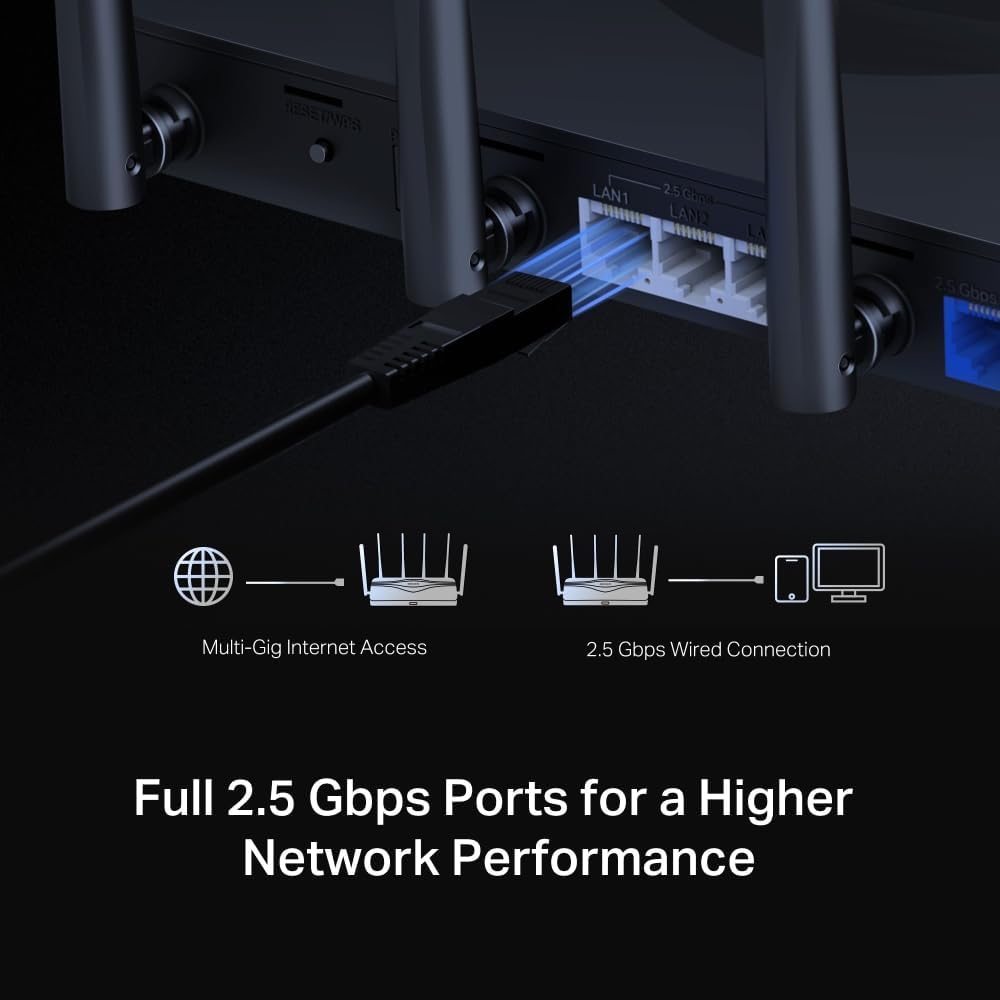
Figure 3.3: Full 2.5 Gbps Ports for Higher Network Performance
4. Setup Guide
Follow these steps for initial setup of your Mercusys BE9300 router.
4.1 Placement Considerations
For optimal Wi-Fi performance, place the router in a central location in your home, away from obstructions and devices that emit strong electromagnetic interference (e.g., microwaves, cordless phones).
4.2 Hardware Connection
- Power Off: Disconnect the power from your modem (if applicable).
- Connect WAN Port: Connect one end of the provided Ethernet cable to the WAN port (blue) of your Mercusys router and the other end to your modem's Ethernet port.
- Connect Power: Connect the power adapter to the router's power input and plug it into a power outlet.
- Power On: Power on your modem first, then wait for it to fully boot up (usually indicated by stable lights). Then, power on your Mercusys router.
- Connect Devices (Optional): For wired connections, connect your computer or other devices to the router's LAN ports (yellow) using Ethernet cables. For wireless connections, proceed to the next step.
4.3 Initial Configuration
You can configure your router via the Mercusys app or a web browser.
Using the Mercusys App (Recommended)
- Download App: Search for 'Mercusys' in the App Store or Google Play and download the app.
- Connect to Wi-Fi: Connect your smartphone to the router's default Wi-Fi network (SSID and password are printed on the label at the bottom of the router).
- Launch App: Open the Mercusys app and follow the on-screen instructions to set up your router, including creating a new Wi-Fi name and password.
Using a Web Browser
- Connect to Router: Connect your computer to the router via an Ethernet cable or wirelessly to the default Wi-Fi network.
- Access Web Interface: Open a web browser and type
mwlogin.netor192.168.1.1into the address bar. - Follow Setup Wizard: Create a login password, then follow the step-by-step instructions to configure your internet connection and Wi-Fi settings.
5. Operating Instructions
Your Mercusys BE9300 router offers advanced features for optimal network performance.
5.1 Wi-Fi 7 Capabilities

Figure 5.1: Wi-Fi 7 Key Features
The BE9300 leverages Wi-Fi 7 (802.11be) to provide:
- Tri-Band Operation: Simultaneous 2.4 GHz, 5 GHz, and 6 GHz bands for optimized device connections.
- 320 MHz Channels: Wider channels for increased data throughput.
- 4K QAM: Higher data density for faster speeds.
- Multi-Link Operation (MLO): Combines multiple bands for improved reliability and speed.
- Lower Latency: Ideal for gaming and real-time applications.

Figure 5.2: Blazing Fast 9.3 Gbps Leads to An Amazing Experience
5.2 Network Security (WPA3)

Figure 5.3: The Latest WPA3 Protects Your Personal Network
The router supports WPA3, the latest Wi-Fi security protocol, providing enhanced encryption and protection against brute-force attacks, ensuring your personal network remains secure.
5.3 EasyMesh Compatibility

Figure 5.4: Cover Your Whole Home with EasyMesh
The BE9300 is EasyMesh compatible, allowing you to create a seamless whole-home mesh Wi-Fi system by adding other EasyMesh-compatible devices. This expands coverage and eliminates Wi-Fi dead zones.
6. Maintenance
Regular maintenance helps ensure the longevity and optimal performance of your router.
- Firmware Updates: Periodically check the Mercusys website or the router's management interface for available firmware updates. Updating firmware can improve performance, add new features, and fix security vulnerabilities.
- Regular Reboot: Rebooting your router every few weeks can help clear its memory and resolve minor performance issues.
- Cleaning: Keep the router clean and free from dust. Use a soft, dry cloth to wipe the exterior. Do not use liquid cleaners or aerosols.
- Security Best Practices: Regularly change your Wi-Fi password and router login password. Use strong, unique passwords.
7. Troubleshooting
If you encounter issues with your router, try the following troubleshooting steps.
7.1 No Internet Access
- Check Cables: Ensure all Ethernet cables are securely connected to the correct ports (WAN to modem, LAN to devices).
- Reboot Devices: Power off your modem and router. Wait for 30 seconds, then power on the modem first. Once the modem is fully online, power on the router.
- Check Modem Status: Verify that your modem is receiving an internet signal from your ISP. Consult your modem's manual or ISP for indicator light meanings.
- ISP Issue: If all lights are normal but there's still no internet, contact your Internet Service Provider.
7.2 Slow Wi-Fi Speeds
- Router Placement: Ensure the router is centrally located and free from obstructions.
- Interference: Move the router away from other electronic devices that may cause interference (e.g., microwaves, cordless phones, Bluetooth devices).
- Band Selection: For devices supporting 5 GHz or 6 GHz, connect to those bands for faster speeds and less interference.
- Too Many Devices: Disconnect unused devices from the network.
- Firmware: Ensure your router's firmware is up to date.
7.3 Cannot Connect to Wi-Fi
- Correct Password: Double-check that you are entering the correct Wi-Fi password.
- Signal Strength: Ensure your device is within the router's Wi-Fi range.
- Router Reboot: Reboot the router.
- Factory Reset: If issues persist, perform a factory reset (refer to Section 3.2 for instructions). Note that this will erase all custom settings.
8. Specifications
| Feature | Detail |
|---|---|
| Brand | Mercusys |
| Model Name | MR47BE |
| Wireless Type | 802.11.be (Wi-Fi 7) |
| Frequency Band Class | Tri-Band (2.4 GHz, 5 GHz, 6 GHz) |
| Ports | 1x 2.5 Gbps WAN, 3x 2.5 Gbps LAN |
| Antennas | 6x Omni-directional Antennas |
| Security Protocol | WPA3 |
| Operating System | RouterOS |
| Product Dimensions (L x W x H) | 25.8 x 11.9 x 4.33 cm |
| Item Weight | 1 kg |
| Color | Black |
| Manufacturer | Mercusys Technologies Co., Ltd. |
| Country of Origin | China |
| Date First Available | 19 December 2023 |
9. Warranty and Support
9.1 Warranty Information
The Mercusys BE9300 Tri-Band Wi-Fi 7 Router comes with a 2-year warranty from the date of purchase. Please retain your proof of purchase for warranty claims. The warranty covers defects in materials and workmanship under normal use.
9.2 Technical Support
For technical support, firmware updates, or additional resources, please visit the official Mercusys website. You can typically find support contact information, FAQs, and troubleshooting guides there.
Mercusys Website: www.mercusys.com
Ask a question about this manual
Ask about setup, troubleshooting, compatibility, parts, safety, or missing instructions. Manuals+ will review the question and use this page’s manual context to help answer it.