
Product Overview
The Avylet T93 is a portable 9.26-inch car display designed to enhance your driving experience with seamless smartphone integration. It features wireless Apple CarPlay and Android Auto, a 4K front dashcam, and an HD rear camera for comprehensive vehicle monitoring and navigation.

An image displaying the Avylet 9.26-inch portable car display mounted on a dashboard, highlighting its key features such as wireless CarPlay, Android Auto, 4K dashcam, and rear camera.
Package Contents
Verify that all items are included in your package:
- 9.26-inch Portable CarPlay Unit
- Adhesive Mount
- Rear Camera (7.5 m cable)
- 64GB Memory Card (pre-installed)
- Suction Cup Mount
- Type-C Power Cable to Cigarette Lighter (3 m)
- AUX Audio Cable (1.5 m)
- User Manual (in 6 languages)
- Installation Accessories

An image showing all components included in the Avylet 9.26-inch CarPlay system package, such as the main unit, adhesive mount, rear camera, 64GB memory card, suction cup mount, power cable, AUX cable, and user manual.
Setup and Installation
The Avylet T93 is designed for quick and easy plug-and-play installation.
Mounting Options
Choose between the adhesive mount or the suction cup mount for securing the display to your dashboard or windshield. Both mounts offer 360-degree rotation for optimal viewing angles.

An image illustrating the two types of mounts included: an adhesive mount and a suction cup mount, both offering adjustable angles for flexible installation of the car display.
Power Connection
Connect the Type-C power cable to the display and plug the other end into your vehicle's 12V-32V cigarette lighter socket.
Rear Camera Installation
Install the IP67 waterproof HD rear camera. Ensure the red wire of the rear camera is connected to the positive terminal of your vehicle's reverse light. This activates the parking assist lines when reversing.

An image showing the rear camera and its connection, emphasizing its 170-degree view angle and IP67 waterproof rating.
Memory Card
A 64GB memory card is pre-installed. For optimal performance, format the memory card before first use. The system supports up to 256GB memory cards.

An image illustrating the memory card slot on the device, indicating support for up to 256GB memory cards and the inclusion of a pre-installed 64GB card.
Operating Instructions
Wireless Apple CarPlay Connection
- Activate CarPlay mode on the car stereo.
- Activate Wi-Fi and Bluetooth on your iPhone. Ensure you have the latest version of Apple CarPlay.
- Select the device named "T93xxxx" to connect.
- Connection successful.

A step-by-step visual guide demonstrating how to connect an iPhone to the Avylet display using wireless Apple CarPlay, showing phone and display screens.
Wireless Android Auto Connection
- Activate Android Auto mode on the stereo.
- Activate Bluetooth and Wi-Fi on your phone. Ensure the Android Auto app is installed.
- Select the device named "T93xxxx" for connection.
- The screen displays "Connect to device?". Tap "Connect".
- Connection successful.

A step-by-step visual guide demonstrating how to connect an Android phone to the Avylet display using wireless Android Auto, showing phone and display screens.
Voice Control
Utilize built-in Siri or Google Assistant for hands-free operation.
- "Hey Siri, call Eliza."
- "Hey Google, play music."
- "Hey Siri, take me home."
- "Hey Google, send a message to Liam."

An image illustrating the use of voice commands (Siri/Google Assistant) for navigation, calls, and music playback on the Avylet display, with example commands shown.
Navigation
The 9.26-inch screen supports Apple Maps, Google Maps, and Waze for real-time navigation, traffic alerts, and accurate ETAs.

An image showing the Avylet display running a navigation application (e.g., Google Maps or Waze) with a clear route displayed, emphasizing real-time guidance.
Audio Output Modes
The system offers four flexible audio output options:
- Built-in speakers: For direct audio output from the unit.
- Wireless Bluetooth: Connect to your car's existing Bluetooth system (ensure your car has Bluetooth functionality).
- FM transmission: Transmit audio to your car's FM radio by tuning to a specific frequency.
- Wired AUX connection: Connect via the included AUX cable for optimal lossless audio quality.
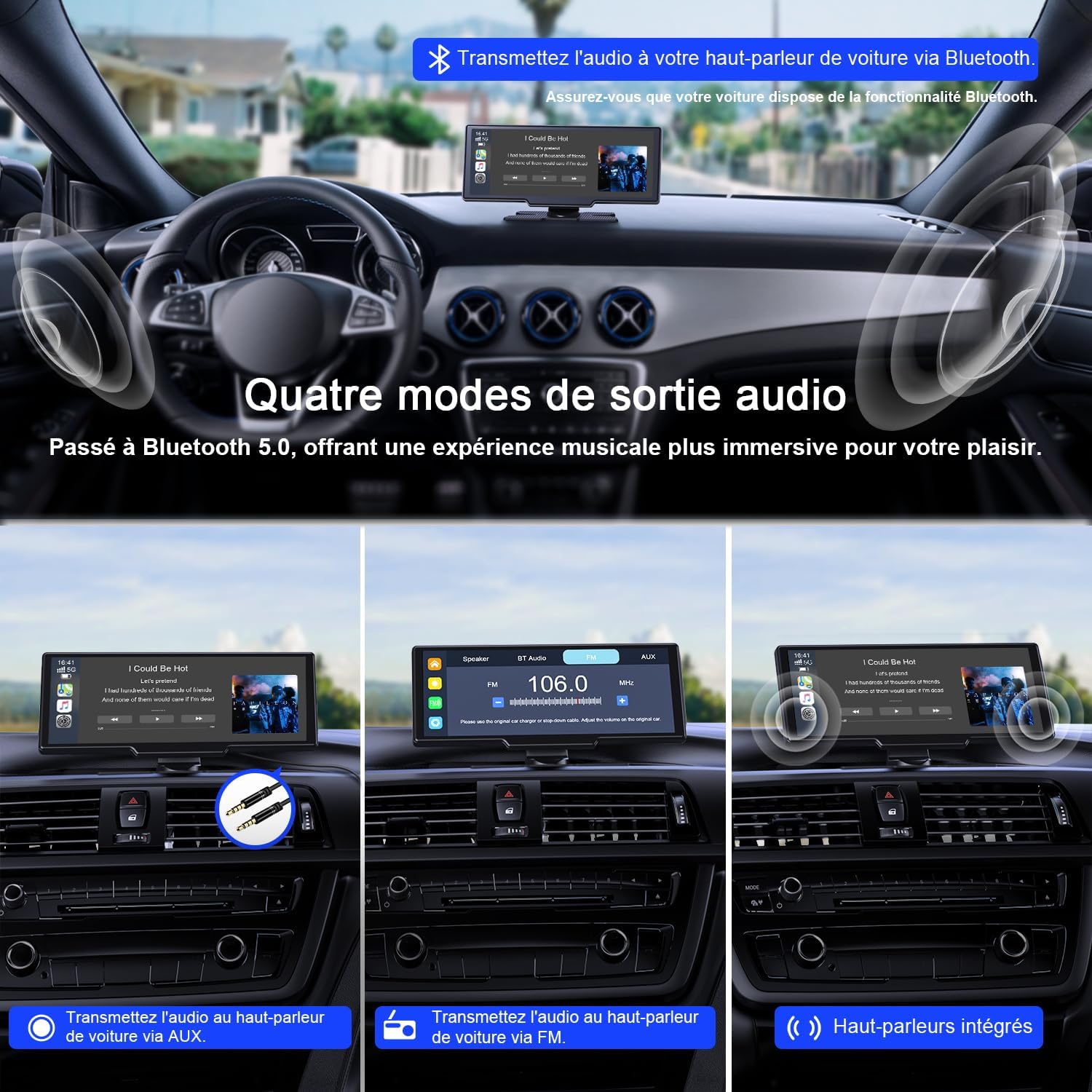
An image demonstrating the four audio output modes: built-in speakers, Bluetooth, FM transmission, and AUX connection, with visual cues for each.
Screen Mirroring (Mirror Link)
Connect via Wi-Fi for instant screen mirroring (AirPlay & Android Cast) to view your smartphone content on the larger display, enhancing your visual experience.

An image showing a smartphone screen being mirrored onto the Avylet display via AirPlay or Android Cast, illustrating the Mirror Link functionality.
Dashcam Functionality
The integrated 4K front camera and HD rear camera provide continuous recording. Features include loop recording, ensuring older files are overwritten by new ones, and a G-sensor for automatic collision detection and footage protection.

An image displaying the dual dashcam views (front 4K and rear HD) on the screen, highlighting features like loop recording and parking assistance.
Split Screen Mode
The split-screen mode allows for efficient multitasking, enabling simultaneous use of multiple applications and camera feeds after connecting to Apple CarPlay or Android Auto. This allows you to view navigation and a camera feed concurrently.

An image demonstrating the split-screen display mode, showing two applications running simultaneously on the Avylet screen, such as navigation and music.
Maintenance
Keep the screen clean using a soft, dry cloth. Avoid abrasive cleaners or solvents that could damage the display. Regularly check cable connections to ensure they are secure.
OTA Updates
The system supports Over-The-Air (OTA) updates for continuous improvements and optimized performance. Connect via Wi-Fi to receive free lifetime updates, ensuring your device always has the latest features and security enhancements.

An image illustrating the Over-The-Air (OTA) update process, showing a smartphone and the car display receiving a software update wirelessly.
Troubleshooting
Screen Freezing
- Check for other electronic devices nearby that might interfere with the CarPlay signal (Bluetooth or Wi-Fi). Move them away from the phone and CarPlay unit.
- Try restoring CarPlay to factory settings in the device's "Settings" menu and clear phone and CarPlay connection records before reconnecting.
- If the problem persists, contact customer service at service@avylet.com for professional assistance.
Android Auto Disconnection Issue
If you experience unstable or frequent disconnections with Android Auto after updating to Android 16, follow these steps:
- Install the latest version of the Evelink application from the Google Play Store.
- Switch to Android Cast mode on the smart screen.
- Connect to the smart screen: In the Evelink app, tap "Add", select "Wi-Fi Direct", tap the blue area at the top, then "Authorize".
- Once connected, your phone will display "Android 16 Auto Connect issue fixed", indicating the disconnection problem is resolved.

A four-step visual guide demonstrating how to resolve Android Auto disconnection issues using the Evelink app and Wi-Fi Direct connection.
Specifications
| Brand | Avylet |
| Model Name | T93 |
| Screen Size | 9.26 inches |
| Display Type | Touchscreen IPS HD |
| Resolution | 1600x600 |
| Refresh Rate | 60Hz |
| Brightness | 550 cd/m² |
| Contrast Ratio | 1000:1 |
| Connectivity Technology | AirPlay, Android Cast, Bluetooth 5.2, AUX, FM |
| Special Features | Voice control, Wireless Apple CarPlay, Wireless Android Auto, 4K Front Dashcam, 1080P HD Rear Camera, Mirror Link, OTA Updates, Split Screen Mode |
| Video Recording Resolution | 4K (front), 1080p (rear) |
| Field of View | 170 degrees |
| Memory Card Included | 64GB |
| Max Memory Card Support | 256GB |
| Power Input | 12V-32V (Cigarette Lighter) |
| Mounting Type | Windshield Mount, Adhesive Mount |
| Compatible Vehicle Types | Car, SUV, Van, RV, Truck, Pickup |
| Dimensions (L x W x H) | 24 x 4.8 x 11 cm |
| Weight | 1.3 kg |
Warranty and Support
The Avylet T93 comes with a 2-year warranty from the date of purchase.
For technical support, warranty claims, or any inquiries, please contact us via the information provided on the product packaging or directly through our dedicated support channel. We guarantee a response within 12 hours.
Email: service@avylet.com

An image detailing customer support information, including 24/7 technical support and a 2-year warranty, with an email address for contact.

