
1. Introduction
This manual provides detailed instructions for the proper use and maintenance of your Wbacon 7-in-1 External Blu-ray Drive (Model BD015). Please read this manual thoroughly before operating the device to ensure optimal performance and longevity.

Image 1.1: The Wbacon 7-in-1 External Blu-ray Drive, showcasing its compact design and various connectivity options including USB and Type-C cables, SD card, TF card, and USB flash drives.
2. Product Overview and Features
The Wbacon 7-in-1 External Blu-ray Drive is a versatile optical drive designed for reading and writing Blu-ray, DVD, and CD discs, along with integrated multi-port connectivity. It offers high-speed data transfer and broad compatibility.
Key Features:
- 7-in-1 Functionality: Includes 1 SD card slot, 1 TF card slot, 2 Type-C ports, 1 USB 3.0 port, and 1 USB 2.0 port, in addition to Blu-ray/DVD/CD read/write capabilities.
- 100GB Disc Support: Capable of reading and writing high-capacity 100GB Blu-ray discs for extensive data storage and backup.
- High-Speed Performance: Reads Blu-ray discs at up to 6x, DVDs at up to 8x, and CDs at up to 24x.
- Broad Compatibility: Works with Windows, macOS, and Linux operating systems.
- Portable Design: Lightweight and slim, ideal for mobile use.

Image 2.1: Visual representation of the drive's read and write speeds for Blu-ray (6X), DVD (8X), and CD (24X), highlighting 5 Gbps data transfer capability and 100GB Blu-ray disc support.
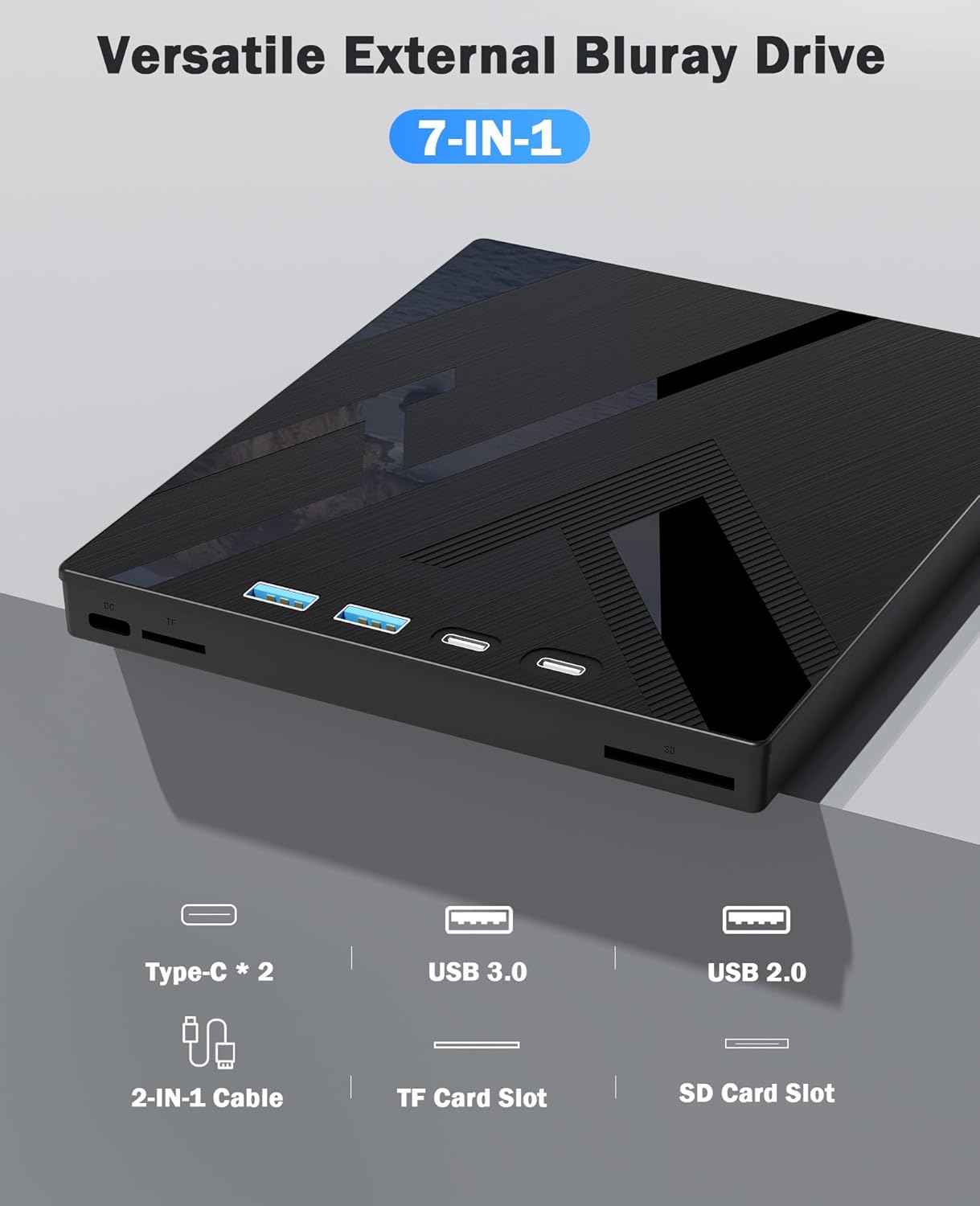
Image 2.2: Detailed view of the drive's integrated ports, including two Type-C ports, one USB 3.0 port, one USB 2.0 port, an SD card slot, and a TF card slot, along with the 2-in-1 USB/Type-C cable.
3. Setup Instructions
Follow these steps to connect and prepare your external Blu-ray drive for use.
3.1 Connecting the Drive
- Locate the integrated 2-in-1 USB 3.0 and Type-C cable on the underside of the drive.
- Connect the appropriate connector (USB 3.0 or Type-C) to an available port on your computer (laptop or desktop).
- Ensure the connection is secure. The drive should be automatically recognized by your operating system. No additional drivers are typically required for basic functionality.

Image 3.1: The underside of the drive, illustrating the integrated USB 3.0 and Type-C cable for convenient storage and connectivity.
3.2 Power Requirements
The drive is typically powered via the USB connection. For stable operation, especially when burning discs or connecting multiple peripherals, ensure your computer's USB port provides sufficient power. If using with a laptop, a direct connection to a powered USB port is recommended.
4. Operating Instructions
4.1 Reading and Writing Discs
- Gently press the eject button on the front of the drive to open the disc tray.
- Place the disc (Blu-ray, DVD, or CD) onto the tray with the label side facing up.
- Gently push the tray back into the drive until it clicks shut.
- Your operating system should detect the disc. For Blu-ray playback or writing, dedicated software is required (e.g., PowerDVD, Leawo Blu-ray Player, VLC Media Player). This software is not included with the drive and must be acquired separately.
4.2 Using the Card Reader and USB Hub
The drive features integrated slots for SD and TF cards, as well as additional USB ports for connecting other peripherals.
- SD/TF Card Slots: Insert your SD or TF card into the corresponding slot. Note that the SD card and TF card cannot be used simultaneously. You must choose one at a time.
- USB Ports (USB 3.0, USB 2.0, Type-C): These ports function as a USB hub, allowing you to connect USB flash drives, external hard drives, or other USB devices. The SD/TF card slots can function simultaneously with the USB ports.

Image 4.1: Examples of how the drive can be used, such as for listening to music, performing data backups, installing operating systems, watching 3D movies, and playing games.
5. Compatibility
5.1 Supported Operating Systems
- Windows (XP and later)
- macOS
- Linux
5.2 Supported Devices
- Desktop PCs
- Laptops
- All-in-one computers
5.3 Not Applicable Devices
This drive is not designed for use with:
- Phones
- TVs
- iPads
- Cars
- Tablets

Image 5.1: A compatibility chart indicating that the drive is compatible with Desktop, Laptop, and All-in-one devices running Mac OS, Linux, and Windows, but not with Phones, TVs, iPads, Cars, or Tablets.
6. Important Notes
6.1 Blu-ray Software Requirement
Blu-ray playback and writing functionalities require specific software. Examples include PowerDVD, Leawo Blu-ray Player, or VLC Media Player. This software is not included with the Wbacon External Blu-ray Drive and must be installed separately by the user.

Image 6.1: The drive connected to a laptop, emphasizing that Blu-ray playback and writing software is not included and must be installed separately.
6.2 Region Code Information
Optical discs (DVDs and Blu-rays) are often encoded with region codes. The disc can only be played if the region code of the drive matches that of the disc. The drive allows for a limited number of region code changes (typically 5 times). After this limit, the region code becomes permanently set.
Common Region Codes:
- Region 1: USA, Canada
- Region 2: Japan, Europe, South Africa, Middle East (including Egypt)
- Region 3: Southeast Asia, East Asia (excluding Hong Kong)
- Region 4: Australia, New Zealand, Pacific Islands, Central America, Mexico, South America, Caribbean
- Region 5: Eastern Europe (Former Soviet Union), India, Africa
- Region 6: China
- Region 7: Reserved
- Region 8: Airplane or Ship, etc.

Image 6.2: An illustration detailing the various DVD/Blu-ray region codes and the countries associated with each region.
7. Troubleshooting
If you encounter issues with your Wbacon External Blu-ray Drive, refer to the following common problems and solutions:
7.1 Drive Not Recognized by Computer
- Check Connections: Ensure the USB cable is securely connected to both the drive and your computer. Try a different USB port.
- Power Supply: If using a laptop, ensure it has sufficient battery or is connected to power. Some USB ports may not provide enough power for the drive, especially during write operations. Try connecting to a different USB port or using a powered USB hub if available.
- Restart Computer: A simple restart can often resolve recognition issues.
- Device Manager (Windows): Check Device Manager to see if the drive is listed, even with an error. You may need to update or reinstall drivers (though typically not required).
7.2 Disc Not Reading or Writing
- Clean Disc: Ensure the disc is clean and free of scratches or smudges.
- Disc Type: Verify that the disc type (BD, DVD, CD) is supported by the drive and that you are using appropriate software for Blu-ray operations.
- Region Code: For movie discs, confirm the disc's region code matches the drive's current setting.
- Software Issues: Ensure your Blu-ray playback/writing software is correctly installed and up-to-date.
- Try Another Disc: Test with a different disc to determine if the issue is with the drive or the specific disc.
7.3 Slow Performance
- USB Port: Ensure the drive is connected to a USB 3.0 or Type-C port for optimal speed. Connecting to a USB 2.0 port will result in slower transfer rates.
- Background Processes: Close unnecessary applications running in the background that might be consuming system resources.
8. Specifications
Below are the technical specifications for the Wbacon 7-in-1 External Blu-ray Drive (Model BD015).
| Feature | Specification |
|---|---|
| Brand | Wbacon |
| Model Number | BD015 |
| Optical Storage Read Speed | BD: 6X, DVD: 8X, CD: 24X |
| Optical Storage Write Speed | BD: 6X, DVD: 8X, CD: 24X |
| Hardware Interface | USB 3.0, Type-C |
| Additional Ports | 1x SD Card Slot, 1x TF Card Slot, 2x Type-C Ports, 1x USB 3.0 Port, 1x USB 2.0 Port |
| Special Feature | Blu-ray 3D support |
| Supported Operating Systems | Windows, macOS, Linux |
| Item Weight | 13.7 ounces (approx. 388 grams) |
| Package Dimensions | 6.97 x 6.57 x 1.06 inches |
9. Maintenance
Proper care will extend the life of your external Blu-ray drive.
- Cleaning: Use a soft, dry cloth to clean the exterior of the drive. Avoid liquid cleaners or abrasive materials.
- Disc Handling: Always handle discs by their edges to prevent fingerprints and scratches. Store discs in protective cases.
- Storage: When not in use, store the drive in a clean, dry place away from direct sunlight and extreme temperatures.
- Avoid Impact: The drive contains delicate optical components. Avoid dropping or subjecting it to strong impacts.
10. Warranty and Support
Wbacon is committed to customer satisfaction. If you encounter any concerns or issues with your product upon receiving it or during its use, please contact Wbacon customer service. We are dedicated to providing support and assistance to resolve any problems you may experience.
For support, please refer to the contact information provided with your purchase or visit the official Wbacon website.