
Ankilo WA113B&C-MA06US-HY
Ankilo Projection Alarm Clock User Manual
Model: WA113B&C-MA06US-HY
1. Introduction
Thank you for purchasing the Ankilo Projection Alarm Clock. This device is designed to provide convenient timekeeping with a unique projection feature, allowing you to view the time on your ceiling or wall. It also includes an alarm, temperature display, and USB charging capabilities. Please read this manual carefully to ensure proper use and maintenance of your new alarm clock.
2. Safety Information
- Do not expose the device to extreme temperatures, direct sunlight, or high humidity.
- Keep the device away from water or other liquids.
- Do not attempt to disassemble or repair the device yourself. Refer all servicing to qualified personnel.
- Use only the provided USB cable for power.
- The CR2032 battery is for backup only; the clock requires continuous USB power for full functionality.
3. Package Contents

- 1 x Ankilo Projection Alarm Clock
- 1 x USB Power Cable (1.5m)
- 1 x CR2032 Memory Battery (pre-installed for backup)
- 1 x User Manual
The image above shows the complete contents included in your Ankilo Projection Alarm Clock package. Please verify all items are present upon unboxing.
4. Product Overview

This diagram illustrates the various buttons and ports on your Ankilo Projection Alarm Clock for easy identification and operation.
| Component | Description |
|---|---|
| SNOOZE/LIGHT Button | Press to snooze alarm or adjust display brightness. |
| PROJECT Button | Press to adjust projection brightness. |
| ALARM Button | Press to set or activate/deactivate alarm. |
| SET Button | Press to enter time/date setting mode. |
| UP Button | Increase values during setting, or switch 12/24H format. |
| DOWN Button | Decrease values during setting, or switch temperature unit. |
| Projection Lamp | Emits time projection onto surface. |
| Power Port | Connect USB power cable here. |
| CR2032 Battery Compartment | Houses the backup battery. |
| Speaker | Outputs alarm sound. |
5. Setup
5.1 Powering the Device
The Ankilo Projection Alarm Clock is primarily powered by a USB cable. Connect the provided USB cable to the power port on the back of the clock and plug the other end into a standard USB power adapter (not included) or a USB port.
Important Note:
- The LED screen will only remain on when the USB power supply is connected.
- The included CR2032 battery serves as a backup to retain time and alarm settings during power outages, but it does not power the display or projection.
5.2 Initial Time and Date Setting
- Press and hold the SET button for 3 seconds to enter time setting mode. The hour digits will start flashing.
- Use the UP or DOWN buttons to adjust the hour.
- Press SET again to confirm the hour and move to minute setting. The minute digits will flash.
- Use the UP or DOWN buttons to adjust the minute.
- Press SET again to confirm the minute and move to year setting.
- Repeat the process using UP/DOWN and SET to set the year, month, and day.
- After setting the day, press SET one last time to exit the setting mode.
6. Operating Instructions
6.1 Setting the Alarm
- Press and hold the ALARM button for 3 seconds. The alarm hour digits will flash.
- Use the UP or DOWN buttons to set the desired alarm hour.
- Press ALARM again to confirm the hour and move to minute setting.
- Use the UP or DOWN buttons to set the desired alarm minute.
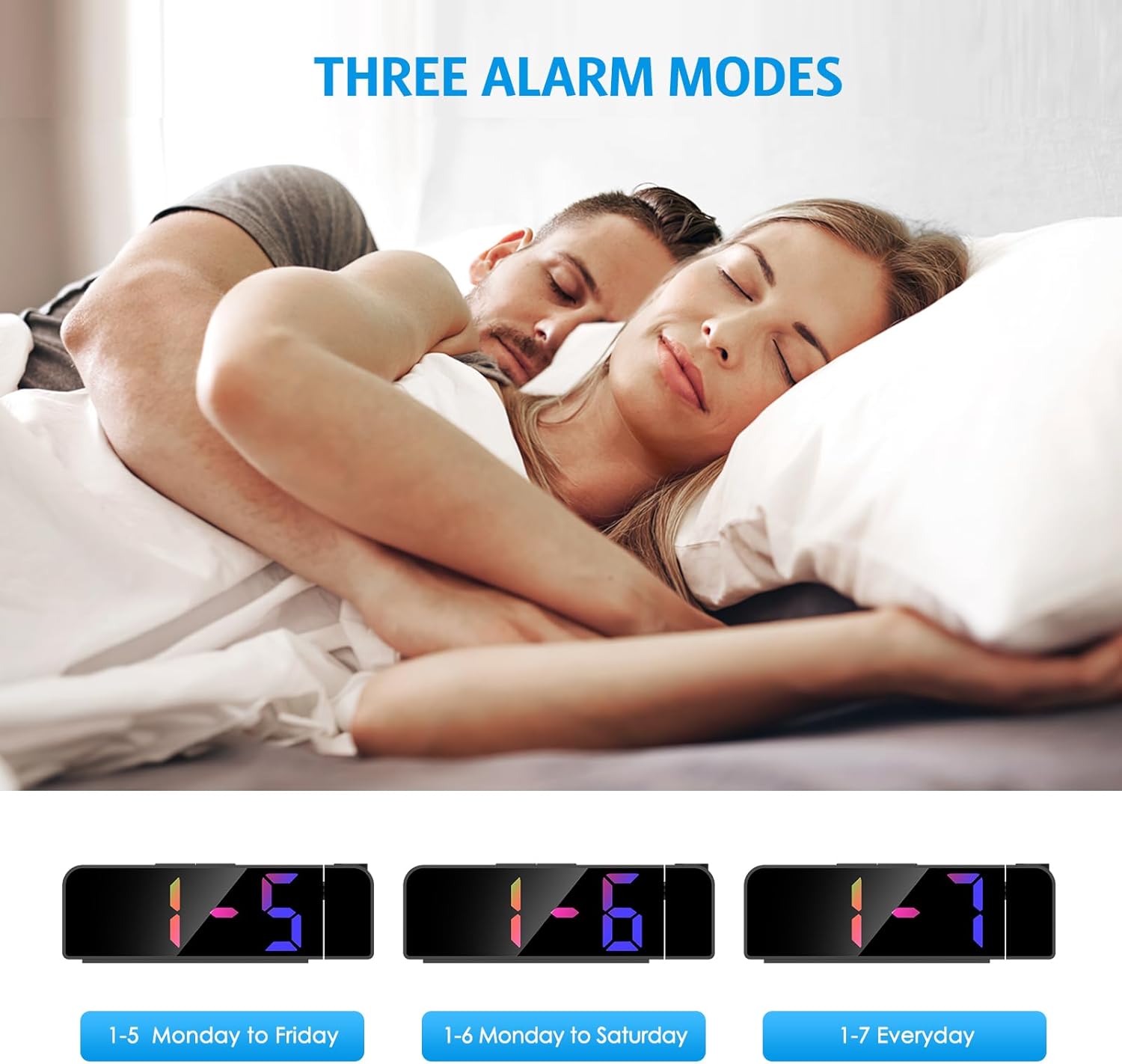
- Press ALARM again to select the alarm mode:
- 1-5: Alarm sounds Monday to Friday.
- 1-6: Alarm sounds Monday to Saturday.
- 1-7: Alarm sounds Everyday.
- Press ALARM one last time to confirm and exit alarm setting mode.
The image above illustrates the three available alarm modes: weekdays, weekdays plus Saturday, and every day.
6.2 Snooze Function

When the alarm sounds, press the large SNOOZE/LIGHT button on the top of the clock to activate the snooze function. This will provide an additional 5 minutes of sleep before the alarm sounds again. You can repeat this process as needed.
The image highlights the prominent SNOOZE/LIGHT button, easily accessible for quick snooze activation.
6.3 Adjusting Display Brightness

Press the SNOOZE/LIGHT button (short press) to cycle through 4 levels of display brightness: Bright, Medium, Low, and Off. Select the brightness level that best suits your environment.
This image demonstrates the four distinct brightness settings for the main LED display, from bright to completely off.
6.4 Adjusting Projection Brightness and Orientation

Press the PROJECT button (short press) to cycle through 3 levels of projection brightness: Off, Dim, and Bright. The projection lamp can be rotated 180 degrees to project the time onto your ceiling or wall.
The image illustrates the projection feature, showing the clock projecting time onto a wall and the three available brightness levels for the projection.

Important Projection Orientation: The projection digits are only displayed correctly when the projection direction is towards the back of the alarm clock (away from the front display). If you project forward, the numbers will appear reversed. Ensure the projection is directed appropriately for correct readability.
This image clearly demonstrates the correct and incorrect projection orientations, emphasizing that projection should be directed backward for proper display.
6.5 Night Mode

The alarm clock features an automatic night mode. By default, the display brightness will automatically dim between 18:00 (6 PM) and 5:59 (5:59 AM). This time range can be adjusted to suit your preferences within the settings menu (refer to the full manual for advanced settings).
The image depicts the alarm clock operating in a low-light environment, showcasing the automatic dimming feature of the night mode.
6.6 12/24 Hour Format

To switch between 12-hour and 24-hour time formats, short press the UP button during normal time display. The display will toggle between AM/PM indication (12-hour) and military time (24-hour).
This image visually compares the appearance of the time display in both 12-hour and 24-hour formats.
7. Maintenance
To maintain your Ankilo Projection Alarm Clock, gently wipe the surface with a soft, dry cloth. Avoid using abrasive cleaners or solvents, as these may damage the finish or electronic components. Keep the projection lens clean for clear time display.
8. Troubleshooting
| Problem | Possible Cause | Solution |
|---|---|---|
| Display is off or dim. | Not connected to USB power, or display brightness set to 'Off'. | Ensure USB cable is securely connected. Press SNOOZE/LIGHT to adjust brightness. |
| Projection numbers are reversed. | Projection lamp is facing forward. | Rotate the projection lamp 180 degrees so it projects towards the back of the clock. |
| Alarm does not sound. | Alarm is not set or is deactivated. | Press and hold ALARM to set the alarm time and mode. Ensure the alarm icon is visible on the display. |
| Time/settings reset after power outage. | CR2032 backup battery is dead or missing. | Replace the CR2032 battery in the battery compartment. |
| Projection is blurry. | Projection lens is dirty or surface is too far/close. | Clean the projection lens with a soft cloth. Adjust the clock's distance from the projection surface (ideal 1.6ft-16ft). |
9. Specifications
| Feature | Detail |
|---|---|
| Brand | Ankilo |
| Model Number | WA113B&C-MA06US-HY |
| Display Type | Digital LED |
| Display Size | 7.9 inches |
| Product Dimensions | 1.7"W x 3.3"H |
| Power Source | Corded Electric (USB cable) |
| Backup Battery | 1 x CR2032 (included) |
| Special Features | 180° Projection, Adjustable Brightness (Display & Projection), USB Charging Port, Night Mode, Temperature Display, Snooze Function, Multiple Alarm Modes (1-5, 1-6, 1-7) |
| Material | Metal |
| Item Weight | 6.7 ounces |
10. Warranty and Support

- Return Policy: Enjoy a 6-month return period from the date of purchase.
- Warranty: Your Ankilo Projection Alarm Clock is covered by a 24-month warranty against manufacturing defects.
- Lifetime Support: Ankilo is committed to providing lifetime technical support for this product.
The image above summarizes our commitment to customer satisfaction, including return policy, warranty, and ongoing support.
For any questions, troubleshooting assistance, or warranty claims, please contact Ankilo customer support through the platform where you purchased the product or visit our official website for contact information.
Related documentsWA113B&C-MA06US-HY

Ask a question about this manual
Ask about setup, troubleshooting, compatibility, parts, safety, or missing instructions. Manuals+ will review the question and use this page’s manual context to help answer it.