
CORN SB-186
CORN Gaming Wired USB Mouse User Manual
Model: SB-186
Introduction
Thank you for choosing the CORN Gaming Wired USB Mouse. This manual provides detailed instructions for setting up, operating, and maintaining your new mouse, ensuring optimal performance and longevity. Please read this manual thoroughly before using the product.
Setup Guide
Package Contents:
- 1 x CORN Gaming Wired USB Mouse (Model SB-186)
- 1 x User Manual (this document)
System Requirements:
- Operating System: Windows 2000/2003/XP/Vista/Win7/Win8/Win10, Mac OS, Android
- Available USB port
Installation:
- Locate an available USB port on your computer (PC, Desktop, Laptop, Macbook, Tablet).
- Insert the USB connector of the CORN Gaming Wired USB Mouse into the USB port.
- The operating system will automatically detect and install the necessary drivers. This process may take a few moments.
- Once the installation is complete, the mouse will be ready for use. No additional software installation is required.
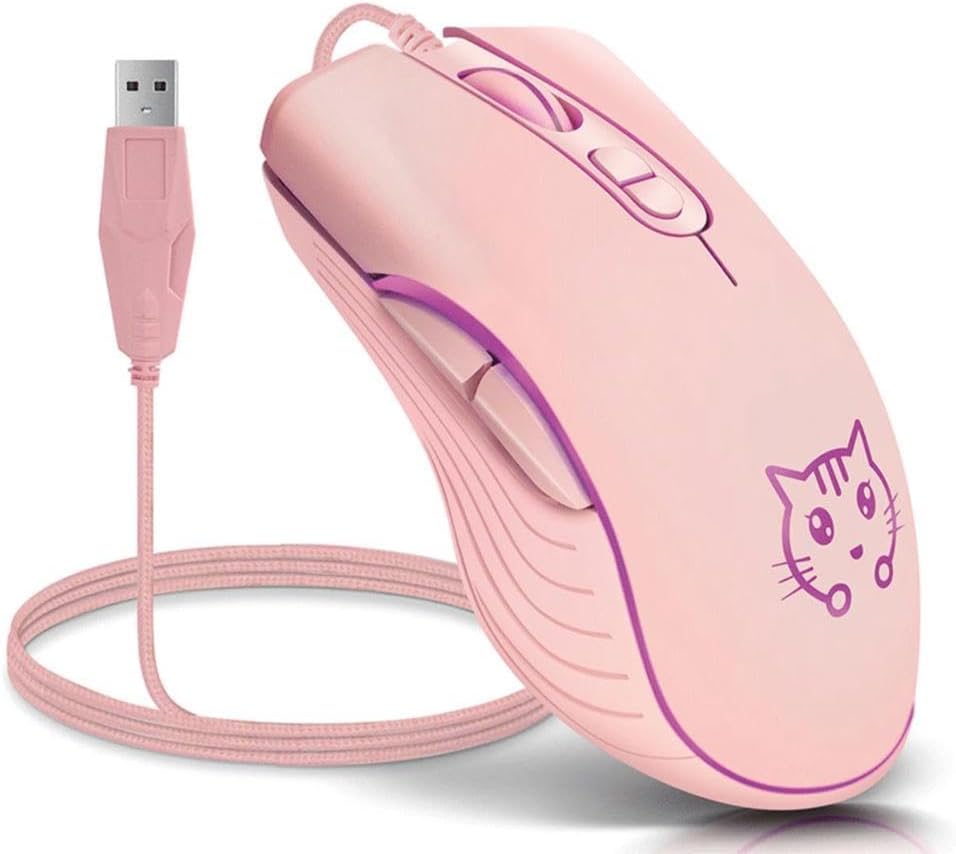
Image: The CORN Gaming Wired USB Mouse with its USB cable, illustrating the wired connection.
Operating Instructions
Mouse Layout and Functions:
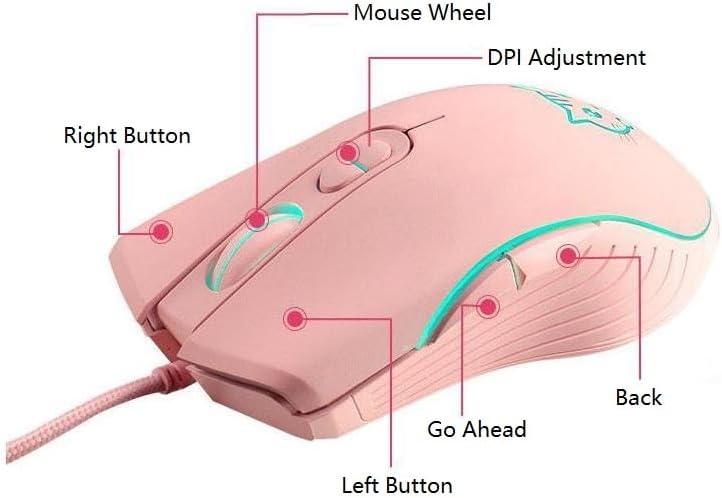
Image: Labeled diagram of the mouse showing the location and function of each button.
- Left Button: Standard left-click function.
- Right Button: Standard right-click function.
- Mouse Wheel: Scroll up or down. Can also be pressed for middle-click functionality.
- DPI Adjustment Button: Cycles through DPI settings.
- Go Ahead Button: Navigates forward in web browsers or file explorers.
- Back Button: Navigates backward in web browsers or file explorers.
Adjusting DPI (Dots Per Inch):
The mouse features 4 adjustable DPI levels, allowing you to change cursor sensitivity on the fly. Press the DPI Adjustment Button located behind the scroll wheel to cycle through the following settings:
- 800 DPI (Lowest sensitivity, suitable for precise tasks)
- 1200 DPI (Standard sensitivity)
- 1600 DPI (Increased sensitivity)
- 2400 DPI (Highest sensitivity, ideal for fast-paced gaming)
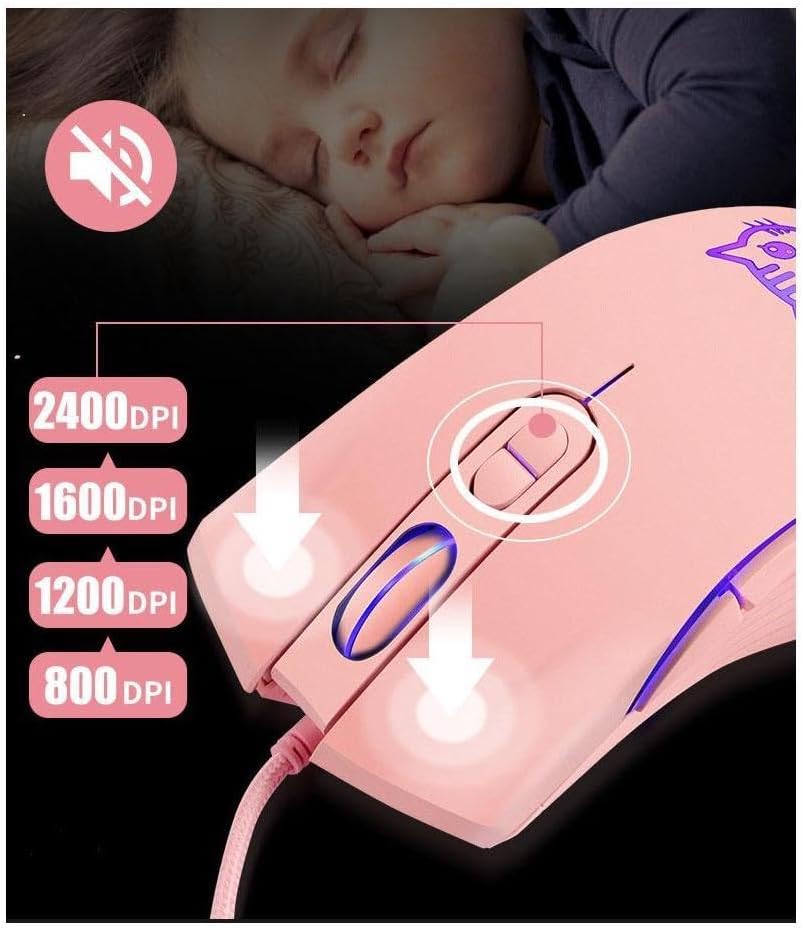
Image: Visual guide for DPI adjustment, highlighting the button and available sensitivity levels.
Silent Click Feature:
The CORN Gaming Mouse is designed with noiseless click buttons, reducing sound output during use. This feature is beneficial in quiet environments, preventing disturbance to others.

Image: Depiction of the mouse's silent click functionality, emphasizing its quiet operation.
7-Color Backlight Modes:
The mouse features a dynamic 7-color backlight system that changes automatically, adding to its aesthetic appeal. The cute kitten pattern on the mouse also illuminates with these changing colors.
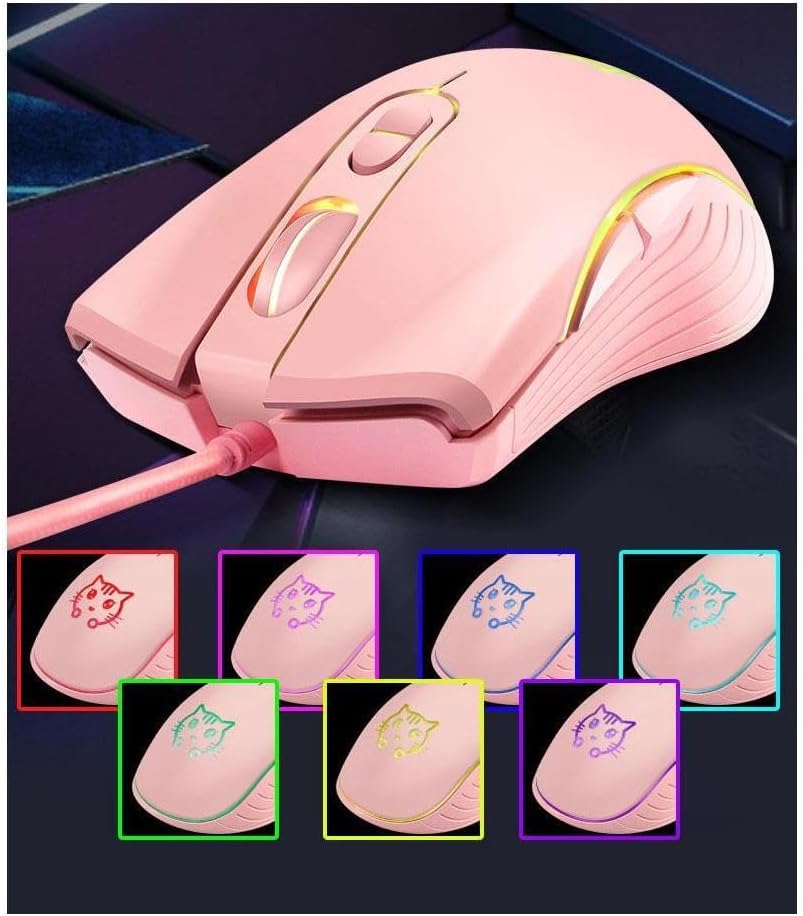
Image: The mouse showcasing its 7-color backlight modes, highlighting the visual effects.
Ergonomic Design:
The mouse is designed to fit the natural curvature of your palm, providing a comfortable and breathable grip for extended use. Its anti-skid side wing design further enhances stability and prevents slipping.
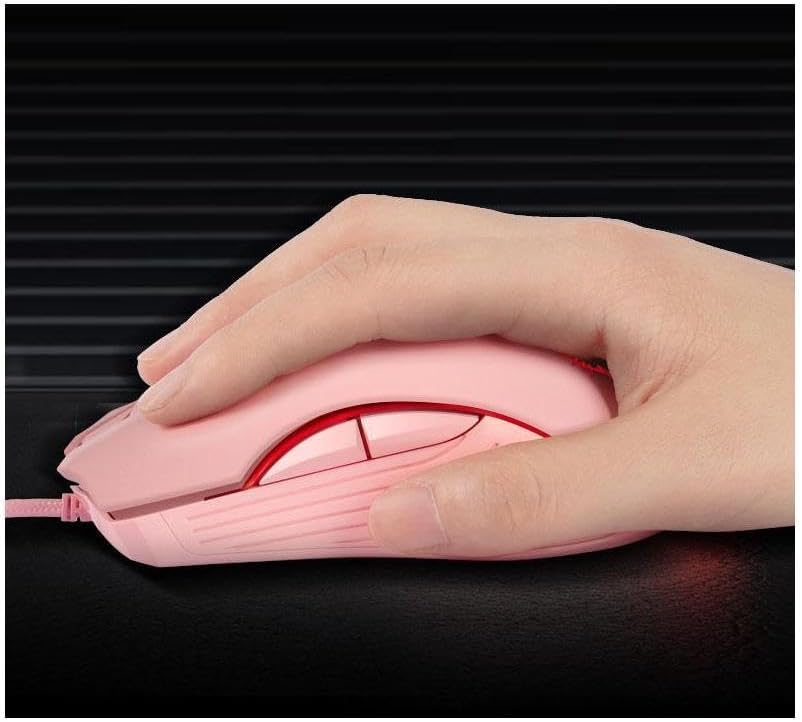
Image: A hand demonstrating the ergonomic grip of the mouse.
Maintenance
To ensure the longevity and optimal performance of your CORN Gaming Wired USB Mouse, follow these simple maintenance guidelines:
- Cleaning: Use a soft, dry cloth to wipe the surface of the mouse. For stubborn dirt, slightly dampen the cloth with water or a mild cleaning solution. Avoid using harsh chemicals or abrasive materials.
- Sensor Care: Keep the optical sensor on the bottom of the mouse clean and free from dust or debris. Use a cotton swab or compressed air to gently clean the sensor area.
- Cable Management: Avoid sharp bends or kinks in the USB cable. Store the mouse with the cable neatly coiled to prevent damage.
- Storage: When not in use for extended periods, store the mouse in a clean, dry place away from extreme temperatures and direct sunlight.
- Avoid Drops: While built with solid construction, avoid dropping the mouse or subjecting it to strong impacts, as this can damage internal components.
Troubleshooting
If you encounter any issues with your CORN Gaming Wired USB Mouse, please refer to the following common problems and their solutions:
| Problem | Possible Cause | Solution |
|---|---|---|
| Mouse not responding. | USB cable not properly connected; faulty USB port; driver issue. |
|
| Cursor movement is erratic or jumpy. | Dirty optical sensor; unsuitable mouse pad surface. |
|
| DPI adjustment button not changing sensitivity. | Software conflict; temporary glitch. |
|
| Back/Forward buttons not working. | Application specific; driver issue. |
|
Product Specifications
| Brand | CORN |
| Model Number | SB-186 |
| Connectivity Technology | USB Wired |
| Movement Detection Technology | Optical |
| DPI Levels | 800 / 1200 / 1600 / 2400 DPI |
| Number of Buttons | 6 |
| Special Features | Ergonomic Design, LED Lights, Silent Click |
| Color | Pink |
| Item Weight | 9.9 ounces (approx. 280g) |
| Package Dimensions | 5.59 x 4.02 x 2.05 inches |
| Operating Voltage | DC 5V |
| Operating Current | 10mA |
| Switch Life | 5 million times |
| Roller Life | 10 million times |
| Compatible Systems | Windows 2000/2003/XP/Vista/Win7/Win8/Win10, Mac OS, Android |

Image: Detailed product information including a labeled diagram and a table of technical specifications.
Warranty Information
CORN products are manufactured to the highest quality standards. This product comes with a standard manufacturer's warranty against defects in materials and workmanship from the date of purchase. Please retain your proof of purchase for warranty claims. The warranty does not cover damage caused by misuse, accident, unauthorized modification, or normal wear and tear.
Customer Support
For further assistance, technical support, or warranty inquiries, please contact CORN customer service through the retailer's platform where you purchased the product or visit the official CORN website for contact details.
We are committed to providing you with the best possible experience with your CORN product.
Ask a question about this manual
Ask about setup, troubleshooting, compatibility, parts, safety, or missing instructions. Manuals+ will review the question and use this page’s manual context to help answer it.