Introduction
This manual provides detailed instructions for the installation, operation, and maintenance of your CAMECHO 10.1 Inch HD CCTV Monitor (Model K0202). Please read this manual thoroughly before using the product to ensure proper function and longevity. Keep this manual for future reference.
Product Overview
Key Features
- 10.1-inch Portable Monitor: Features built-in speakers, 1024x600 RGB high resolution, and a 16:9 aspect ratio. Supports 9-30V DC power input (12V AC adapter recommended).
- Multifunctional Mini Screen: Compatible with VGA, AVI, HDMI, DVD, PC, CCTV, and TV systems. Suitable for security monitoring, vehicle displays, reversing camera systems, and general computer use. Note: Not designed for advanced gaming applications (e.g., 3A Masterpieces).
- Multi-Input Modes: Offers 4 input modes (HDMI, VGA, AV1, AV2). Easily switch between modes using a cable connection and the AV1/AV2 button.
- Two-Channel Video Input: Supports two external P&HD cameras. When the car reverses, it automatically switches to the rear camera screen. When reversing is finished, the device switches back to DVD/VCD video. Supports PAL/NTSC video systems.
- Easy Installation: The adjustable stand allows for flexible viewing angles and screen rotation. Portable design for use at home, in the car, or while traveling. Note: If used for video games, this power supply should not operate for a long period.
Package Contents
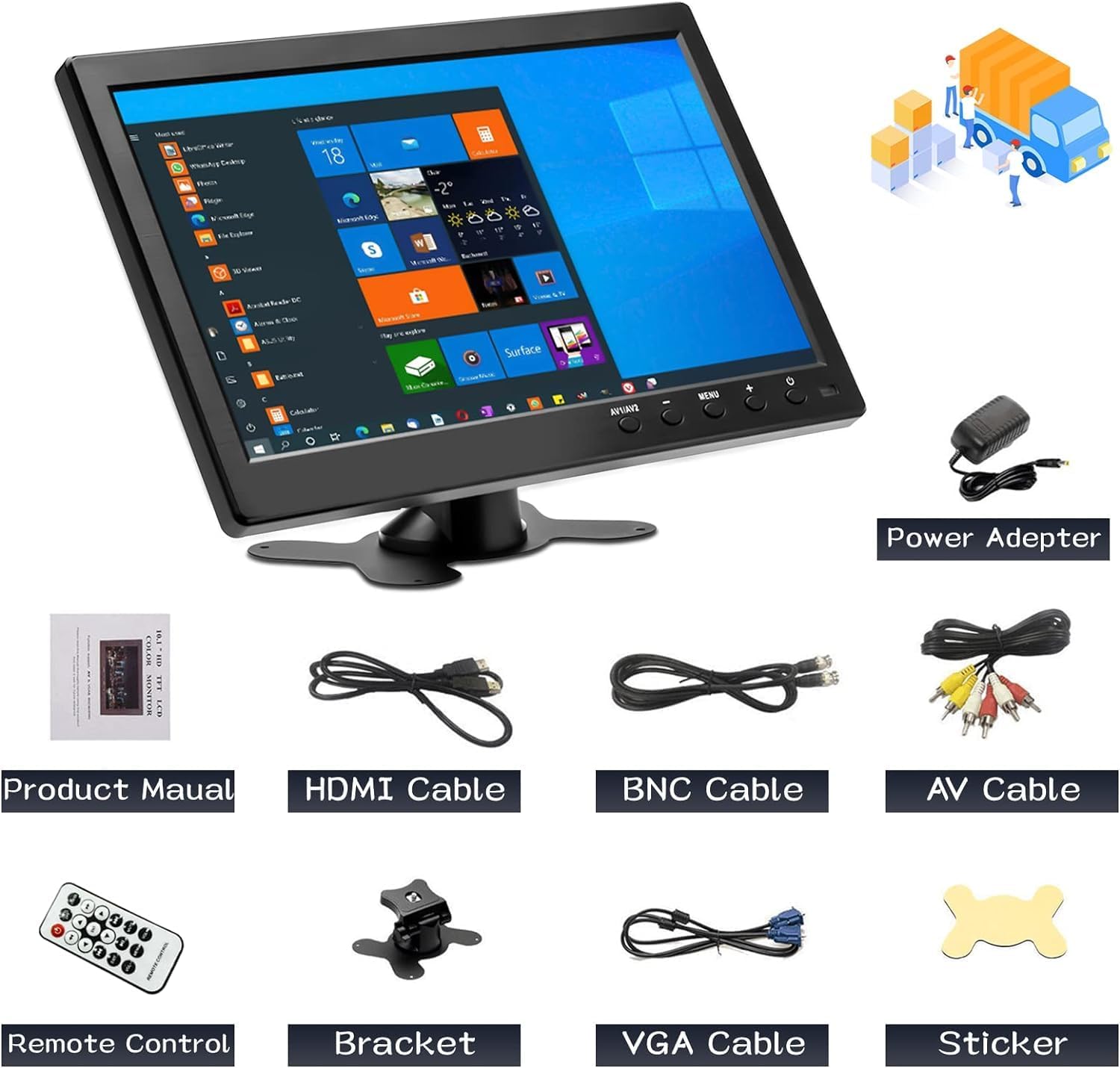
Figure 1: Package Contents
The package includes the CAMECHO 10.1 inch monitor, power adapter, product manual, HDMI cable, BNC cable, AV cable, remote control, bracket, VGA cable, and a sticker.
Please verify that all items listed below are included in your package:
- CAMECHO 10.1 Inch Monitor
- Power Adapter
- Product Manual (this document)
- HDMI Cable
- BNC Cable
- AV Cable
- Remote Control
- Adjustable Bracket
- VGA Cable
- Sticker
Setup
Connecting the Monitor
The monitor supports multiple input interfaces for versatile connectivity. Refer to the diagram below for port identification.

Figure 2: Rear Panel Connections and Input Types
The monitor features Power, VGA, HDMI, AV (Audio/Video), USB, and BNC input ports. Connect your devices accordingly.
- Power Connection: Connect the provided power adapter to the "Power" port on the monitor and then to a suitable power outlet (9-30V DC input, 12V AC adapter).
- Video Input:
- HDMI: Use the HDMI cable to connect to devices like Raspberry Pi, game consoles, or other HDMI-enabled sources.
- VGA: Use the VGA cable to connect to laptops or desktop computers.
- AV (Audio/Video): Use the AV cable to connect to devices such as DVRs.
- BNC: Connect security cameras directly using a BNC cable.
- USB: For connecting USB devices like U-disks or card readers.
- Mounting: Attach the adjustable bracket to the monitor and secure it on a flat surface. Adjust the viewing angle as needed.
Operating Instructions
Powering On/Off
Press the POWER button on the monitor or the remote control to turn the device on or off.
Switching Input Modes
The monitor supports multiple input sources. To switch between them:
- Press the AV1/AV2 button on the monitor or the remote control to cycle through HDMI, VGA, AV1, and AV2 inputs.
- For two-channel video input (e.g., car reversing cameras), the monitor will automatically switch to the rear camera view when reversing is detected and return to the previous video source once reversing is complete.
Display Modes (When connected to a PC/Laptop)
When connected to a computer, the monitor can operate in different display modes:
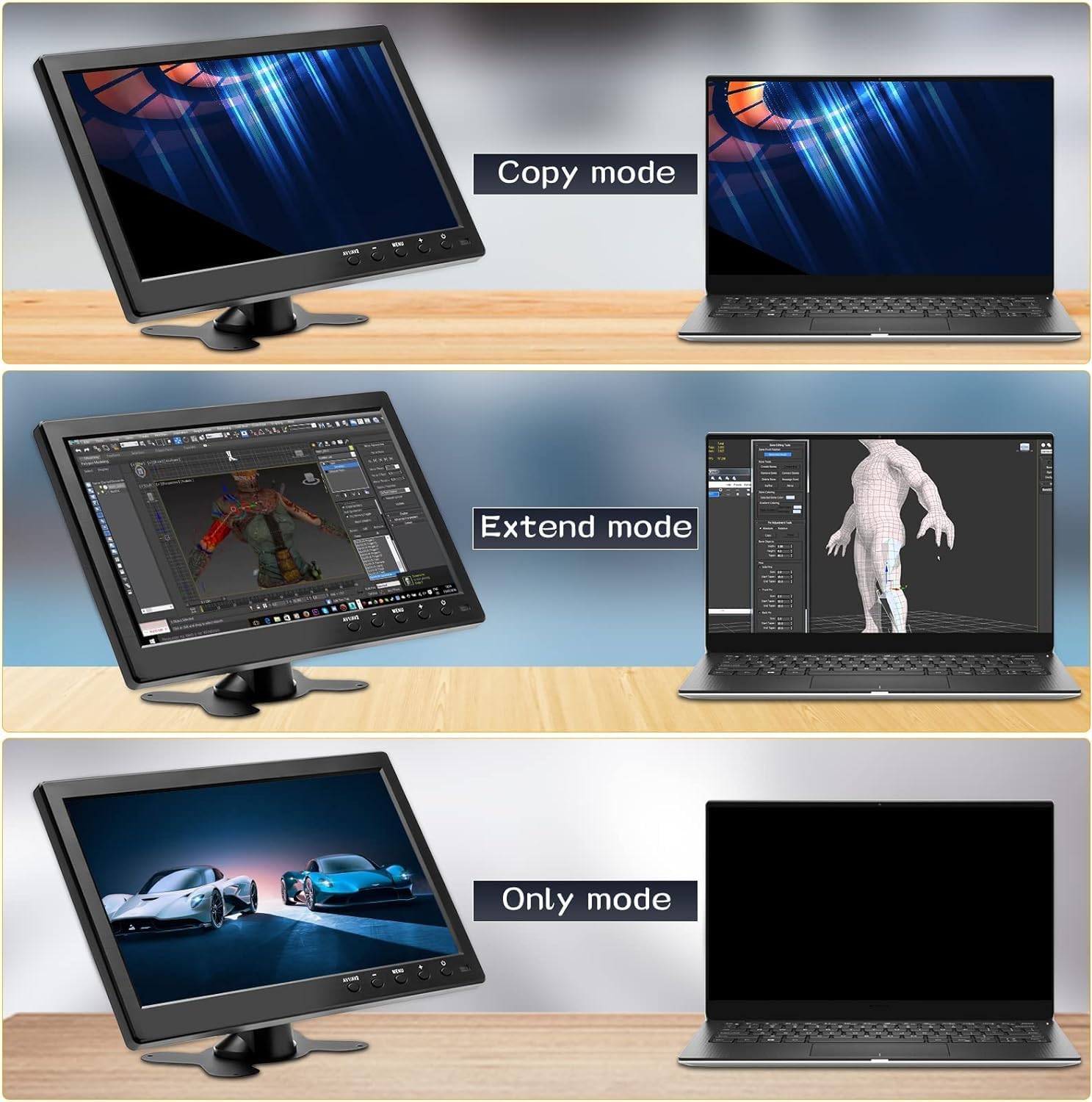
Figure 3: Display Modes
The monitor supports Copy, Extend, and Only modes when connected to a computer.
- Copy Mode: Duplicates the content of your primary display.
- Extend Mode: Extends your desktop across both displays, providing more screen real estate.
- Only Mode: Uses only the CAMECHO monitor as the display, turning off the primary display (e.g., laptop screen).
These modes are typically configured through your computer's display settings.
Using the Remote Control
The included remote control allows for convenient operation of the monitor's functions. Refer to the diagram for button layout.

Figure 4: Monitor Dimensions and Remote Control Layout
The remote control provides access to power, input selection, menu navigation, volume control, and media playback functions.
- POWER: Turns the monitor on or off.
- USB: Selects USB input mode.
- UP/DOWN/LEFT/RIGHT: Navigates through menu options.
- ENT (Enter): Confirms selection in menus.
- MENU: Opens the On-Screen Display (OSD) menu.
- VOL+/VOL-: Adjusts the volume.
- EXIT: Exits the current menu or function.
- PLAY/PAUSE, Fast Forward, Fast Backward, Next, Previous: Media playback controls (functionality depends on the connected device and input mode).
Built-in Speakers
The monitor features built-in dual speakers for audio output, primarily active in HDMI, AV, and USB signal modes.

Figure 5: Built-in Dual Speakers
The monitor includes integrated speakers for audio playback from HDMI, AV, and USB sources.
Applications
The CAMECHO 10.1 Inch HD CCTV Monitor is designed for a variety of uses:

Figure 6: Monitor Applications
The monitor is suitable for business meetings, gaming, security monitoring, and entertainment.
- Business & Productivity: Ideal as a secondary display for laptops during meetings or for extending your workspace.
- Gaming: Connect game consoles via HDMI for a compact gaming experience.
- Security Monitoring: Directly connect CCTV cameras via BNC for surveillance.
- Entertainment: Watch movies or TV shows by connecting DVD players or other media sources via HDMI or AV.
- Vehicle Use: Functions as a backup camera monitor or for in-car entertainment.
Maintenance
To ensure the longevity and optimal performance of your monitor, follow these maintenance guidelines:
- Cleaning: Use a soft, dry cloth to clean the screen and exterior. For stubborn marks, lightly dampen the cloth with water or a screen-safe cleaning solution. Avoid harsh chemicals or abrasive materials.
- Power Off: Always power off the monitor and disconnect it from the power source before cleaning or when not in use for extended periods.
- Ventilation: Ensure the monitor's ventilation openings are not blocked to prevent overheating.
- Storage: Store the monitor in a cool, dry place away from direct sunlight and extreme temperatures.
- Handling: Handle the monitor with care to avoid physical damage.
Troubleshooting
If you encounter issues with your CAMECHO monitor, refer to the following common troubleshooting steps:
| Problem | Possible Cause | Solution |
|---|---|---|
| No image on screen |
|
|
| No sound |
|
|
| Image flickering or unstable |
|
|
| Remote control not working |
|
|
Specifications
| Feature | Detail |
|---|---|
| Brand | CAMECHO |
| Model | K0202 |
| Screen Size | 10.1 Inches |
| Screen Technology | LCD |
| Resolution | 1024x600 (HD) |
| Aspect Ratio | 16:9 |
| Brightness | 400 cd/m² |
| Contrast Ratio | 500:1 |
| Response Time | 10 Milliseconds |
| Refresh Rate | 60 Hz |
| Viewing Angle | 170 Degrees (Actual) / 85 Degrees (Stated) |
| Hardware Interface | HDMI, USB, VGA, BNC, AV |
| Total USB Ports | 1 |
| Input Voltage | 12 Volts (DC 9-30V compatible) |
| Additional Features | Built-in Speakers, Portable |
| Product Dimensions | 41 x 7 x 32 cm |
| Item Weight | 1.12 Kilograms |
| Installation Type | Tabletop |
| Compatible Peripherals | Wide range of devices with VGA, USB, HDMI, BNC, or AV output |
Energy Information

Figure 7: Energy Data Sheet
Detailed energy consumption and technical specifications for the monitor.

Figure 8: Energy Efficiency Label
The monitor has an energy efficiency class of E, consuming 7 kWh per 1000 hours.
For more detailed energy information, please refer to the official EPREL database: https://eprel.ec.europa.eu/qr/1438817
Warranty and Support
CAMECHO is committed to providing high-quality products and customer support.

Figure 9: CAMECHO Support Commitment
CAMECHO offers 24-hour support, high-quality products, and technical assistance.

Figure 10: Customer Support Contact
For assistance or user manual inquiries, please contact CAMECHO customer support.
For technical support, warranty claims, or any questions regarding your CAMECHO monitor, please contact us at:
Spare parts are guaranteed to be available for a minimum of 1 year from the date of product discontinuation.


