
HUANANZHI X99 DUAL-F8D (x99/x79-DCM)
HUANANZHI X99 DUAL-F8D Motherboard User Manual
Model: X99 DUAL-F8D (x99/x79-DCM) | Brand: HUANANZHI
1. Introduction
The HUANANZHI X99 DUAL-F8D Motherboard is engineered to deliver unparalleled performance for demanding computing tasks. Featuring the Intel C612 chipset and supporting Intel LGA2011-3 CPUs, this motherboard provides a robust foundation for high-end workstations and gaming rigs. With extensive memory support, versatile storage options, and advanced connectivity, it is designed to meet the needs of professionals and enthusiasts alike.
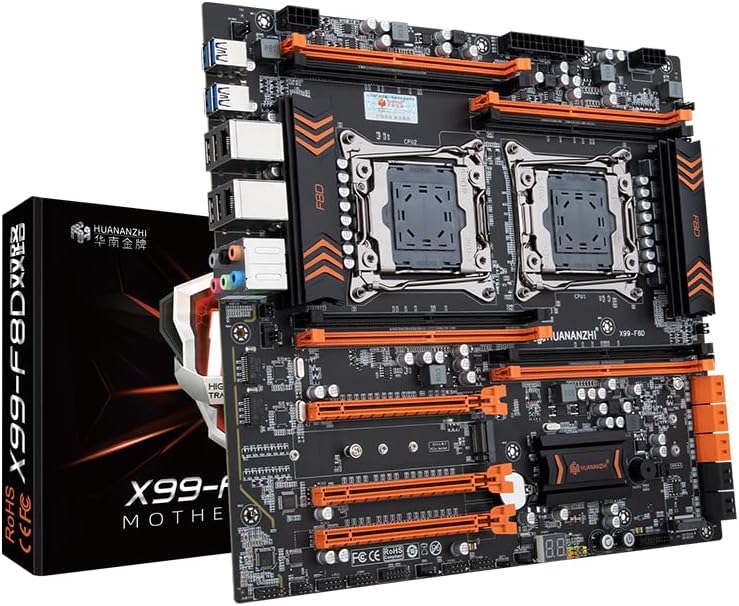
Figure 1.1: HUANANZHI X99 DUAL-F8D Motherboard and packaging.
2. Technical Specifications
Below are the detailed technical specifications for the HUANANZHI X99 DUAL-F8D Motherboard:
| Feature | Description |
|---|---|
| Model | HUANANZHI X99 DUAL-F8D Motherboard |
| Main Chipset | Intel C612 |
| CPU Socket | Support Intel LGA2011-3 |
| Memory Slots | 8 x DDR4 memory slots |
| Memory Standard | Four channel DDR4 2400/2133/1866MHz, Max 256GB |
| Storage Interface | 6 x SATA2.0 3Gbps, 4 x SATA3.0 6Gbps |
| Expansion Slots | 3 x PCI Express 3.0 x16 |
| Expansion Interface | 1 x M.2 22110 NVME PCIEX4 3.0 32Gbps, 1 x M.2 2280 NVME PCIEX4 3.0 @ NGFF/SSATA3.0 6Gbps |
| Sound Track | 7.1 sound card |
| Network Card | Gigabit Ethernet |
| Power Interface | 24PIN + 8PIN + 8PIN |
| FAN PIN | 2 x CPU_FAN PIN, 4 x SYS_FAN PIN |
| Power Supply | 6+6-phase power supply |
| PCB Layers | 12-layer PCB |
| Dimension | 300 x 320MM E-ATX |
| Rear Panel Interface | 4 x USB2.0, 4 x USB3.0, 2 x RJ45 Network, 1 x 6-hole audio |
| Front Panel Interface | 2 x USB2.0 PIN, 1 x USB3.0 PIN, 1 x Front audio PIN, 1 x COM PIN, 1 x Motherboard buzzer, 1 x Post card, 1 x Start/restart button |
| Support System | Windows 7, Windows 10, Windows 11 |
| BIOS | AMI UEFI BIOS |
3. Package Contents
Upon opening the package, please verify that all the following items are included:
- 1 x HUANANZHI X99 DUAL-F8D Motherboard
- 2 x SATA Data Cables
- 1 x Warranty Card
- 1 x I/O Shield Back Plate
4. Setup and Installation
Before beginning installation, ensure your system is powered off and unplugged from the wall outlet. It is recommended to wear an anti-static wrist strap to prevent damage to components.
4.1 Motherboard Overview

Figure 4.1: Top-down view of the motherboard, highlighting CPU sockets, RAM slots, and PCIe slots.
4.2 CPU Installation (LGA2011-3)
- Locate the two LGA2011-3 CPU sockets on the motherboard.
- Open the CPU retention mechanism by pushing down and out on the lever(s).
- Carefully align the CPU with the socket, ensuring the golden triangle/arrow on the CPU matches the marking on the socket. Do not force the CPU into place.
- Gently lower the CPU into the socket.
- Close the retention mechanism by pushing the lever(s) back into their locked position.
- Apply thermal paste and install the CPU cooler(s).
4.3 Memory (RAM) Installation
- Identify the 8 DDR4 memory slots. For optimal performance, install memory modules in a quad-channel configuration as indicated in the motherboard manual (refer to specific slot numbering if available).
- Open the clips at both ends of the memory slot.
- Align the notch on the DDR4 memory module with the key in the memory slot.
- Press down firmly on both ends of the memory module until the clips snap into place.
4.4 Storage Device Installation
- SATA Drives: Connect your SATA 2.0 (3Gbps) or SATA 3.0 (6Gbps) hard drives or SSDs to the corresponding SATA ports using SATA data cables. Connect the power cable from your power supply to the drive.
- M.2 NVMe SSDs: Locate the M.2 slots. Insert the M.2 NVMe SSD into the slot at an angle, then gently push it down and secure it with the provided screw.
4.5 Expansion Card Installation
- Identify the PCI Express 3.0 x16 slots.
- Align your expansion card (e.g., graphics card) with the chosen slot.
- Press down firmly until the card is securely seated in the slot and the retention clip engages.
- Secure the card to your PC case with a screw.
4.6 Power Connections
- Connect the 24-pin ATX power connector from your power supply to the motherboard's main power socket.
- Connect the two 8-pin CPU power connectors from your power supply to the corresponding sockets near the CPU areas.
4.7 Front Panel and Rear I/O Connections
- Front Panel: Connect the power button, reset button, HDD LED, power LED, front USB (2.0 and 3.0), and front audio connectors from your PC case to the corresponding pins on the motherboard. Refer to the motherboard's silkscreen labels for correct pin alignment.
- Rear I/O: The rear panel provides various ports for external devices. Connect your peripherals such as USB devices, network cables, and audio devices.

Figure 4.2: Rear I/O panel with USB, Ethernet, and audio ports.
5. Operating Instructions
5.1 First Boot and BIOS Setup
- After assembling all components, connect your monitor, keyboard, and mouse.
- Power on your system.
- During the boot process, repeatedly press the DEL or F2 key (or as indicated on screen) to enter the AMI UEFI BIOS setup utility.
- In the BIOS, you can configure boot order, system time, enable/disable integrated peripherals, and adjust performance settings. Save changes before exiting.
5.2 Operating System Installation
The motherboard supports Windows 7, Windows 10, and Windows 11. Prepare a bootable USB drive or DVD with your preferred operating system installer. Set the boot priority in BIOS to your installation media and follow the on-screen instructions to install the OS.
5.3 Driver Installation
After OS installation, install the necessary drivers for the motherboard's components (chipset, LAN, audio, etc.). These drivers are typically provided on a support CD/DVD or can be downloaded from the HUANANZHI official website.
6. Maintenance
Proper maintenance ensures the longevity and stable operation of your motherboard.
- Dust Removal: Regularly clean dust from the motherboard and components using compressed air. Ensure the system is powered off and unplugged before cleaning.
- BIOS Updates: Periodically check the HUANANZHI website for BIOS updates. BIOS updates can improve compatibility, stability, and performance. Follow the update instructions carefully to avoid system damage.
- Environmental Conditions: Operate the motherboard in a well-ventilated environment with stable temperature and humidity to prevent overheating and component degradation.
7. Troubleshooting
This section provides solutions to common issues you might encounter.
- No Power/No Boot:
- Ensure all power cables (24-pin ATX, 8-pin CPU) are securely connected.
- Check if the power supply is functional.
- Verify the front panel power button connection.
- No Display:
- Ensure your graphics card is properly seated in its PCIe slot and has adequate power.
- Check monitor cable connections.
- Test with a different monitor or graphics card if possible.
- Component Not Detected:
- Reseat the component (RAM, GPU, SSD).
- Check cable connections for storage drives.
- Verify component compatibility with the motherboard.
- System Instability/Crashes:
- Check CPU and GPU temperatures.
- Ensure RAM modules are correctly installed and compatible.
- Run memory diagnostic tools.
- Update drivers and BIOS.
- Using the Post Card: The motherboard includes a post card feature on the front panel. This card displays diagnostic codes during boot-up, which can help identify the source of a boot failure. Refer to the motherboard's detailed manual or online resources for a list of POST codes and their meanings.
8. Warranty and Support
Your HUANANZHI X99 DUAL-F8D Motherboard comes with a warranty. Please refer to the included Warranty Card for specific terms, conditions, and duration of the warranty.
For technical support, driver downloads, or further assistance, please visit the official HUANANZHI website or contact their customer service department. Keep your purchase receipt and the product's serial number handy when seeking support.
Manufacturer: HUANAZHI
Related documentsX99 DUAL-F8D (x99/x79-DCM)


Ask a question about this manual
Ask about setup, troubleshooting, compatibility, parts, safety, or missing instructions. Manuals+ will review the question and use this page’s manual context to help answer it.