
1. Introduction
This document provides comprehensive instructions for assembling, operating, and maintaining your EIELE Multi-Function Speaker Soldering Practice Kit. This kit is designed for electronics enthusiasts and those looking to develop soldering skills. Upon successful assembly, you will have a fully functional multi-source audio speaker with a voice-activated LED level indicator.
2. Kit Components
The EIELE Soldering Practice Kit includes all necessary electronic components and acrylic case parts for assembly. Please verify all components are present before beginning assembly.
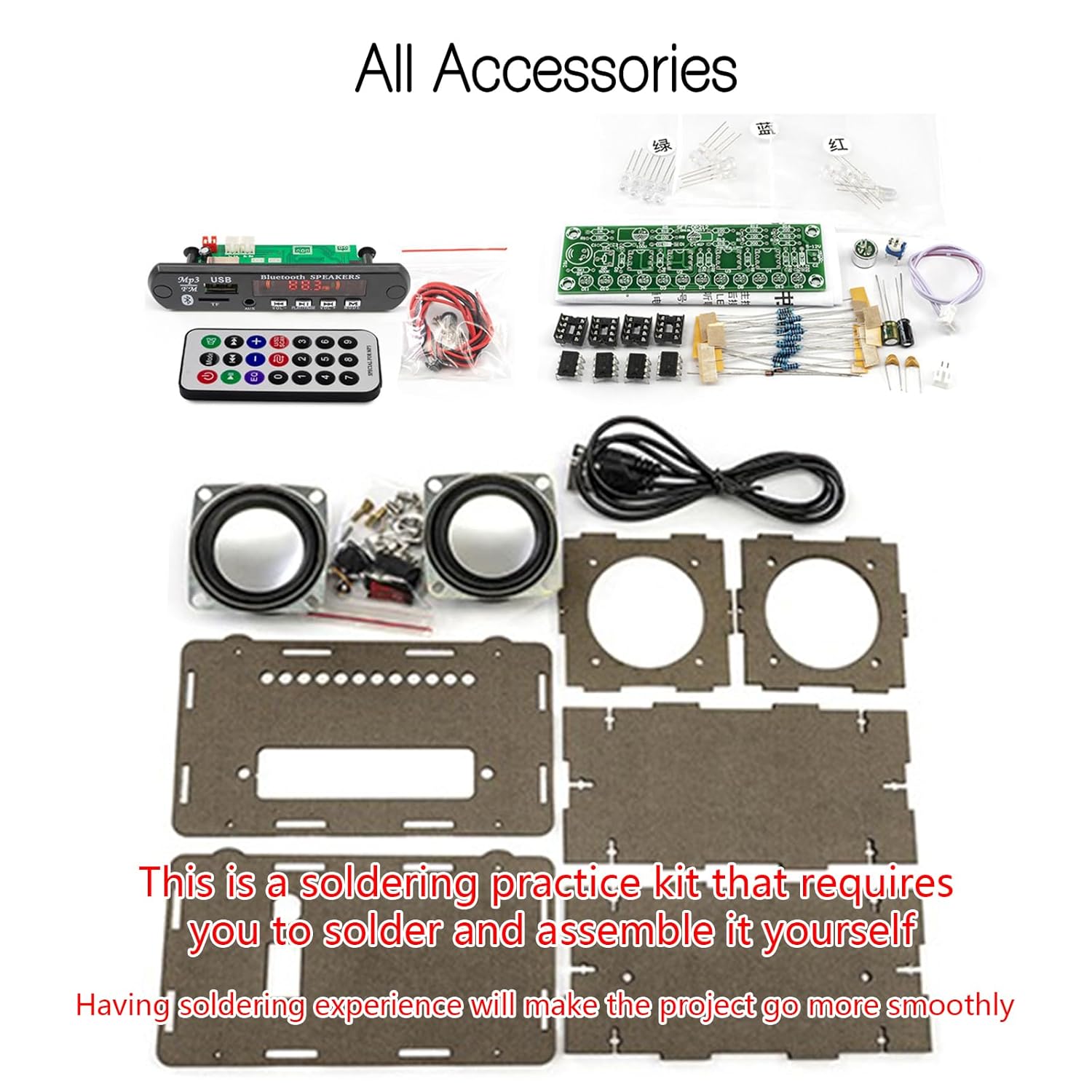
Figure 2.1: All Kit Components. This image displays all the individual parts included in the soldering practice kit, such as the acrylic panels, speakers, circuit boards, remote control, wires, and various electronic components like resistors and LEDs.
Required Tools (Not Included):
- Soldering Iron
- Solder Wire
- Pliers
- Screwdriver
- Wire Cutters/Strippers
3. Assembly Instructions
This kit requires soldering and assembly. Detailed instructions are provided to guide you through each step. Ensure you have a clean, well-lit workspace and follow all safety precautions when soldering.

Figure 3.1: Detailed Installation Guide. This image illustrates a section of the comprehensive installation guide, showing the circuit board layout with clearly labeled components and soldering points, designed to assist users in the assembly process.
3.1 Circuit Board Soldering
Begin by soldering the smaller electronic components onto the main circuit board. Pay close attention to component polarity (where applicable) and ensure strong, clean solder joints.

Figure 3.2: Circuit Board Views. This image shows the front and back of the printed circuit board (PCB), highlighting the clearly printed markings for easy component placement and soldering.
3.2 Case Assembly
Once all electronic components are soldered and tested, assemble the acrylic case panels. The panels interlock and are secured with screws. Carefully route all wires to avoid pinching or damage.

Figure 3.3: Assembled Unit Overview. This image provides a detailed view of the assembled speaker, pointing out key features such as the power switch, DC power input, dual-channel speakers, digital display, control keys, LED spectrum lamp, TF card input, AUX input, and USB input.
3.3 Final Checks
Before powering on, double-check all connections and solder joints for any shorts or loose wires. Ensure the power switch is correctly installed and functional.
Video 3.1: Multi-Function Bluetooth Speaker Features. This video demonstrates the various functions of the EIELE speaker kit, including Bluetooth, FM Radio, AUX, and TF playback, providing a visual guide to its capabilities.
4. Operating Instructions
Your EIELE Multi-Function Speaker offers several playback options and control methods.
4.1 Powering On/Off
Locate the power switch on the rear of the unit. Flip the switch to the "ON" position to power on the speaker. The digital display will illuminate. To power off, flip the switch to the "OFF" position.
4.2 Playback Modes
The speaker supports multiple audio input modes:
- Bluetooth: Connect your phone or tablet wirelessly. The device name is typically "JQ BT".
- FM Radio: Use the control buttons or remote to scan and select FM radio stations. The power-off memory function will recall the last played station.
- AUX Input: Connect external audio devices (e.g., MP3 players, computers) using a 3.5mm audio cable.
- USB-Disk: Insert a USB flash drive with audio files. The speaker will automatically switch to USB playback mode.
- TF Card: Insert a TF (Micro SD) card with audio files. The speaker will automatically switch to TF card playback mode.

Figure 4.1: Five Audio Input Modes. This image highlights the versatility of the speaker, showing icons for FM radio, TF card, USB, Bluetooth, and AUX input, indicating the various ways to play audio.
4.3 Controls
The speaker can be controlled using the onboard buttons or the included remote control.
Onboard Buttons:
- VOL-/PLAY/PAUSE/VOL+: Control volume, play/pause, and track navigation.
- MODE: Switch between different playback modes (Bluetooth, FM, AUX, USB, TF).
- SCAN: For FM radio, short press to auto-scan and store stations.
Remote Control:
The remote control provides extended functionality, including EQ settings and direct station tuning for FM radio.

Figure 4.2: Remote Control Functions. This diagram details the buttons on the remote control, including mode switching, volume adjustment, track navigation, EQ settings, and direct numeric input for FM radio frequencies.
4.4 Voice-Activated LED Level Indicator
The speaker features 12 colorful LED lights that react to audio input, providing a visual representation of the sound level. The sensitivity of these LEDs can be adjusted via a potentiometer on the circuit board (accessible after assembly).

Figure 4.3: Dynamic Spectrum LED Lights. This image shows the speaker's LED lights dynamically changing colors and patterns in response to the rhythm and melody of the music, enhancing the visual experience.
5. Maintenance
- Cleaning: Use a soft, dry cloth to clean the acrylic case. Avoid abrasive cleaners or solvents that may damage the material.
- Storage: Store the speaker in a dry, cool place away from direct sunlight and extreme temperatures.
- Component Care: Handle the exposed circuit board and components with care to prevent damage.
6. Troubleshooting
If you encounter issues with your EIELE Multi-Function Speaker, refer to the following common problems and solutions:
- Device does not power on:
- Check the power connection and ensure the USB power source is functional.
- Verify the power switch is correctly installed and in the "ON" position.
- Inspect all power-related solder joints for continuity and shorts.
- No sound output:
- Ensure the volume is turned up on both the speaker and the connected audio source.
- Check speaker wire connections to the circuit board.
- Verify the correct playback mode (Bluetooth, FM, AUX, USB, TF) is selected.
- If using AUX, ensure the cable is fully inserted and functional.
- Poor FM radio reception:
- Extend the antenna fully.
- Try repositioning the speaker to improve signal reception.
- Perform an auto-scan for stations.
- LEDs not responding or behaving erratically:
- Check the solder joints for all LEDs and the voice-activated circuit.
- Adjust the sensitivity potentiometer for the LED level indicator.
- Project not completed or not working properly after soldering:
If the project is not completed or does not work properly after soldering, please contact customer support immediately. Our goal is for each user to experience a sense of accomplishment when completing their project.
7. Specifications
| Feature | Detail |
|---|---|
| Brand | EIELEDIY |
| Model Number | EIELE_... |
| Product Dimensions | 2.84"D x 5.77"W x 3.21"H |
| Weight | 0.63 ounces |
| Color | Black case |
| Connectivity Technology | Bluetooth, Auxiliary, USB, TF Card, FM Radio |
| Special Feature | Digital Display Screen, Voice-Activated LED Level Indicator |
| Audio Output Mode | Stereo (2 Channel) |
8. Warranty and Support
EIELE is committed to customer satisfaction. If you encounter any issues with your soldering practice kit, or if the project does not function as expected after assembly, please do not hesitate to contact our customer support team. We provide professional support and will assist you until you are 100% satisfied with your product.
For assistance, please refer to the contact information provided in your product packaging or visit the official EIELEDIY website.