
1. Introduction
This manual provides detailed instructions for the installation, operation, and maintenance of your MekedeTech Android Car Radio Stereo GPS Navigation system. This unit is specifically designed for Ford Mondeo 5 models manufactured between 2014 and 2019. Please read this manual thoroughly before installation and use to ensure proper function and safety.

Image 1.1: Front view of the MekedeTech Android Car Radio Stereo displaying a CarPlay interface with various application icons.
2. Safety Information
- Always ensure the vehicle is parked safely before operating the device or making any adjustments.
- Do not attempt to disassemble or modify the unit. This may cause damage and void the warranty.
- Keep the unit away from water, moisture, and extreme temperatures.
- Professional installation is recommended to prevent damage to the vehicle's electrical system or the unit itself.
- Adhere to all local traffic laws and regulations regarding the use of in-car entertainment and navigation systems.
3. Package Contents
Verify that all items are present in the package:
- MekedeTech Android Head Unit (8-Core 6+128G)
- Dash Kit for Ford Mondeo 5 (2014-2019)
- Power Cable Harness
- RCA Cable Set
- Reversing Camera Cable
- USB Cables
- GPS Antenna
- User Manual (this document)
4. Installation
The MekedeTech Android Car Radio Stereo is designed for a plug-and-play fit for Ford Mondeo 5 models from 2014 to 2019. While designed for ease of installation, professional assistance is recommended.
- Preparation: Ensure the vehicle's ignition is off and the battery is disconnected before starting installation.
- Remove Original Unit: Carefully remove the existing car radio and dashboard trim. Refer to your vehicle's service manual for specific instructions on removing the factory unit.
- Connect Wiring: Connect the provided power cable harness, RCA cables, reversing camera cable, and USB cables to the corresponding ports on the new head unit and the vehicle's wiring. Ensure all connections are secure.
- Install GPS Antenna: Mount the GPS antenna in a location with a clear view of the sky, typically on the dashboard or under the windshield.
- Mount New Unit: Secure the MekedeTech head unit into the dashboard using the provided dash kit.
- Reconnect Battery: Reconnect the vehicle's battery and test the unit before fully reassembling the dashboard trim.

Image 4.1: Comparison showing the original Ford Mondeo 5 dashboard setup (top left, marked with 'X') and the MekedeTech Android Car Radio Stereo installed (bottom, marked with '✓').
The unit is designed to retain all original steering wheel control functions, allowing you to switch songs, channels, and adjust volume without removing your hands from the steering wheel.
5. Setup
5.1 Initial Power-On
After installation, turn on your vehicle's ignition. The unit should power on automatically. Follow any on-screen prompts for initial setup, such as language selection and time zone.
5.2 Cooling Fan Setup
Your unit includes a cooling fan to manage internal temperatures. Ensure it is properly configured for optimal performance.
- Connect Fan: Ensure the cooling fan is physically connected to the designated port on the unit.
- Software Configuration: Navigate to the unit's settings menu.
- Go to Settings > Device > Sound.
- Locate the option for AMP ON or similar fan control setting and ensure it is enabled.

Image 5.1: Diagram illustrating the cooling fan's function, showing temperature differences with and without the fan, and a visual guide for connecting and enabling the cooling fan through the unit's settings.
6. Operating Instructions
6.1 Wireless CarPlay and Android Auto
The unit features built-in wireless CarPlay and wired Android Auto functionality, eliminating the need for additional accessories.
- For Wireless CarPlay (iOS System):
- Connect your iPhone to the unit via Bluetooth.
- On the unit, open the 'Car Link' application.
- Wait for the connection to establish. CarPlay can also be connected via a USB cable.
- For Wireless Android Auto (Android System):
- Connect your Android phone to the unit via Bluetooth.
- On the unit, open the 'Car Link' application.
- Wait for the connection to establish. Android Auto can also be connected via a USB cable.

Image 6.1: Visual guide demonstrating the connection steps for both Wireless CarPlay (iOS) and Wireless Android Auto, showing the 'Car Link' interface and phone integration.
6.2 4G LTE and Wi-Fi Connectivity
The unit supports 4G LTE and Wi-Fi for internet access.
- 4G LTE: Insert a 4G SIM card into the designated slot. There are two SIM card slots: one on the back of the main unit and one on the RCA cable. This allows for continuous internet access without needing a mobile hotspot.
- Wi-Fi: Connect to available Wi-Fi networks by navigating to Settings > Network & Internet > Wi-Fi.
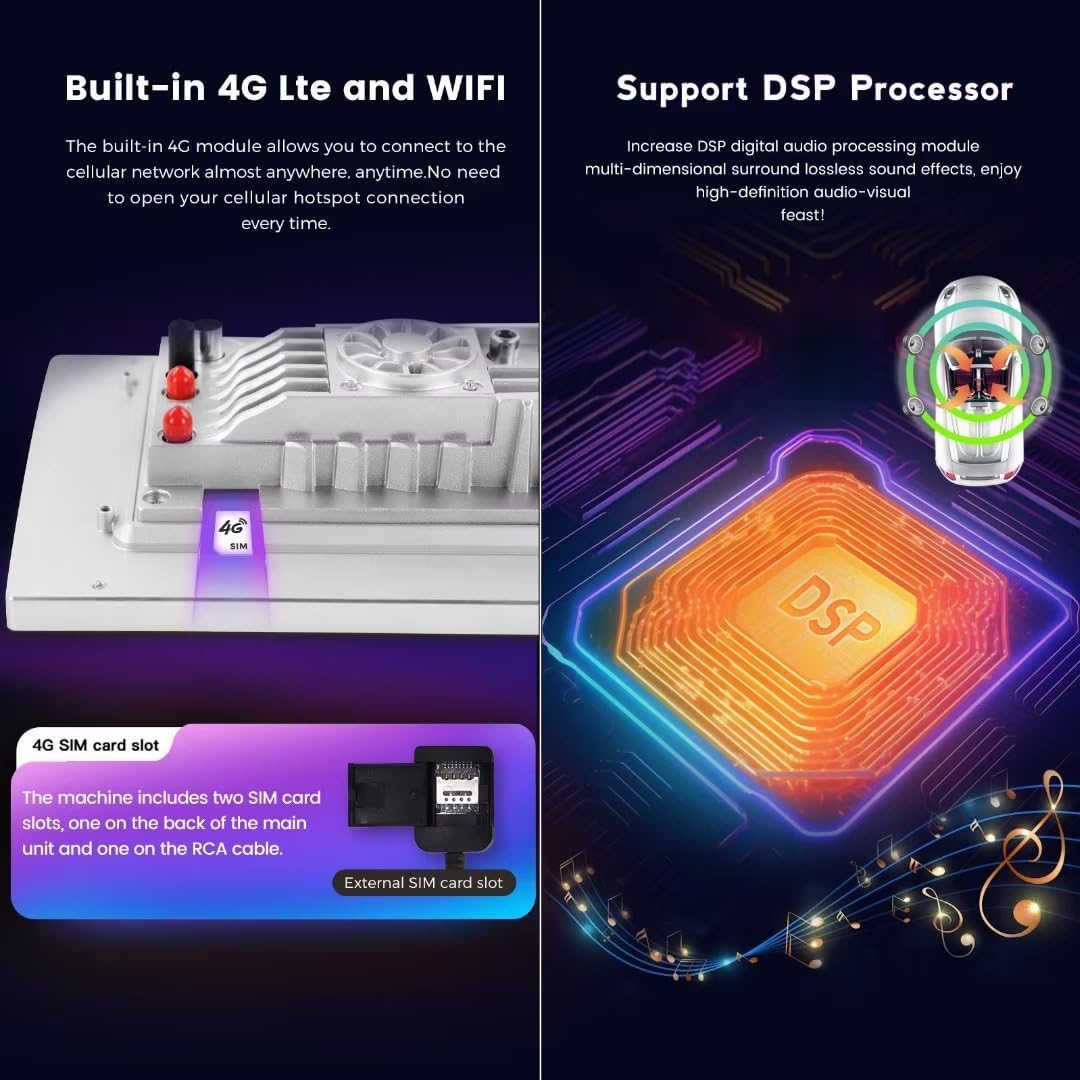
Image 6.2: Illustration of the built-in 4G LTE module and the location of the SIM card slots. Also highlights the integrated DSP Processor for enhanced audio quality.
6.3 GPS Navigation
The unit comes with built-in GPS navigation. Access navigation applications from the main menu. Ensure the GPS antenna is properly installed for accurate positioning.
6.4 Bluetooth 5.0
Connect your mobile phone via Bluetooth for hands-free calling and audio streaming. Pair your device through the Bluetooth settings menu on the head unit.
6.5 DSP Sound System
The integrated DSP (Digital Signal Processor) provides enhanced audio quality. Adjust sound settings, equalizer, and other audio parameters through the unit's sound settings to customize your listening experience.
7. Maintenance
- Cleaning: Use a soft, dry cloth to clean the screen and unit exterior. Avoid abrasive cleaners or solvents.
- Software Updates: Periodically check for software updates to ensure optimal performance and access to new features. Updates can typically be found in the unit's settings or on the manufacturer's website.
- Temperature: Avoid exposing the unit to extreme temperatures for prolonged periods.
8. Troubleshooting
- Unit does not power on: Check all power connections and ensure the vehicle's battery is properly connected. Verify fuses are intact.
- No sound: Check speaker connections, volume levels, and audio output settings. Ensure the DSP is configured correctly.
- GPS signal lost: Ensure the GPS antenna is securely connected and has a clear view of the sky.
- CarPlay/Android Auto not connecting: Verify Bluetooth connection. Ensure the 'Car Link' app is open and your phone's operating system is up to date. Try connecting with a USB cable.
- Touch screen unresponsive: Try restarting the unit. If the issue persists, a factory reset may be necessary (note: this will erase all user data).
- Overheating: Ensure the cooling fan is properly installed and enabled in the settings. Check for any obstructions around the unit's ventilation.
9. Specifications
| Feature | Specification |
|---|---|
| System | Android 12 OS |
| CPU | 8-Core A53 1.8GHz |
| Memory | 6GB RAM, 128GB ROM |
| Display Size | 9 Inches |
| Display Resolution | 1280 x 720 IPS Touch Screen |
| Power Output | 4*50W |
| Connectivity | 4G LTE, Wi-Fi, Bluetooth 5.0 |
| Special Features | Wireless CarPlay, Wired Android Auto, Built-in GPS, DSP Sound System, Steering Wheel Control Support |
| Audio Format Support | APE/FLAC/WAV/MP3/WMA etc. |
| Video Format Support | MKV/RMVB/AVI/MP4/MDV etc. |
| Picture Format Support | PNG/JPEG/JPG/GIF/WBMP/BNP etc. |
10. Warranty and Support
This MekedeTech Android Car Radio Stereo comes with a 1-Year Warranty from the date of purchase. This warranty covers manufacturing defects under normal use.
For technical support, warranty claims, or further assistance, please contact MekedeTech customer service through the retailer where the product was purchased or visit the official MekedeTech website for contact information.