1. Introduction
This manual provides detailed instructions for the setup, operation, and maintenance of your ApoloSign DPF103 10.1-inch Digital Picture Frame. Please read this manual thoroughly before using the device to ensure proper functionality and longevity.
The ApoloSign DPF103 is a WiFi-enabled digital photo frame designed to display your cherished photos and videos. It features a 10.1-inch HD IPS touch screen, 32GB of internal storage, and supports remote sharing via the Frameo smartphone application.
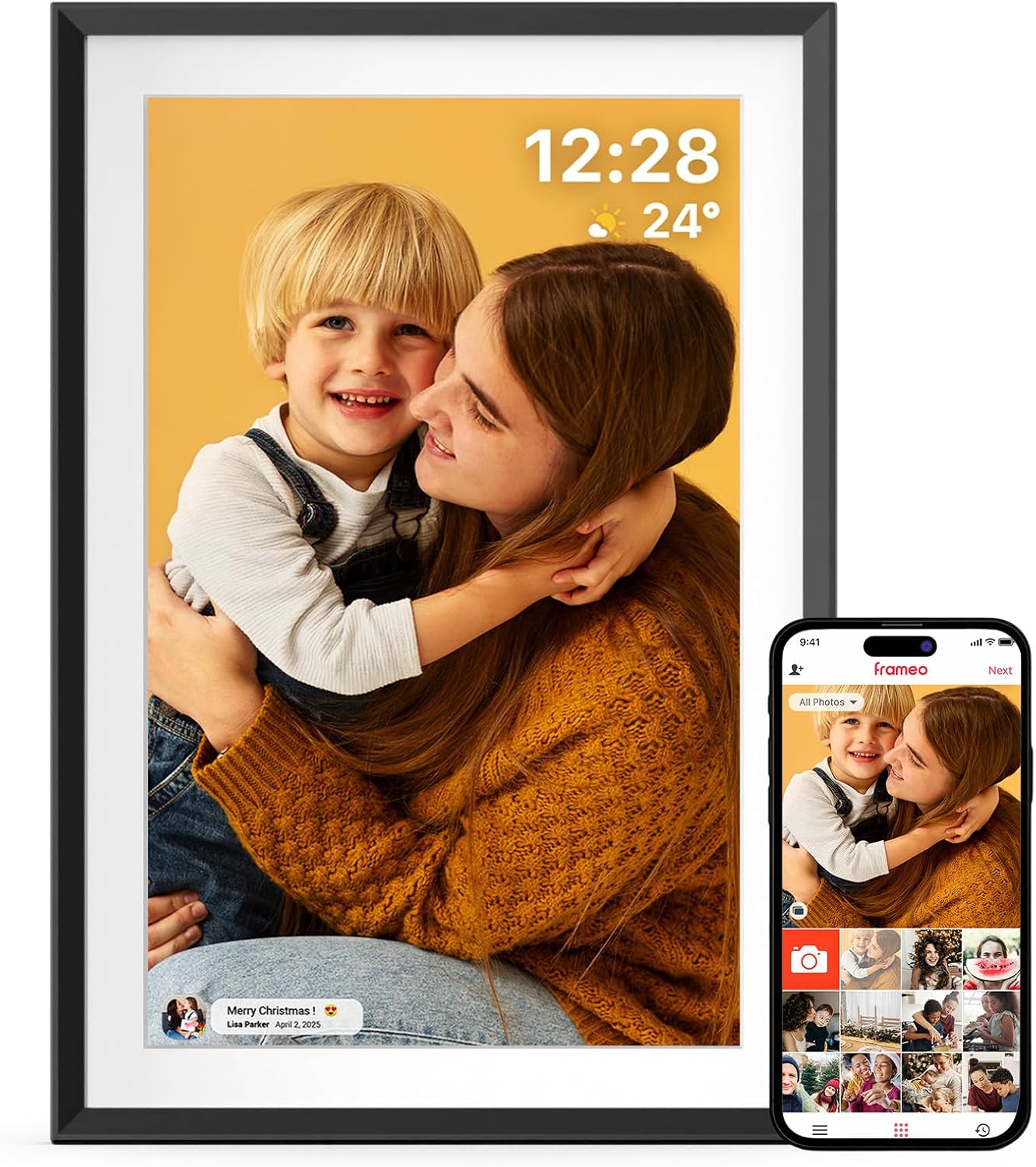
Image: The ApoloSign DPF103 digital picture frame displaying a photo, alongside a smartphone showing the Frameo app interface.
2. Package Contents
Please check the box for the following items:
- ApoloSign DPF103 10.1-inch Digital Picture Frame
- Power Adapter
- User Manual (this document)
- Detachable Stand
3. Initial Setup
3.1 Powering On
- Connect the power adapter to the frame's power port.
- Plug the power adapter into a wall outlet.
- The frame will automatically power on. Follow the on-screen instructions for initial setup.
3.2 Connecting to Wi-Fi
- During the initial setup, select your preferred language.
- Choose your Wi-Fi network from the list and enter the password.
- Ensure the frame is connected to a stable 2.4GHz Wi-Fi network.
3.3 Frameo App Installation and Pairing
The Frameo app allows you to send photos and videos to your digital picture frame from anywhere.
- Download the 'Frameo' app from the Google Play Store (for Android) or the Apple App Store (for iOS).
- Open the Frameo app on your smartphone and create an account.
- On your ApoloSign frame, navigate to 'Add Friend' or 'Connect'. A unique code will be displayed.
- In the Frameo app on your phone, enter this code to pair your device with the frame.

Image: Illustration showing the digital picture frame and a smartphone with the Frameo app, highlighting instant wireless sharing.
4. Operating the Frame
4.1 Sharing Photos and Videos
You can share media to your frame using several methods:
- Via Frameo App: Once paired, select photos or videos from your smartphone gallery within the Frameo app and send them directly to your frame. You can add captions and select recipients if you have multiple frames or friends connected.
- Via SD Card: Insert an SD card (up to 32GB) containing your photos and videos into the designated slot on the frame. The frame will detect the card, allowing you to import media to its internal storage.
- Via Type-C Port (from Computer): Connect the frame to a Windows or Linux computer using a data transfer-capable USB Type-C cable. On the frame, go to Settings > Manage photos > Transfer from computer and toggle the feature on. The frame will appear as a drive on your computer, allowing you to copy photos to its DCIM folder. Ensure all photos are imported before disconnecting. Note: The Type-C port does not support OTG function.
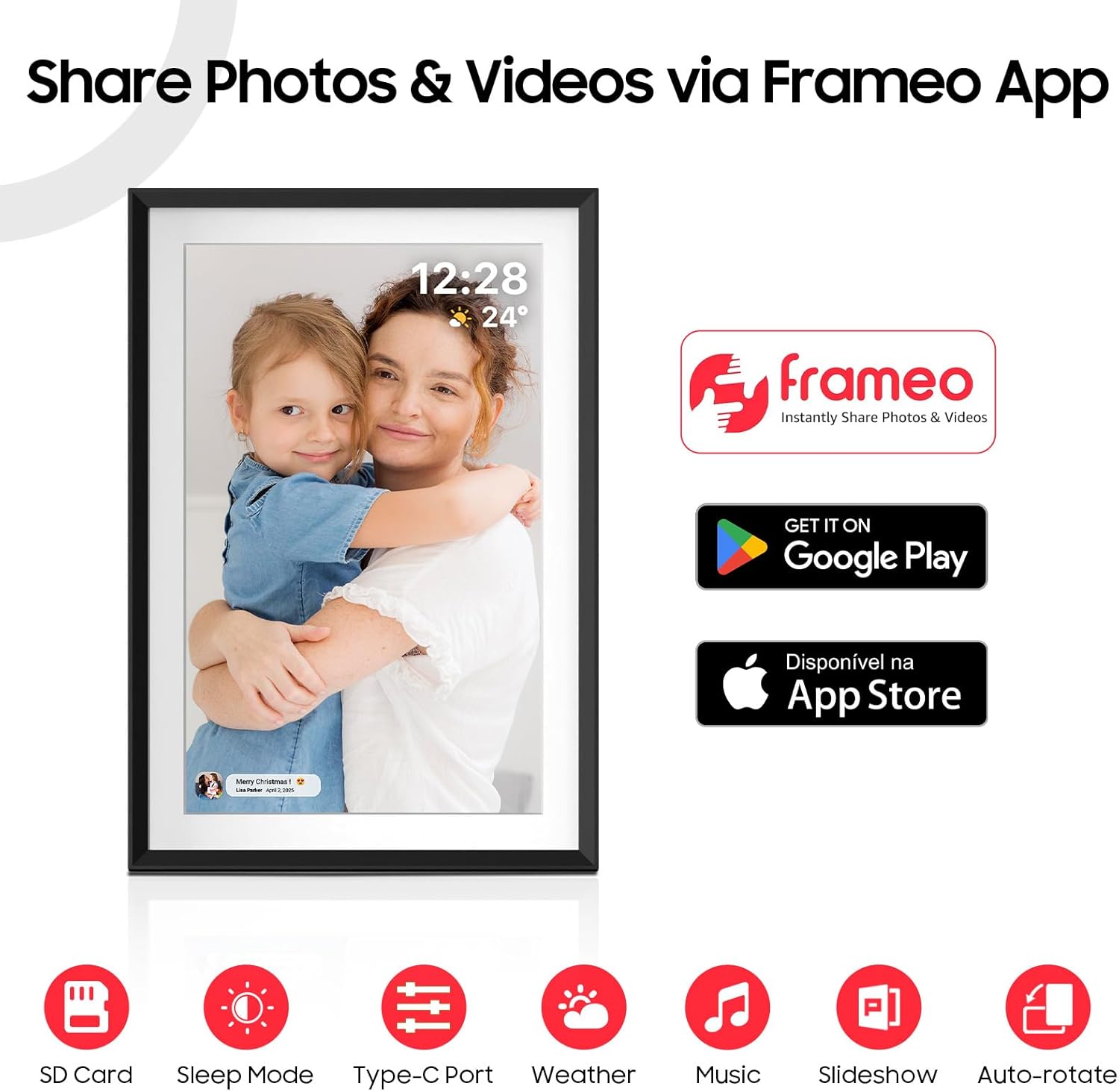
Image: Visual representation of sharing photos and videos via the Frameo app, with icons indicating features like SD Card support, Sleep Mode, Type-C Port, Weather, Music, Slideshow, and Auto-rotate.
4.2 Slideshow and Display Settings
The frame automatically displays your uploaded media in a slideshow. You can customize various settings:
- Auto-Rotate: The built-in gravity sensor automatically adjusts the photo orientation for both landscape and portrait display. The frame can also be wall-mounted.
- Playback Order: Adjust the sequence in which photos and videos are displayed.
- Image Scaling: Control how images fit the screen (e.g., fill screen, fit to screen).
- Brightness: Adjust screen brightness for optimal viewing.
- Sleep Mode: Configure the frame to enter sleep mode during specified hours to conserve energy.

Image: The digital picture frame shown in both portrait and landscape orientations, demonstrating its auto-rotate and flexible placement capabilities, including wall mounting.
4.3 User Management
You can invite friends and family to share photos and videos directly to your frame via the Frameo app. Each user will need to download the app and use the unique code from your frame to connect.

Image: An illustration depicting multiple users sharing photos remotely to a single digital picture frame, emphasizing multi-user support.
5. Maintenance
5.1 Cleaning the Screen
To clean the touch screen, gently wipe it with a soft, lint-free cloth. For stubborn smudges, slightly dampen the cloth with water or a screen-safe cleaning solution. Avoid using harsh chemicals or abrasive materials.
5.2 Software Updates
The frame may receive periodic software updates to improve performance and add new features. Ensure your frame is connected to Wi-Fi to receive these updates. You can usually check for updates in the frame's settings menu.
5.3 Storage Management
The frame has 32GB of internal storage, capable of holding over 80,000 photos (assuming 300KB per photo). Regularly review your stored media and delete unwanted items to free up space. You can also export received photos and videos to an SD card for better album management.

Image: An illustration highlighting the frame's 32GB storage capacity, capable of holding approximately 80,000 photos, surrounded by various family photos.
6. Troubleshooting
- Frame not powering on: Ensure the power adapter is securely connected to both the frame and a working power outlet.
- Cannot connect to Wi-Fi: Verify your Wi-Fi password. Ensure the frame is within range of your router and connected to a 2.4GHz network. Restarting your router and the frame may resolve the issue.
- Frame not detected by computer via USB: Use a USB cable specifically designed for data transfer, not just charging. Restart the photo frame and try again. Ensure you have enabled 'Transfer from computer' in the frame's settings. This feature is currently only supported on Windows and Linux operating systems.
- Photos not filling the entire screen or showing blank edges: This can occur if the photo's aspect ratio does not match the frame's 16:10 aspect ratio. For optimal display, consider cropping photos to a 1920x1200 pixel resolution before transferring them.
- Frameo app not sending photos: Ensure both your smartphone and the frame have a stable internet connection. Check if the frame is still paired with your app.
- Screen unresponsive: Try restarting the frame by disconnecting and reconnecting the power. If the issue persists, perform a factory reset (refer to the settings menu for this option, noting that it will erase all data).
7. Specifications
| Feature | Detail |
|---|---|
| Model Number | DPF103 |
| Screen Size | 10.1 Inches |
| Resolution | 1280 x 800 HD IPS |
| Aspect Ratio | 16:10 |
| Internal Storage | 32GB |
| External Storage | Supports SD cards up to 32GB |
| Connectivity | WiFi (2.4GHz), Type-C Port (data transfer) |
| Compatible Devices | Android, Personal Computer, Smartphone, iOS |
| Product Dimensions | 9.84 x 14.17 x 0.99 inches |
| Item Weight | 2.29 pounds |
| Manufacturer | ApoloSign |
8. Warranty and Support
8.1 Warranty Information
ApoloSign offers a Lifetime Warranty for this product. Please retain your proof of purchase for warranty claims.
8.2 Customer Support
For technical assistance, troubleshooting, or any inquiries, ApoloSign provides 24/7 fast support. Please visit the official ApoloSign website or refer to the contact information provided with your product for support details.


