
hosabely SK80
hosabely SK80 Audio Interface User Manual
Model: SK80
1. Introduction
Thank you for choosing the hosabely SK80 Audio Interface. This device is designed to enhance your audio experience for live streaming, podcasting, recording, and gaming. It features 48V phantom power, noise reduction, customizable sound pads, and various audio effects. Please read this manual carefully to understand the product's functions and ensure proper operation.

Figure 1: Front view of the hosabely SK80 Audio Interface.
2. Package Contents
Verify that all items are present in your package:
- 1 x hosabely SK80 Live Sound Card (Audio Interface)
- 1 x USB Charging Cable
- 2 x Audio Cables
- 1 x English User Manual (this document)
Note: Microphone is not included. The device is not compatible with USB microphones.
3. Product Overview
3.1. Control Panel Layout

Figure 2: Detailed view of the SK80 Audio Interface control panel.
The SK80 features a comprehensive control panel with various knobs and buttons for audio adjustment and effect activation. Key areas include:
- Microphone Volume Controls: Separate knobs for high, middle, and low frequencies, plus overall microphone volume.
- Tone Volume & Recording Controls: Adjust tone and recording levels.
- Line Volume & Instrumental Volume: Controls for line input and instrument input.
- Sound Effects Pads: Buttons for various live sound effects and customizable pads.
- Reverb & Voice Changer Controls: Knobs and buttons for reverb modes and voice modulation.
- 48V Phantom Power Button: Activates phantom power for condenser microphones.
- Noise Reduction Button: Engages the noise reduction feature.
- Bluetooth (BT) On/Off: Toggles Bluetooth connectivity.
3.2. Connectivity Ports
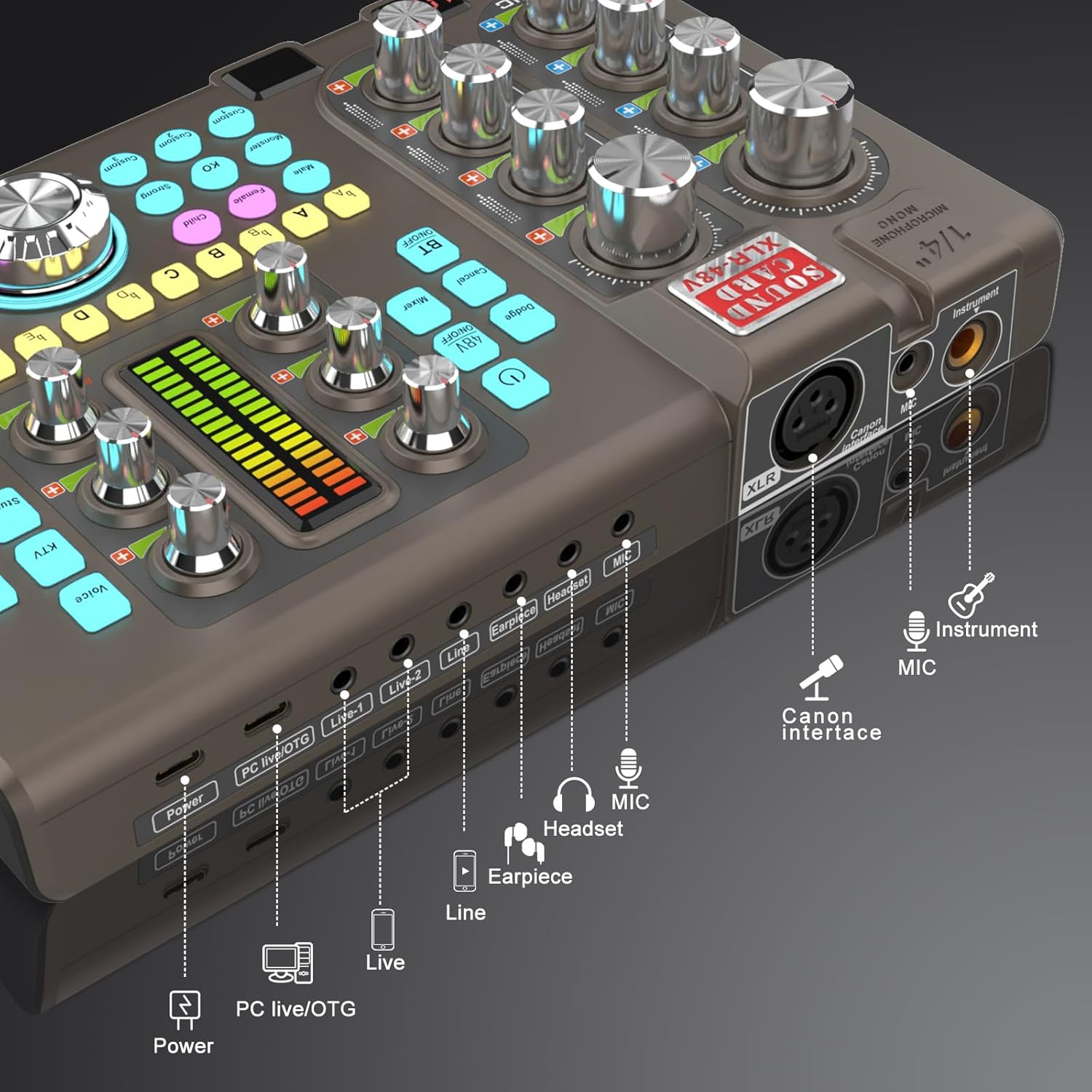
Figure 3: Labeled input and output ports on the SK80 Audio Interface.
The rear panel provides essential connection points:
- Power Port: USB-C for power supply.
- PC Live/OTG Port: USB-C for connection to a computer or OTG-compatible smartphone/tablet.
- Live 1, Live 2, Line-1, Line-2 Ports: 3.5mm audio output ports for connecting to streaming devices or other audio equipment.
- Earpiece Port: 3.5mm output for monitoring audio with an earpiece.
- Headset Port: 3.5mm output for connecting a headset.
- MIC Port: 3.5mm input for a microphone.
- XLR-48V Interface: XLR input for condenser microphones requiring 48V phantom power.
- Instrument Port: 1/4" (6.35mm) input for connecting instruments like guitars.
4. Setup
4.1. Powering On the Device
- Connect the USB Charging Cable to the Power port on the SK80 and to a USB power adapter (not included) or a computer USB port.
- Press and hold the power button on the control panel to turn on the device.
4.2. Connecting Microphones

Figure 4: XLR-48V and Instrument input ports.
- For Condenser Microphones (requiring 48V Phantom Power): Connect your XLR microphone cable to the XLR-48V Interface port. Press the 48V ON/OFF button on the control panel to activate phantom power. (Note: 48V is off by default to conserve battery. A light indicator will confirm activation.)
- For Dynamic Microphones or Microphones with 3.5mm Jack: Connect your microphone to the MIC port using a 3.5mm audio cable.
4.3. Connecting Instruments
Connect your instrument (e.g., guitar) to the Instrument port using a 1/4" (6.35mm) cable.
4.4. Connecting to a Computer or Smartphone
- Via USB: Use the USB Charging Cable to connect the PC Live/OTG port to your computer. The device will be recognized as an audio input/output device.
- Via Bluetooth: Press the BT ON/OFF button on the control panel. On your smartphone or tablet, search for and connect to the SK80 via Bluetooth settings.
4.5. Connecting Monitoring Devices
- Connect headphones to the Headset port for monitoring your audio.
- Connect an earpiece to the Earpiece port for discreet monitoring.
5. Operating Instructions
5.1. Adjusting Audio Levels

Figure 5: Audio adjustment knobs.
- Use the MIC VOL knobs (High, Middle, Low) to fine-tune your microphone's equalization.
- Adjust the Tone Vol knob for overall microphone tone.
- Control the output level with the Recording knob.
- Adjust the Line Vol for line input sources and Instrumental Vol for connected instruments.
- The Monitor Vol knob controls the volume of your monitoring headphones/earpiece.
5.2. Using Reverb Effects
The SK80 offers 6 reverb modes: VOICE, KTV, STUDIO, CONCERT, CORRECT, and MC. Select your desired mode using the dedicated buttons. Adjust the reverb depth and width using the corresponding knobs.
5.3. Customizing Sound Pads

Figure 6: Customizable sound pads.
The SK80 features 3 customizable sound pads. Each pad can record up to 30 seconds of audio. To record:
- Press and hold one of the Custom buttons (Custom 1, 2, or 3) until it starts blinking.
- Record your desired audio (e.g., from a microphone, connected device, or Bluetooth input).
- Press the same Custom button again to stop recording. The button will stop blinking.
- Press the Custom button once to play the recorded sound. You can adjust the volume of each pad.
5.4. Voice Changer Functions
Transform your voice using the Voice Changer feature. Select from Male, Female, Child, or Monster voices. Adjust the VOICE CHANGE knob to modify the pitch and create various vocal effects.
5.5. Noise Reduction

Figure 7: Noise reduction display.
Activate the Noise Reduction button to minimize environmental background noise. The device features a 15-level noise reduction system. The display shows the current noise reduction level.
5.6. Live Sound Effects
The SK80 includes 11 dynamic live sound effects (e.g., Dodge, Muffled, Play In, Laughter, Kiss, Gunfire). Press the corresponding buttons to trigger these effects during your live stream or recording. Each effect typically lasts for approximately 4 seconds.
6. Maintenance
- Keep the device clean by wiping it with a soft, dry cloth. Avoid using liquid cleaners or solvents.
- Store the device in a cool, dry place away from direct sunlight and extreme temperatures.
- Avoid dropping or subjecting the device to strong impacts.
- The built-in 3000mAh battery provides approximately 3-5 hours of operation. Recharge the device when the battery indicator is low.
7. Troubleshooting
- No Sound Output:
- Check all cable connections (microphone, headphones, output to PC/streaming device).
- Ensure volume knobs (MIC VOL, Recording, Monitor Vol) are turned up.
- Verify that the correct audio input/output device is selected on your computer or streaming software.
- Microphone Not Working:
- If using a condenser microphone, ensure 48V phantom power is activated.
- Check microphone cable integrity.
- Confirm the microphone is properly connected to the correct input port (XLR or 3.5mm MIC).
- Static or Noise in Audio:
- Activate the Noise Reduction feature.
- Check for loose cable connections.
- Ensure no strong electromagnetic interference sources are nearby.
- Adjust input gain levels to avoid clipping.
- Bluetooth Connectivity Issues:
- Ensure the BT ON/OFF button is activated.
- Make sure the SK80 is discoverable and within range of your device.
- Try unpairing and re-pairing the device.
8. Specifications
| Item Model Number | SK80 |
| Brand | hosabely |
| Connectivity Technology | Bluetooth, USB |
| Number of Channels | 4 |
| Item Weight | 1.67 pounds (0.76 kg) |
| Package Dimensions | 12.28 x 7.56 x 2.36 inches |
| Battery Type | Lithium Polymer (3000mAh) |
| Compatible Devices | Smartphone, PC, Guitar |
| Operating System Support | Linux, Windows, macOS |
| Supported Software | Ableton Live, FL Studio, Pro Tools, Logic Pro, Cubase (and others) |
9. Warranty and Support
For any questions or issues regarding your hosabely SK80 Audio Interface, please refer to the seller's contact information provided at the point of purchase. Please retain your proof of purchase for warranty claims.
Related documentsSK80


Ask a question about this manual
Ask about setup, troubleshooting, compatibility, parts, safety, or missing instructions. Manuals+ will review the question and use this page’s manual context to help answer it.