1. Introduction
This manual provides detailed instructions for the Anmck ANMCK-WM001 Wireless Rechargeable Mouse. Please read this manual carefully before using the product to ensure proper operation and to maximize its lifespan. Keep this manual for future reference.
The Anmck ANMCK-WM001 is a 2.4G wireless mouse designed for convenience and efficiency. It features a built-in rechargeable battery, silent click buttons, adjustable DPI settings, and a slim, portable design, making it suitable for various computing environments.
2. Product Overview
Key Features:
- Rechargeable & Cordless: Built-in 700mAh rechargeable battery, offering up to 30 days of use on a 2-hour charge.
- Battery Level Indicator: LED lights display current battery capacity (3 LEDs for >60%, 2 for 30-60%, 1 for 10-30%). Low battery reminder sound.
- Silent Operation: Buttons produce noise below 30dB, ideal for quiet environments.
- Stable Wireless Connection: 2.4G USB transmission technology provides a stable signal up to 10 meters.
- Slim & Portable: Compact design for easy transport.
- Adjustable DPI: 4 levels (800/1000/1200/1600) for customized cursor sensitivity.
Package Contents:
- Anmck ANMCK-WM001 Wireless Rechargeable Mouse
- USB Receiver (stored in the mouse)
- Charging Cable
- User Manual
Product Diagram:

Image: Top-down view of the Anmck ANMCK-WM001 wireless mouse, showing its sleek white design with a scroll wheel and left/right click buttons.
3. Setup Instructions
Follow these steps to connect your Anmck ANMCK-WM001 Wireless Rechargeable Mouse to your computer:
- Locate the USB Receiver: The USB receiver is typically stored in a compartment on the underside of the mouse. Gently slide open the compartment cover to retrieve it.

Image: A hand removing the small USB receiver from the bottom of a black wireless mouse.
- Insert the USB Receiver: Plug the USB receiver into an available USB Type-A port on your laptop or desktop computer. The system should automatically detect and install the necessary drivers.

Image: The USB receiver is shown plugged into a USB port on the side of a laptop.
- Turn On the Mouse: Locate the power switch on the underside of the mouse and slide it to the 'ON' position.

Image: The underside of the mouse with the power switch clearly visible and set to 'ON'.
- Verify Connection: The mouse should now be connected and ready for use. Move the mouse to check if the cursor responds on your screen.
Note: This mouse uses a 2.4G USB receiver and is not a Bluetooth mouse. It requires a device with a USB Type-A port. Devices without a USB Type-A port (e.g., some Mac models, iPads, mobile phones) cannot directly use this mouse without an external Type-C HUB with a USB Type-A port.

Image: A diagram illustrating the compatibility of the 2.4G wireless mouse, showing it is compatible with PCs and laptops with USB-A ports, but not directly with Bluetooth-only devices, Macs without USB-A, iPads, or mobile phones.
4. Operating Instructions
Charging the Mouse:
The mouse features a built-in rechargeable battery. When the battery is low, connect the provided charging cable to the mouse's charging port and a USB power source (e.g., computer USB port, USB wall adapter). A full charge takes approximately 2 hours and provides up to 30 days of use.

Image: A white wireless mouse connected to a charging cable, illustrating the charging process. Text indicates 'Charge 2 hours' and 'Work for 30 days'.
Battery Level Indicator:
The mouse is equipped with LED indicators to show the remaining battery capacity:
- 3 LED lights: Battery level above 60%.
- 2 LED lights: Battery level between 30% and 60%.
- 1 LED light: Battery level between 10% and 30%.
A reminder sound will also be emitted when the battery is running low.

Image: A white wireless mouse displaying its LED battery indicators, with illustrations showing 3 LEDs for 100% power, 2 LEDs for 60-30% power, and 1 LED for 10% power.
Adjusting DPI (Sensitivity):
The mouse offers 4 adjustable DPI levels to suit your preference. Press the DPI button, usually located near the scroll wheel, to cycle through the settings:
- 1 Click: 800 DPI
- Double-click: 1000 DPI
- Triple-click: 1200 DPI
- Four-click: 1600 DPI
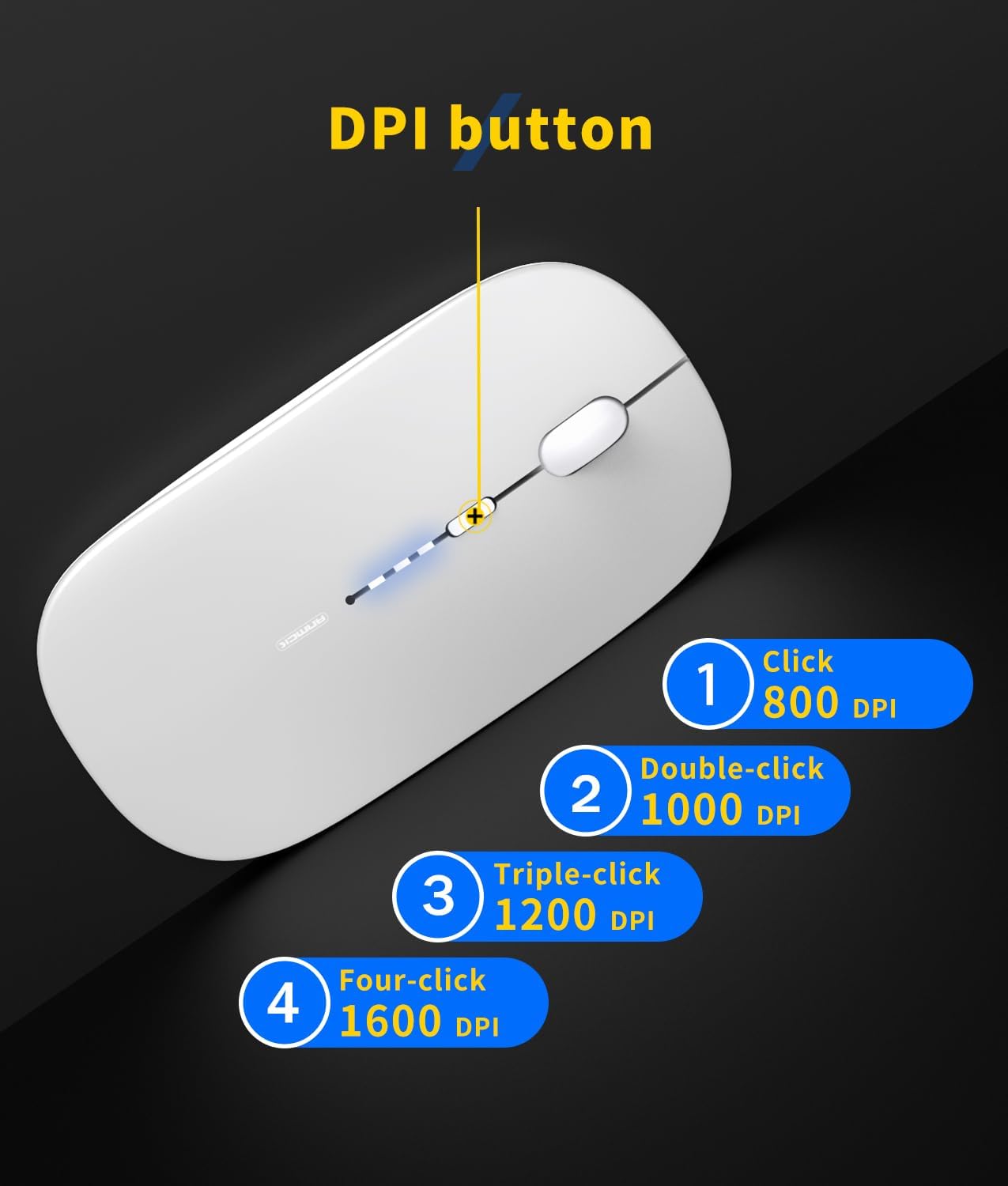
Image: A diagram highlighting the DPI button on the white wireless mouse and explaining how single, double, triple, and four clicks correspond to 800, 1000, 1200, and 1600 DPI settings, respectively.
Silent Click Feature:
The mouse is designed with silent click buttons, ensuring a quiet working environment. This feature is beneficial in shared spaces like offices, libraries, or coffee shops.

Image: A visual representation emphasizing the 'Super Silent Solid Click' feature of the mouse, showing a sleeping child in the background, implying a quiet environment.
Automatic Sleep Mode:
To conserve battery life, the mouse will automatically enter sleep mode after a period of inactivity. To wake it up, simply move the mouse or click any button.

Image: A collage showing various features of the mouse, including 'Auto sleep' and 'Silent Click', alongside its ambidextrous design and wide application.
5. Maintenance
- Cleaning: Use a soft, dry cloth to clean the mouse. Avoid using harsh chemicals or abrasive materials.
- Storage: When not in use for extended periods, turn off the mouse to conserve battery. Store the USB receiver in its designated slot on the mouse to prevent loss.
- Battery Care: Avoid fully discharging the battery frequently. Charge the mouse regularly to maintain battery health.
- Environmental Conditions: Do not expose the mouse to extreme temperatures, direct sunlight, or excessive moisture.
6. Troubleshooting
| Problem | Possible Cause | Solution |
|---|---|---|
| Mouse not responding | Low battery USB receiver not connected Mouse power off | Charge the mouse Ensure USB receiver is securely plugged in Turn on the mouse power switch |
| Intermittent connection | Interference Distance from receiver | Move closer to the USB receiver Avoid using near other wireless devices that may cause interference |
| Cursor movement is erratic or slow | Low DPI setting Dirty optical sensor Unsuitable surface | Adjust DPI using the DPI button Clean the optical sensor on the mouse underside Use on a flat, non-reflective surface or a mouse pad |
| Mouse not working with Mac/iPad/Phone | Device lacks USB Type-A port | This mouse requires a USB Type-A port. For devices without one, an external Type-C HUB with a USB Type-A port is necessary. This is not a Bluetooth mouse. |
7. Specifications
| Feature | Specification |
|---|---|
| Model Number | ANMCK-WM001 |
| Connectivity Technology | 2.4G Wireless (USB Receiver) |
| Movement Detection Technology | Optical |
| DPI Levels | 800 / 1000 / 1200 / 1600 (Adjustable) |
| Battery Type | Rechargeable (700mAh built-in) |
| Charging Time | Approx. 2 hours |
| Battery Life | Up to 30 days (typical use) |
| Operating Distance | Up to 10 meters (33 feet) |
| Silent Click | Yes (<30dB) |
| Dimensions | 4.76 x 3.07 x 1.26 inches (approx. 12.1 x 7.8 x 3.2 cm) |
| Item Weight | 2.71 ounces (approx. 76.8 grams) |
| Color | LED-White |

Image: A white wireless mouse with its dimensions labeled: 11.6cm length, 5.7cm width, and 2.7cm height, highlighting its slim and portable design.
8. Warranty and Support
Anmck provides a 1-year warranty for products purchased. If you encounter any issues with your Anmck ANMCK-WM001 Wireless Rechargeable Mouse within one year of purchase, please contact Anmck customer support for assistance. Support is typically provided within 24 hours.
For further inquiries or technical support, please refer to the contact information provided with your product packaging or visit the official Anmck website.
9. Product Video
Watch this video for a quick overview and demonstration of the Anmck Wireless Mouse.
Video: A user unboxes and demonstrates the Anmck Wireless Mouse, highlighting its sleek design and easy setup by plugging in the USB receiver.
