
1. Introduction
This manual provides detailed instructions for the Hyperkin Pixel Art Bluetooth Controller, Miraculous Cat Noir Edition. Please read this manual thoroughly before using the product to ensure proper operation and to maximize your gaming experience. This controller is designed for use with multiple platforms, offering wireless connectivity and a comfortable, ergonomic design.
2. Product Overview
The Hyperkin Pixel Art Bluetooth Controller combines a retro aesthetic with modern functionality. It features a unique Miraculous Cat Noir design, wireless Bluetooth connectivity, and a built-in turbo function.
2.1 Key Features
- Wireless Bluetooth Connectivity: Enjoy gaming freedom up to 30 feet away.
- Turbo Function: Activate rapid-fire action for enhanced gameplay.
- Retro Design with Modern Ergonomics: A classic look combined with comfortable handling for extended play sessions.
- Travel Friendly: Compact design allows for easy portability.
- High-Quality Symmetrical Sticks: Designed for precision and responsiveness.
2.2 Controller Layout

Image 2.2.1: Front view of the Hyperkin Pixel Art Bluetooth Controller, Miraculous Cat Noir Edition. This image displays the D-pad, left and right analog sticks with paw print designs, A/B/X/Y buttons, Start/Select buttons, and the Cat Noir character art.

Image 2.2.2: Side view of the Hyperkin Pixel Art Bluetooth Controller, Miraculous Cat Noir Edition. This image shows the shoulder buttons (L1, R1) and triggers (L2, R2), along with the USB-C charging port and mode switch.

Image 2.2.3: Close-up view emphasizing the controller's retro design combined with modern ergonomic features for comfortable handling.
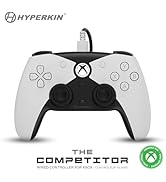
Image 2.2.4: Close-up view showcasing the high-quality symmetrical analog sticks, designed for precise control during gameplay.
3. Setup
3.1 Charging the Controller
The controller includes a built-in Lithium Polymer battery. To charge, connect the supplied Type-C cable to the controller's charging port and the other end to a USB power source (e.g., a computer USB port, a USB wall adapter). The LED indicator on the controller will show charging status and turn off when fully charged.
3.2 Pairing via Bluetooth
To pair the controller with your device:
- Ensure the controller is sufficiently charged.
- Turn on the controller by pressing the Home button.
- Put the controller into pairing mode (refer to your device's specific instructions for Bluetooth pairing, as this may vary). Typically, this involves holding a small pairing button or a combination of buttons until the LED indicator flashes rapidly.
- On your device (Nintendo Switch, PC, Mac, Android, iOS, etc.), navigate to the Bluetooth settings.
- Search for available devices and select "Hyperkin Pixel Art Controller" (or similar name) from the list.
- Once connected, the LED indicator on the controller will stabilize.
For Nintendo Switch, navigate to the 'Controllers' menu, then 'Change Grip/Order' to initiate pairing mode on the console.
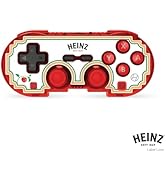
Image 3.2.1: Illustration of the controller connecting wirelessly via Bluetooth, indicating a range of up to 30 feet.
3.3 Wired Connection
The controller can also be used via a wired connection. Connect the Type-C cable from the controller to a compatible USB port on your device. This mode is often plug-and-play, requiring no additional pairing.
4. Operating Instructions
4.1 Basic Controls
The controller features standard gaming buttons:
- D-pad: Directional input.
- Analog Sticks: Left and Right symmetrical sticks for precise movement and camera control.
- Action Buttons (A, B, X, Y): Primary interaction buttons.
- Shoulder Buttons (L, R) and Triggers (ZL, ZR): Additional input buttons, typically for actions like aiming, firing, or menu navigation.
- Start/Select Buttons: For in-game menus and options.
- Home Button: Returns to the system's home screen.
4.2 Turbo Function
The turbo function allows for rapid, repeated input of a button press without continuously pressing the button. To activate or deactivate turbo for a specific button:
- Press and hold the Turbo button.
- While holding the Turbo button, press the desired action button (e.g., A, B, X, Y, L, R, ZL, ZR) once to activate turbo for that button.
- Repeat the process (hold Turbo, press the same action button) to deactivate turbo for that button.
5. Compatibility
The Hyperkin Pixel Art Bluetooth Controller is compatible with a wide range of gaming platforms:
- Nintendo Switch
- Nintendo Switch OLED Model
- Nintendo Switch Lite
- Windows 10/11 PC
- Mac
- Chromebook
- Android devices
- Apple iOS devices
- Steam
- Steam Deck
- ROG Ally
- Raspberry Pi
- Amazon Games/Amazon Luna
- Tesla
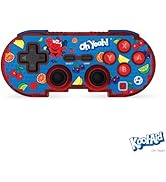
Image 5.1: Visual representation of the controller's broad compatibility across multiple gaming platforms and operating systems.
6. Maintenance
To ensure the longevity and optimal performance of your controller, follow these maintenance guidelines:
- Cleaning: Use a soft, dry cloth to wipe the controller. For stubborn dirt, slightly dampen the cloth with water. Avoid harsh chemicals or abrasive cleaners.
- Storage: Store the controller in a cool, dry place away from direct sunlight and extreme temperatures.
- Battery Care: Avoid fully discharging the battery frequently. Charge the controller regularly, even if not in use for extended periods, to maintain battery health.
- Avoid Physical Impact: Do not drop or expose the controller to strong impacts, as this can damage internal components.
7. Troubleshooting
If you encounter issues with your Hyperkin Pixel Art Bluetooth Controller, refer to the following common problems and solutions:
| Problem | Possible Solution |
|---|---|
| Controller does not turn on. | Ensure the controller is charged. Connect it to a power source using the Type-C cable. |
| Controller does not connect via Bluetooth. |
|
| Buttons are unresponsive or delayed. |
|
| USB charging port does not work. |
|
| Vibration is too strong or loud. | Some games or systems may offer an option to adjust or disable vibration feedback within their settings. Consult your game or system's options menu. |
8. Specifications
| Feature | Detail |
|---|---|
| Model Number | M01328-MTCN |
| Connectivity | Bluetooth (Wireless), USB Type-C (Wired) |
| Wireless Range | Up to 30 feet |
| Battery Type | 1 Lithium Polymer battery (included) |
| Package Dimensions | 7.4 x 5.2 x 2.4 inches |
| Item Weight | 9.9 ounces |
| Manufacturer | Hyperkin |
9. Warranty and Support
This product is covered by the manufacturer's standard warranty. For specific warranty terms and conditions, please refer to the documentation included with your purchase or visit the official Hyperkin website. For technical support or further assistance, please contact Hyperkin customer service through their official channels.

