
Introduction
The Logitech K585 Multi-Device Slim Wireless Keyboard is designed for seamless multi-tasking across various devices. This manual provides comprehensive instructions for setting up, operating, maintaining, and troubleshooting your keyboard to ensure optimal performance and longevity.

The Logitech K585 keyboard, showcasing its slim design and rose color, with a built-in cradle for devices.
What's in the Box
Verify that all components are present in your package:
- Logitech K585 Multi-Device Slim Wireless Keyboard
- 2 AAA batteries (pre-installed or separate)
- Logitech Unifying USB receiver
- User documentation (this manual)

An illustration of the items included in the product packaging: the K585 keyboard and two AAA batteries.
Setup
1. Battery Installation
The keyboard requires two AAA batteries for operation. If not pre-installed, open the battery compartment located on the top edge of the keyboard, insert the batteries, and close the compartment. The Unifying USB receiver is also stored in this compartment.
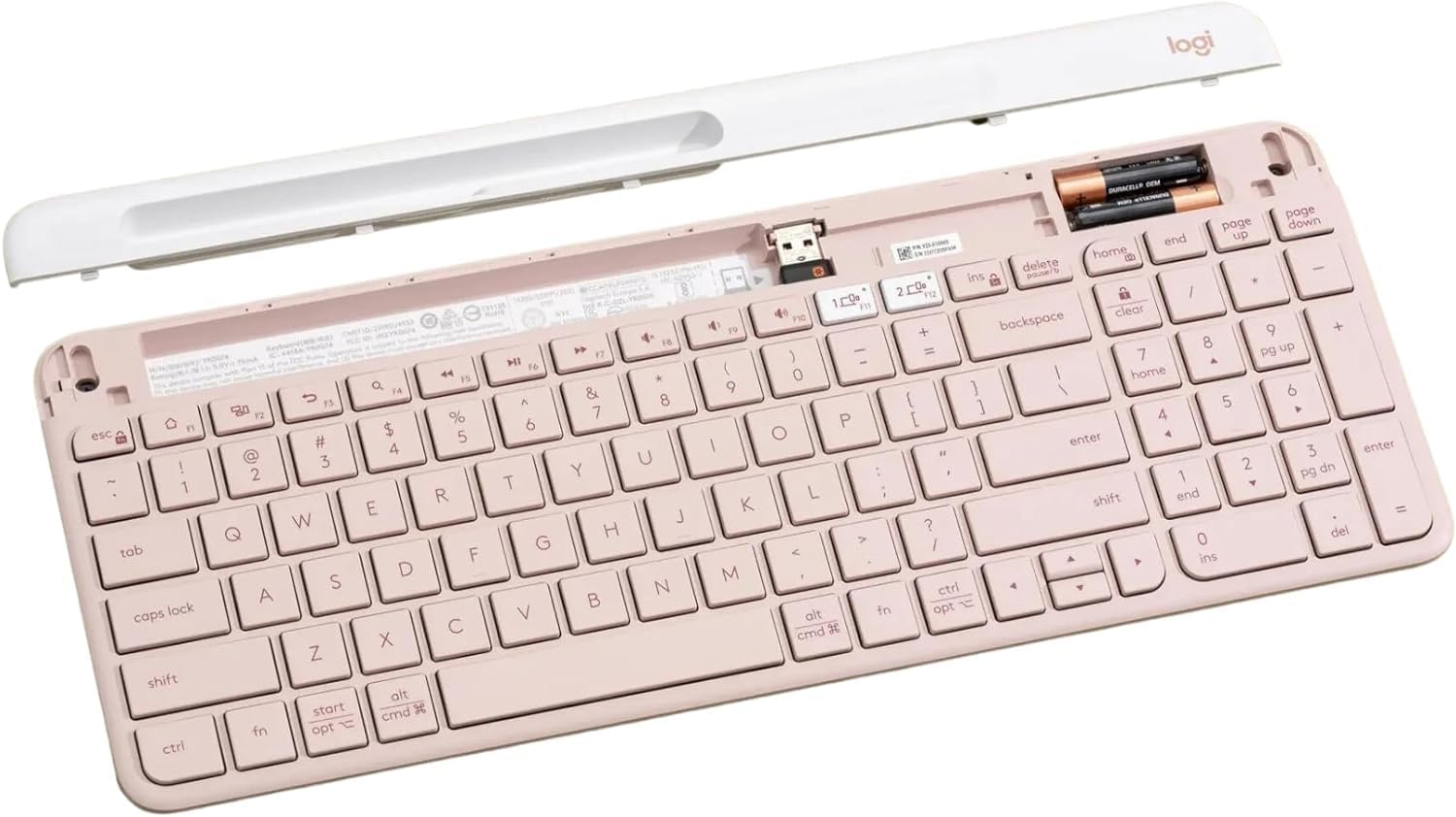
The internal view of the keyboard, highlighting the battery slots and the dedicated storage for the USB receiver.
2. Connecting via USB Receiver
- Remove the Unifying USB receiver from the battery compartment.
- Plug the USB receiver into an available USB port on your computer.
- Turn on the keyboard using the power switch located on the right side.
- The keyboard should automatically connect to your device.
3. Connecting via Bluetooth
The K585 keyboard supports Bluetooth Low Energy (BLE) for wireless connection.
- Ensure the keyboard is powered on.
- Press and hold one of the Easy-Switch keys (1 or 2) for three seconds until the LED light above the key starts blinking rapidly. This indicates pairing mode.
- On your device (computer, tablet, smartphone), go to Bluetooth settings and select


