
Introduction
Thank you for choosing the CHIQ L32M8TG FHD Monitor. This manual provides essential information for the safe and efficient use of your new monitor. Please read this manual thoroughly before operating the device and keep it for future reference. This monitor features Full HD resolution, Google TV integration, and various connectivity options for a versatile viewing experience.
Safety Information
Always follow basic safety precautions when using this product to reduce the risk of fire, electric shock, and injury to persons.
- Do not expose the monitor to rain or moisture.
- Do not block ventilation openings.
- Use only attachments/accessories specified by the manufacturer.
- Unplug the monitor during lightning storms or when unused for long periods.
- Refer all servicing to qualified service personnel.
Product Overview
The CHIQ L32M8TG is a 32-inch Full HD monitor designed for both entertainment and productivity, featuring smart capabilities with Google TV.
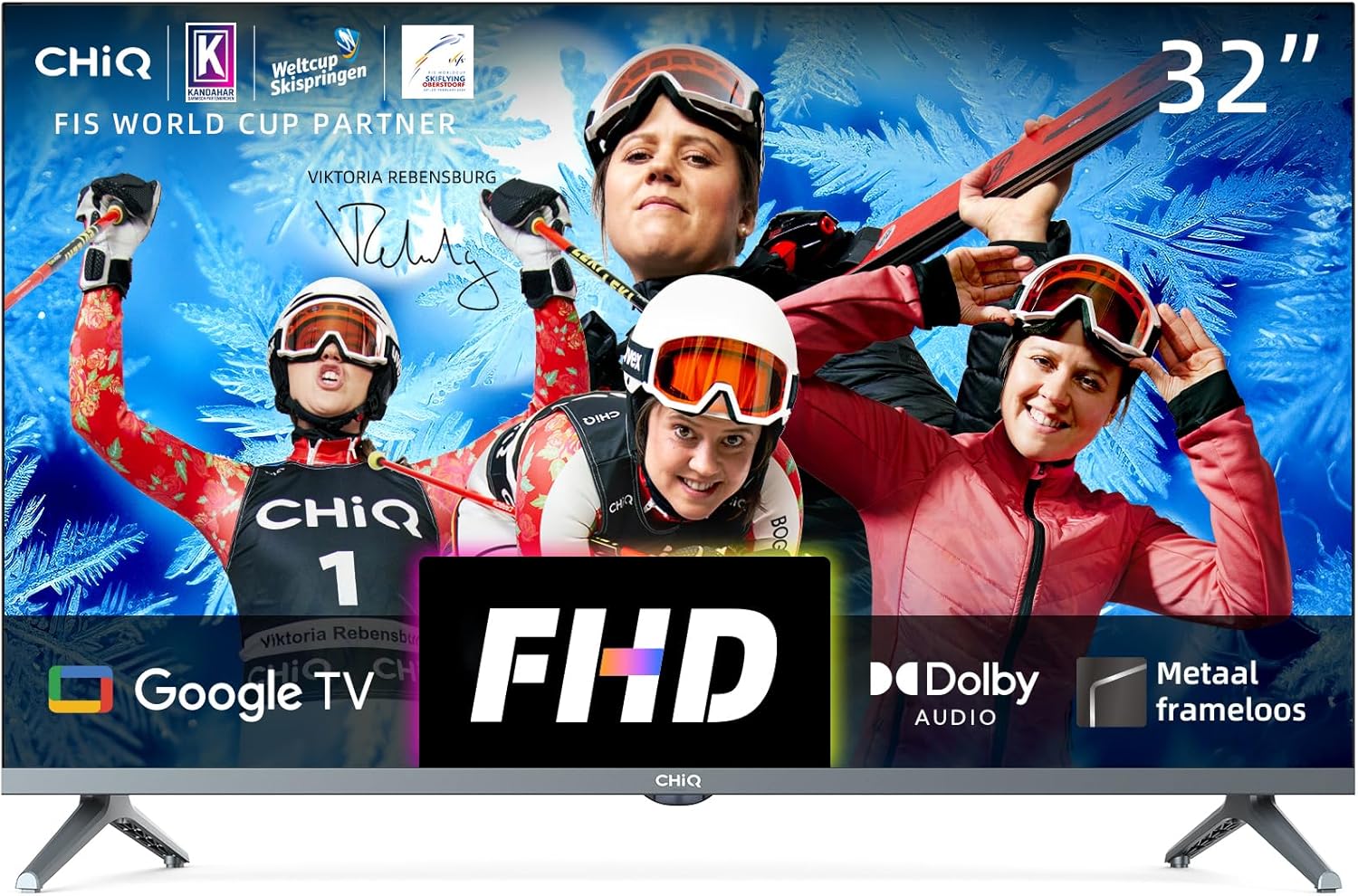
Figure 1: Front view of the CHIQ L32M8TG FHD Monitor, highlighting its 32-inch display, Full HD resolution, Google TV integration, Dolby Audio support, and metal frameless design.

Figure 2: Key features of the monitor including Chromecast built-in, Dolby Audio, HDR10 support, and the sleek metal frameless design.

Figure 3: Overview of the monitor's internal specifications, including FHD (1920x1080) resolution, Google TV, 64-bit CPU, 1.5GB RAM + 8GB ROM, dbx-tv, Dolby Audio, Dual Band Wi-Fi (2.4GHz/5GHz), Bluetooth 5.0, and HDR capabilities.

Figure 4: Detailed dimensions of the 32-inch monitor, showing width (720mm), height (422mm), total height with stand (470mm), stand depth (183mm), and thickness (82mm). The diagonal screen size is 80cm (32").

Figure 5: Visual comparison demonstrating the clarity of Full HD (1920x1080) resolution with HDR, compared to standard HD.

Figure 6: The Google TV interface, showcasing access to over 5000 applications from various streaming services and content providers, available for download via Google Play.
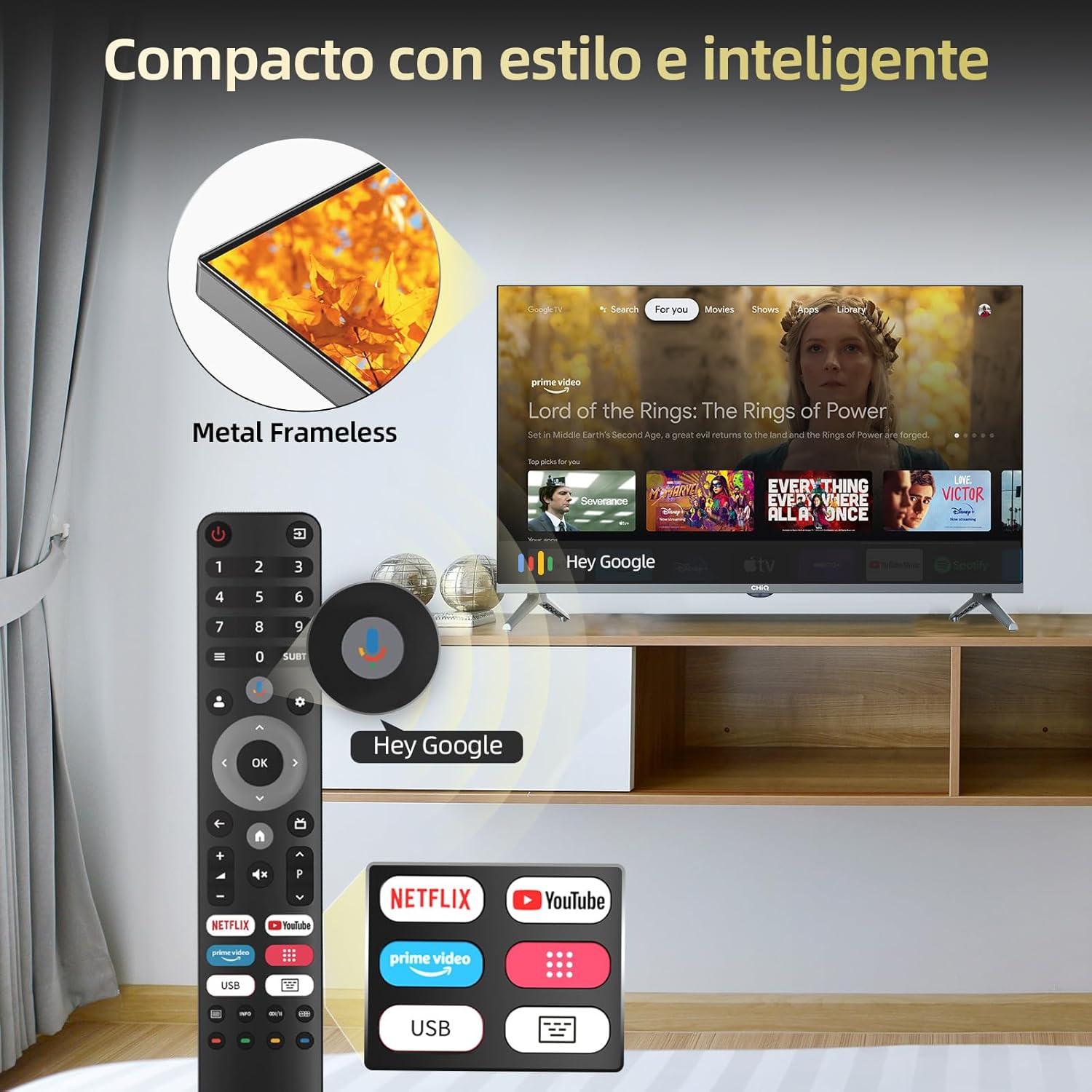
Figure 7: The compact and intelligent design of the monitor, featuring its metal frameless display and the included remote control with dedicated buttons for popular streaming services (Netflix, YouTube, Prime Video) and Google Assistant voice control.
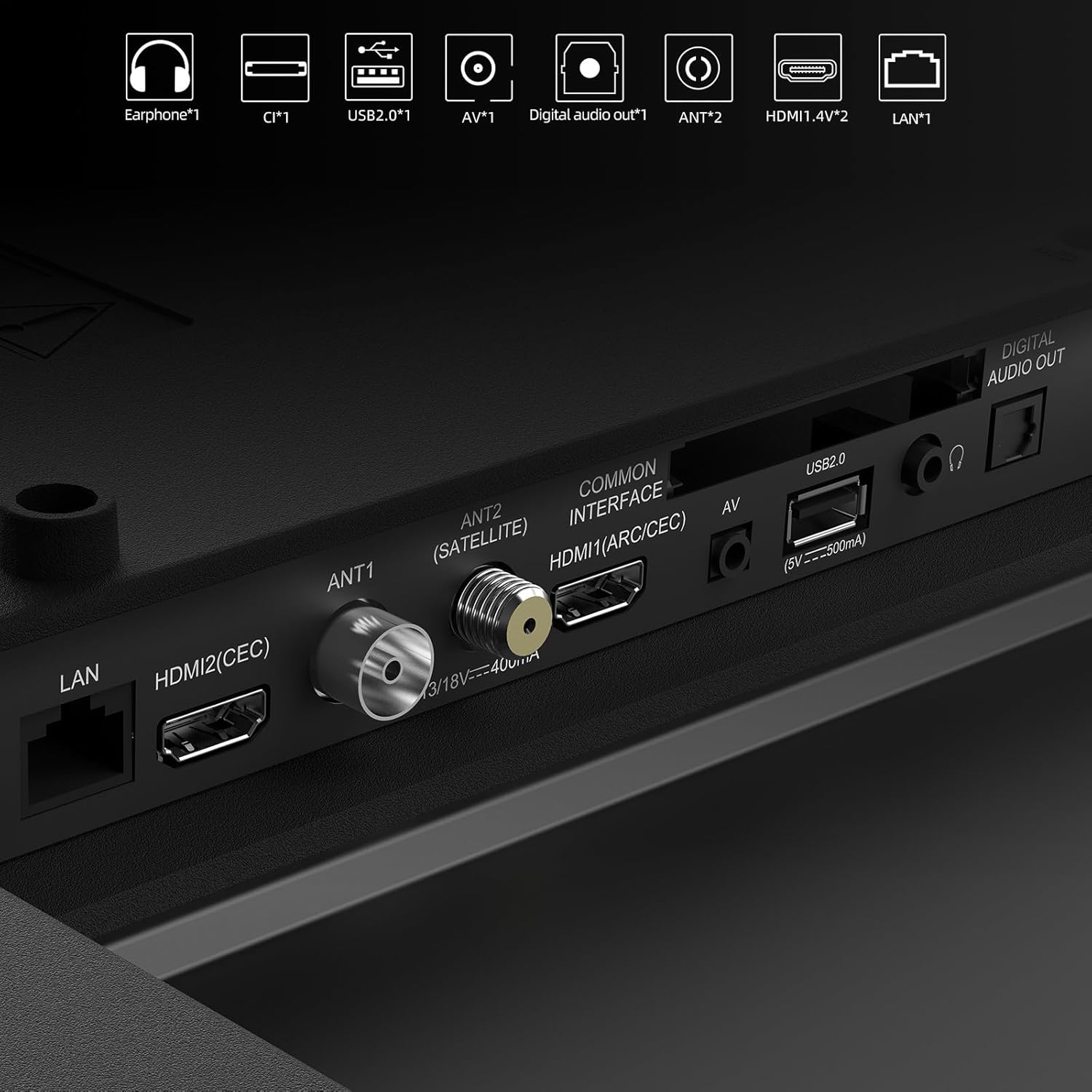
Figure 8: Rear view of the monitor displaying its various connectivity ports, including Earphone, CI, USB 2.0, AV, Digital Audio Out, ANT2 (Satellite), ANT1, HDMI1 (ARC/CEC), HDMI2 (CEC), and LAN.
Setup
1. Unpacking
Carefully remove the monitor and all accessories from the packaging. Retain the packaging materials for future transport or storage.
2. Attaching the Stand
- Place the monitor face down on a soft, clean surface to prevent scratches.
- Align the stand base with the mounting holes on the bottom of the monitor.
- Secure the stand using the provided screws. Ensure it is firmly attached.
Alternatively, for wall mounting, refer to the "Wall Mounting" section.
3. Wall Mounting (Optional)
This monitor supports wall mounting. A VESA compatible wall mount (not included) is required. Follow the instructions provided with your wall mount kit. Ensure the wall can support the weight of the monitor and the mount.
4. Connecting Power
Connect the power cord to the monitor's power input, then plug the other end into a grounded electrical outlet.
5. Connecting External Devices
Use the appropriate ports on the rear of the monitor (refer to Figure 8) to connect your devices:
- HDMI: For high-definition video and audio from devices like Blu-ray players, game consoles, or PCs.
- USB 2.0: For connecting USB storage devices to play media or for software updates.
- LAN: For wired internet connection.
- ANT1/ANT2 (Satellite): For connecting an antenna or satellite dish.
- AV: For connecting older devices with composite video and stereo audio outputs.
- Digital Audio Out: For connecting to an external audio receiver or soundbar.
- Earphone: For connecting headphones.
- CI: Common Interface slot for conditional access modules.
6. Initial Setup
Upon first power-on, the monitor will guide you through the initial setup process for Google TV. This includes:
- Language selection.
- Network connection (Wi-Fi or wired LAN).
- Google account sign-in (recommended for full Google TV features).
- Channel scanning (for antenna/cable connections).
Operating
1. Power On/Off
Press the Power button on the remote control (refer to Figure 7) or on the monitor itself to turn the monitor on or off.
2. Remote Control Functions
The remote control allows you to navigate the Google TV interface and control monitor functions. Key buttons include:
- Navigation Pad (Up/Down/Left/Right/OK): For menu navigation and selection.
- Back: Returns to the previous screen.
- Home: Returns to the Google TV home screen.
- Google Assistant: Activates voice control.
- Volume +/-: Adjusts volume.
- Channel +/-: Changes channels (if applicable).
- Netflix, YouTube, Prime Video: Direct access buttons for these streaming services.
- Input: Selects input source (HDMI, AV, etc.).
3. Navigating Google TV
The Google TV interface organizes your content from various apps and subscriptions. Use the navigation pad on the remote to browse recommendations, access your installed apps (Figure 6), or search for content using the Google Assistant.
4. Input Selection
Press the Input button on the remote to switch between connected devices (e.g., HDMI 1, HDMI 2, AV) or internal TV tuner.
5. Audio/Video Settings
Access the settings menu from the Google TV home screen to adjust picture modes (e.g., Standard, Vivid, Movie), sound modes (e.g., Standard, Music, Movie), and other display or audio preferences. The monitor supports Dolby Audio and HDR for enhanced viewing and listening experiences.
6. Chromecast Built-in
The monitor has Chromecast built-in, allowing you to cast content (videos, photos, music) from compatible apps on your smartphone, tablet, or computer directly to the monitor.
7. Bluetooth Connectivity
Pair Bluetooth devices such as headphones or speakers with your monitor for wireless audio. Navigate to the Bluetooth settings menu to discover and connect devices.
Maintenance
1. Cleaning the Screen
Gently wipe the screen with a soft, lint-free cloth. For stubborn marks, dampen the cloth slightly with water or a screen-cleaning solution. Do not spray liquid directly onto the screen.
2. Cleaning the Body
Wipe the monitor's body with a soft, dry cloth. Avoid using abrasive cleaners or solvents.
3. Storage
If storing the monitor for an extended period, unplug it from the power outlet and cover it to protect from dust. Store in a cool, dry place.
Troubleshooting
| Problem | Possible Cause / Solution |
|---|---|
| No power | Ensure the power cord is securely connected to the monitor and the power outlet. Check if the power outlet is working. |
| No picture / Poor picture quality | Check input source selection. Ensure cables (HDMI, AV) are securely connected. Adjust picture settings in the menu. |
| No sound | Check volume level. Ensure mute is off. Check audio output settings and external audio device connections. |
| Remote control not working | Check batteries. Ensure no obstructions between remote and monitor. |
| Cannot connect to Wi-Fi | Ensure Wi-Fi is enabled on the monitor. Check router status and signal strength. Re-enter Wi-Fi password. |
For further assistance, please contact CHIQ customer support.
Specifications
| Feature | Detail |
|---|---|
| Brand | CHiQ |
| Model Number | 100015596 |
| Resolution | 1920 x 1080 (Full HD) |
| Screen Size | 32 inches (80 cm) |
| Aspect Ratio | 16:9 |
| Special Features | Google TV, Chromecast built-in, Dolby Audio, HDR10, Metal Frameless, 64-bit CPU, 1.5GB RAM, 8GB ROM, dbx-tv, Bluetooth 5.0 |
| Connectivity Technology | USB, HDMI (x2, HDMI1 ARC/CEC, HDMI2 CEC), LAN, Wi-Fi (2.4GHz/5GHz Dual Band), Bluetooth 5.0, AV, Digital Audio Out, Earphone, CI, ANT1, ANT2 (Satellite) |
| Mounting Type | Wall Mount, Tabletop Stand |
| Color | Multicolor |
| Product Dimensions | 45 x 36 x 24 cm (Package); 800 g (Product Weight) |
| Model Year | 2010 (as per provided data) |
Warranty and Support
For warranty information and technical support, please refer to the warranty card included with your product or visit the official CHIQ website. Keep your purchase receipt as proof of purchase.
CHiQ Official Website: www.chiq.com


