
1. Introduction
The Verbatim Vx500 Portable SSD is a high-performance external solid-state drive designed for fast and reliable data storage. Its compact and durable design makes it suitable for users requiring maximum performance for tasks such as video editing, large data transfers, and expanding storage for various devices. This manual provides essential information for setting up, operating, maintaining, and troubleshooting your Vx500 Portable SSD.
Image 1.1: Verbatim Vx500 External SSD product banner.
2. Package Contents
Verify that all items are present in your product package:
- Vx500 External SSD
- USB-A to USB-C (USB 3.1 Gen 2) Cable
- USB-C to USB-C (USB 3.1 Gen 2) Cable
- Nero Backup Software (Windows operating systems only)

Image 2.1: The Verbatim Vx500 Portable SSD and included cables.
3. Key Features
- High-Speed Data Transfer: USB 3.1 Gen 2 connectivity enables transfer rates up to 500MB/s. Backward compatible with USB 2.0 ports.
- Durable Design: Features an ultra-slim form factor and shock-resistant metal housing.
- Silent Operation: Operates silently with low power consumption, contributing to extended laptop battery life.
- Included Software: Comes with Nero backup software for Windows operating systems.
- Universal Compatibility: Works with Windows and macOS laptops, USB-C smartphones and tablets, gaming consoles, and media centers.
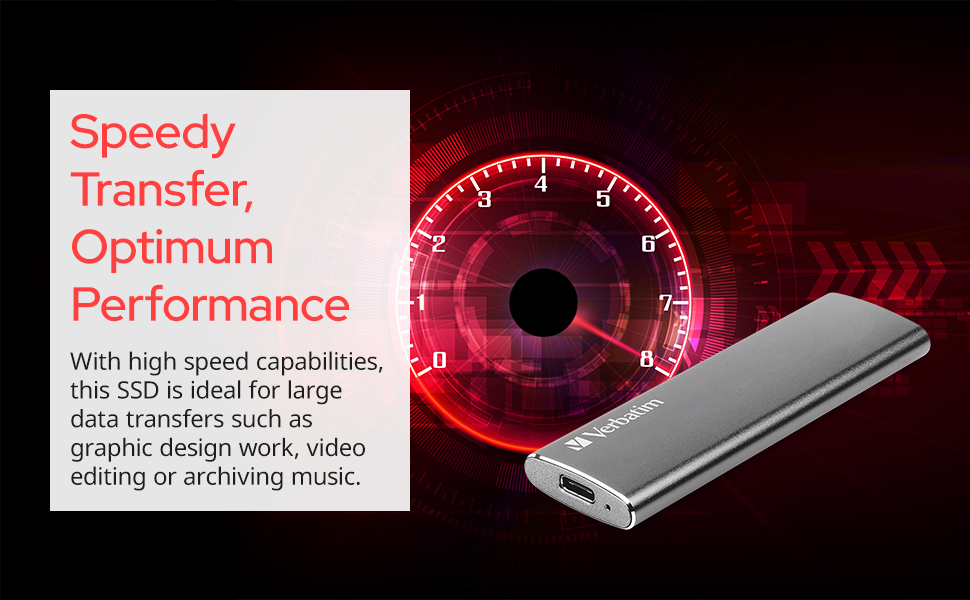
Image 3.1: High-speed data transfer capabilities of the Vx500 SSD.

Image 3.2: The Vx500 SSD's rugged metal housing for durability.
4. Setup and Installation
4.1 Connecting the SSD
- Identify the appropriate port on your device (USB-A or USB-C).
- Select the corresponding cable from the package (USB-A to USB-C or USB-C to USB-C).
- Connect one end of the cable to the USB-C port on the Vx500 SSD.
- Connect the other end of the cable to your computer, smartphone, tablet, or gaming console.
- The device should automatically recognize the Vx500 SSD as an external storage device. No drivers are typically required for basic functionality.
For optimal performance, use with a USB 3.1 Gen 2 port/cable or a Thunderbolt™ 3 port/cable. Transfer speeds are based on internal data using UASP and BOT mode.

Image 4.1: The Vx500 SSD connected to a laptop and smartphone, demonstrating universal compatibility.
4.2 Nero Backup Software (Windows Only)
The Vx500 SSD includes Nero backup software for Windows operating systems. This software can be used to create backups of your important files. Refer to the software's documentation for installation and usage instructions. This software is not compatible with Mac OS.
5. Operating Instructions
5.1 Transferring Files
Once connected, the Vx500 SSD will appear as a removable drive on your computer or device. You can transfer files by:
- Drag and Drop: Click and drag files or folders from your computer to the Vx500 drive icon, or vice versa.
- Copy and Paste: Right-click on files/folders, select 'Copy', then navigate to the desired destination on the Vx500 drive, right-click, and select 'Paste'.
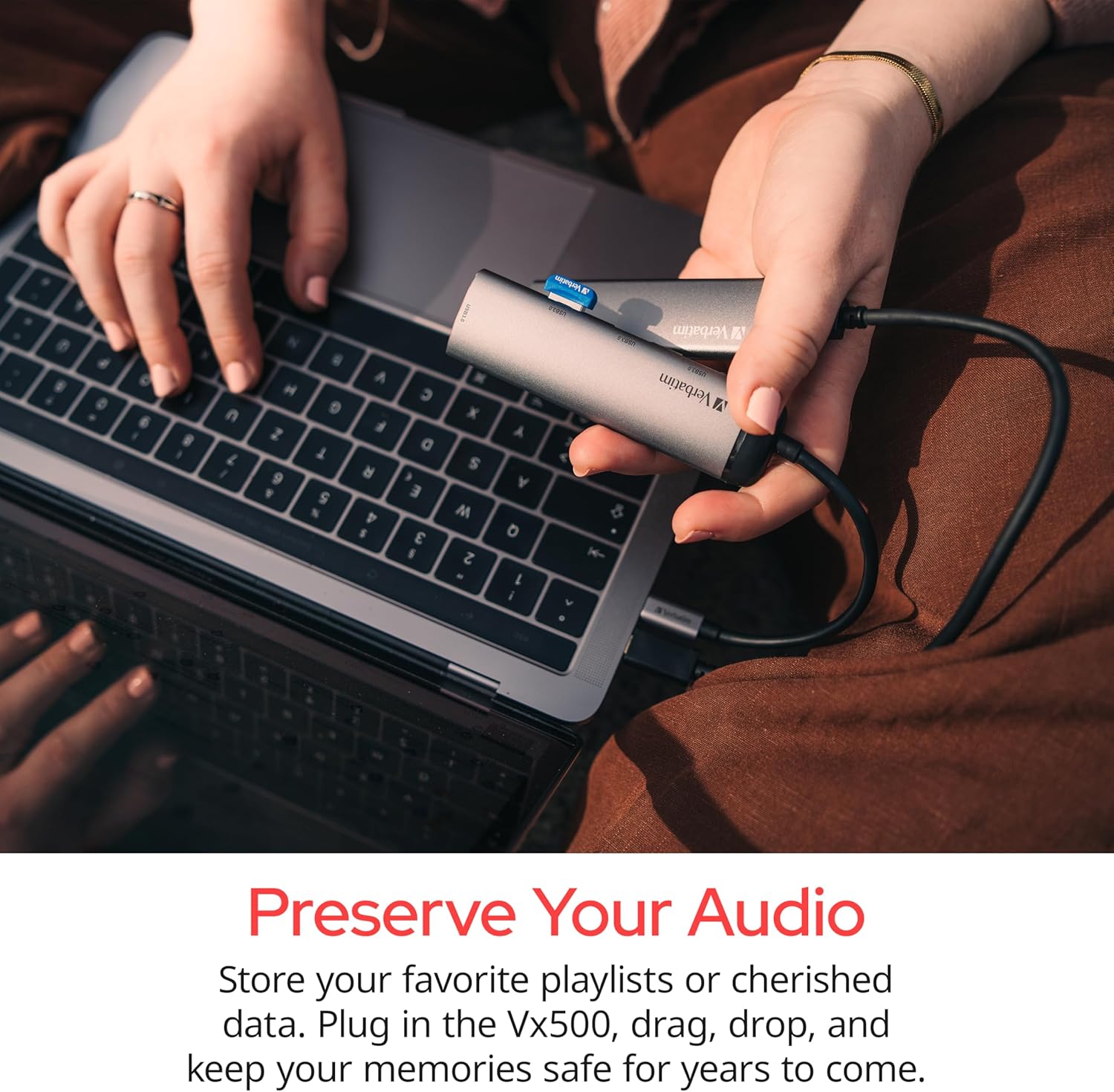
Image 5.1: The Vx500 SSD being used to store audio files, demonstrating ease of use.
5.2 Safe Removal
To prevent data corruption, always safely remove the Vx500 SSD before disconnecting it:
- Windows: Click the 'Safely Remove Hardware and Eject Media' icon in the system tray, then select the Vx500 drive.
- macOS: Drag the Vx500 drive icon to the Trash, or right-click the drive icon and select 'Eject'.
6. Maintenance and Care
- Physical Protection: The Vx500 features a shock-resistant metal housing. However, avoid dropping the device from significant heights or subjecting it to excessive force.
- Environmental Conditions: Keep the SSD away from extreme temperatures, direct sunlight, and high humidity.
- Cleaning: Use a soft, dry cloth to clean the exterior of the SSD. Do not use liquid cleaners or solvents.
- Firmware Updates: Periodically check the Verbatim website for any available firmware updates for your Vx500 SSD to ensure optimal performance and compatibility.
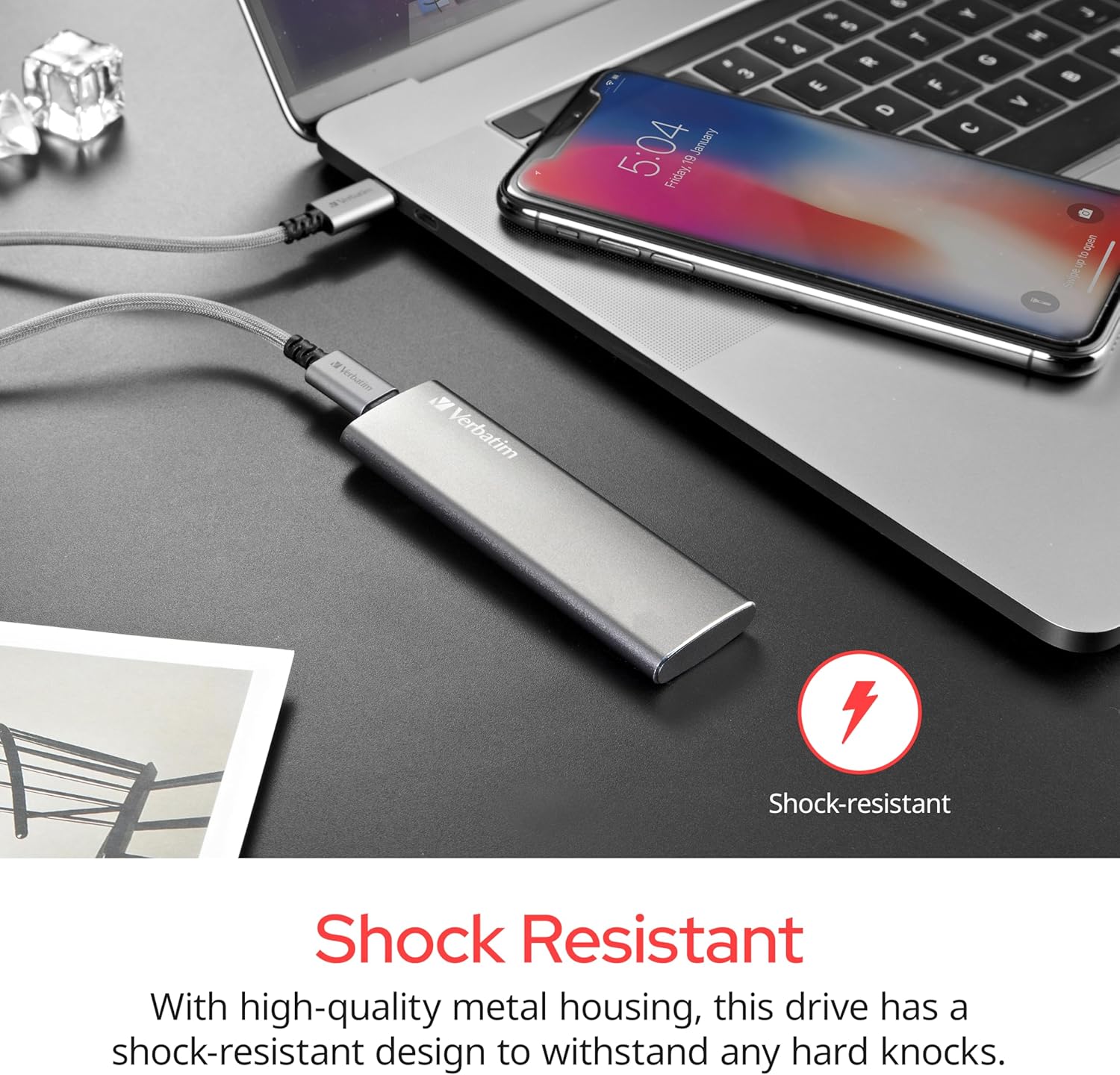
Image 6.1: The Vx500 SSD's robust design, emphasizing its shock resistance.
7. Troubleshooting
7.1 Device Not Recognized
- Ensure the USB cable is securely connected to both the SSD and your device.
- Try a different USB port on your computer.
- Test with a different USB cable to rule out cable issues.
- Restart your computer or device.
- Check your operating system's Disk Management (Windows) or Disk Utility (macOS) to see if the drive is detected but unformatted or uninitialized.
7.2 Slow Transfer Speeds
- Ensure you are connected to a USB 3.1 Gen 2 or Thunderbolt™ 3 port for optimal performance. Connecting to a USB 2.0 port will result in significantly slower speeds.
- Verify that your computer's drivers for USB ports are up to date.
- Avoid running multiple demanding applications during large file transfers.
- Ensure the SSD is not overheating, as this can lead to thermal throttling and reduced performance.
7.3 Data Corruption
- Always use the 'Safely Remove Hardware' function before disconnecting the drive.
- If data corruption occurs, you may need to reformat the drive. Warning: Reformatting will erase all data on the drive.
8. Specifications
| Feature | Specification |
|---|---|
| Brand | Verbatim |
| Series | Vx500 |
| Model Number | 47444 |
| Digital Storage Capacity | 1TB (available in 120GB, 240GB, 480GB, 1TB, 2TB variants) |
| Hard Disk Interface | USB 3.0 (USB 3.1 Gen 2 compatible) |
| Connectivity Technology | USB |
| Transfer Rates | Up to 500MB/s (read/write) |
| Compatible Devices | Desktop, Laptop, USB-C Smartphones/Tablets, Gaming Consoles |
| Installation Type | External SSD |
| Color | Space Gray |
| Item Weight | Approximately 0.96 ounces |
| Product Dimensions (LxWxH) | 3.62 x 0.35 x 1.14 inches |
| Special Features | Backward Compatible, Portable, Shock Resistant |
9. Warranty and Support
9.1 Limited Warranty
The Verbatim Vx500 Portable SSD is backed by a 2-year limited warranty. This warranty covers defects in materials and workmanship under normal use. For specific terms and conditions, please refer to the warranty information provided with your product or visit the official Verbatim website.
9.2 Customer Support
If you encounter any issues or have questions regarding your Verbatim Vx500 Portable SSD, please contact Verbatim customer support. Contact information can typically be found on the Verbatim website or in the product packaging.
10. Safety Information
- Do not attempt to disassemble or modify the device. This may void the warranty and could cause damage.
- Avoid exposing the device to water or other liquids.
- Do not use the device in environments with extreme temperatures or high humidity.
- Keep the device away from strong magnetic fields.
- Dispose of the device responsibly according to local electronic waste regulations.


