
1. Introduction
This manual provides comprehensive instructions for the installation, operation, and maintenance of your MekedeTech Android Car Radio Stereo GPS. This head unit is designed as a direct upgrade for Mercedes Benz C-Class W204 and S204 models manufactured between 2006 and 2011, enhancing your vehicle's infotainment system with modern features.

Image 1.1: MekedeTech Android Car Radio Stereo GPS main interface showing navigation, media player, and app icons. This image displays the primary user interface of the MekedeTech Android Car Radio, featuring a navigation map, a music player widget, and quick access icons for applications like YouTube, Spotify, and the Play Store. The time and date are visible at the top.
2. Product Overview
The MekedeTech Android Car Radio Stereo GPS is an advanced infotainment system featuring an 8-core CPU and 4GB RAM with 32GB ROM, ensuring responsive performance. It includes a 9-inch IPS touch screen with a resolution of 1280x720 for clear visuals. Key functionalities include built-in GPS navigation, 4G LTE connectivity, WiFi, Bluetooth 5.0, and support for Wireless CarPlay and Android Auto. The integrated DSP sound system provides enhanced audio quality, and the unit retains original steering wheel control functions for convenience.
3. Safety Information
Please read all instructions carefully before installation and operation. Improper installation or use can lead to damage to the unit, vehicle, or personal injury. Always prioritize safe driving. Do not operate the unit in a way that distracts you from the road. Ensure all wiring is correctly connected and secured to prevent short circuits or electrical hazards. Consult a professional for installation if you are unsure about any steps.
4. Setup & Installation
The MekedeTech Android Car Radio is designed for a plug-and-play installation in compatible Mercedes Benz C-Class W204 S204 models (2006-2011). It includes necessary accessories such as a dash kit, power cable, RCA cable, reversing camera cable, and USB cables.
4.1 Important Installation Note
If your vehicle is equipped with an amplifier sound system, an additional Optical Fiber Box is required for the audio to function correctly. This component is not included and must be purchased separately.
4.2 General Installation Steps
- Carefully remove the original head unit from your vehicle's dashboard.
- Connect the provided wiring harness to the vehicle's existing connectors and to the new MekedeTech unit. Ensure all connections are secure.
- If applicable, install the cooling fan as per the diagram to ensure optimal performance and prevent overheating.
- Integrate the new unit into the dashboard using the provided dash kit.
- Test all functions before fully securing the unit and reassembling the dashboard.

Image 4.1: MekedeTech Android Car Radio Stereo GPS installed in a Mercedes Benz C-Class W204 dashboard. This image shows the MekedeTech Android Car Radio seamlessly integrated into the dashboard of a Mercedes Benz C-Class W204. The large touchscreen replaces the original head unit, maintaining the vehicle's aesthetic while providing enhanced functionality.
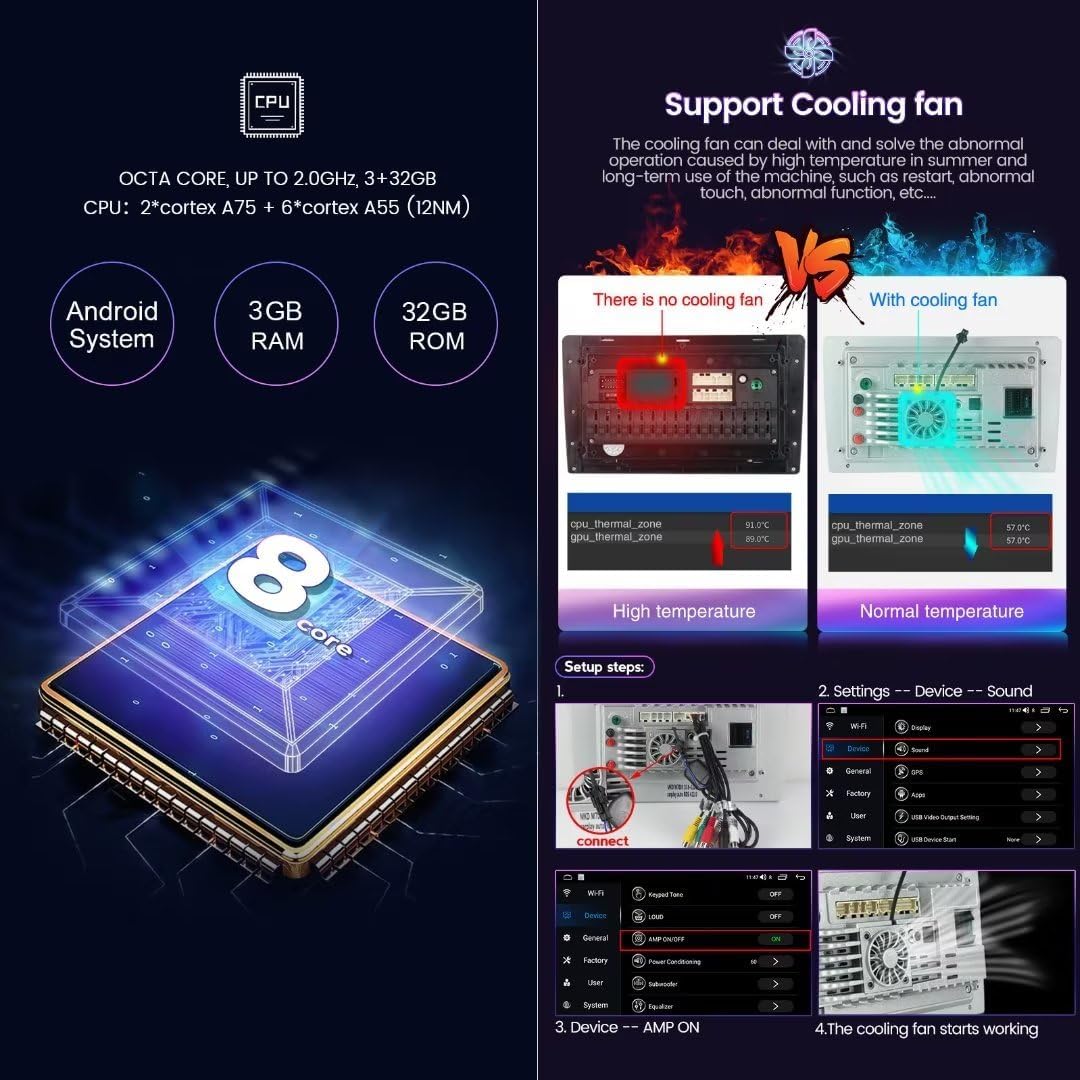
Image 4.2: Diagram illustrating the MekedeTech Android Car Radio's 8-core CPU, RAM, ROM, and cooling fan system. This diagram highlights the internal components of the car radio, including its 8-core CPU, 4GB RAM, and 32GB ROM. It also illustrates the importance of the cooling fan for maintaining optimal operating temperature, showing a comparison between a unit without a fan (high temperature) and one with a fan (normal temperature) during setup.
5. Operating Instructions
5.1 Basic Operation
- Power On/Off: Press and hold the power button (usually located on the front panel or via the steering wheel controls).
- Volume Control: Adjust volume using the physical buttons or steering wheel controls.
- Touch Screen Navigation: Tap icons to open applications, swipe to navigate menus, and use pinch-to-zoom for maps.
5.2 Wireless CarPlay and Android Auto
The unit supports built-in Wireless CarPlay and Wired Android Auto for seamless smartphone integration.
- Connect Bluetooth: Ensure your smartphone's Bluetooth is enabled and pair it with the car radio.
- Launch 'Car Link': On the car radio, open the 'Car Link' application.
- Wait for Connection: The system will automatically detect and connect to your smartphone for CarPlay (iOS) or Android Auto (Android). For Android Auto, a USB cable connection may also be used.

Image 5.1: Screenshots demonstrating Wireless CarPlay and Wireless Android Auto functionality on the MekedeTech car radio. This image provides a visual guide to connecting Wireless CarPlay (for iOS devices) and Wireless Android Auto (for Android devices). It shows the car radio display mirroring a smartphone's interface, with connection steps involving Bluetooth and 'Car Link' application.
5.3 GPS Navigation
The unit comes with built-in GPS navigation and pre-installed maps. Access the navigation application from the main screen to plan routes and receive turn-by-turn directions.
5.4 4G LTE & WiFi Connectivity
Stay connected on the go with built-in 4G LTE and WiFi capabilities.
- 4G LTE: Insert a 4G SIM card into one of the designated card slots (one on the main unit, one on the RCA cable) to access mobile data.
- WiFi: Connect to available WiFi networks by navigating to the system settings and selecting 'WiFi'.
5.5 Bluetooth 5.0
Pair your smartphone via Bluetooth 5.0 for hands-free calling and high-quality audio streaming. Access Bluetooth settings to pair new devices.
5.6 DSP Sound System
The integrated Digital Signal Processor (DSP) enhances audio output, providing a multi-dimensional surround sound experience. Adjust sound settings through the audio equalizer in the system menu to customize your listening experience.
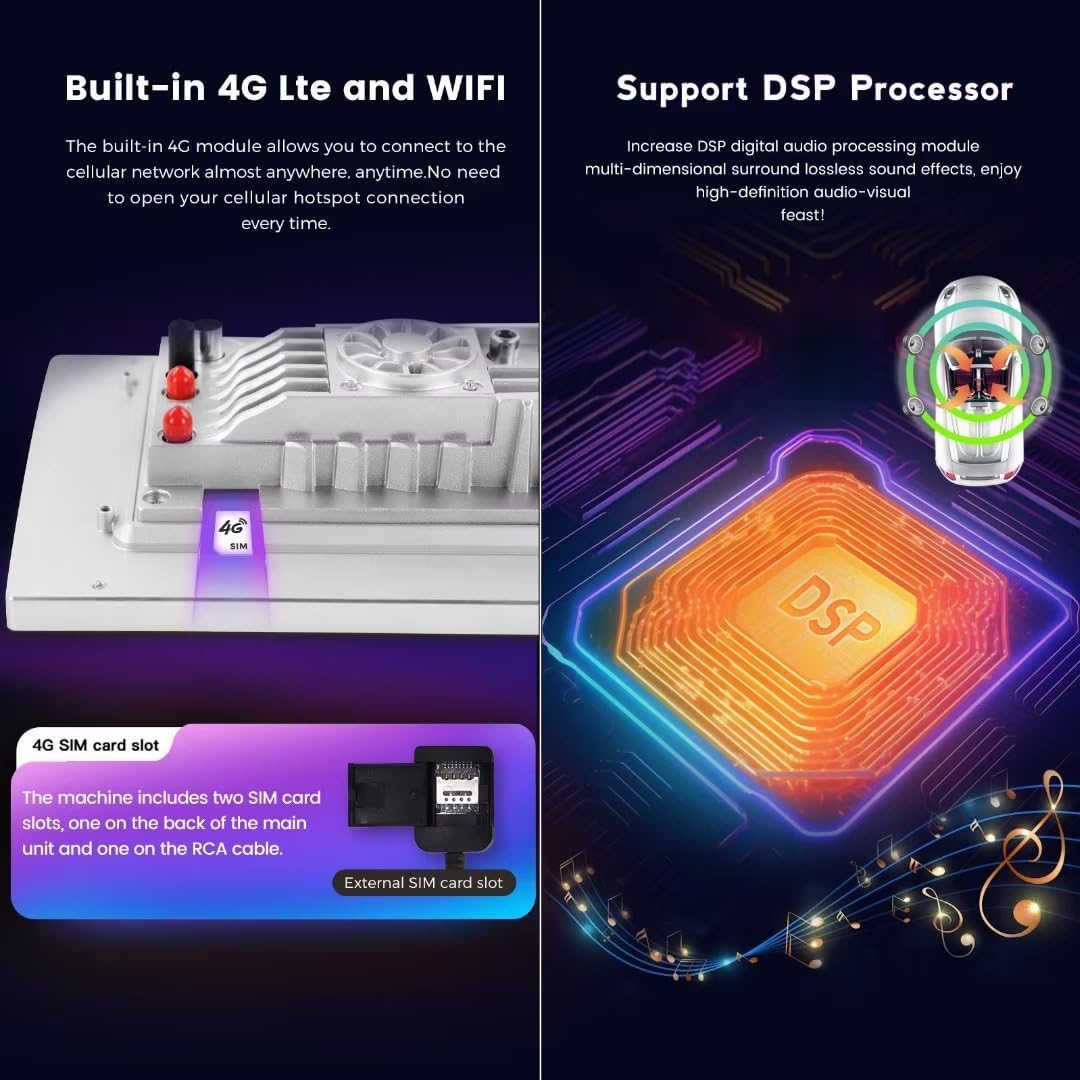
Image 5.2: Diagram showing 4G LTE SIM card slot and DSP processor details for the MekedeTech car radio. This image illustrates the car radio's built-in 4G LTE and WiFi capabilities, including the location of the SIM card slots (one on the main unit, one on the RCA cable). It also highlights the integrated DSP (Digital Signal Processor) for enhanced audio quality, promising multi-dimensional surround sound.
5.7 Steering Wheel Control
The unit is designed to retain your vehicle's original steering wheel control functions, allowing you to safely manage music playback, volume, and calls without taking your hands off the wheel.
6. Maintenance
- Screen Cleaning: Use a soft, lint-free cloth to gently wipe the touch screen. Avoid abrasive cleaners or harsh chemicals.
- Software Updates: Periodically check for system software updates to ensure optimal performance and access to new features. Updates can typically be found in the system settings menu.
- General Care: Keep the unit free from dust and debris. Avoid exposing it to extreme temperatures or direct sunlight for prolonged periods.
7. Troubleshooting
| Problem | Possible Cause | Solution |
|---|---|---|
| No audio output | Vehicle has an amplifier sound system without an Optical Fiber Box. Incorrect wiring. | Install an Optical Fiber Box (if applicable). Check all audio wiring connections. |
| Unit does not power on | Power cable not connected correctly. Blown fuse. | Verify power cable connections. Check vehicle's fuse box and the unit's inline fuse. |
| Wireless CarPlay/Android Auto not connecting | Bluetooth not paired. 'Car Link' app not launched. | Ensure Bluetooth is paired. Open the 'Car Link' application on the head unit. |
| Slow performance or freezing | Too many applications running. System overheating. | Close unnecessary applications. Ensure the cooling fan is installed and functioning. Perform a system restart. |
| GPS signal issues | GPS antenna not properly installed or obstructed. | Ensure the GPS antenna has a clear view of the sky and is securely connected. |
8. Specifications
- Model: 8-Core 4+32G
- Operating System: Android 12 OS
- CPU: 8-Core A53 1.8GHz
- Memory: 4GB RAM, 32GB ROM
- Display Size: 9 Inches
- Display Resolution: 1280x720 IPS Touch Screen
- Power Output: 4*50W
- Connectivity: Built-in 4G LTE, WiFi Module, Bluetooth 5.0, Wireless CarPlay, Wired Android Auto
- Navigation: Built-in GPS navigation and Maps
- Audio Format Support: APE/FLAC/WAV/MP3/WMA etc.
- Video Format Support: MKV/RMVB/AVI/MP4/MDV etc.
- Picture Format Support: PNG/JPEG/JPG/GIF/WBMP/BNP etc.
- Special Features: DSP Sound System, Steering Wheel Control Support
9. Warranty & Support
9.1 Warranty Information
This MekedeTech product comes with a 1-Year Warranty from the date of purchase. This warranty covers manufacturing defects and malfunctions under normal use. It does not cover damage caused by improper installation, misuse, accidents, or unauthorized modifications.
9.2 Customer Support
For technical assistance, troubleshooting, or warranty claims, please contact MekedeTech customer support through the retailer where the product was purchased or visit the official MekedeTech store page on Amazon for further assistance. Please have your product model and purchase details ready when contacting support.