
Introduction
This manual provides detailed instructions for the setup, operation, and maintenance of your XKX USB Computer Speakers (Model XKX098B). Please read this guide thoroughly before using the product to ensure optimal performance and longevity.

Image: An overview of the XKX USB Speaker, showcasing its design, dual drivers, passive radiator, USB and USB-C compatibility, and intuitive touch controls.
What's in the Box
- 1 x USB Computer Speakers
- 1 x User Manual
Setup
1. Connecting to USB Devices (Desktop PC, Laptop)
Connect the standard USB-A plug of the speaker cable directly into an available USB port on your desktop PC or laptop. The speaker is plug-and-play and should be recognized automatically by most operating systems.
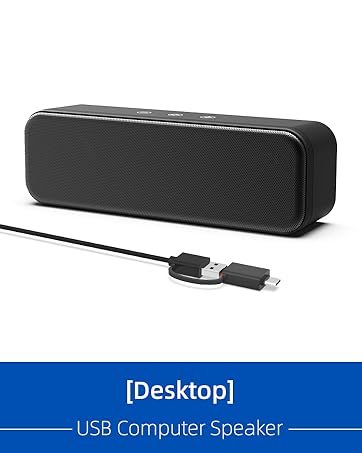
Image: The XKX USB Speaker connected to a laptop via its integrated USB-A cable. This demonstrates the primary connection method for USB-compatible devices.
2. Connecting to USB-C Devices (MacBook, iPad, Android Phones/Tablets)
For devices with only USB-C ports, utilize the built-in USB-C to USB adapter. Connect the USB-A plug to the adapter, then plug the USB-C end of the adapter into your device's USB-C port.
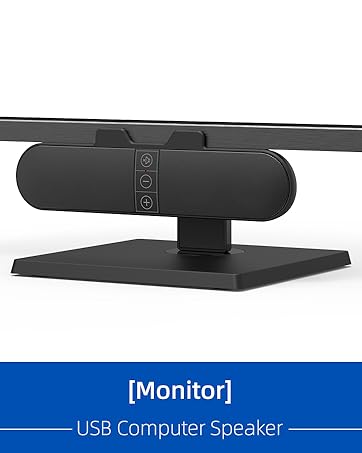
Image: Close-up of the XKX USB Speaker's cable, highlighting the integrated USB-C to USB adapter for broader device compatibility.
3. Setting up on Windows
- Plug the speaker into a computer USB port.
- Click the "Speaker" icon in the taskbar.
- Expand "Choose Output Device".
- Select "Speakers (USB2.0 Device)" as the sound output device.
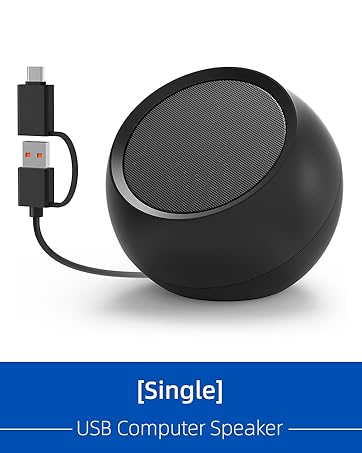
Image: Screenshot of Windows audio settings, demonstrating how to select "Speakers (USB2.0 Device)" as the output for the XKX USB Speaker.
4. Setting up on macOS
- Plug the speaker into a Mac USB port.
- Go to "System Preferences" and click on "Sound".
- Select the "Output" tab.
- Choose "USB 2.0 Device" from the list of sound output devices.

Image: Screenshot of macOS Sound Preferences, illustrating the selection of "USB 2.0 Device" for audio output with the XKX USB Speaker.
Operating the Speaker
Touch Controls
The XKX USB Speaker features intuitive touch controls located on the top surface for easy audio management.
- Volume Up (+): Tap to increase the volume.
- Volume Down (-): Tap to decrease the volume.
- Mute/Unmute (Speaker Icon): Tap to mute or unmute the audio.
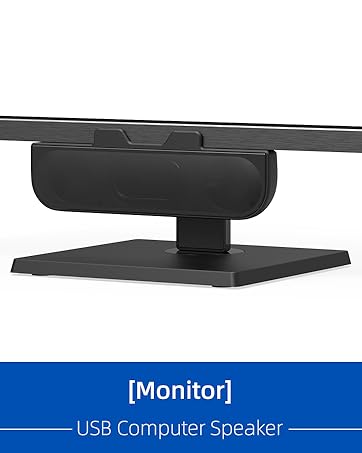
Image: Detailed view of the XKX USB Speaker's top panel, highlighting the touch-sensitive buttons for volume control and muting functionality.
Maintenance
To ensure the longevity and optimal performance of your XKX USB Computer Speakers, follow these simple maintenance guidelines:
- Cleaning: Use a soft, dry cloth to wipe the speaker's surface. Avoid using harsh chemicals or abrasive materials, as these can damage the finish.
- Storage: When not in use for extended periods, store the speaker in a cool, dry place away from direct sunlight and extreme temperatures.
- Cable Care: Avoid bending or twisting the USB cable excessively to prevent internal damage.
- Ventilation: Ensure the speaker's grilles are not obstructed to allow for proper airflow and prevent overheating.
Troubleshooting
If you encounter issues with your XKX USB Computer Speakers, refer to the following common questions and solutions:
Frequently Asked Questions (FAQ)
- Q: Is it compatible with new iPhone, new iPad, Android Phones/Tablets?
- A: The USB-C to USB Adapter is designed for better compatibility with USB-C devices, including new iPhone, iPad, Android phones, and tablets. However, these devices may limit the power output to protect their USB-C port, which could result in lower speaker volume or automatic pauses in playback.
- Q: Is it compatible with TV/TV-Box/Projector/Xbox/PlayStation?
- A: No. The USB speaker is primarily designed for computers. USB ports on other devices may not provide sufficient power to drive the speaker, leading to a lower maximum volume level.
- Q: Is it okay if I connect it to a USB hub?
- A: Connecting to a USB hub is not recommended as it may not provide enough power to drive the speaker. This can result in audio issues such as distortion, cluttered sound, or constant audio cut-outs at high volumes. It is best to connect the speaker directly to a USB port on the back panel of your computer host.
- Q: Why does the connection fail after pairing?
- A: Please ensure your computer's audio driver is up to date and that the USB interface of your computer is functioning correctly.
- Q: Is there a mic built-in?
- A: The device does not have a built-in microphone. For video calls, an external computer microphone is recommended.
- Q: Can this speaker be used without clamping to a monitor?
- A: Yes, the speaker can be placed smoothly on your desk. The design allows for flexible placement options.
Specifications
| Feature | Detail |
|---|---|
| Model Name | XKX098B |
| Brand | XKX |
| Material | Plastic |
| Speaker Type | Computer Speakers, Desktop Speakers, PC Speakers, Laptop Speakers, USB Speakers, Computer Sound Bar |
| Connectivity Technology | USB, USB C |
| Power Source | Computer USB/USB C Port |
| Speaker Maximum Output Power | 8 Watts |
| Audio Driver Type | Dynamic Driver |
| Audio Driver Size | 45 Millimeters |
| Audio Output Mode | Stereo |
| Control Method | Touch |
| Product Dimensions | 1.8"D x 7.2"W x 2.2"H |
| Item Weight | 13.7 ounces |
| Recommended Uses | For Computers, For Smartphones or Tablets |
| Compatible Devices | Desktop PC, Laptop, Mac, Smartphone, Tablet |
| Mounting Type | Tabletop Mount |
| Special Features | Built-in USB-C to USB Adapter, Dual Powerful Speaker Drivers, Intuitive Touch Control, Minimalist Classic Design, USB Plug-n-Play |
Warranty and Support
Warranty Information
The XKX USB Computer Speakers come with a Limited Warranty. Please refer to the product packaging or contact customer support for specific details regarding warranty coverage and duration.
Customer Support
For any questions, technical assistance, or support inquiries, please contact XKX customer service:
- Email: humen9756@qq.com
Product Videos
XKX USB Computer Speakers - Plug-N-Play Overview
Video: This video demonstrates the plug-and-play functionality of the XKX USB Computer Speakers, showcasing how easily it connects to a laptop and improves audio quality compared to internal speakers. It also highlights the touch controls for volume adjustment and muting.
XKX Computer Speakers for Desktop PC Mac and Tablet
Video: This video illustrates the versatility of the XKX Computer Speakers, demonstrating its use with various devices including desktop PCs, Macs, and tablets, emphasizing its broad compatibility.
XKX USB Computer Speakers - Unboxing
Video: An unboxing video for the XKX USB Computer Speakers, showing the contents of the package and the initial presentation of the product.