
1. Product Overview
The Inateck DK2001 is an 8-in-1 USB C hub specifically designed for the iMac 24" (2021/2023 models). It expands a single USB-C port on your iMac into multiple data interfaces, including USB-A, USB-C, SD card, Micro SD card slots, and an integrated NVMe SSD enclosure. This hub supports USB 3.2 Gen 2, offering high-speed data transfer and convenient charging for various devices.

Image: The Inateck DK2001 USB C Hub, showcasing its design and port layout when connected to an iMac.
2. Package Contents
- DK2001 USB C Hub x 1
- USB Cable x 1
- Screws x 1 (for SSD installation)
- Screwdriver x 1 (for SSD installation)
3. Setup Instructions
3.1 Connecting the Hub to iMac
- Ensure your iMac is powered off or in sleep mode before connecting.
- Locate an available USB-C port on your iMac.
- Connect the provided USB cable from the Inateck DK2001 hub to the USB-C port on your iMac.
- The hub is designed to sit neatly beneath your iMac stand.

Image: The Inateck DK2001 hub connected to an iMac, illustrating the cable connections to its various ports including USB-A, USB-C, and card readers.
3.2 NVMe SSD Installation
The Inateck DK2001 features a built-in NVMe SSD enclosure for expanding storage capacity and data backup. It supports 2242, 2260, and 2280 form factor NVMe SSDs (M key, B+M key).
- Locate the SSD enclosure cover at the bottom of the hub.
- Using the provided screwdriver, remove the screws securing the cover.
- Gently slide your NVMe SSD into the slot, ensuring it is properly seated.
- Secure the SSD with the provided screw.
- Replace the enclosure cover and tighten the screws.

Image: A visual guide demonstrating the process of installing an NVMe SSD into the dedicated enclosure of the Inateck DK2001 hub.
4. Operating Instructions
4.1 Data Transfer
The hub provides 3 USB-A ports and 2 USB-C ports, all supporting USB 3.2 Gen 2 for high-speed data transfer up to 10 Gbps. It also includes dedicated slots for SD and Micro SD cards.
- USB Ports: Connect your USB-A or USB-C devices (e.g., external hard drives, flash drives, keyboards, mice) to the corresponding ports.
- Card Readers: Insert your SD or Micro SD cards into the respective slots to access data.
When using USB 3.2 Gen 2 compatible peripherals, the hub can achieve optimal performance. For example, if two USB 3.0 SSDs are connected, the hub can transfer data to both simultaneously at full speed, unlike older USB 3.0 hubs with limited bandwidth.
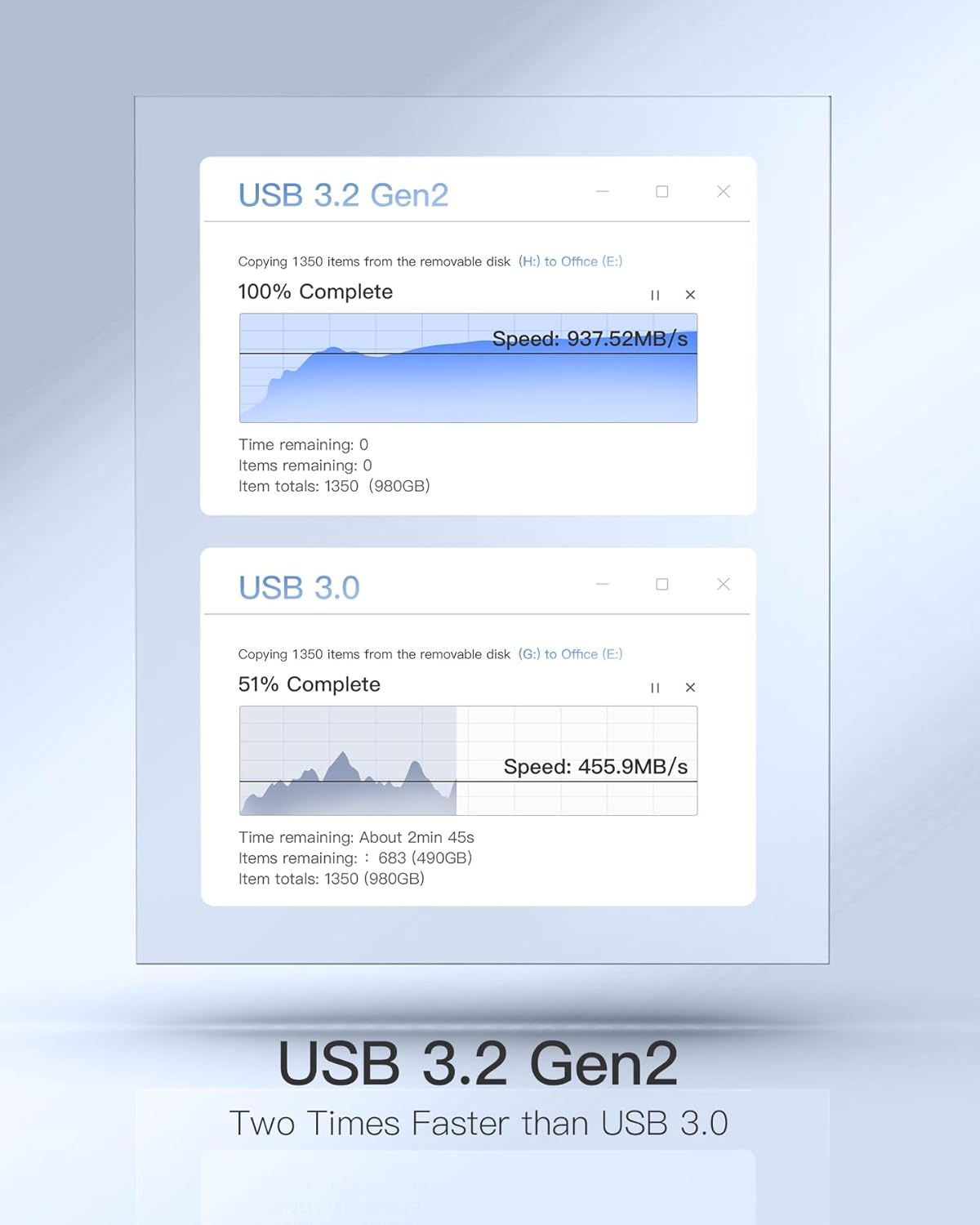
Image: A graphical representation comparing the data transfer speeds of USB 3.2 Gen 2 (up to 937.52 MB/s) with USB 3.0 (up to 455.9 MB/s).
4.2 Charging Capabilities
The Inateck DK2001 can be used to charge your smartphone and tablet. It is designed to maintain stable operation of connected peripherals even while charging devices.
Note on Power Delivery: This USB hub does not support USB Power Delivery (USB PD) and cannot power high-consumption devices like laptops. The USB-C port on the iMac provides up to 5V/3A (15W) output. Since the DK2001 consumes approximately 2W, the total charging power available for connected devices will not exceed 13W.
Charging Test Results (Inateck Labs):
- Charging without SSD connected:
- Single device: iPhone (up to 7.5W), iPad mini (up to 7.5W), iPad Pro 11 (up to 10.5W).
- Multiple devices: iPad mini 6 & iPhone (7.5W & 5W), iPad Pro 11 & smartphone (10.5W & 2.5W).
- Charging with SSD (WD Blue SN550 M.2 SSD, 2.5W consumption) connected:
- Single device: iPhone (up to 7.5W), iPad mini (up to 7.5W), iPad Pro 11 (up to 10.5W).
- Multiple devices: iPad mini 6 & iPhone (6W & 4W), iPad Pro 11 & smartphone (8W & 2W).
Note: Actual charging power may vary based on environmental factors and device requirements.
5. Maintenance
To ensure the longevity and optimal performance of your Inateck DK2001 hub, follow these maintenance guidelines:
- Cleaning: Use a soft, dry, lint-free cloth to clean the exterior of the hub. Avoid using abrasive cleaners, solvents, or aerosol sprays.
- Storage: Store the hub in a cool, dry place away from direct sunlight and extreme temperatures.
- Handling: Handle the hub with care. Avoid dropping it or subjecting it to strong impacts.
- Ventilation: Ensure the hub has adequate ventilation to prevent overheating, especially when multiple devices are connected or the SSD is in heavy use.
6. Troubleshooting
If you encounter issues with your Inateck DK2001 hub, refer to the following common troubleshooting steps:
- No Power/Connectivity:
- Ensure the USB-C cable is securely connected to both the hub and your iMac.
- Try connecting the hub to a different USB-C port on your iMac.
- Restart your iMac.
- Devices Not Recognized:
- Disconnect and reconnect the device to the hub.
- Ensure the device is functioning correctly by connecting it directly to your iMac (if possible).
- Check if the device requires specific drivers or software updates.
- Slow Data Transfer Speed:
- Ensure your connected devices and cables support USB 3.2 Gen 2 for optimal speeds.
- Avoid connecting too many high-bandwidth devices simultaneously if experiencing slowdowns.
- Verify that the SSD is properly installed and recognized.
- Charging Issues:
- Remember that the hub does not support USB Power Delivery for laptops.
- Charging performance may vary based on the number of connected devices and the power draw of the SSD. Refer to the


