Introduction
Welcome to your new Nonbliep LED Wired Controller. This manual provides detailed instructions for setup, operation, maintenance, and troubleshooting to ensure optimal performance with your Xbox Series X|S console or PC.
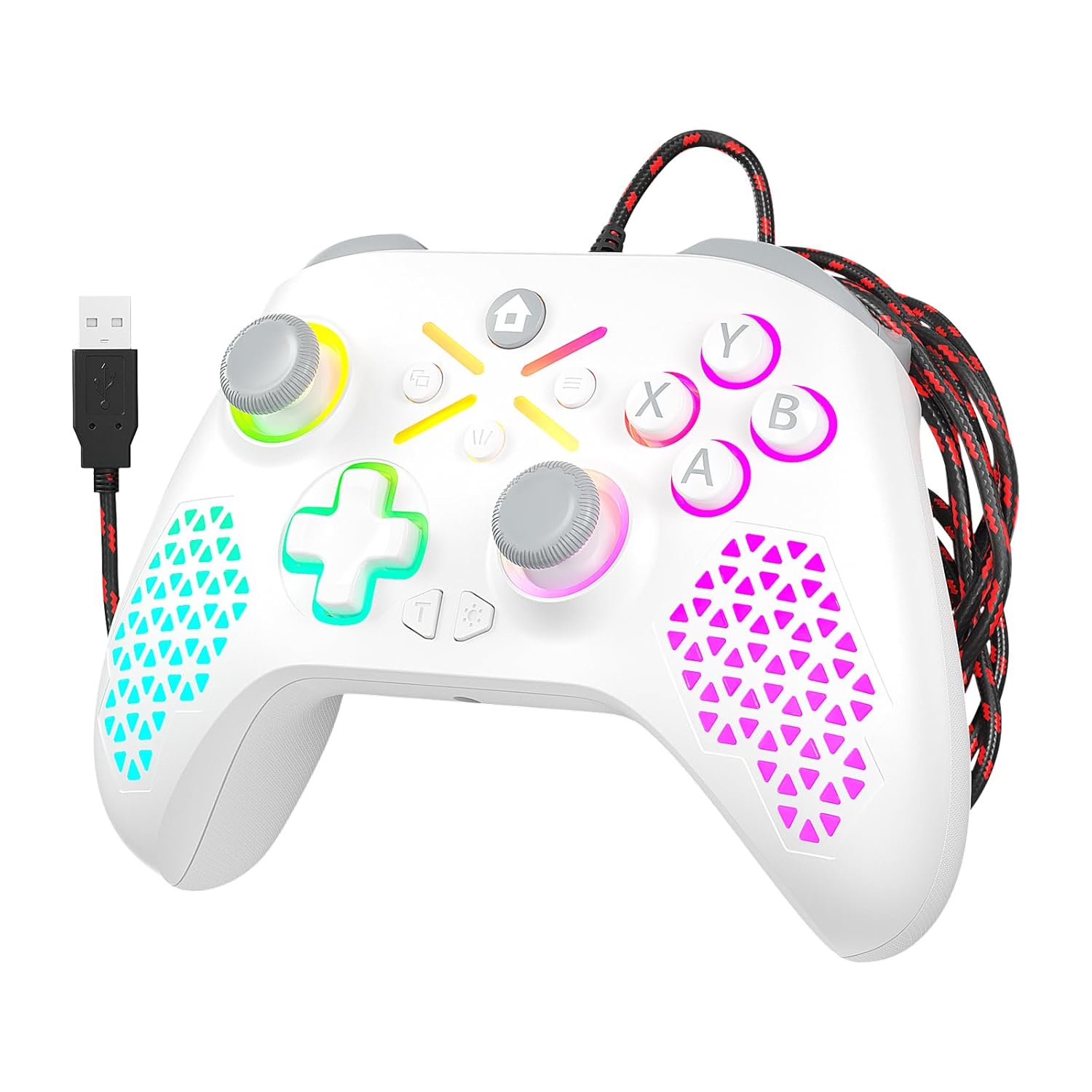
Image: The Nonbliep LED Wired Controller, featuring a white body, colorful LED lighting, and a braided USB cable.
Setup and Initial Connection
1. PC Upgrade Process (Required for Xbox Connection)
Before connecting the controller to an Xbox console, an initial firmware upgrade via a Windows PC is required. This process typically takes 2-3 minutes.
- Connect the controller to a Windows PC using the provided USB cable.
- Download the upgrade program from the following URL: we.tl/t-HQ3nBbwcuj
- Follow the on-screen instructions provided by the upgrade program to complete the firmware update.

Image: Instructions detailing the necessary PC upgrade process for the controller to function with Xbox consoles, including a download link.
2. Connecting to Xbox Series X|S or PC
After the PC upgrade (if connecting to Xbox), connect the controller to your console or PC using the integrated 10ft (3m) braided USB cable. The controller is plug-and-play.

Image: The controller connected to an Xbox Series X console via its wired USB cable, demonstrating the plug-and-play functionality and the 3.5mm headphone jack in use.
Operating Instructions
RGB Lighting Function Settings
The controller features customizable RGB lighting effects. You can switch between various lighting modes to suit your preference.
- Breathing LED Mode: Lights gently fade in and out.
- Fixed LED Mode: Lights remain steadily illuminated.
Note: Specific button combinations for RGB control are not provided in the product information. Please refer to the manufacturer's website or included quick start guide for details.

Image: Visual representation of the controller's RGB lighting capabilities, showcasing both breathing and fixed LED modes in multiple color options.
Key Features
- Double Vibration: Equipped with dual shock motors to provide tactile feedback during gameplay, enhancing immersion.
- 6-Axis Gyro Sensor: Offers sensitive motion control for compatible games, allowing for precise input based on controller movement.

Image: Demonstrates the double vibration feature with visible internal motors and the 6-axis gyro sensor providing motion control in a racing game scenario.
- 3D Gaming Joysticks: Designed for fast response without input lag.
- High-precision Action Buttons: Ensure accurate and timely transmission of commands.
- Fast Response Triggers: Engineered for quick activation, providing a responsive gaming experience.

Image: Close-up views highlighting the 3D gaming joysticks, high-precision action buttons, and fast response triggers, emphasizing their design for optimal performance.
3.5mm Stereo Headphone Jack
The controller includes a standard 3.5mm stereo headphone jack, allowing you to connect your headset directly for in-game audio and communication.
Maintenance
To ensure the longevity and optimal performance of your controller, follow these maintenance guidelines:
- Keep the controller clean by wiping it with a soft, dry cloth.
- Avoid exposing the controller to extreme temperatures, humidity, or direct sunlight.
- Do not use harsh chemicals or abrasive cleaners.
- Store the controller in a safe place when not in use to prevent physical damage.
- Handle the USB cable carefully to prevent kinks or damage to the connectors.
Troubleshooting
If you encounter issues with your Nonbliep LED Wired Controller, please refer to the following common solutions:
- Controller Not Recognized by Xbox:
- Ensure the PC upgrade process has been completed as described in the "Setup" section. Xbox consoles may display an "unauthorized accessory" message if the firmware is not updated.
- Disconnect and reconnect the USB cable to the console.
- Try connecting the controller to a different USB port on your console.
- Restart your Xbox console.
- Buttons/Joysticks Unresponsive or Laggy:
- Ensure the USB cable is securely connected to both the controller and the console/PC.
- Test the controller on a different game or system to determine if the issue is specific to a game or the controller itself.
- If experiencing "dead zones" or "sticky" joysticks after extended use, this may indicate wear. Consider cleaning around the joystick bases with compressed air.
- Accidental Rear Button Presses:
- Some controllers feature programmable rear buttons. If you are experiencing unintended inputs, check if your controller model has a mechanism to disable or remap these buttons. Note: Specific instructions for rear button configuration or disabling are not provided in the product information. Please consult the manufacturer's website or quick start guide.
- LED Lights Not Functioning:
- Verify that the controller is properly connected and powered on.
- Cycle through the RGB lighting modes to ensure it's not set to an 'off' or very dim setting.
- No Audio from Headphone Jack:
- Ensure your headset is fully plugged into the 3.5mm jack.
- Check your console's audio settings to ensure output is directed to the headset.
- Test the headset with another device to confirm it is functioning correctly.
Specifications
| Feature | Detail |
|---|---|
| Model Number | B0F8N9Z1ZV |
| Brand | Nonbliep |
| Connectivity | Wired USB (10ft / 3m braided cable) |
| Compatibility | Xbox Series X|S, PC (Windows) |
| Special Features | RGB LED Lighting, Double Vibration, 6-Axis Gyro Sensor, 3.5mm Headphone Jack |
| Manufacturer | Nonbliep |
| First Available | May 14, 2025 |
Warranty and Support
For warranty information or technical support, please contact Nonbliep customer service through their official website or the retailer where the product was purchased. Keep your purchase receipt as proof of purchase.
For additional resources, visit the Nonbliep Store on Amazon.