
1. Product Overview
The QIXZOCV MWE-CS37BCT201 is a 37-inch touchscreen digital signage kiosk designed for indoor use. It features an FHD IPS display, Android operating system, and versatile content management capabilities. This device is suitable for various applications including advertising, brand promotion, information communication, and wayfinding in retail stores, restaurants, malls, airports, hospitals, and commercial centers.

Image 1.1: The QIXZOCV 37-inch Touchscreen Kiosk, showcasing its sleek design.

Image 1.2: A user interacting with the LCD IPS 2K Touch Screen for wayfinding in a mall directory.
Video 1.1: A brief overview of the QIXZOCV Digital Signage Display at an international exhibition, highlighting its versatility.
2. Safety Information
To ensure safe operation and prevent damage to the device, please observe the following:
- Avoid exposing the digital signage to liquids.
- Keep the device away from direct sunlight to prevent overheating and screen damage.
- Ensure proper ventilation around the unit.
- Use only the provided power cord and accessories.
- Do not attempt to open or repair the device yourself. Refer to qualified service personnel.
3. What's in the Box
Upon unboxing your QIXZOCV MWE-CS37BCT201 Kiosk, please verify that all the following components are included:
- Digital Signage Unit
- Power Cord (x1)
- Base (x1)
- Body (x1)
- Remote Controller (x1)
- 16GB USB Drive (x1)
- Instructions/User Manual (x1)
- Wheels (x4)
- Cross Screw Driver (x1)
- Allen Wrench (x1)
- M8 Screws (x6)
- M8 Screw Key (x2)
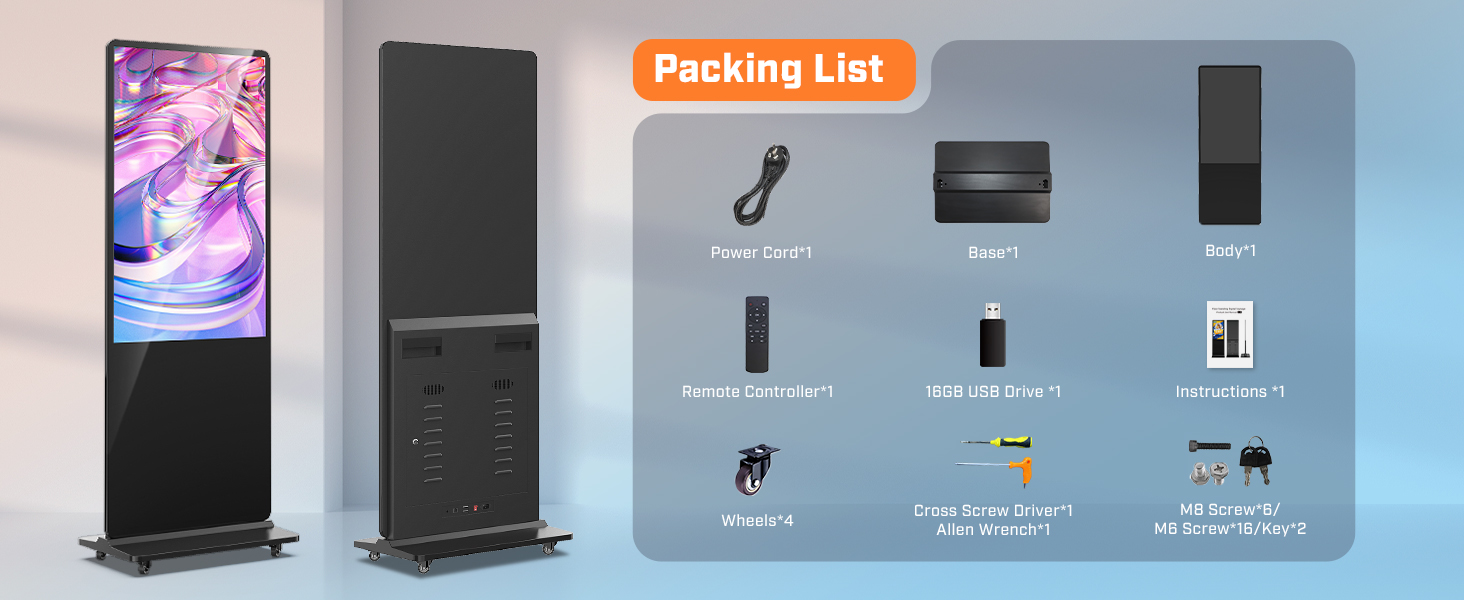
Image 3.1: Visual representation of all items included in the packaging.
Video 3.1: An installation video demonstrating the unboxing and assembly of the QIXZOCV Digital Signage Display.
4. Setup Instructions
Follow these steps to set up your digital signage kiosk:
- Assemble the Base: Attach the base to the main body of the digital signage unit using the provided M8 screws and Allen wrench. Ensure the connection is secure.
- Install Wheels (Optional): If mobility is desired, attach the four wheels to the base using the cross screw driver.
- Position the Kiosk: Place the assembled kiosk in your desired indoor location, ensuring it is on a stable, level surface.
- Connect Power: Plug the power cord into the kiosk's power input and then into a standard electrical outlet.
- Power On: Press the power button, usually located on the back or side of the unit, to turn on the kiosk.

Image 4.1: Different size variants of the MWE digital signage kiosks, illustrating the floor-standing design.
5. Operating Instructions
5.1. Basic Operation and Content Playback
The kiosk runs on an Android OS, offering a user-friendly interface.
- Plug and Play: Insert the provided 16GB USB drive with your media content (images, videos) into the USB port. The kiosk will automatically recognize and play the content in a loop.
- Automatic Recognition Play: The system supports automatic loop playback of content from a USB flash disk or internal memory after startup.

Image 5.1: Illustration of the Plug and Play functionality using a USB drive.

Image 5.2: Visual guide to automatic recognition play, including loop playback, plug and play, timer switch, and remote control.
5.2. Content Management System (CMS)
The kiosk supports a CMS for real-time content updates and management.
- Remote Management: Utilize the CMS to publish advertisements, update, and adjust content remotely from a computer or tablet.
- User-Friendly Interface: The CMS is designed for ease of use, allowing efficient content deployment across multiple kiosks.

Image 5.3: Diagram illustrating how the CMS system allows content updates from various devices to multiple kiosks.
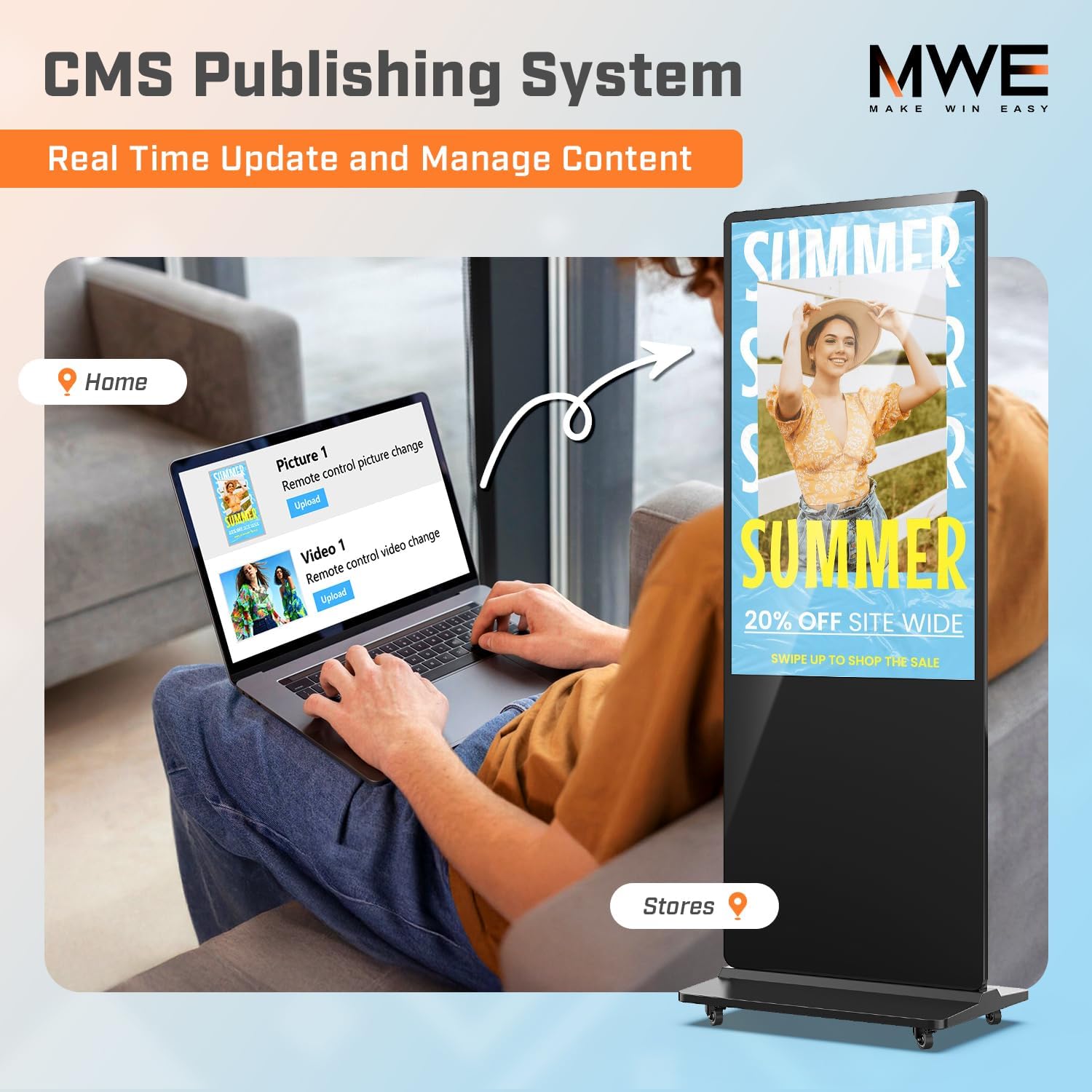
Image 5.4: A user updating content on a kiosk remotely via a laptop using the CMS publishing system.
5.3. Smart Split-Screen Playback
This function allows for dynamic display of multiple content formats simultaneously.
- Content Variety: Showcase images, videos, and animations side-by-side.
- Customization: Adjust the size, position, and orientation of each content zone for precise layout control.

Image 5.5: Example of smart split-screen playback with customizable content areas.

Image 5.6: A kiosk demonstrating smart split-screen playback with various images and videos.
5.4. Timed Power On/Off
Schedule the kiosk to power on and off automatically for energy efficiency and convenience.
- Scheduling: Set specific times for the kiosk to turn on in the morning and off in the evening.
- Continuous Playback: The system supports continuous playback for 7 days, 24 hours when active.

Image 5.7: Visual representation of timed power on/off settings for the kiosk.
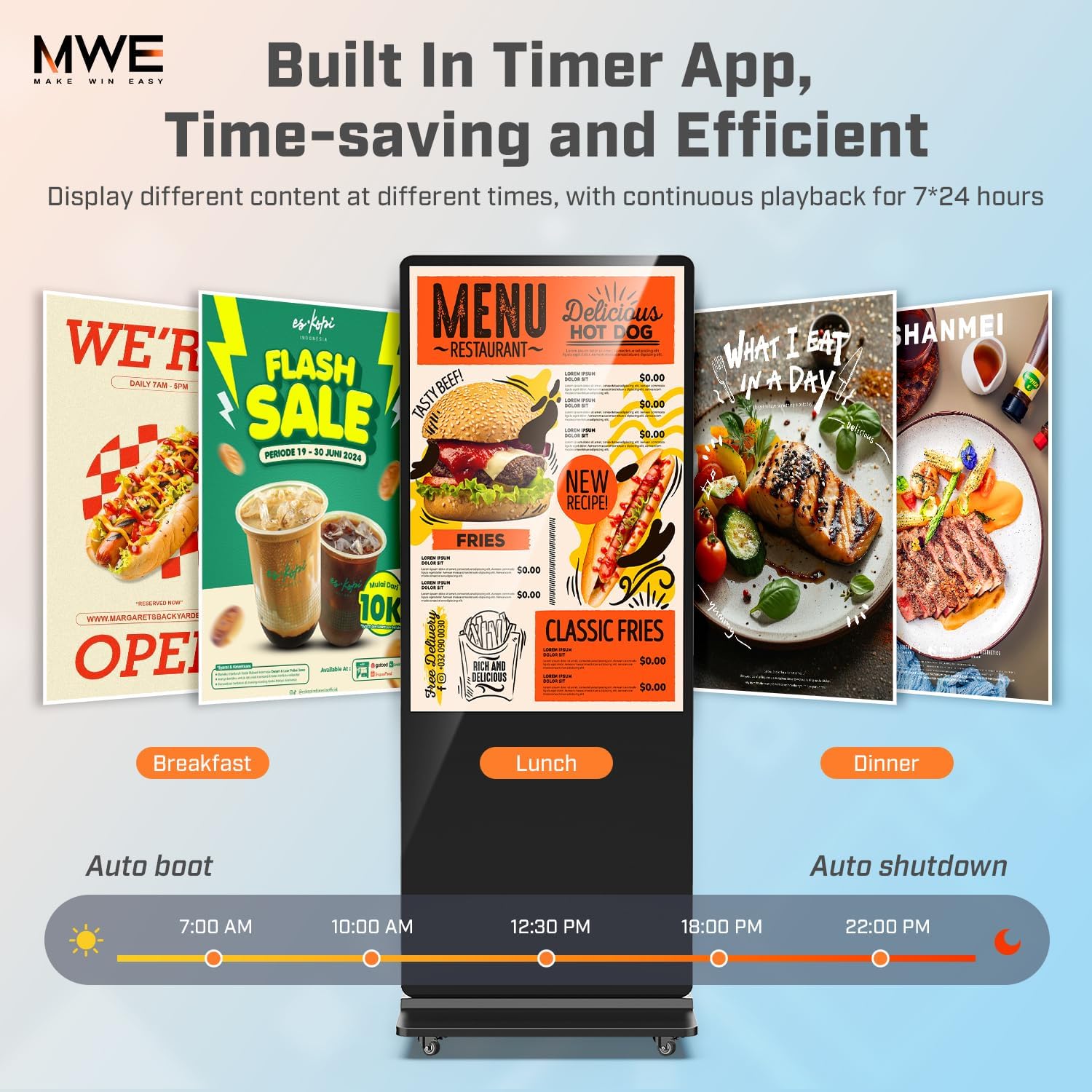
Image 5.8: A kiosk displaying a daily menu, managed by a built-in timer app for time-saving and efficient operation.
5.5. Multiple Input Methods
The kiosk offers various connectivity options for content input:
- USB Input: For direct media playback from a USB drive.
- HDMI Input: Connect external media player boxes, PCs, TV boxes, or gaming consoles.
- Wireless Connectivity: Built-in Wi-Fi for network access and content updates.
- Ethernet: For stable wired network connection.

Image 5.9: Diagram showing various input methods including WiFi, Ethernet, HDMI, and USB, with examples of compatible devices.
Video 5.1: A short video demonstrating the digital signage display showing a daily menu, highlighting its application in a cafe setting.
6. Maintenance
Regular maintenance ensures the longevity and optimal performance of your kiosk:
- Cleaning the Screen: Use a soft, lint-free cloth slightly dampened with a non-abrasive screen cleaner. Do not spray cleaner directly onto the screen.
- Cleaning the Body: Wipe the kiosk body with a dry or slightly damp cloth. Avoid harsh chemicals.
- Ventilation: Ensure that the ventilation openings on the kiosk are not blocked to prevent overheating.
- Software Updates: Periodically check for and install any available software updates for the Android OS to maintain security and performance.
7. Troubleshooting
If you encounter issues with your QIXZOCV MWE-CS37BCT201 Kiosk, refer to the following common problems and solutions:
| Problem | Possible Cause | Solution |
|---|---|---|
| Kiosk does not power on | No power supply; Power button not pressed | Check power cord connection; Ensure outlet is functional; Press power button firmly. |
| No image on screen | Incorrect input source; Loose HDMI/USB connection | Verify correct input source is selected; Reconnect HDMI/USB cables securely. |
| Touchscreen unresponsive | Software glitch; Screen obstruction | Restart the kiosk; Clean the screen surface for any debris. |
| Content not playing from USB | Unsupported file format; USB drive not properly inserted | Ensure media files are in supported formats (e.g., MP4, JPG); Reinsert USB drive. |
| Wi-Fi connectivity issues | Incorrect password; Out of range; Router issue | Verify Wi-Fi password; Move kiosk closer to router; Restart router. |
8. Specifications
| Feature | Detail |
|---|---|
| Brand | QIXZOCV |
| Model Number | MWE-CS37BCT201 |
| Screen Size | 37 inches |
| Resolution | FHD 1080p (1920 x 1080) |
| Display Type | LCD with IPS Technology |
| Aspect Ratio | 16:9 |
| Viewing Angle | 178 degrees |
| Contrast Ratio | 1300:1 |
| Operating System | Android OS |
| Connectivity | USB, Ethernet, Wi-Fi, Bluetooth, HDMI |
| Total HDMI Ports | 1 |
| Total USB Ports | 2 (USB 3.0) |
| Mounting Type | Floor Standing |
| Color | Black |
| Item Dimensions (D x W x H) | 24.04"D x 17.72"W x 70.35"H |
9. Warranty and Support
QIXZOCV is committed to providing excellent customer service and product reliability.
- Warranty: Enjoy peace of mind with a 3-year warranty for products with quality defects.
- Technical Support: A professional technical team provides online support to assist with any queries or issues.
- Installation & Usage Videos: Additional resources, including installation and usage videos, are available on the product page.
For further assistance or inquiries, please contact QIXZOCV Direct:
Contact QIXZOCV Direct Seller Support

Image 9.1: QIXZOCV offers professional on-site after-sales service in eligible non-remote areas across North America.

Image 9.2: Scan the QR code to ask a question to QIXZOCV Direct for bulk or custom orders.