
Introduction
This manual provides detailed instructions for setting up and using your OMOTON Bluetooth Keyboard and Mouse Combo. Designed for seamless compatibility with macOS 11.3 or above, this combo enhances your productivity across various Mac devices, including MacBook, MacBook Air, MacBook Pro, iMac, iMac Pro, Mac Pro, and Mac mini.

Image: The OMOTON Bluetooth Keyboard and Mouse Combo, featuring a full-size keyboard with numeric keypad and a compact, ergonomic mouse.
Package Contents
- OMOTON Bluetooth Keyboard
- OMOTON Bluetooth Mouse
- User Manual
Setup
1. Battery Installation
The keyboard requires two AAA batteries, and the mouse requires one AA battery (batteries are not included).
- Locate the battery compartment on the underside of the keyboard and mouse.
- Open the battery compartment cover.
- Insert the batteries, ensuring correct polarity (+/-).
- Close the battery compartment cover.
2. Bluetooth Pairing Instructions
Follow these steps to pair your keyboard and mouse with your Mac device.

Image: Visual guide for Bluetooth pairing, showing battery insertion, power switch, Mac Bluetooth settings, and pairing button.
- Keyboard Pairing:
- Insert two AAA batteries into the keyboard and slide the power switch to the ON position.
- Press and hold the 'Fn' + 'BT1' keys for 3-5 seconds until the LED indicator flashes blue. This activates pairing mode.
- On your Mac, go to System Settings > Bluetooth and ensure Bluetooth is turned on.
- Select "OMOTON Keyboard" from the list of available devices to complete the pairing. The blue indicator will turn off upon successful connection.
- Mouse Pairing:
- Insert one AA battery into the mouse and slide the power switch to the ON position.
- Press the 'CONNECT' button on the underside of the mouse. The LED indicator will flash.
- On your Mac, go to System Settings > Bluetooth.
- Select "OMOTON Mouse" from the list of available devices to complete the pairing.
Tip:
The keyboard supports three independent Bluetooth channels (BT1, BT2, BT3). To pair with additional devices, press and hold 'Fn' + 'BT2' or 'Fn' + 'BT3' to enter pairing mode for the respective channel, then repeat the pairing steps.

Image: Detailed instructions for keyboard pairing, highlighting battery insertion, power switch, and Bluetooth channel selection.
Operating Instructions
Keyboard Features
- Full-Size Layout: Includes a numeric keypad for efficient data entry.
- macOS Shortcut Keys: A dedicated row of function keys provides quick access to macOS controls such as brightness, volume, media playback, and Mission Control.
- Scissor-Switch Mechanism: Provides a responsive and quiet typing experience.
- Ergonomic Design: The keyboard features a slight tilt for comfortable typing.

Image: Diagram illustrating the multimedia function keys on the keyboard and their corresponding actions for Mac.
Multimedia Key Functions:
- Escape
- Bright Down (F1)
- Bright Up (F2)
- Open Mission Control (F3)
- Open Launchpad (F4)
- Previous Track (F7)
- Play/Pause (F8)
- Next Track (F9)
- Mute (F10)
- Volume Down (F11)
- Volume Up (F12)
- Eject

Image: An overhead view of the keyboard, highlighting the multimedia keys and their F-key assignments, along with Bluetooth channel indicators.
Mouse Features
- Adjustable DPI: Cycle through 800, 1200, and 1600 DPI settings to adjust cursor sensitivity.
- Silent Clicks: Designed for quiet operation, minimizing click noise.
- Ergonomic Design: Contoured shape for comfortable use.
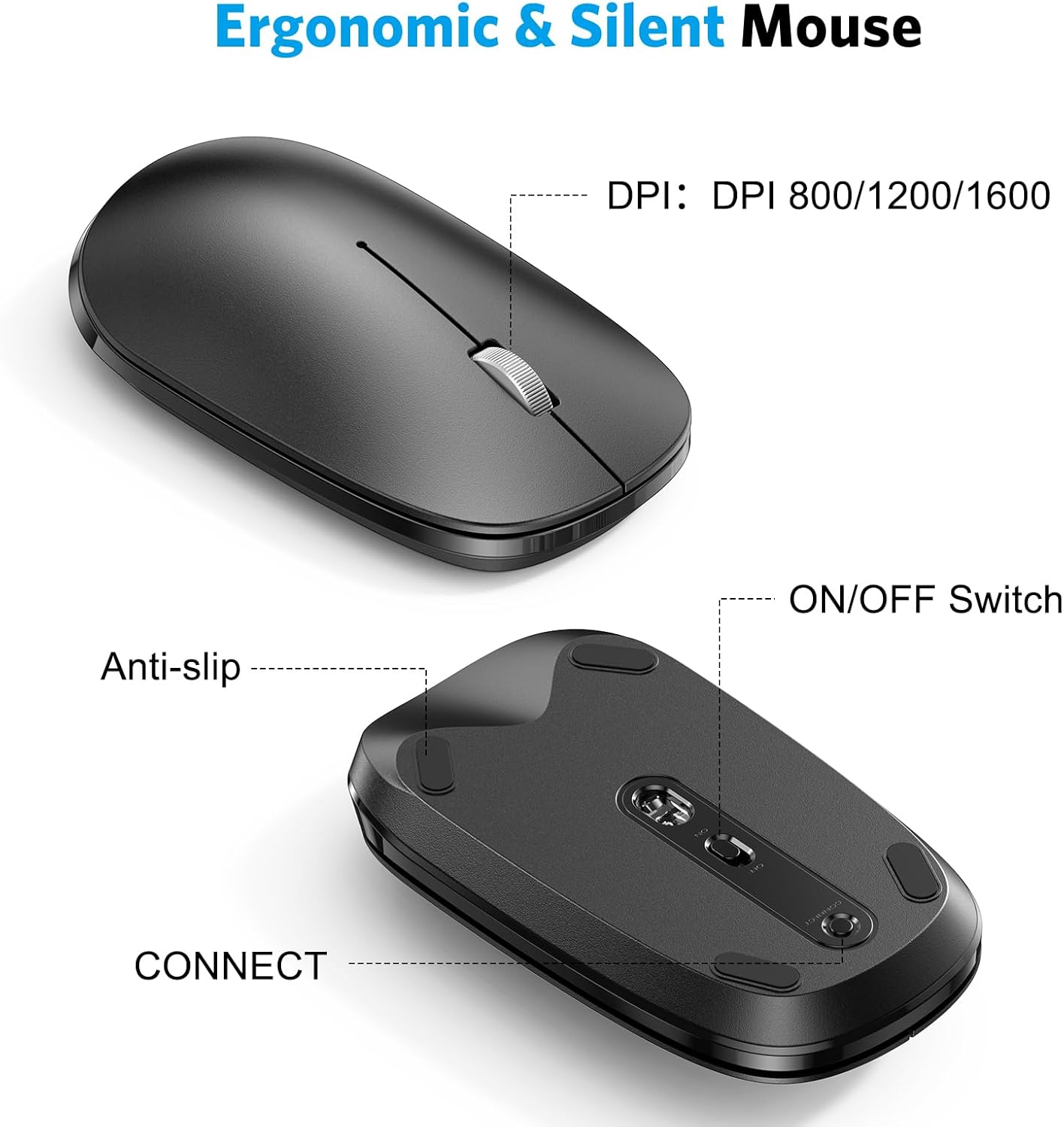
Image: Close-up views of the mouse, indicating the DPI switch, ON/OFF switch, and CONNECT button, along with anti-slip pads.

Image: Diagram illustrating the three adjustable DPI levels (800, 1200, 1600) for the mouse, controlled by a button near the scroll wheel.
Power Saving Mode
Both the keyboard and mouse are equipped with an automatic power-saving mode. After a period of inactivity, they will enter sleep mode to conserve battery life. To reactivate, simply press any key on the keyboard or move/click the mouse.
Maintenance
Cleaning
- Use a soft, dry cloth to wipe the surfaces of the keyboard and mouse.
- For stubborn dirt, slightly dampen the cloth with water or a mild, non-abrasive cleaner. Avoid excessive moisture.
- Do not use harsh chemicals, solvents, or abrasive cleaners.
Storage
- Store the devices in a cool, dry place away from direct sunlight and extreme temperatures.
- If storing for an extended period, remove the batteries to prevent leakage.
Troubleshooting
Connection Issues
- Ensure Batteries are Fresh: Low batteries can cause intermittent connections or prevent pairing. Replace batteries if necessary.
- Power On: Verify that both the keyboard and mouse are switched ON.
- Bluetooth Enabled: Confirm that Bluetooth is enabled on your Mac device.
- Re-pair Devices: If connection is lost, try unpairing the devices from your Mac's Bluetooth settings and then re-pairing them following the setup instructions.
- Interference: Move the devices closer to your Mac and away from other wireless devices that might cause interference.
Keys Not Responding / Mouse Tracking Issues
- Check Batteries: Ensure batteries are not depleted.
- Reconnection Delay: After entering power-saving mode, there might be a brief delay (a few seconds) for the devices to reconnect when reactivated.
- Clean Sensors: For the mouse, ensure the optical sensor on the underside is clean and free of obstructions.
- Surface: Ensure the mouse is used on a suitable, non-reflective surface.
Specifications
| Brand | OMOTON |
| Model | B0CQ3RQJ8B |
| Connectivity Technology | Bluetooth |
| Compatible Devices | MacBook Pro/Air, iMac, iMac Pro, Mac Mini, Mac Pro (macOS 11.3 or Above) |
| Keyboard Batteries | 2 x AAA batteries (not included) |
| Mouse Batteries | 1 x AA battery (not included) |
| Mouse DPI Levels | 800, 1200, 1600 |
| Keyboard Dimensions | Approx. 17.1 x 4.76 x 0.86 inches (434 x 121 x 21.9 mm) |
| Mouse Dimensions | Approx. 4.3 x 2.5 x 0.9 inches (110 x 63 x 23 mm) |
| Item Weight | 1.61 pounds (combined) |

Image: Diagram showing the physical dimensions of both the OMOTON keyboard and mouse.
Warranty and Support
OMOTON products are designed for reliability and performance. For warranty information or technical support, please refer to the contact details provided with your product packaging or visit the official OMOTON website.
If you encounter any issues not covered in this manual, please contact OMOTON customer service for assistance.

