1. Introduction
This manual provides detailed instructions for the installation, configuration, and operation of your Rebel KOM1031 Dual-Band Wireless Network Repeater. This device is designed to extend the coverage of your existing Wi-Fi network, providing a stronger and more reliable signal in areas with weak or no coverage. It supports both 2.4 GHz and 5 GHz wireless bands, offering flexible connectivity options and high data transfer rates.
2. Package Contents
Please verify that all items are present in your package:
- Rebel KOM1031 Wireless Network Repeater
- User Manual (this document)
- Ethernet Cable (may be included, check packaging)

Figure 2.1: The Rebel KOM1031 Repeater packaging, showing the device and its key features.
3. Product Overview
Familiarize yourself with the physical components and indicators of the Rebel KOM1031 Repeater.
3.1. Device Layout

Figure 3.1: Front view of the Rebel KOM1031 Repeater, highlighting the LED indicators and Ethernet ports.

Figure 3.2: Side view of the Rebel KOM1031 Repeater, showing the four external antennas in an extended position.

Figure 3.3: Bottom view of the Rebel KOM1031 Repeater, illustrating the integrated power plug and two RJ45 Ethernet ports.
3.2. LED Indicators
| Indicator | Status | Description |
|---|---|---|
| SYS/POWER | Solid On | Device is powered on and operating normally. |
| 2.4G | Solid On | 2.4 GHz Wi-Fi band is active. |
| 5.8G | Solid On | 5 GHz Wi-Fi band is active. |
| LAN3/LAN4 | Solid On/Flashing | Indicates an active Ethernet connection and data transfer on the respective LAN port. |
4. Setup Guide
Follow these steps to set up your Rebel KOM1031 Repeater.
4.1. Initial Placement and Power On
- Choose a Location: Plug the repeater into an electrical outlet in an area between your main router and the location where you need improved Wi-Fi coverage. Ensure it is within the range of your existing Wi-Fi signal.
- Power On: Plug the device directly into a standard wall socket. The SYS/POWER LED should illuminate. Wait approximately 30-60 seconds for the device to boot up.
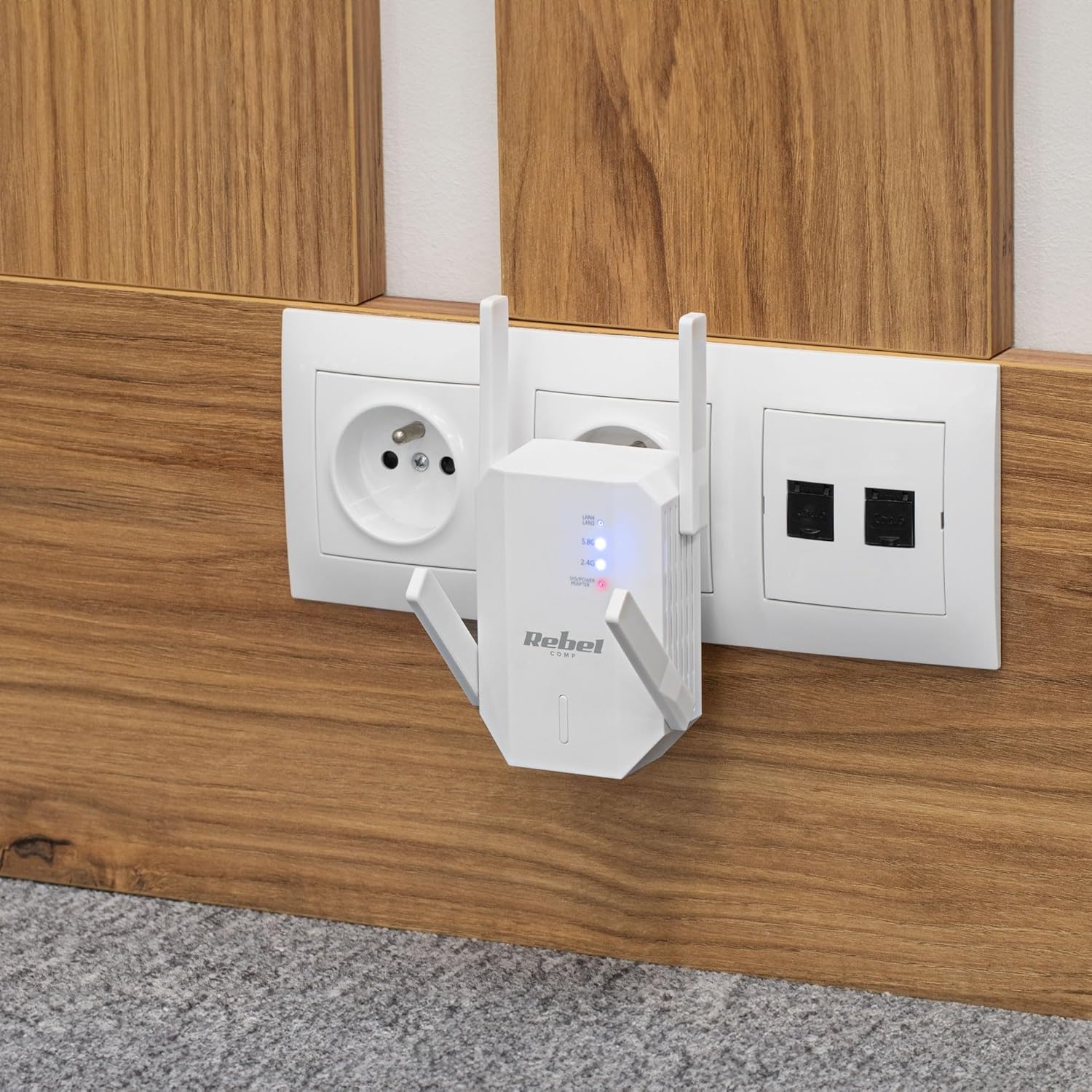
Figure 4.1: The Rebel KOM1031 Repeater plugged into a wall outlet, ready for configuration.
4.2. Connecting to the Repeater
- Connect Wirelessly: On your computer or mobile device, search for available Wi-Fi networks. Connect to the network named "Rebel_XXXX" or similar (check the label on the device for the default SSID). No password is required for the initial connection.
- Access Web Interface: Open a web browser (e.g., Chrome, Firefox, Edge) and enter the default IP address or domain name (usually 192.168.10.1 or rebelrepeater.net) into the address bar. Press Enter.
- Login: When prompted, enter the default username and password (usually admin for both).
4.3. Configuration Wizard (Repeater Mode)
Most users will configure the device in Repeater Mode to extend an existing Wi-Fi network.
- Select Repeater Mode: On the web interface, select "Repeater Mode" or "Wi-Fi Repeater" from the available options.
- Scan for Networks: The device will scan for available Wi-Fi networks. Select your main Wi-Fi network (SSID) from the list.
- Enter Password: Enter the Wi-Fi password (security key) of your main router.
- Configure Repeater SSID (Optional): You can choose to keep the same SSID as your main network or create a new one (e.g., "MyHome_EXT"). It is recommended to use a different SSID to easily distinguish between networks.
- Apply Settings: Click "Apply" or "Save" to confirm your settings. The repeater will restart. This process may take a few minutes.
- Reconnect: After the repeater restarts, disconnect from the repeater's default Wi-Fi network and connect to your newly configured extended network (e.g., "MyHome_EXT") using the password you entered.
Your Rebel KOM1031 Repeater should now be extending your Wi-Fi network. Check the signal strength in previously weak areas.
5. Operating Modes
The Rebel KOM1031 supports multiple operating modes to suit various networking needs.
5.1. Repeater Mode (Default)
In Repeater Mode, the device extends the coverage of an existing wireless network. It receives the wireless signal from your main router and re-transmits it, effectively expanding the Wi-Fi range. This is the most common mode for eliminating Wi-Fi dead zones.
5.2. Access Point (AP) Mode
In AP Mode, the device connects to a wired network (via an Ethernet cable) and broadcasts a new wireless network. This is useful for adding Wi-Fi capability to a wired-only network or creating a new Wi-Fi hotspot from a wired internet connection.
- Connect Ethernet: Connect an Ethernet cable from your router or modem to one of the RJ45 ports on the KOM1031.
- Access Web Interface: Follow steps 4.2 to access the web interface.
- Select AP Mode: Choose "AP Mode" or "Access Point" from the configuration options.
- Configure Wi-Fi Settings: Set a new SSID (network name) and a strong password for your new wireless network.
- Apply Settings: Save the configuration. The device will restart and operate as an Access Point.
6. Maintenance
Proper maintenance ensures the longevity and optimal performance of your device.
- Cleaning: Use a soft, dry cloth to clean the device. Do not use liquid cleaners or aerosols.
- Ventilation: Ensure the device is placed in a well-ventilated area. Do not block the ventilation slots.
- Firmware Updates: Periodically check the manufacturer's website for firmware updates. Updating firmware can improve performance and security.
- Resetting: If the device malfunctions or you forget the login credentials, you can perform a factory reset. Locate the reset button (usually a small pinhole) and press it with a paperclip for 5-10 seconds while the device is powered on. The device will revert to factory default settings.
7. Troubleshooting
If you encounter issues, refer to the following common problems and solutions.
7.1. No Internet Access After Setup
- Check Main Router: Ensure your main router has an active internet connection.
- Verify Password: Double-check that you entered the correct Wi-Fi password for your main router during setup.
- Relocate Repeater: The repeater might be too far from your main router. Move it closer to ensure it receives a strong signal.
- Restart Devices: Restart your main router, the repeater, and your client devices.
7.2. Cannot Access Web Management Page
- Check Connection: Ensure your device is connected to the repeater's Wi-Fi network (either the default "Rebel_XXXX" or your configured extended network).
- Verify IP Address: Confirm you are using the correct IP address (e.g., 192.168.10.1) or domain name (rebelrepeater.net).
- Clear Browser Cache: Try clearing your web browser's cache or using a different browser.
- Factory Reset: If all else fails, perform a factory reset (see Section 6. Maintenance) and try setting up again.
7.3. Weak Signal or Slow Speed
- Optimal Placement: Ensure the repeater is placed optimally, roughly halfway between your router and the dead zone. Avoid physical obstructions like thick walls or metal objects.
- Interference: Other electronic devices (microwaves, cordless phones) can cause interference. Try moving the repeater away from such devices.
- Antenna Adjustment: Adjust the external antennas for better signal reception and transmission.
8. Technical Specifications
| Feature | Detail |
|---|---|
| Model | KOM1031 |
| Brand | Rebel |
| Chipset | MTK7612 |
| Wireless Standards | IEEE 802.11 a/b/g/n/ac |
| Frequency Bands | 2.4 GHz / 5 GHz (Dual-Band) |
| Data Transmission Rate | Up to 300 Mbps (2.4 GHz), Up to 867 Mbps (5 GHz) |
| Antennas | 4 External (2 dBi each) |
| Security Protocols | WEP, WPA/WPA2, WPS (64/128 bit) |
| Ethernet Ports | 2x RJ45 (10/100 Mbps) |
| Wireless Range | Up to 100 meters (environment dependent) |
| Power Supply | 110-240 V; 50/60 Hz; 2 A |
| Dimensions | 87 x 63 x 55 mm |
| Weight | 76 g |
| Simultaneous Users | Supports up to 10 users simultaneously |
9. Safety Information
Please read and follow these safety guidelines to prevent damage to the device or injury to yourself.
- Do not expose the device to water, moisture, or extreme temperatures.
- Do not attempt to disassemble or repair the device yourself. Refer all servicing to qualified personnel.
- Ensure the power outlet used is easily accessible and provides the correct voltage (110-240V).
- Avoid placing the device near heat sources or in direct sunlight.
- Keep the device away from children and pets.
10. Warranty and Support
For warranty information, technical support, or further assistance, please refer to the official Rebel website or contact your retailer. Please have your product model number (KOM1031) and purchase details ready when seeking support.


