
BOXPUT X96Q
BOXPUT X96Q Android TV Box User Manual
Model: X96Q
Brand: BOXPUT
1. Introduction
This user manual provides detailed instructions for setting up, operating, and maintaining your BOXPUT X96Q Android TV Box. Please read this manual thoroughly before using the device to ensure optimal performance and safety.
2. Safety Information
- Do not expose the device to water or moisture.
- Avoid placing the device near heat sources or in direct sunlight.
- Use only the provided power adapter.
- Do not attempt to disassemble or repair the device yourself. Contact qualified service personnel.
- Ensure proper ventilation around the device to prevent overheating.
3. Package Contents
Verify that all items are present in the package:

Figure 3.1: Package Contents
This image displays the complete contents of the BOXPUT X96Q package, including the main device, its remote control (batteries not included), the power adapter, an HD data cable, and the user manual.
- 1 x X96Q Android TV Box
- 1 x IR Remote Control (Batteries not included)
- 1 x HD Cable
- 1 x Power Adapter (DC 5V/2A)
- 1 x User Manual
4. Product Overview
The BOXPUT X96Q is a compact and powerful Android TV Box designed to transform your television into a smart entertainment hub. It supports 4K HD media playback and offers various connectivity options.

Figure 4.1: X96Q Android TV Box
This image provides a clear view of the X96Q Android TV Box, highlighting its sleek black design and compact form factor.
4.1 Device Interfaces
Familiarize yourself with the ports and connections on your X96Q TV Box:

Figure 4.2: Device Interfaces
This diagram illustrates the different connection ports available on the X96Q TV Box, including power input, Ethernet, HDMI, AV output, IR receiver, USB ports, and a TF card slot.
- DC: Power line interface (DC 5V/2A)
- ETHERNET: Network cable interface (RJ45)
- HDMI: HDMI cable interface (HD output)
- AV OUT: AV output for older TVs
- IR: IR receiver interface
- USB: USB Host Port (x2)
- CARD: TF Card slot
5. Setup
Follow these steps to set up your X96Q Android TV Box:
5.1 Connecting to Your TV
The X96Q supports both HDMI and AV connections, making it compatible with various TV models, including older ones.

Figure 5.1: TV Connection Options
This image demonstrates the versatility of the X96Q TV Box, showing its compatibility with both modern LCD TVs using an HDMI connection and older TVs using an AV cable. It also illustrates potential mounting options.
- HDMI Connection (Recommended for HD TVs):
- Connect one end of the provided HD cable to the HDMI port on the X96Q TV Box.
- Connect the other end of the HD cable to an available HDMI input on your TV.
- Switch your TV's input source to the corresponding HDMI input.
- AV Connection (For Older TVs):
- Connect an AV cable (not always included, may need to be purchased separately) to the AV OUT port on the X96Q TV Box.
- Connect the other end of the AV cable to the corresponding AV input ports on your TV (Yellow for Video, White for Left Audio, Red for Right Audio).
- Switch your TV's input source to the AV input.
5.2 Power Connection
- Connect the power adapter to the DC port on the X96Q TV Box.
- Plug the power adapter into a wall outlet. The LED indicator on the box will turn blue when powered on.
5.3 Network Connection
The X96Q supports both wired and wireless network connections for stable data transmission.

Figure 5.2: Network and USB Connectivity
This image highlights the X96Q's capabilities for both wired (Ethernet) and wireless (WiFi) network connections, ensuring stable transmission of high-definition videos and large data files. It also shows the USB port for local media playback.
- Wired Connection (Ethernet):
- Connect an Ethernet cable from your router to the RJ45 port on the X96Q TV Box.
- Wireless Connection (Wi-Fi):
- Once the device is powered on, navigate to the "Settings" menu.
- Select "Network" or "Wi-Fi" and choose your desired network from the list.
- Enter the Wi-Fi password if prompted.
5.4 Initial Boot-up and Setup Video
Watch this video for a visual guide on unboxing and initial setup of your X96Q Android TV Box.
Video 5.1: X96Q Android 10.0 TV Box Unboxing and Review
This video provides a comprehensive unboxing experience and a brief review of the X96Q Android TV Box, demonstrating its physical features and initial boot-up sequence.
6. Operating the Device
The X96Q Android TV Box runs on Android 10.0, offering a stable and user-friendly interface for various applications and media playback.
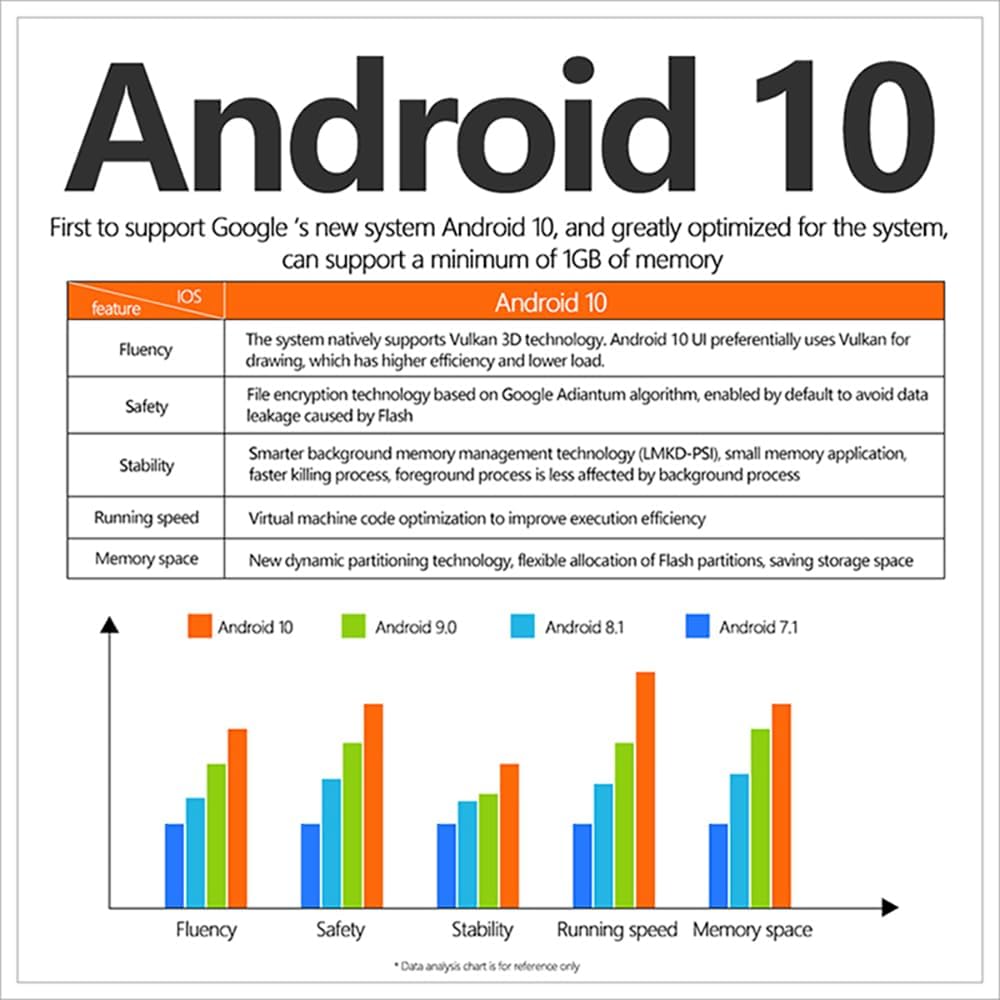
Figure 6.1: Android 10 Features
This chart highlights the key enhancements of Android 10, such as improved fluency with Vulkan 3D technology, enhanced safety through file encryption, better stability with smarter memory management, optimized running speed, and efficient memory space allocation.
6.1 Remote Control Functions
Use the provided IR remote control to navigate the interface and control playback. Ensure batteries are inserted correctly.
6.2 Media Playback
The X96Q supports a wide range of audio and video formats, including 4K@60fps and 3D content.
- Online Streaming: Access popular streaming services like Netflix, YouTube, Hulu, and Flixster.
- Local Media Playback: Connect external storage devices (HDD, U Disk, TF Card) to the USB ports or TF card slot to play local media files.
6.3 Screen Mirroring and Casting
Enjoy content from your mobile devices on the big screen using DLNA, Miracast, and Airplay functionalities.

Figure 6.2: Big Screen Experience with DLNA, Miracast, Airplay
This image demonstrates the X96Q's ability to support screen mirroring and casting technologies like DLNA, Miracast, and Airplay, allowing users to enjoy content from their smartphones and tablets on a larger TV screen.
6.4 Applications
Download and install applications freely from the Android Market, Amazon App Store, and other sources.
- Supports communication apps like SKYPE video call, MSN, Facebook, Twitter, QQ.
- Supports productivity apps like Email and Office Suite.
- Supports 2.4G wireless mouse/keyboard for easier navigation and input.
7. Maintenance
- Keep the device clean by wiping it with a soft, dry cloth.
- Avoid using liquid cleaners or aerosols.
- Regularly check for software updates to ensure optimal performance and security.
- Ensure the device is placed on a stable surface and not covered to allow for proper airflow.
8. Troubleshooting
| Problem | Possible Cause | Solution |
|---|---|---|
| No power/Device not turning on | Power adapter not connected or faulty; Power outlet issue. | Ensure power adapter is securely connected to the device and a working power outlet. Try a different outlet. |
| No display on TV | Incorrect TV input source; Loose HDMI/AV cable; Faulty cable. | Switch TV input to the correct HDMI/AV port. Check cable connections. Try a different HDMI/AV cable. |
| Remote control not working | Batteries are dead or inserted incorrectly; IR receiver blocked. | Replace batteries. Ensure correct polarity. Remove any obstructions between the remote and the TV box. |
| Cannot connect to Wi-Fi | Incorrect password; Router issue; Device too far from router. | Double-check Wi-Fi password. Restart your router. Move the TV box closer to the router. |
| Applications crashing/Slow performance | Insufficient memory; Too many apps running; Software glitch. | Close background applications. Clear app caches. Restart the device. Consider a factory reset if issues persist (backup data first). |
9. Specifications
Detailed technical specifications for the BOXPUT X96Q Android TV Box:

Figure 9.1: Key Features Overview
This graphic summarizes the core technical capabilities of the X96Q TV Box, including its processor, graphics unit, video decoding, resolution support, operating system, and wireless connectivity.
| Feature | Description |
|---|---|
| Model | X96Q (H313) |
| Operating System | Android 10.0 |
| CPU | Allwinner H313 Quad Core ARM Cortex A53 |
| GPU | G31 OpenGL3.2 |
| Memory (RAM) | 2GB DDR3 |
| Storage (Flash) | 16GB eMMC (Expandable via TF Card/HDD) |
| Wi-Fi | 2.4G |
| Video Output | HD (HDMI), AV OUT |
| Resolution Support | 4K@60fps, H.265, 3D |
| USB Ports | 1 x USB Host Port, 1 x USB Device |
| Ethernet | RJ45 Interface |
| Power Supply | DC 5V/2A |
| Dimensions | Approx. 6.94 x 4.49 x 2.15 inches |
| Weight | Approx. 11.5 ounces |
9.1 Performance Comparison
The X96Q (H313) offers improved performance compared to previous chipsets.

Figure 9.2: Chipset Performance Comparison
This table provides a comparative analysis of the H313 chipset used in the X96Q against other common chipsets, detailing differences in CPU, GPU, H.265 decoding capabilities, operating system versions, frequency, and benchmark run scores.
10. Warranty and Support
10.1 Warranty Information
Please refer to the warranty card included in your package or visit the official BOXPUT website for detailed warranty terms and conditions. Keep your purchase receipt as proof of purchase for warranty claims.
10.2 Customer Support
For technical assistance, troubleshooting, or product inquiries, please contact BOXPUT customer support through their official channels. You can often find contact information on the product packaging, the official brand website, or the retailer's support page.
You can also visit the BOXPUT Store on Amazon for more information and product updates.