
Introduction
Thank you for choosing the WisFox Full-Size Wireless Keyboard and Mouse Combo. This manual provides essential information for setting up, operating, and maintaining your new wireless peripheral set. Please read these instructions carefully before use to ensure optimal performance and longevity of your product.

Image: The WisFox Full-Size Wireless Keyboard and Mouse Combo, featuring an ivory white keyboard, mouse, and a small USB receiver.
Package Contents
Please verify that all items are present in your package:
- 1 x WisFox Full-Size Wireless Keyboard
- 1 x WisFox Wireless Mouse
- 1 x USB Nano Receiver (typically stored in the mouse battery compartment)
- 1 x User Manual (this document)
Note: 1 AAA battery for the keyboard and 1 AA battery for the mouse are required and are not included in the package.
Setup Instructions
Follow these steps to set up your WisFox Wireless Keyboard and Mouse Combo:
- Install Batteries: Open the battery compartment on the underside of the keyboard and insert one AAA battery. Open the battery compartment on the underside of the mouse and insert one AA battery. Ensure correct polarity.
- Locate USB Receiver: The USB nano receiver is typically stored within the mouse's battery compartment for safekeeping during transport. Remove it carefully.
- Connect Receiver: Plug the USB nano receiver into an available USB port on your computer or device.
- Power On: If your keyboard or mouse has an ON/OFF switch, ensure it is set to the 'ON' position.
- Automatic Connection: The keyboard and mouse should automatically connect to your computer. No additional drivers are typically required for most operating systems.

Image: A close-up view of the small USB nano receiver plugged into a laptop's USB port, indicating wireless connectivity.
Operating Instructions
Understand the key features and functions of your wireless combo:
- 2.4G Wireless Connection: The combo utilizes 2.4GHz wireless technology for a stable and reliable connection with an effective range of up to 34 feet (10 meters).
- Function Hotkeys: The keyboard features 12 function hotkeys (F1-F12) that provide quick access to multimedia controls, email, and other common applications. Refer to the key legends for specific functions.
- Power Saving Function: To conserve battery life, the keyboard will enter an auto-sleep mode after 8 minutes of inactivity, and the mouse after 1 minute. To reactivate, simply press any key on the keyboard or click any button on the mouse.
- LED Indicators: The keyboard includes three smart LED indicators for Num Lock, Caps Lock, and Power status. These indicators help you monitor the keyboard's current state.

Image: An overhead view of the keyboard, highlighting the 12 function keys (F1-F12) and their associated shortcut icons for quick access to various commands.

Image: A diagram illustrating the auto power saving function, showing the keyboard entering sleep mode after 8 minutes and the mouse after 1 minute, with instructions to press a key or click to reactivate.

Image: A close-up of the keyboard's upper right corner, pointing out the three LED indicators for Num Lock, Caps Lock, and Power status.
Features
- Silent Operation: Both the keyboard and mouse are designed for quiet operation, significantly reducing typing and clicking noise for a more focused work environment.
- Ergonomic Design: The keyboard features an ergonomic tilt angle to help reduce muscle strain and fatigue during extended use, promoting a more natural posture.
- Splash-Proof Keyboard: The keyboard is designed with a splash-proof feature to protect internal components from accidental spills of liquids like coffee or water.
- Full-Size Layout: The keyboard offers a compact full-size layout, including a numeric keypad, for comprehensive functionality without occupying excessive desk space.

Image: A keyboard and mouse on a desk, with a graphic indicating 'Less Noise, More Focus' and a sound level of less than 30dB, emphasizing quiet operation.

Image: A side view of the keyboard on a desk, illustrating an 8-degree ergonomic tilt designed for user comfort and reduced wrist pressure.
Maintenance
To ensure the longevity and proper functioning of your WisFox Wireless Keyboard and Mouse Combo, follow these maintenance guidelines:
- Cleaning: Use a soft, dry, lint-free cloth to clean the surfaces of the keyboard and mouse. For stubborn dirt, slightly dampen the cloth with water or a mild cleaning solution, then wipe dry immediately. Avoid harsh chemicals or abrasive materials.
- Battery Replacement: Replace batteries promptly when you notice a decrease in performance or when the power indicator light signals low battery. Always use new, high-quality AAA batteries for the keyboard and AA batteries for the mouse.
- Storage: When not in use for extended periods, store the devices in a dry, cool environment away from direct sunlight and extreme temperatures. Consider removing batteries if storing for several months.
- Avoid Liquid Exposure: While the keyboard has a splash-proof design, it is not waterproof. Avoid submerging the device in liquids or exposing it to excessive moisture.
Troubleshooting
If you encounter issues with your wireless combo, refer to the following common solutions:
- No Connection or Intermittent Connection:
- Check if the batteries in both the keyboard and mouse are correctly installed and have sufficient charge. Replace if necessary.
- Ensure the USB nano receiver is securely plugged into a working USB port on your computer.
- Move the keyboard and mouse closer to the USB receiver to rule out range issues. The effective range is up to 34 feet.
- Try plugging the USB receiver into a different USB port on your computer.
- Restart your computer.
- Keys Not Responding or Mouse Cursor Erratic:
- Verify battery levels and replace if low.
- For the mouse, ensure the optical sensor on the bottom is clean and free from obstructions.
- Ensure you are using the mouse on a suitable, non-reflective surface.
- Check if the Num Lock or Caps Lock indicators are behaving as expected.
- Lag or Delay in Input:
- Reduce interference by moving other wireless devices (e.g., Wi-Fi routers, cordless phones) away from the receiver.
- Ensure the receiver is not obstructed by metal objects.
Specifications
| Feature | Detail |
|---|---|
| Brand | WisFox |
| Model | Wireless Keyboard and Mouse Combo |
| Connectivity Technology | 2.4GHz Wireless (USB Receiver) |
| Wireless Range | Up to 34 feet (10 meters) |
| Keyboard Dimensions | 16.9 x 4.9 x 1 inches (43 x 12.5 x 2.5 cm) |
| Mouse Dimensions | 4.13 x 2.44 x 1.57 inches (10.5 x 6.2 x 4 cm) |
| Item Weight (Combo) | 1.52 pounds (approx. 689 grams) |
| Keyboard Battery | 1 x AAA (not included) |
| Mouse Battery | 1 x AA (not included) |
| Compatibility | Windows 2000 / ME / XP / Vista / 7 / 8 / 10 / 11, Chrome OS, Mac OS, Linux |
| Special Features | Silent Typing/Clicking, Ergonomic Tilt, Splash-Proof Keyboard |

Image: A diagram showing the precise dimensions of both the WisFox wireless keyboard and mouse in inches and centimeters.
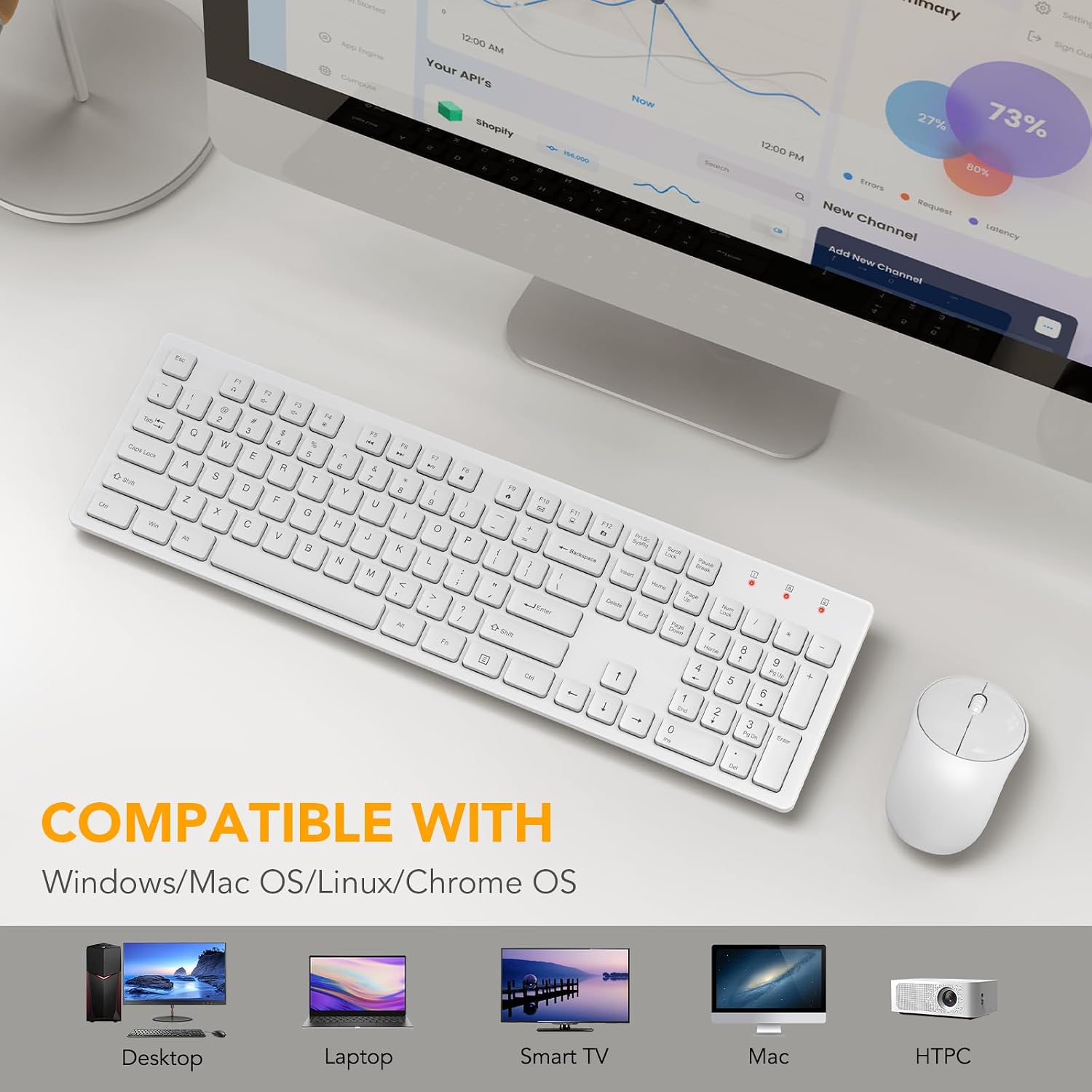
Image: Icons representing various operating systems and devices (Desktop PC, Laptop, Smart TV, Mac, HTPC), indicating wide compatibility for the keyboard and mouse combo.
Warranty and Support
For warranty information, technical support, or any product-related inquiries, please contact WisFox customer service directly. Refer to the product packaging or the WisFox official website for contact details.
Please retain your proof of purchase for warranty claims.


