1. Introduction
This manual provides detailed instructions for the Carlinkit 4.0 Wireless CarPlay & Android Auto Adapter. This device enables wireless connectivity for both Apple CarPlay and Android Auto in vehicles equipped with factory wired CarPlay. Please read this manual thoroughly before use to ensure proper installation and operation.
2. Product Overview
2.1 Key Features
- Wireless Connectivity: Converts wired CarPlay to wireless CarPlay and wireless Android Auto.
- High-Speed Performance: Features two antennas and 5G Wi-Fi (2.4GHz/5.8GHz) for speeds up to 866Mbps, ensuring real-time navigation and music streaming.
- Plug & Play Design: Simple USB connection without requiring car modifications.
- Automatic Reconnection: Once paired, the adapter automatically connects upon car restart.
- Retains Original Functions: Supports existing car features such as voice control and touchscreen operations.
- Broad Compatibility: Compatible with over 98% of factory wired CarPlay cars from 2015 onwards.
- Versatile Cables: Includes both USB Type-A and Type-C cables for various car ports.
2.2 What's in the Box
- Carlinkit 4.0 Adapter (Product*1)
- USB-A to USB-C Data Cable (Data Cable*1)
- USB-C to USB-C Data Cable (Data Cable*1)
- Instruction Manual (Manual*1)

Image: Carlinkit 4.0 Adapter and its accessories.
3. Setup Instructions
3.1 Compatibility Check
The Carlinkit 4.0 adapter is designed for vehicles with factory-installed wired CarPlay, manufactured from 2015 to the present. It is compatible with iOS 11+ and Android 13+ devices.
Important Compatibility Notes:
- Not compatible with cars without factory CarPlay preparation.
- BMW series cars are currently not compatible.
- Caution is advised for Volvo/Dodge models, which are undergoing optimization.

Image: Carlinkit 4.0 compatibility with various car brands.
3.2 Initial Setup Steps
- Plug In: Connect the Carlinkit 4.0 adapter to your car's USB/TYPE-C port that supports wired CarPlay. Use the appropriate data cable provided.
- Wait for Recognition: The automotive head unit will read the adapter's data. The car screen will display a message indicating it is waiting to be connected.
- Pairing for CarPlay (iPhone):
- Turn on Bluetooth and Wi-Fi on your iPhone.
- Search for the Bluetooth name displayed on your car screen in your iPhone's Bluetooth list.
- Select the device to connect. Your iPhone will prompt you to enable CarPlay. Confirm to establish a wireless CarPlay connection.
- Pairing for Android Auto (Android Phone):
- First, open your phone's Bluetooth and Wi-Fi.
- Search for the adapter's Bluetooth name in your phone's Bluetooth settings.
- After a successful Bluetooth connection, the Android Auto interface will appear on your car screen, enabling wireless Android Auto.

Image: Visual guide for Carlinkit 4.0 setup.
3.3 Cautions for Connection
- Wired Connection: If using a wired connection, ensure your phone's Bluetooth is open.
- Wireless Connection: For wireless functionality, ensure your phone's Bluetooth and Wi-Fi are both active. Turn off the original car's Bluetooth and Wi-Fi to prevent interference, and ensure your phone's Bluetooth and Wi-Fi are not occupied by other devices.
4. Operating Instructions
Once successfully paired, the Carlinkit 4.0 adapter will automatically connect to your phone when the car engine starts. You can then use CarPlay or Android Auto wirelessly.
- Navigation: Utilize your preferred navigation apps (e.g., Google Maps, Apple Maps) directly on your car's display.
- Music & Media: Stream music, podcasts, and audiobooks through your car's sound system.
- Voice Control: Use your car's built-in voice assistant (Siri for CarPlay, Google Assistant for Android Auto) for hands-free commands, calls, and messages.
- Touchscreen/Controls: Interact with the interface using your car's touchscreen or physical controls as usual.
Video: Demonstration of Carlinkit 4.0 Wireless CarPlay & Android Auto Adapter in use, showcasing navigation, music playback, and voice commands.
5. Online Upgrade & Maintenance
The Carlinkit 4.0 adapter supports online software upgrades to ensure optimal performance and compatibility. Follow these steps to check for and install updates:
- Connect to Adapter: After your phone is connected to wireless CarPlay or Android Auto via the adapter.
- Access Upgrade Interface: Use your phone's web browser to visit the IP address 192.168.50.2.
- Detect Updates: On the webpage, you will find options to detect and install available updates.

Image: Accessing the online upgrade interface via web browser.
For general maintenance, keep the adapter in a dry environment and avoid extreme temperatures. Ensure cables are not bent or damaged.
6. Troubleshooting
If you encounter issues with your Carlinkit 4.0 adapter, refer to the following common problems and solutions:
- Problem: My car is equipped with wired CarPlay but I can't use Carlinkit 4.0.
Solution: Try replacing the data cable. Alternatively, log in to the website 192.168.50.2 and reset the product. - Problem: The car screen shows CarPlay when I connect to Android Auto.
Explanation: The product converts wired CarPlay to wireless Android Auto. The information read from the original CarPlay system may cause the car screen to display 'CarPlay' even when Android Auto is active. This is normal operation. - Problem: CarPlay to Android Auto may have some resolution problems.
Note: Some users may experience minor resolution inconsistencies when switching between CarPlay and Android Auto. If this is a significant concern, please consider product compatibility before purchase. - Problem: Phone prefers connecting to the car's Bluetooth, leaving the adapter in limbo.
Solution: Manually disconnect from the car's Bluetooth and then reconnect to the adapter's Bluetooth. Ensure the car's original Bluetooth is not actively connected to your phone when using the adapter. - Problem: Car provides power to USB ports even when the car is shut off, keeping the adapter active all the time.
Solution: If your car's USB ports remain powered after the engine is off, you may need to unplug the Carlinkit adapter from the car each time you leave the vehicle to prevent your phone from continuously routing audio to the car.

Image: Common troubleshooting questions and solutions.
7. Specifications
| Feature | Specification |
|---|---|
| Model Number | CPC200-CP2A |
| Item Weight | 4.8 ounces |
| Product Dimensions | 3.15 x 1.81 x 0.51 inches (or 3.15"L x 1.42"W x 4.53"H) |
| Display Size | 2 Inches |
| Connectivity Technology | Bluetooth, Wi-Fi (5G Wi-Fi: 2.4GHz/5.8GHz) |
| Voice Command | Touchscreen (via car's system) |
| Operating System | Android (for Android Auto functionality) |
| Mounting Type | Dashboard Mount (suggested placement) |
| Included Components | Product, 2 Data Cables, Manual |
8. Warranty and Support
Carlinkit is committed to providing excellent customer service and product support.
- Return Policy: 90-day return policy for product-related problems (non-artificial damage).
- Hardware Guarantee: 365-day (1-year) hardware guarantee period.
- Software Upgrades: Lifetime software upgrades.
- Technical Services: Lifetime technical support.
Contact Support
For any product-related issues or technical assistance, please contact Carlinkit customer service. We aim to reply within 24 hours.
Email: support@carlinkit.com
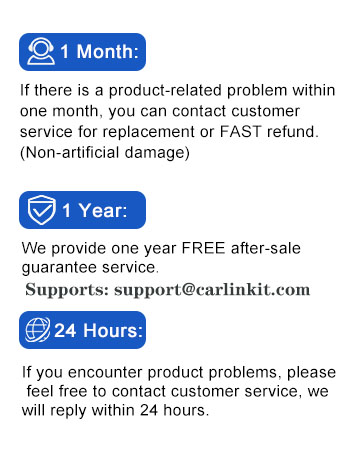
Image: Carlinkit customer support and warranty information.


