
1. Introduction
Thank you for purchasing the BENFEI 9-in-1 USB-C Portable Docking Station. This device expands the connectivity of your USB-C enabled laptop or device, providing multiple ports for video output, data transfer, network connection, and power delivery. This manual provides detailed instructions for setup, operation, and maintenance to ensure optimal performance and longevity of your docking station.
2. Product Overview
The BENFEI 9-in-1 Portable Docking Station is designed for versatility and portability. It features a compact and lightweight design with a hidden USB-C host connection cable for easy transport. The durable metal casing ensures reliability.
2.1. Key Features
- 9-in-1 Connectivity: Integrates essential ports for modern devices.
- Dual Display Output: Supports HDMI and DisplayPort for extended or mirrored displays (Windows OS).
- High-Speed Data Transfer: USB 3.2 Gen 2 ports offer up to 10Gbps.
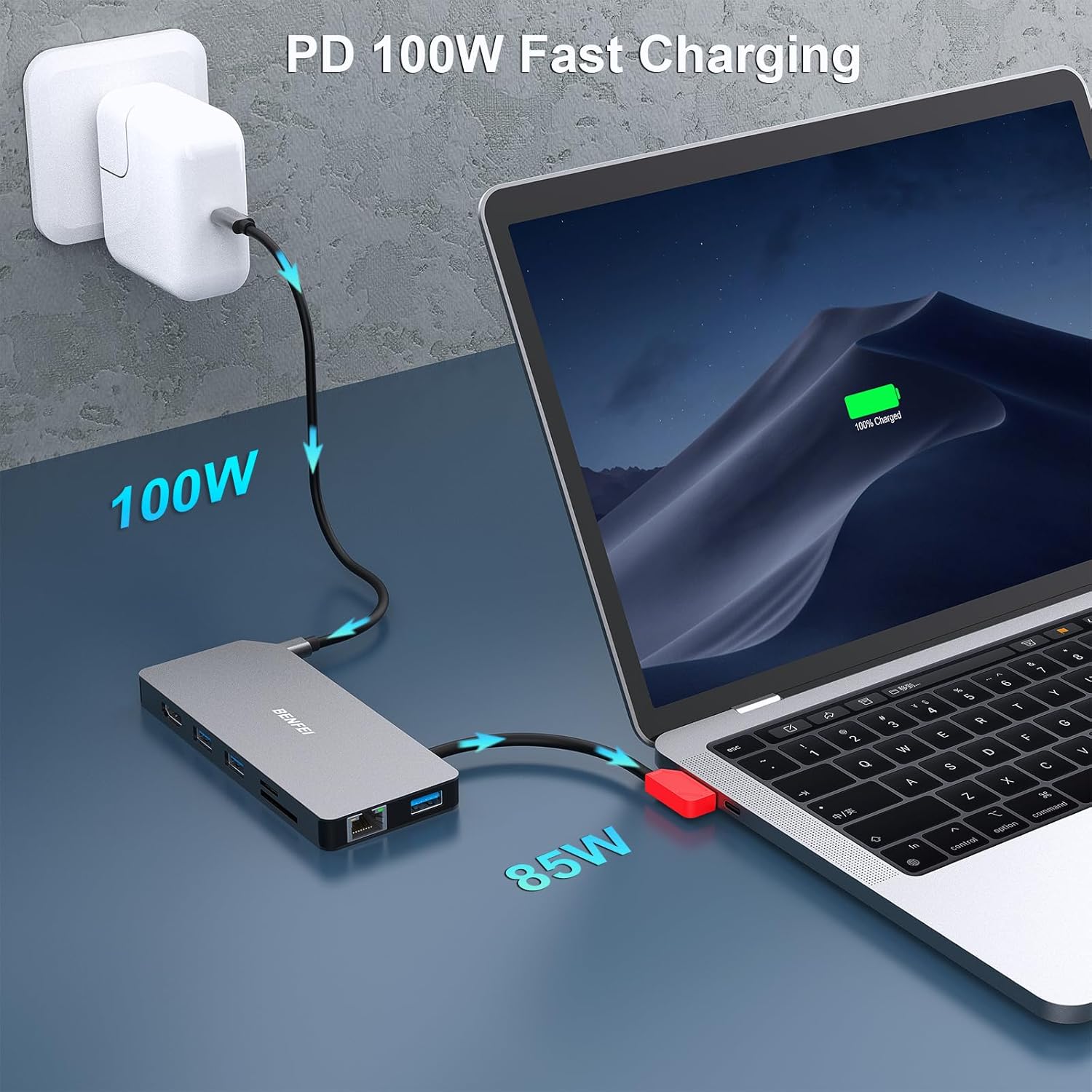
- 100W Power Delivery: Charges your host device while using other ports.
- Gigabit Ethernet: Provides stable and fast wired network access.
- SD/TF Card Reader: Fast access to memory cards with speeds up to 104MB/s.
- Portable Design: Compact dimensions (138mm x 56.5mm x 12.5mm) and lightweight (135g) with a retractable USB-C cable.
2.2. Port Layout
The docking station includes the following ports:
- 1 x HDMI Port (up to 4K@60Hz)
- 1 x DisplayPort (up to 4K@60Hz)
- 2 x USB 3.2 Gen 2 Type-A Ports (up to 10Gbps)
- 1 x USB 3.0 Type-A Port (up to 5Gbps)
- 1 x USB 3.2 Gen 2 Type-C Port (up to 10Gbps, 100W Power Delivery)
- 1 x SD Card Slot (UHS-I, up to 104MB/s)
- 1 x TF (Micro SD) Card Slot (UHS-I, up to 104MB/s)
- 1 x RJ45 Gigabit Ethernet Port (10/100/1000Mbps)

3. Setup Instructions
Follow these steps to set up your BENFEI docking station:
- Connect to Host Device: Extend the integrated USB-C cable from the docking station and plug it into a compatible USB-C port on your laptop or host device. Ensure your host device's USB-C port supports DisplayPort Alternate Mode (DP Alt Mode) for video output and Power Delivery for charging.
- Connect Power Adapter (Optional but Recommended): For optimal performance and to charge your host device, connect your laptop's USB-C power adapter to the USB 3.2 Gen 2 Type-C PD port on the docking station. This port supports up to 100W power delivery.
- Connect External Displays: Use HDMI and/or DisplayPort cables to connect your monitors to the corresponding ports on the docking station.
- Connect USB Peripherals: Plug your USB devices (e.g., mouse, keyboard, external hard drives, USB flash drives) into the available USB Type-A ports.
- Connect Ethernet Cable: For a stable wired network connection, plug an Ethernet cable into the RJ45 port on the docking station.
- Insert Memory Cards: If needed, insert SD or TF cards into their respective slots.
The docking station is plug-and-play and typically does not require driver installation for most operating systems.
4. Operating Instructions
4.1. Power Delivery (PD) Function
The USB-C PD port supports up to 100W power input. When a compatible USB-C power adapter is connected to this port, the docking station will pass through power to charge your host laptop. The actual charging speed depends on your laptop's power requirements and the power adapter's output.
4.2. Data Transfer
Utilize the various USB ports and card reader slots for efficient data transfer:
- USB 3.2 Gen 2 Type-A & Type-C: These ports offer data transfer speeds of up to 10Gbps, ideal for connecting high-speed external storage devices.
- USB 3.0 Type-A: Provides data transfer speeds of up to 5Gbps, suitable for most standard USB peripherals.
- SD/TF Card Readers: Supports UHS-I mode with transfer speeds up to 104MB/s, allowing for quick access to photos and videos from your memory cards.

4.3. Network Connection
The RJ45 Gigabit Ethernet port automatically adapts to 10/100/1000Mbps networks, providing a stable and reliable internet connection, which is often faster and more secure than Wi-Fi, especially in areas with poor wireless signal.
5. Display Modes
The docking station supports dual video output via HDMI and DisplayPort. The behavior of multiple displays varies depending on the operating system of your host device.
5.1. Windows OS (MST Support)
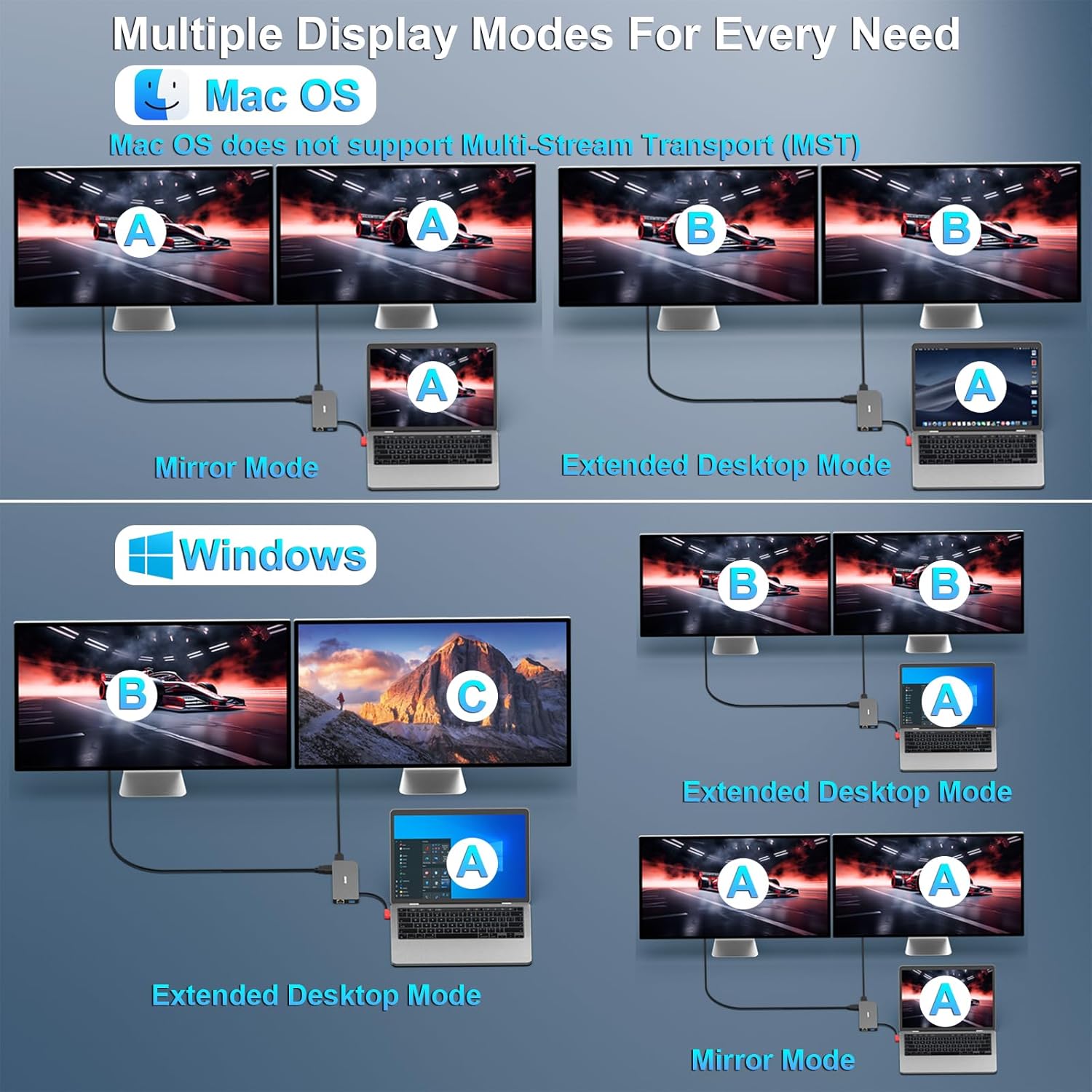
For Windows operating systems, the docking station supports Multi-Stream Transport (MST), allowing for both extended desktop and mirrored display modes across multiple monitors. You can connect two external monitors, and depending on your settings, they can display different content (extended) or the same content (mirror).
- Extended Desktop Mode: Your laptop screen (A) can be extended to two external monitors (B and C), allowing for a multi-tasking workspace.
- Mirror Mode: Your laptop screen (A) can be mirrored to both external monitors (A and A), displaying the same content on all screens.
5.2. Mac OS (No MST Support)
Mac OS does not support Multi-Stream Transport (MST). When connecting multiple external monitors to the docking station with a Mac OS device, all external monitors will display the same mirrored content. You can extend your desktop from your Mac to one external monitor, and any additional external monitors will mirror that extended display.
- Mirror Mode: Your MacBook screen (A) can be extended to one external monitor (B), and any other external monitor will mirror the content of monitor B. Alternatively, all external monitors can mirror the MacBook screen (A).
5.3. Resolution
Both HDMI and DisplayPort outputs support resolutions up to 3840x2160@60Hz. The actual resolution may vary based on your host device's capabilities and the connected monitors.
6. Compatibility
The BENFEI 9-in-1 Portable Docking Station offers wide compatibility with various devices and operating systems.
6.1. Compatible Devices
- MacBook Pro/Air (2020, 2021, 2022, 2023 models)
- iMac
- iPad Pro/Air
- iPhone 15 series
- Surface Book 2, Surface Go, Surface Pro
- HP Envy 13
- Pixelbook, Chromebook, Chromebook Pixel
- Galaxy Book
- Samsung Galaxy S8/S9/S8 Plus/S9 Plus/Note 8/Note 9
- Dell XPS 15/XPS 13
- Intel NUC
- Other laptops, tablets, and smartphones with a full-featured USB-C port (supporting DisplayPort Alt Mode and Power Delivery).
6.2. Compatible Operating Systems
- Windows (Windows 10 or later recommended)
- macOS
- Chrome OS
- iOS
- Android
Important Note: Your USB-C host device must support USB Type-C DP Alt Mode (DisplayPort Alternate Mode) for video output functionality. For devices equipped with USB 3.1 Gen 1 or older Samsung Galaxy S9/S8 models, synchronization may take a moment.

7. Specifications
| Feature | Description |
|---|---|
| Model Number | 000356black |
| Dimensions (L x W x H) | 138mm x 56.5mm x 12.5mm |
| Weight | 135g |
| Color | Gray |
| Material | Durable metal casing |
| Host Connection | USB-C (integrated cable) |
| Video Output | 1x HDMI (up to 4K@60Hz), 1x DisplayPort (up to 4K@60Hz) |
| USB Data Ports | 2x USB 3.2 Gen 2 Type-A (10Gbps), 1x USB 3.0 Type-A (5Gbps) |
| USB-C PD Port | 1x USB 3.2 Gen 2 Type-C (10Gbps data, 100W Power Delivery) |
| Card Reader | 1x SD Slot, 1x TF (Micro SD) Slot (UHS-I, up to 104MB/s) |
| Ethernet | 1x RJ45 Gigabit Ethernet (10/100/1000Mbps) |
| Compatible OS | Windows, macOS, Chrome OS, iOS, Android |
8. Maintenance
To ensure the longevity and proper functioning of your BENFEI docking station, follow these maintenance guidelines:
- Cleaning: Use a soft, dry cloth to clean the exterior of the docking station. Avoid using liquid cleaners or solvents, as they may damage the finish or internal components.
- Storage: When not in use, store the docking station in a cool, dry place away from direct sunlight and extreme temperatures. Utilize the hidden USB-C cable design to protect the connector.
- Handling: Avoid dropping the device or subjecting it to strong impacts. Do not force connectors into ports.
- Ventilation: Ensure the docking station has adequate ventilation during operation to prevent overheating, especially when multiple high-power devices are connected.
9. Troubleshooting
If you encounter issues with your docking station, refer to the following common problems and solutions:
- No Display Output:
- Ensure your host device's USB-C port supports DisplayPort Alt Mode.
- Check that the HDMI/DisplayPort cables are securely connected to both the docking station and the monitor.
- Verify that the monitor is set to the correct input source (HDMI/DisplayPort).
- Try connecting only one external monitor to isolate the issue.
- Restart your host device.
- USB Devices Not Recognized:
- Ensure the docking station's USB-C host cable is fully plugged into your device.
- Try connecting the USB device directly to your host device to confirm it functions independently.
- Disconnect and reconnect the USB device to the docking station.
- If using a high-power USB device, ensure the docking station is connected to an external power source via its PD port.
- Slow Data Transfer Speeds:
- Ensure you are using USB 3.0/3.2 compatible devices and cables.
- Some older devices or operating systems (e.g., USB 3.1 Gen 1 or specific Samsung Galaxy models) may experience slower synchronization times.
- Avoid connecting too many high-bandwidth devices simultaneously.
- No Network Connection:
- Check the Ethernet cable connection to both the docking station and your router/modem.
- Verify that your network settings on the host device are configured correctly for a wired connection.
- Ensure your router/modem is functioning properly.
- Host Device Not Charging:
- Ensure your laptop's original USB-C power adapter is connected to the docking station's USB-C PD port.
- Verify that your host device's USB-C port supports Power Delivery. Not all USB-C ports support charging.
- Check the power adapter and cable for damage.
- Overheating:
- Ensure adequate airflow around the docking station.
- Disconnect any unnecessary peripherals to reduce load.
- If the device becomes excessively hot, disconnect it and allow it to cool down before resuming use.
If these steps do not resolve your issue, please contact BENFEI customer support.
10. Warranty and Support
BENFEI provides an exclusive unconditional 18-month warranty for this product, ensuring your long-term satisfaction. This warranty covers manufacturing defects and ensures timely resolution of any product-related issues.
10.1. Customer Service
For any questions, concerns, or technical assistance, please contact our friendly and responsive customer service team. Refer to the contact information provided with your product packaging or visit the official BENFEI website for support details.
We are committed to providing excellent customer service and ensuring your experience with BENFEI products is positive.