
Wiflyer Z8105AX-T-EC25
User Manual for Wiflyer 4G LTE CPE WiFi6 Cat4 Router
Model: Z8105AX-T-EC25
Your comprehensive guide to setting up and operating your Wiflyer router.
1. Introduction
The Wiflyer Z8105AX-T-EC25 is a high-performance 4G LTE CPE WiFi6 Cat4 Router designed to provide robust and reliable internet connectivity. Featuring AX3000 dual-band WiFi 6 and dual SIM slots, this router is ideal for various environments where wired broadband may be unavailable or as a backup solution. Its industrial metal housing ensures durability and efficient heat dissipation.

The Wiflyer router simplifies network management, providing seamless connectivity for your devices.
2. Package Contents
Please verify that all items listed below are included in your package:
- 4G Router (Z8105AX-T-EC25)
- SIM Card Adapter
- Ethernet Cable
- Power Adapter
- User Manual (this document)

The Wiflyer Z8105AX-T-EC25 router, featuring multiple antennas and essential ports.
3. Setup Guide
3.1 Initial Hardware Connection
- Insert SIM Card: Locate the dual SIM slots on the router. Insert your 4G LTE SIM card(s) into the designated slots. Ensure the SIM card is correctly oriented.
- Connect Antennas: Attach all six high-gain antennas to their respective ports on the rear of the router. Tighten them securely but do not overtighten.
- Power On: Connect the power adapter to the router's DC-IN port and then plug it into a power outlet. The router will begin to power on, indicated by the LED indicators.
- Optional Ethernet Connection: For wired devices, connect an Ethernet cable from your device (e.g., PC, gaming console) to any of the LAN ports (LAN1, LAN2, LAN3). If using a wired WAN connection, connect the Ethernet cable from your modem to the WAN port.
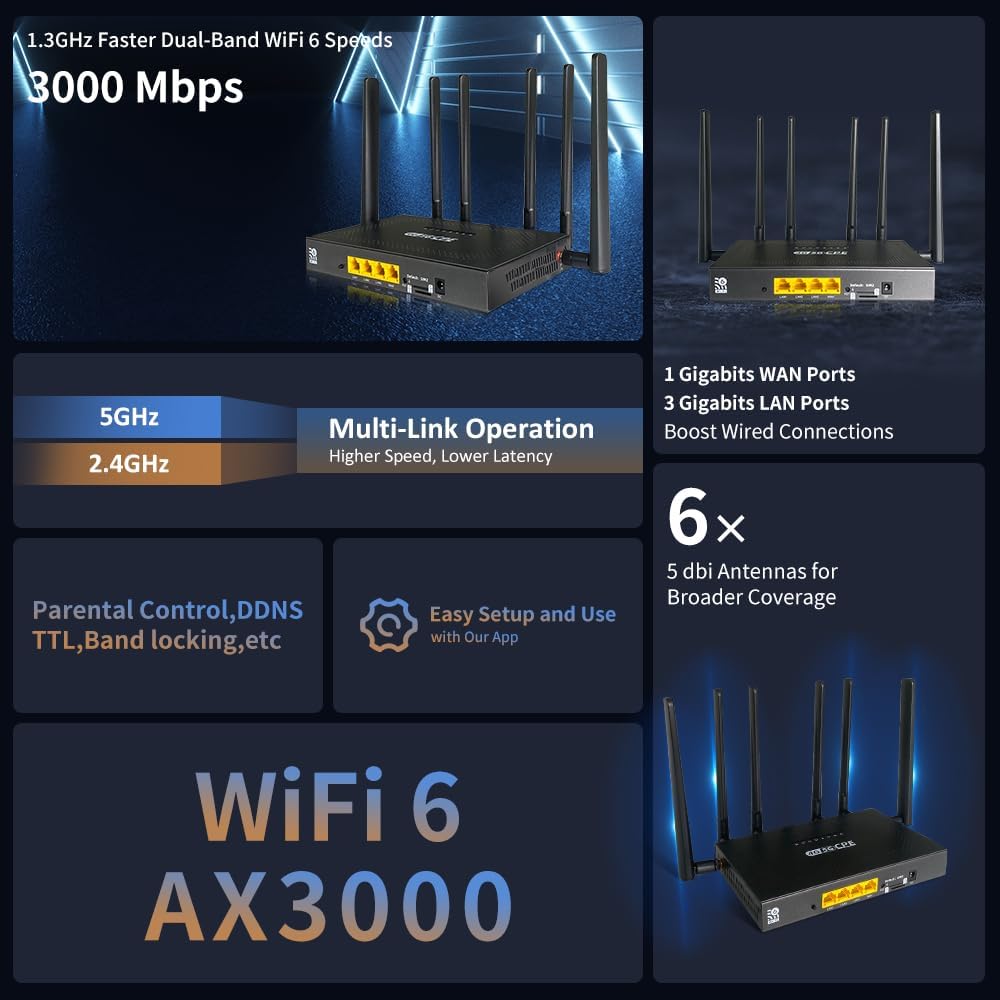
The router's rear panel with Gigabit LAN/WAN ports, dual SIM slots, and power input.
3.2 App-Based Setup and Configuration
The Wiflyer router can be easily configured using the dedicated mobile application. Follow these steps:
- Download App: Search for "zbtlink" in your device's App Store (iOS) or Google Play Store (Android) and install the application.
- Connect to Router WiFi: On your mobile device, go to WiFi settings and connect to the router's default WiFi network. The default SSID and password can be found on a label on the router.
- Open App and Login: Launch the "Zbtlink" app. Enter the default login password, which is typically "admin".
- Configure WiFi Settings: Within the app, navigate to "WIFI Settings" to customize your 2.4GHz and 5GHz wireless network names (SSID) and passwords.
- Set Internet Access (4G APN): Go to the "network" section to configure internet access. If using a 4G SIM card, switch on "4G Priority" and fill in the APN (Access Point Name) details provided by your mobile carrier. Other fields like Connect number, PIN code, Username, and Password are not filled by default unless required by your carrier. Save your settings.
Official APP operation guide for the Wiflyer router, demonstrating setup steps.

The router supports WAN failover to SIM, ensuring continuous internet connectivity.
4. Operating the Router
4.1 Network Connectivity
- 4G LTE Connectivity: Insert a SIM card to utilize the 4G LTE network, providing download speeds up to 150Mbps. This is ideal for locations without wired broadband or as a mobile internet solution.
- Dual SIM Functionality: The router supports dual SIM cards, allowing you to set a default priority for 4G or wired broadband. It offers automatic failover between SIMs or between wired and 4G connections, ensuring uninterrupted online activity.
- Full Gigabit Ports: Equipped with 3 Gigabit LAN ports and 1 Gigabit WAN port, the router allows for high-speed wired connections to devices such as PCs, smart TVs, and gaming consoles.

Overview of the router's connectivity speeds for 4G LTE and dual-band WiFi 6.
4.2 WiFi 6 Performance (AX3000)
- Dual-Band WiFi 6: Experience super-fast WiFi with speeds up to 2402 Mbps on the 5 GHz band and 574 Mbps on the 2.4 GHz band. This enables smooth online gaming, HD video streaming, and efficient file sharing.
- MU-MIMO Technology: Supports simultaneous wireless network connections for multiple devices without latency, enhancing performance in busy network environments.
- High Gain Antennas: Six 5dBi high-gain antennas boost signal sensitivity and improve 4G LTE and Wi-Fi quality, extending coverage distance. The replaceable cellular antenna interface offers flexible installation options.

WiFi 6 delivers faster speeds and greater capacity, ideal for 4K/8K video and AR/VR gaming.

Stronger signals penetrate walls, providing coverage up to 4900 sq.ft.
4.3 Advanced Features
- Band Locking: Allows you to select a more stable and faster band connection for your 4G LTE service. Supported frequency bands include LTE-FDD: B2/ B4/ B5/ B12/ B13/B14/ B66/ B71 and WCDMA: B2/ B4/ B5.
- TTL (Time To Live) Functionality: The TTL feature makes traffic originating from the router appear as if it's coming from your phone, which can prevent carriers from throttling or slowing down tethering/hotspot traffic.
- Security Features: Includes AD blocking functions and high-end encryption to protect your network. You can also monitor network guests and manage their access authority. Features like Blacklist, SSID Hiding, Firewall, and Encryption are supported.

The router's interface allows for network management and security features like AD blocking.

Multi-function security features offer comprehensive protection for your home network.
5. Maintenance
- Placement: Place the router in a central location, away from obstructions and other electronic devices that may cause interference. The metal housing with holes is designed for efficient heat dissipation, but ensure adequate airflow.
- Cleaning: Regularly clean the router's exterior with a soft, dry cloth. Do not use liquid cleaners or aerosols.
- Firmware Updates: Check the Wiflyer official website or the Zbtlink app periodically for firmware updates. Keeping your router's firmware up-to-date ensures optimal performance, security, and access to new features.
- Restarting: If you experience network issues, try restarting the router by unplugging the power adapter for 10 seconds and then plugging it back in.

The router features a metal case with ventilation holes for effective heat management.
6. Troubleshooting
Common Issues and Solutions:
- No Internet Connection:
- Ensure the SIM card is properly inserted and activated with your carrier.
- Verify the APN settings in the Zbtlink app are correct for your carrier.
- Check if the 4G signal strength is adequate.
- If using wired WAN, ensure the Ethernet cable is securely connected and your modem is working.
- Slow WiFi Speed:
- Ensure your devices are connected to the appropriate 5GHz band for higher speeds, if supported.
- Reduce interference by moving the router away from other electronics.
- Check for firmware updates.
- Cannot Access Router Settings:
- Ensure your device is connected to the router's WiFi or via Ethernet.
- Verify you are using the correct IP address (usually 192.168.1.1 or similar) and login credentials ("admin" by default).
- Try clearing your browser's cache or using a different browser.
- WiFi Signal Drops:
- Ensure antennas are securely attached.
- Relocate the router to a more central position to improve coverage.
- Check for physical obstructions that might block the signal.
7. Specifications
| Feature | Detail |
|---|---|
| Product Dimensions | 8.25 x 1.77 x 8.66 inches |
| Item Weight | 2.9 pounds |
| Model Name | Z8105AX-T-EC25 |
| Special Feature | 4G Dual SIM, WiFi 6 3000Mbps |
| Frequency Band Class | Dual-Band (2.4 GHz & 5 GHz) |
| Wireless Communication Standard | 802.11n, 802.11ax, 802.11b, 802.11g, 802.11ac |
| Compatible Devices | Security Camera, Personal Computer, Smart Television, Printer, Smartphone |
| Recommended Uses | RV, North America, Home, Gaming, Rural Area, Business |
| Connectivity Technology | 4G, Wi-Fi, Ethernet |
| Processor | MT7981B 1.3GHz Dual Core |
| Memory | 256MB DDR4, 128MB SPI NAND Flash |

The router's internal components, including the powerful MT7981B processor.

The MT7981B 1.3GHz Dual Core processor powers the router's performance.
8. Warranty and Support
For detailed warranty information and technical support, please refer to the official Wiflyer website or contact their customer service. The contact details are typically provided on the product packaging or within the included documentation.
You can also visit the Wiflyer Store on Amazon for additional product information and support resources.
Related documentsZ8105AX-T-EC25


Ask a question about this manual
Ask about setup, troubleshooting, compatibility, parts, safety, or missing instructions. Manuals+ will review the question and use this page’s manual context to help answer it.