
1. Product Overview
The SEQURE SQESC 2670 is a 70A Brushless Electronic Speed Controller (ESC) designed for various RC models, including cars, boats, and drones. It features AM32 firmware and supports 2-6S Lipo batteries. This ESC is equipped with a 5V/4A BEC (Battery Eliminator Circuit) that can be adjusted to provide different voltage outputs for external devices like receivers and servos.
Key features include:
- Firmware: AM32
- Working Voltage: DC 7V-25.2V (2-6S Lipo)
- Constant Current: 70A
- Peak Current: 110A
- BEC Output: Adjustable 5V/4A, 6V/4A, 7.2V/4A, 8.2V/4A, 12V/3A (requires soldering for voltage selection)
- Signal Protocols: Dshot (All), PWM, Oneshot, Multishot, etc.
- Programmable Parameters: Motor timing, throttle calibration, current detection, motor steering, telemetry signal, RGB LED light settings.
- Protections: Low voltage, over-heat, locked rotor, current protection.
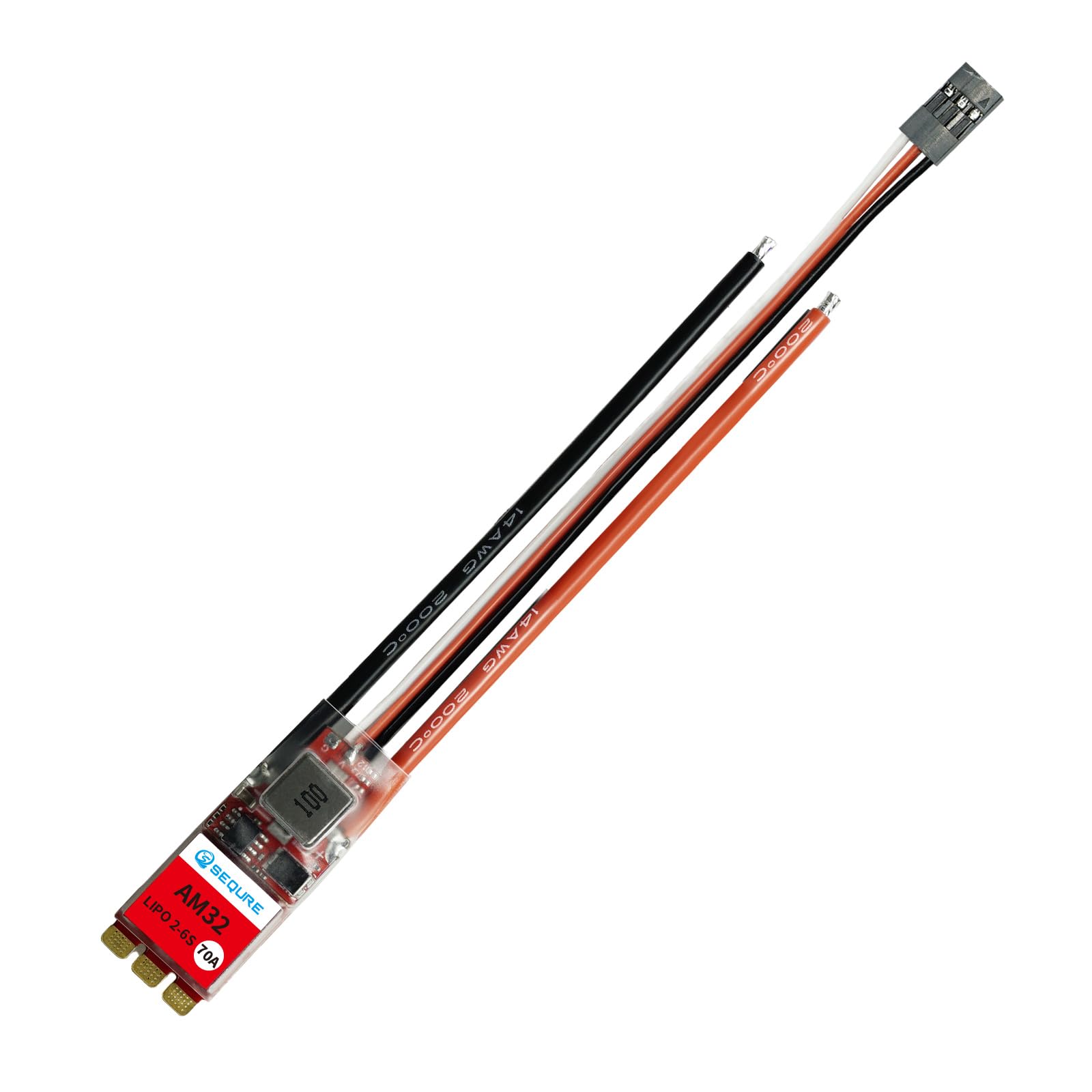
Image 1: The SEQURE SQESC 2670 70A Brushless ESC.
2. Package Contents
Upon opening the package, you should find the following items:
- 1x SEQURE SQESC 2670 Brushless ESC
- 1x BEC (Battery Eliminator Circuit) module
3. Technical Specifications
| Parameter | Value |
|---|---|
| Model Name | SQESC 2670 |
| Processor | STM32G071 |
| Firmware | AM32 |
| Input Voltage | DC 7V-25.2V (2-6S Lipo) |
| Constant Current | 70A |
| Maximum Current | 110A |
| BEC Output | 5V/4A, 6V/4A, 7.2V/4A, 8.2V/4A, 12V/3A (Adjustable) |
| Signal Protocols | Dshot (All), PWM, Oneshot, Multishot, etc. |
| Programmable Parameter Adjustments | Yes |
| Steering Setting of the Motor | Yes |
| Accelerator Calibration | Yes |
| Boost Timing Setting | Yes |
| Current Detection | Yes |
| Telemetry Signal | Yes |
| RGB LED Light | Yes |
| Product Dimensions | 1.37 x 0.71 x 0.3 inches |
| Item Weight | 0.634 ounces |
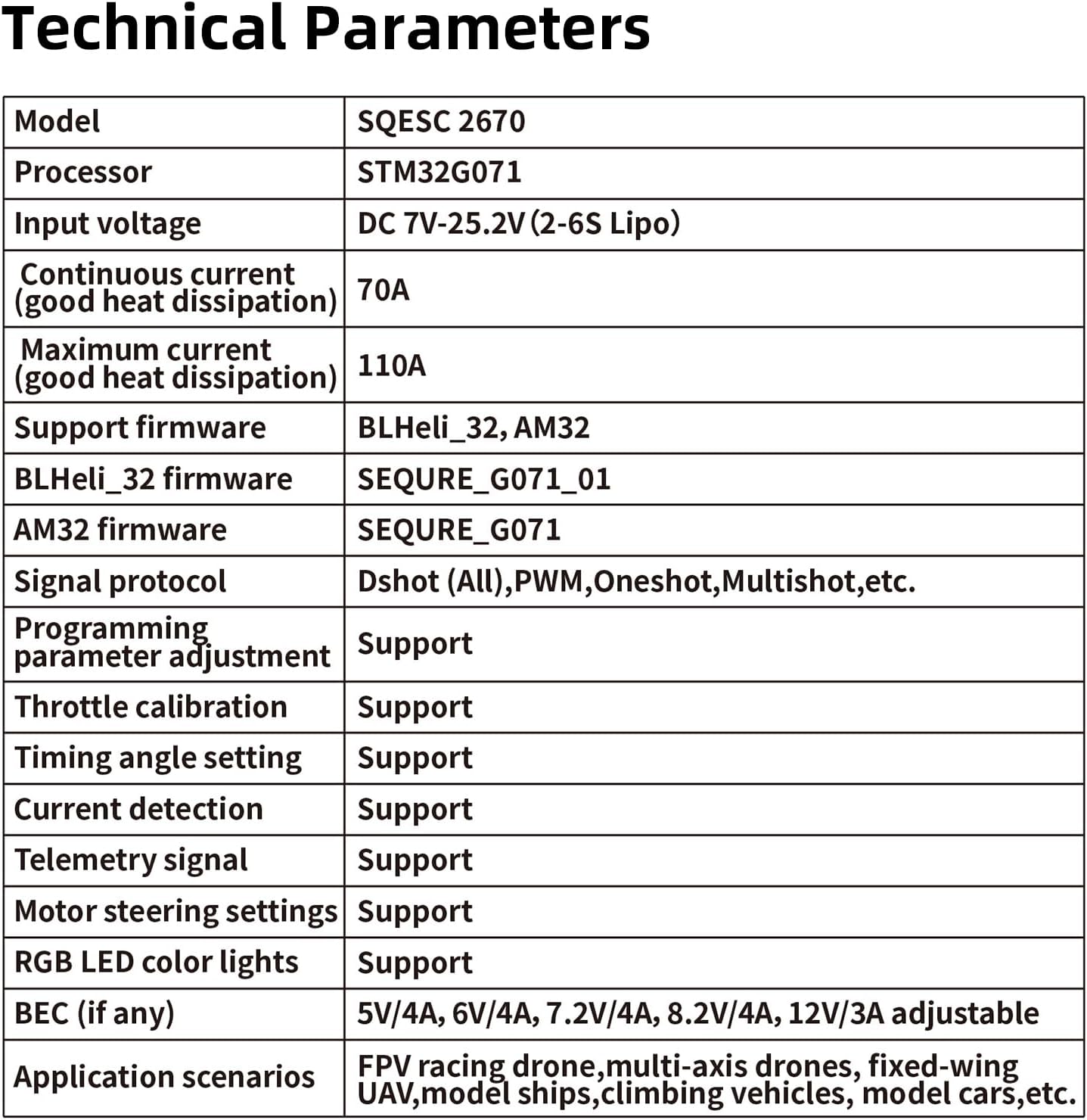
Image 2: Detailed technical parameters of the SQESC 2670.
4. Setup and Wiring
Proper wiring is crucial for the safe and correct operation of your ESC. Refer to the wiring diagram and follow the steps below.
4.1 Wiring Diagram

Image 3: Wiring diagram for the SQESC 2670, showing connections with and without the BEC module.
4.2 Connection Steps
- Connect Motor: Connect the three motor wires to the corresponding output pads on the ESC.
- Connect Battery: Connect your 2-6S Lipo battery (DC 7V-25.2V) to the main power input of the ESC. Ensure correct polarity.
- Connect Signal Input: Connect the signal wire (S) from the ESC to your receiver. The ground (GND) wire should also be connected.
- Telemetry Signal: If using telemetry, connect the telemetry signal wire to your flight controller or receiver as per your system's requirements.
- BEC Connection (Optional): If you require regulated voltage for your receiver or servos, connect the BEC module. The BEC output voltage can be adjusted by soldering specific pads on the BEC module (refer to Image 4).
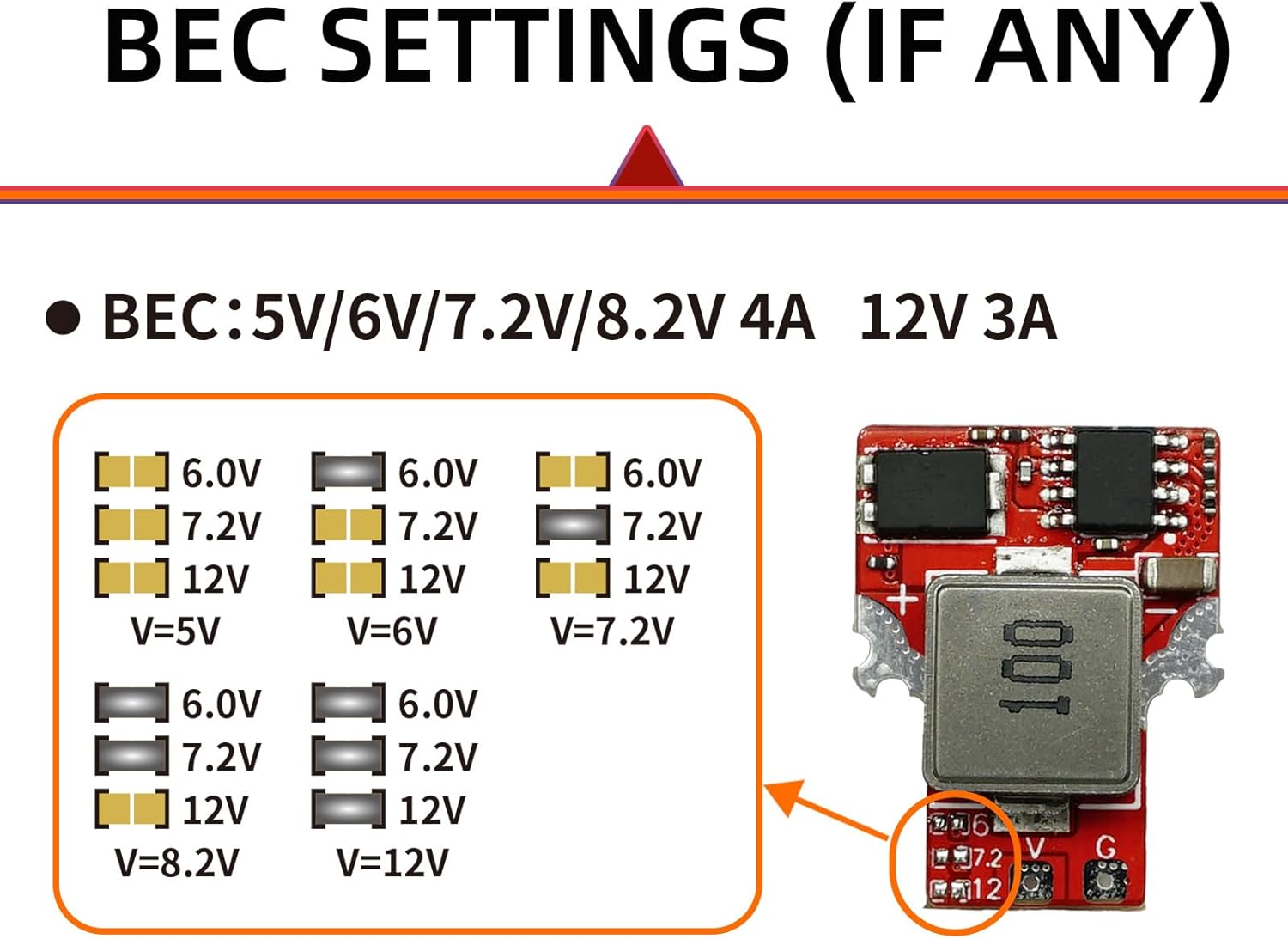
Image 4: BEC voltage adjustment points on the SQESC 2670. Solder the corresponding pads to select the desired voltage output.
4.3 Initial Power On
After all connections are secure, connect the battery. The ESC will emit a series of beeps indicating successful initialization.
Video 1: This video demonstrates the initial power-on sequence and connection of the ESC to the ESC-Link for parameter configuration.
5. Operating and Configuration
The SQESC 2670 ESC is highly configurable using the ESC-Link configuration tool, which is compatible with AM32 and BLHeli_32 firmware. This allows for precise tuning of motor parameters, throttle response, and other settings.
5.1 Required Software
To configure the ESC, you will need the "Serial Port Connector" program. This program can be downloaded from the official SEQURE website. Navigate to the "BLHeliSuite32 & AM32" section and download the AM32 firmware ESC configuration tool for your operating system (Windows/Linux).
5.2 Configuration Steps
- Connect ESC-Link: Power on the ESC by connecting the battery. Connect the ESC's 3-pin cable (Signal 'S' and Ground 'GND') to the ESC-Link module.
- Connect to Computer: Connect the ESC-Link module to your computer via a data cable.
- Launch Software: Open the "Multi ESC Config Tool" (Serial Port Connector program) on your computer.
- Establish Connection: In the software, check "Direct Connect", select the correct COM port, and click "Connect".
- Read Parameters: Click on "M1" (or the relevant motor identifier) to read the current parameters from the ESC.
- Modify Parameters: Adjust parameters such as reverse rotation, timing advance, motor KV, startup power, PWM frequency, and various protections according to your model's requirements.
- Save Settings: After making changes, click "Save Settings" to write the new parameters to the ESC.
- Verify Changes: You can click "M1" again to re-read the parameters and confirm that your modifications have been saved correctly.
- Disconnect: Once configuration is complete, click "Close Connection" in the software, then disconnect the ESC-Link and power supply from the ESC.
Video 2: This video provides a step-by-step guide on how to connect the ESC to the ESC-Link tool, download the necessary software, and modify/save parameters for AM32/BLHeli_32 firmware.
5.3 Firmware Upgrade
To upgrade the ESC firmware:
- Follow steps 1-4 from the "Configuration Steps" above to connect the ESC to the software.
- In the software, navigate to the "Flash" tab.
- Click "Load Firmware" and select the appropriate firmware file for your ESC.
- Click "Flash Firmware" and wait for the process to complete. Do not disconnect the ESC during this time.
- Once the upgrade is successful, disconnect the ESC as described in step 9 of the "Configuration Steps".
6. Application Scenarios
The SEQURE SQESC 2670 is versatile and suitable for a wide range of RC applications due to its robust design and configurable features.
- FPV Racing Drones
- Multi-axis Drones
- Fixed-wing Aircraft
- Ship Models (RC Boats)
- Climbing Vehicles (RC Crawlers)
- Car Models (RC Cars)

Image 5: Examples of RC models where the SQESC 2670 can be utilized.
Video 3: This video showcases the SQESC 2670 Brushless ESC in action, demonstrating its performance in various RC applications like climbing vehicles.
7. Maintenance
To ensure the longevity and optimal performance of your SEQURE SQESC 2670, consider the following maintenance tips:
- Keep Clean: Regularly clean the ESC to prevent dust, dirt, or debris from accumulating on the components, especially the heat sink. Use a soft brush or compressed air.
- Inspect Connections: Periodically check all wiring connections for looseness, corrosion, or damage. Secure any loose connections and replace damaged wires.
- Temperature Management: Ensure adequate airflow around the ESC during operation to prevent overheating. Avoid operating in enclosed spaces without ventilation.
- Storage: Store the ESC in a dry, cool environment away from direct sunlight and extreme temperatures.
8. Troubleshooting
If you encounter issues with your SQESC 2670, refer to the following common troubleshooting steps:
- No Power/No Response:
- Check battery connection and ensure it is fully charged.
- Verify all power wires are securely connected and not damaged.
- Ensure the BEC is providing power to the receiver if applicable.
- Motor Not Spinning/Erratic Behavior:
- Check motor wire connections for proper contact.
- Recalibrate the throttle range of the ESC.
- Verify motor direction and adjust in the configuration software if necessary.
- Check for any obstructions preventing the motor from spinning freely.
- Overheating:
- Ensure proper ventilation around the ESC.
- Check for excessive load on the motor or incorrect gearing.
- Review motor timing settings; aggressive timing can cause heat.
- Configuration Software Issues:
- Ensure the correct COM port is selected.
- Verify the ESC-Link module is properly connected to both the ESC and the computer.
- Try restarting the software and reconnecting.
For persistent issues, consult the official SEQURE support resources or contact customer service.
9. Warranty and Support
For warranty information, technical support, or further assistance, please visit the official SEQURE website or contact their customer service department. Keep your purchase receipt as proof of purchase for warranty claims.
SEQURE Official Website: https://www.sequremall.com
