
SZSINOCAM B0CPXDFVRP
Szsinocam Wi-Fi Camera Outdoor/Indoor User Manual
Model: B0CPXDFVRP | Brand: SZSINOCAM
1. Introduction
This manual provides detailed instructions for the installation, operation, and maintenance of your Szsinocam Wi-Fi Camera. Designed for both outdoor and indoor surveillance, this camera offers advanced features to enhance your security and monitoring needs. Please read this manual thoroughly before using the product to ensure proper setup and optimal performance.

Figure 1: Szsinocam Wi-Fi Camera and Mobile Application Interface
2. Product Features
The Szsinocam Wi-Fi Camera is equipped with a range of features designed for comprehensive surveillance:
- Dual Lens & Dual Screen Monitoring: Features two independent lenses allowing simultaneous monitoring of two different areas.
- High-Resolution Imaging: Captures clear and detailed footage with 4-megapixel resolution.
- Flexible Pan & Tilt: Offers a 355° horizontal rotation and 60° vertical tilt for extensive coverage.
- 6x Digital Zoom: Allows for closer inspection of details within the monitored area.
- Three Night Vision Modes: Supports infrared, full-color, and intelligent night vision for clear viewing in low-light conditions.
- Motion Detection & Alerts: Automatically detects movement and sends instant notifications to your connected device.
- Two-Way Audio: Enables real-time communication through the camera's built-in microphone and speaker.
- Multiple Storage Options: Supports both cloud storage and local storage via a Micro SD card (up to 256GB, sold separately).
- Versatile Installation: Can be mounted on a wall, placed on a flat surface, or installed on the ceiling.

Figure 2: Dual Lens and Dual Screen Capability

Figure 3: High-Resolution 4MP Image Quality
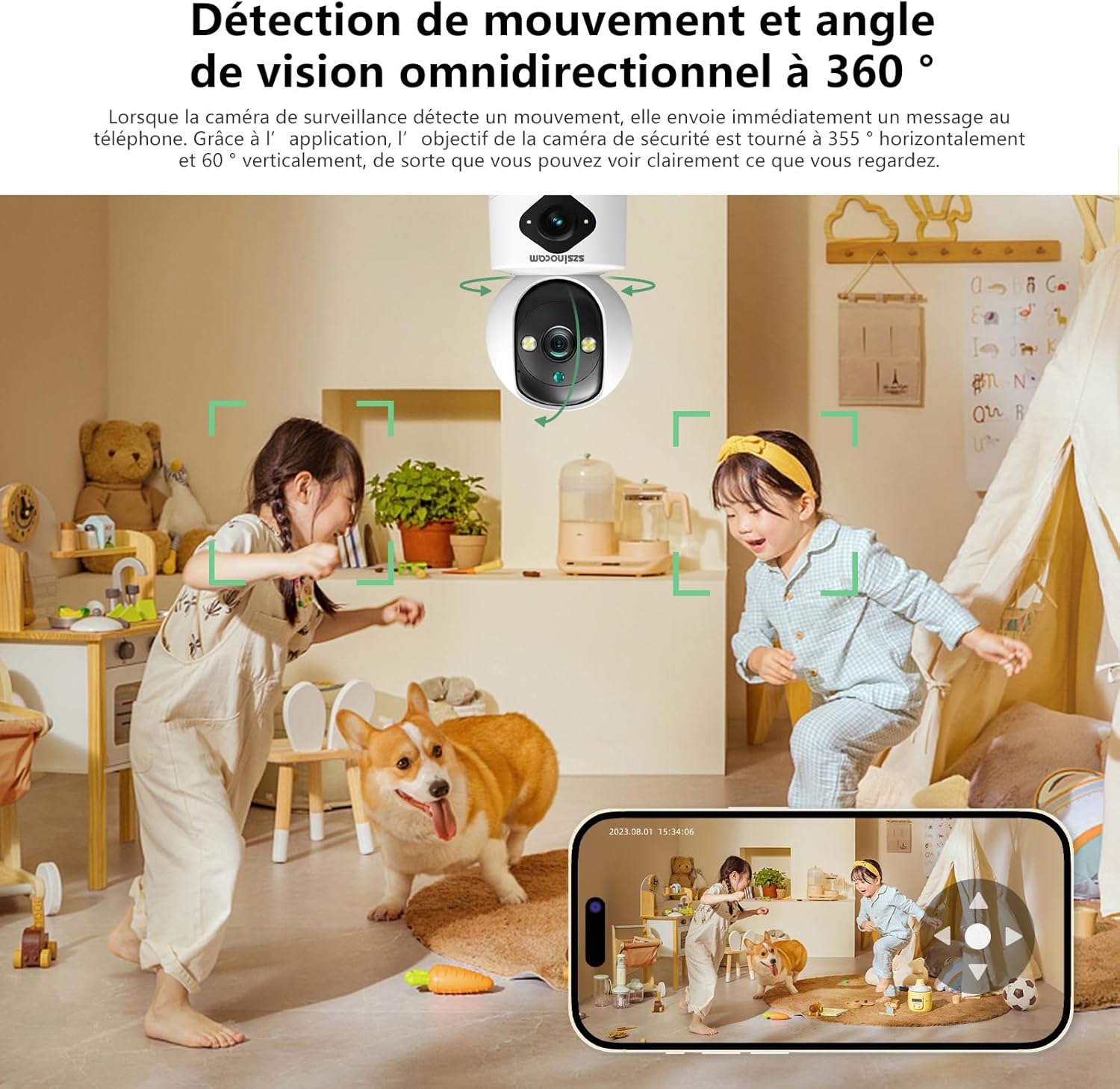
Figure 4: Three Night Vision Modes
3. Setup Guide
3.1 Package Contents
Before proceeding, ensure all items are present in the package:
- Szsinocam Wi-Fi Camera
- Power Adapter
- USB Cable
- Mounting Bracket and Screws
- User Manual (this document)
3.2 Powering On the Camera
- Connect the USB cable to the camera's power port.
- Plug the other end of the USB cable into the provided power adapter.
- Plug the power adapter into a standard electrical outlet. The camera will power on and initiate its startup sequence.
3.3 Mobile Application Installation
To control and view your camera, you need to install the dedicated mobile application:
- Scan the QR code provided on the camera packaging or in the quick start guide to download the official application. Alternatively, search for the application name (e.g., "OKAM PRO" or similar) in your device's app store (App Store for iOS, Google Play Store for Android).
- Install the application on your smartphone or tablet.
- Register a new account or log in if you already have one.
3.4 Camera Pairing
Follow these steps to pair your camera with the mobile application:
- Ensure your mobile device is connected to a 2.4GHz Wi-Fi network. The camera supports both 2.4GHz and 5GHz Wi-Fi.
- Open the mobile application and select "Add Device" or the '+' icon.
- Choose the camera type (e.g., "Wi-Fi Camera" or "Smart Camera").
- Follow the on-screen prompts to enter your Wi-Fi network name (SSID) and password.
- The application will generate a QR code. Position your camera's lens approximately 15-20 cm (6-8 inches) in front of your phone screen, ensuring the QR code is clearly visible to the camera.
- Wait for the camera to emit a confirmation sound or voice prompt indicating successful connection.
- Once connected, you can name your camera and begin live viewing.
4. Operating Instructions
4.1 Live View and Control
After successful pairing, tap on the camera's name in the application to access the live view. From here, you can:
- Pan & Tilt: Use the directional controls on the screen to rotate the camera horizontally (355°) and vertically (60°).
- Digital Zoom: Pinch to zoom in or out on the live feed (up to 6x).
- Two-Way Audio: Tap the microphone icon to speak through the camera's speaker, and listen through your phone's speaker.
- Snapshot & Record: Capture still images or record video clips directly to your phone's gallery.
4.2 Recording and Storage
The camera supports two primary recording methods:
- Micro SD Card Storage: Insert a Micro SD card (up to 256GB, Class 10 or higher recommended) into the designated slot on the camera. The camera will automatically begin recording based on your settings (continuous, motion-triggered).
- Cloud Storage: Subscribe to the cloud storage service through the mobile application for secure, off-site video backup. This ensures your footage is safe even if the camera is damaged or stolen.

Figure 5: Recording Options: Cloud and Micro SD Card
4.3 Motion Detection and Alerts
Configure motion detection settings in the application:
- Enable/Disable: Turn motion detection on or off.
- Sensitivity: Adjust the detection sensitivity to minimize false alarms.
- Alerts: Receive push notifications on your mobile device when motion is detected.
- Activity Zones: Define specific areas within the camera's view for motion detection.

Figure 6: Motion Detection and Wide Angle View
4.4 Night Vision Modes
The camera offers three night vision modes for optimal viewing in various low-light conditions:
- Infrared Mode: Provides clear black and white images in complete darkness using infrared LEDs.
- Full-Color Night Vision: Utilizes built-in spotlights to provide full-color images even in very low light.
- Intelligent Mode: Automatically switches between infrared and full-color modes based on detected motion or light conditions.
5. Installation Options
The Szsinocam Wi-Fi Camera offers flexible installation to suit your needs:
- Wall Mounting: Use the provided mounting bracket and screws to secure the camera to a wall.
- Flat Surface Placement: Simply place the camera on any flat surface like a table, shelf, or desk.
- Ceiling Mounting: Attach the camera to the ceiling using the mounting bracket for an overhead view.

Figure 7: Flexible Installation Options
6. Maintenance
- Cleaning: Use a soft, dry cloth to clean the camera lens and body. Do not use liquid cleaners or abrasive materials.
- Firmware Updates: Regularly check the mobile application for firmware updates. Keeping your camera's firmware updated ensures optimal performance, new features, and security enhancements.
- Environmental Conditions: Ensure the camera is operated within its specified temperature and humidity ranges. Avoid direct exposure to extreme weather conditions if installed outdoors without proper protection.
7. Troubleshooting
| Problem | Possible Cause | Solution |
|---|---|---|
| Camera not powering on. | Power adapter or cable faulty; no power from outlet. | Check power connection. Try a different outlet or USB cable/adapter. |
| Unable to pair camera with app. | Incorrect Wi-Fi password; camera too far from router; 5GHz network used; QR code not scanned properly. | Ensure correct 2.4GHz Wi-Fi password. Move camera closer to router. Ensure QR code is clear and camera lens is clean. Reset camera if necessary. |
| Poor image quality. | Dirty lens; insufficient lighting; network bandwidth issues. | Clean the camera lens. Ensure adequate lighting or enable appropriate night vision mode. Check Wi-Fi signal strength. |
| Motion detection alerts not received. | Motion detection disabled; app notifications turned off; incorrect sensitivity. | Enable motion detection in app. Check phone notification settings. Adjust sensitivity. |
| SD card not recording. | SD card full, faulty, or not formatted; recording settings incorrect. | Format SD card via app. Replace SD card if faulty. Check recording schedule/settings. |
8. Specifications
| Feature | Detail |
|---|---|
| Brand | SZSINOCAM |
| Model | B0CPXDFVRP |
| Effective Still Resolution | 3 MP |
| Maximum Shutter Speed | 1/30 seconds |
| Package Dimensions (L x W x H) | 12.8 x 10.6 x 8.7 centimetres |
| Package Weight | 0.36 Kilograms |
| Connectivity | Wi-Fi (2.4GHz/5GHz) |
| Storage | Micro SD Card (up to 256GB), Cloud Storage |
| First Available Date | 16 Dec. 2023 |
Note: Specifications are subject to change without prior notice.
9. Warranty and Support
For warranty information and technical support, please refer to the contact details provided with your purchase or visit the official SZSINOCAM website. Keep your purchase receipt as proof of purchase for warranty claims.
For further assistance, you may also contact the seller through the platform where the product was purchased.
Related documentsB0CPXDFVRP

Ask a question about this manual
Ask about setup, troubleshooting, compatibility, parts, safety, or missing instructions. Manuals+ will review the question and use this page’s manual context to help answer it.