
Introduction
The Amazon Basics Thunderbolt 4 / USB4 Docking Station is designed to expand your laptop's connectivity and enhance your workspace. It provides multiple ports for monitors, peripherals, and network access, all while delivering power to your connected laptop through a single Thunderbolt 4 cable.
What's Included
- Thunderbolt 4 Docking Station
- Thunderbolt 4 Cable
- Power Adapter
- Power Cord
- Quick Setup Guide

Image: All components included with the docking station.
Product Overview
The docking station features a compact design with various ports for versatile connectivity. Below is a detailed look at the ports and indicators.

Image: Front view of the docking station.
Front Panel
- SD Card Reader: For reading and writing to SD memory cards.
- USB-A 3.1 Port: Connect USB-A peripherals.
- 3.5mm Audio Jack: For headphones or speakers.
- Thunderbolt 4 Upstream Port: Connects to your laptop. Supports up to 85W Power Delivery.
- LED Indicators: Power and Thunderbolt connection status.
- Power Button: To turn the docking station on or off.
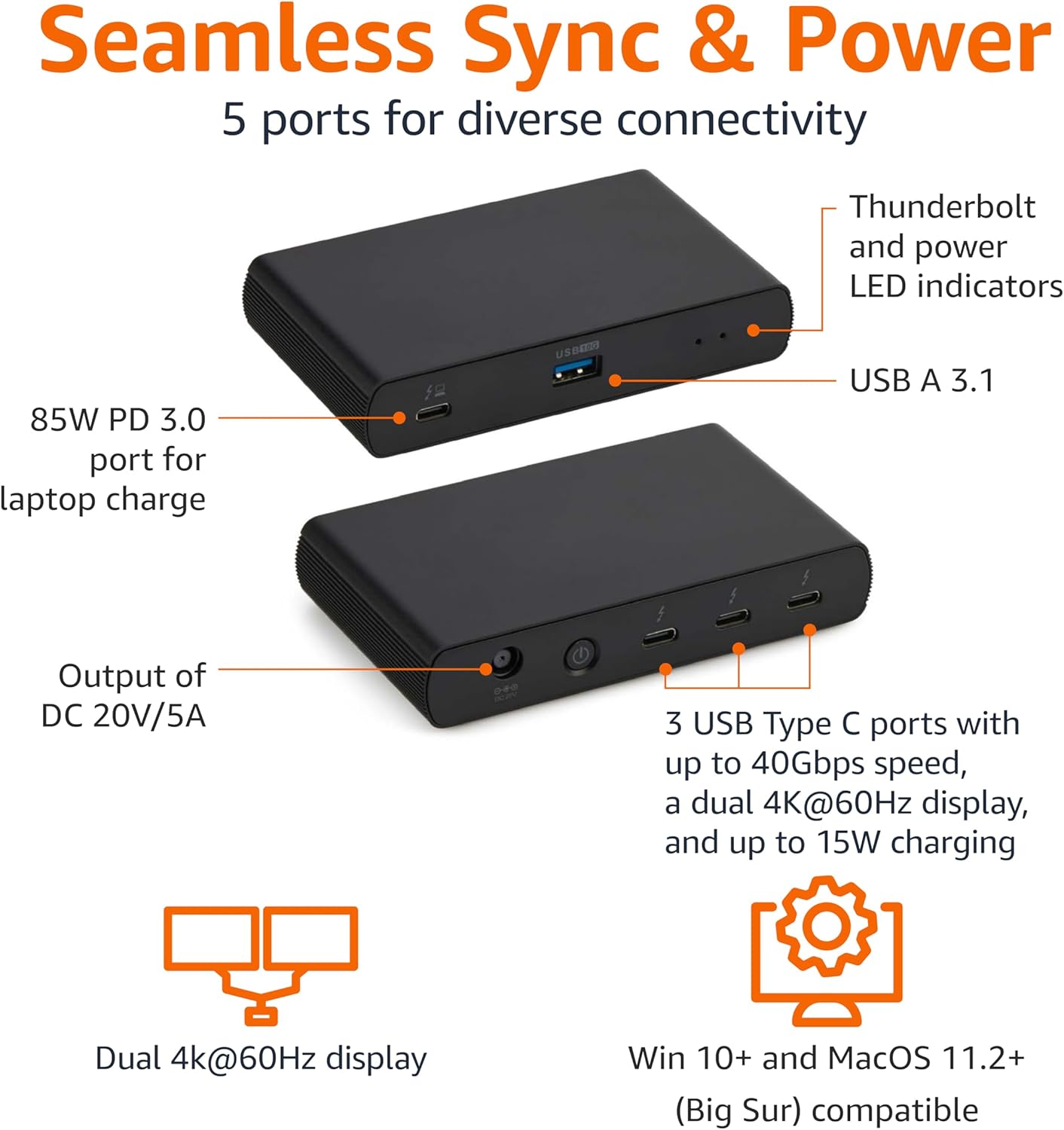
Image: Labeled ports on the docking station.
Rear Panel
- DC In Port: Connect the provided power adapter.
- HDMI 2.1 Port: Connect an external display.
- 2x Thunderbolt 4 Downstream Ports: Connect additional Thunderbolt devices or external displays. Each supports up to 15W charging.
- 2.5G Ethernet Port: For wired network connectivity.
- 2x USB-A 3.1 Ports: Connect additional USB-A peripherals.
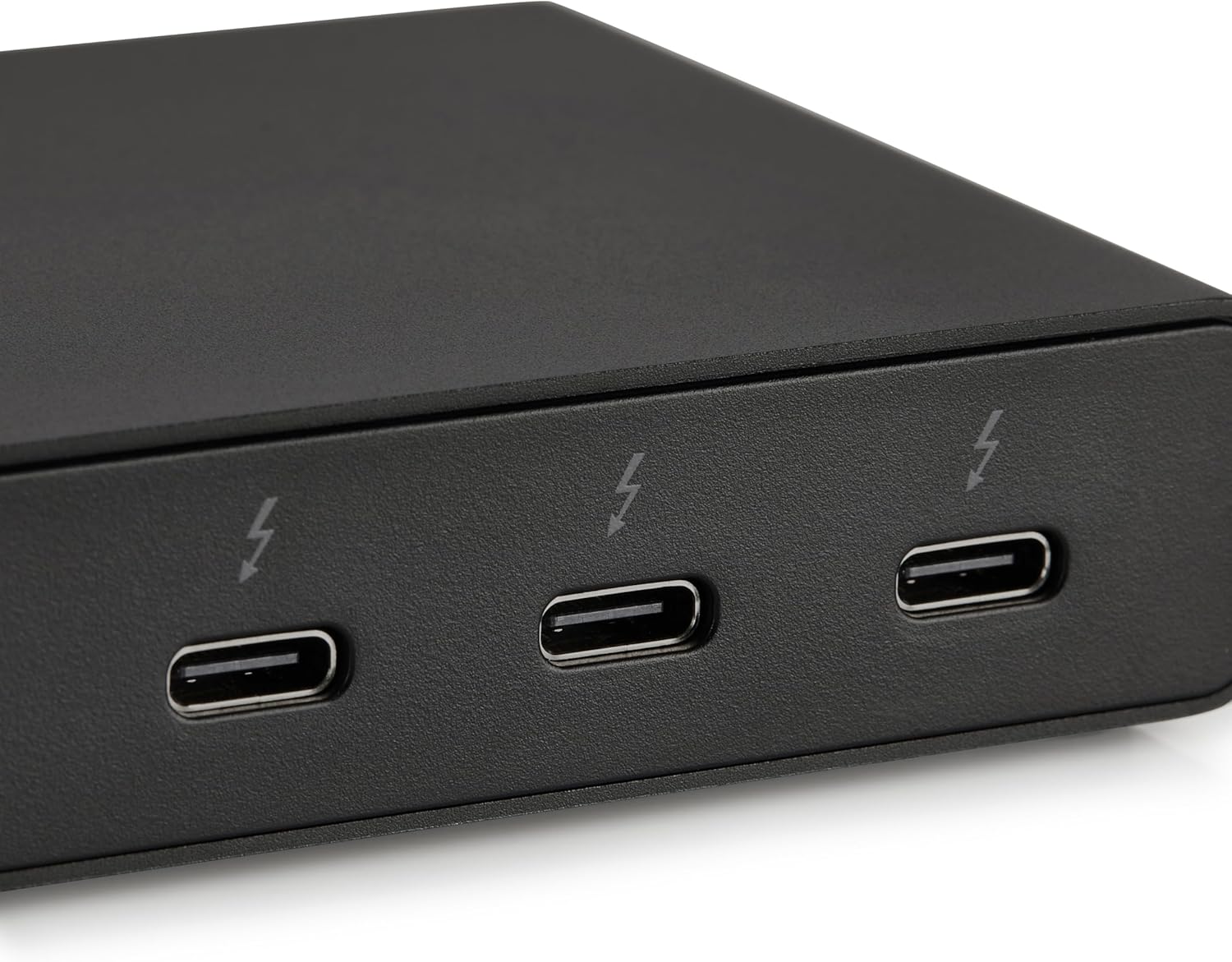
Image: Close-up of Thunderbolt 4 ports.
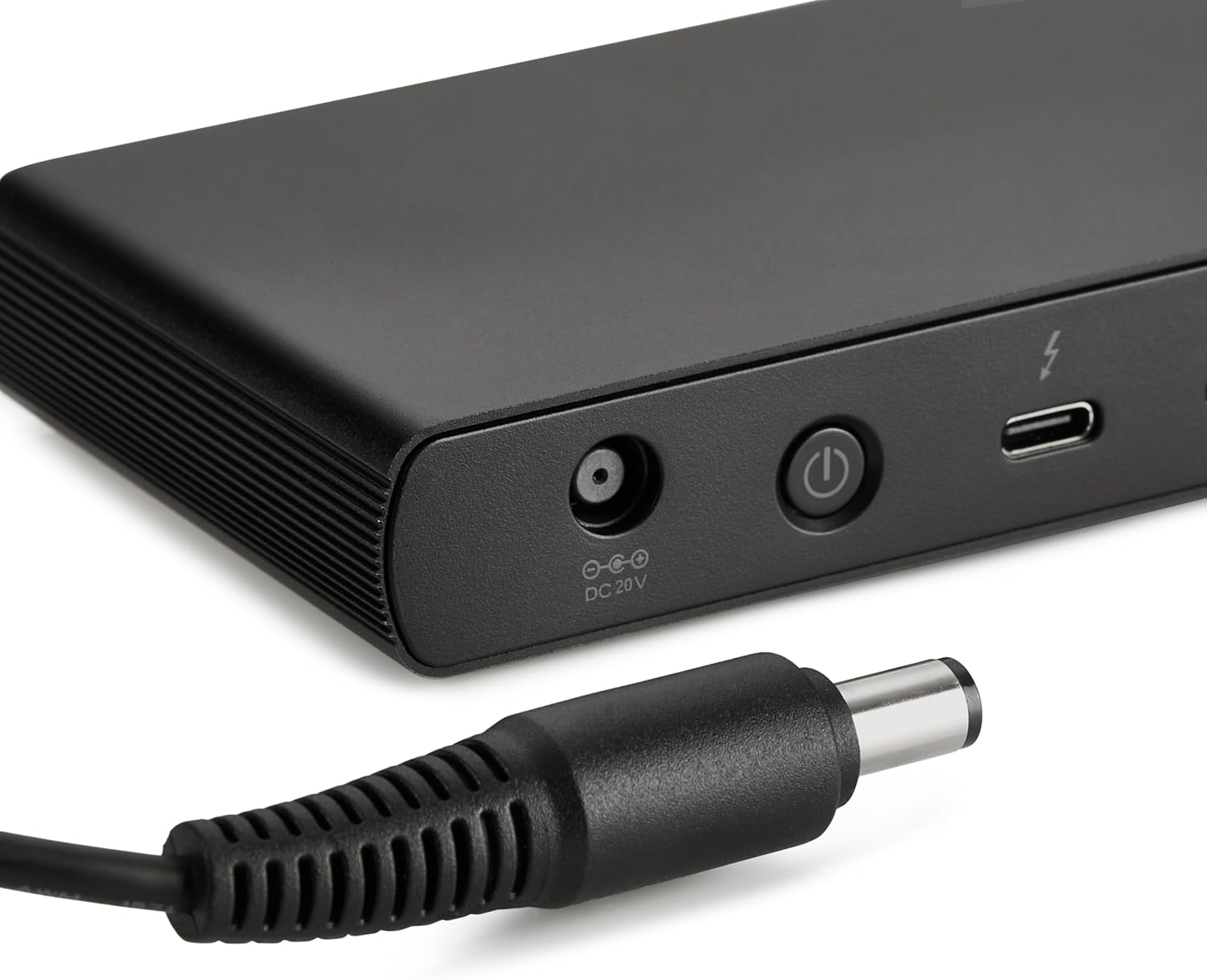
Image: Close-up of the DC power input.
Setup Instructions
- Connect Power: Plug the provided power adapter into the DC In port on the rear of the docking station, then connect the power cord to a wall outlet.
- Connect to Laptop: Use the provided black Thunderbolt 4 cable to connect the Thunderbolt 4 upstream port on the front of the docking station to a Thunderbolt 4 port on your laptop.
- Power On: Press the power button on the front panel of the docking station. The green power LED and blue Thunderbolt LED should illuminate.
- Connect Peripherals: Connect your monitors, Ethernet cable, USB devices, and audio devices to the appropriate ports on the docking station.
Video: This video demonstrates the basic setup and connectivity of the Amazon Basics Thunderbolt 4 / USB4 Docking Station, including connecting to a laptop, external displays, and peripherals.
Note: If your laptop does not immediately detect the dock, ensure the Thunderbolt 4 cable is securely connected. Wait approximately 60 seconds for the system to complete the setup process.
Operating Instructions
Dual Display Support
The docking station supports up to dual 4K@60Hz displays. You can connect one display via the HDMI 2.1 port and another via one of the Thunderbolt 4 downstream ports (using an appropriate adapter/cable, not included).
- Verify your laptop's Thunderbolt ports support dual 4K@60Hz output.
- Ensure your graphics card has the latest drivers installed.
- Confirm your monitors support 4K@60Hz display.
- Use high-quality Thunderbolt 4 or USB4 cables for display connections (not included).

Image: Dual display setup with the docking station.
Power Delivery (PD)
The docking station provides dynamic power delivery up to 85W to charge your connected laptop. This eliminates the need for a separate laptop charger.
- Check your laptop manufacturer's power supply specifications.
- If laptop power requirements exceed 85W, the docking station may activate an overload protection feature, causing disconnection or improper port function.
- The Thunderbolt 4 downstream ports also provide up to 15W charging for connected devices.
High-Speed Data Transfer
Leverage Thunderbolt 4 and USB4 technology for lightning-fast data transfers up to 40Gbps across the Thunderbolt ports, ensuring seamless workflows for large files and demanding applications.
Compatibility
- Supported Operating Systems: Windows 10 OS or later (with Thunderbolt 4 port), non-M1/M2 chip MacBooks running macOS 11 (Big Sur) or later.
- Backward Compatibility: Thunderbolt 3 laptops may work with limited functionality (e.g., not supporting dual display).
- Not Compatible With: Linux or Chrome OS laptops, and M1/M2 chip MacBooks running macOS 10.16 or earlier.
Specifications
| Feature | Detail |
|---|---|
| Brand | Amazon Basics |
| Model Number | DBD1010 |
| Product Dimensions | 4.76 x 2.84 x 0.86 inches |
| Item Weight | 1.76 pounds |
| Hardware Interface | Thunderbolt, USB |
| Total USB Ports | 4 (1x USB-A 3.1 front, 2x USB-A 3.1 rear, 1x Thunderbolt 4 upstream front) |
| Thunderbolt Ports | 3 (1x upstream, 2x downstream) |
| HDMI Port | 1x HDMI 2.1 |
| Ethernet Port | 1x 2.5G RJ45 |
| Power Delivery | Up to 85W to host laptop |
| Video Output | Dual 4K@60Hz displays |
| UPC | 840324412260 |
Troubleshooting
- No Display Output:
- Ensure all display cables are securely connected.
- Verify your laptop's Thunderbolt ports support dual 4K@60Hz output.
- Update your graphics card drivers to the latest version.
- Confirm your monitors support 4K@60Hz.
- Try using different high-quality Thunderbolt 4 or USB4 cables for display connections.
- Laptop Not Charging / Intermittent Charging:
- Ensure the provided Thunderbolt 4 cable is used for the upstream connection to your laptop.
- Confirm the power adapter is correctly plugged into the dock and a working wall outlet.
- Check your laptop's power requirements. If they exceed 85W, the dock's overload protection may activate.
- Peripherals Not Detected:
- Ensure the Thunderbolt 4 cable connecting the dock to your laptop is firmly seated.
- Try connecting the peripheral directly to your laptop to rule out device issues.
- Restart your laptop and the docking station.
- Slow Data Transfer:
- Ensure you are using Thunderbolt 4 or USB4 compatible devices and cables for optimal speeds.
- Check that your laptop's ports support the expected data transfer rates.
Maintenance
- Cleaning: Use a soft, dry cloth to clean the exterior of the docking station. Avoid liquid cleaners or solvents.
- Storage: Store the docking station in a cool, dry place away from direct sunlight and extreme temperatures.
- Cable Care: Avoid bending or crimping cables excessively to prevent damage.
Warranty and Support
For warranty information and customer support, please refer to the official Amazon Basics website or contact Amazon customer service. Protection plans are also available for extended coverage.
For additional assistance, visit: amazon.com/AmazonBasics


