
1. Introduction
This manual provides detailed instructions for the installation, operation, and maintenance of your Taffio Android Navigation GPS CarPlay Screen. This advanced in-car entertainment and navigation system is specifically designed for Audi Q2 GA MIB vehicles manufactured between 2016 and 2020, offering a seamless upgrade to your vehicle's multimedia capabilities.
2. Product Features
The Taffio Android Navigation GPS CarPlay Screen integrates modern technology with your vehicle's existing systems. Key features include:
- Operating System: Android 13
- Processor: Qualcomm Snapdragon 665 (4x 2 GHz + 4x 1.8 GHz)
- Display: 10.25-inch Full HD (1920x720) Capacitive Touchscreen
- Memory: 8GB LPDDR4 RAM
- Storage: 128GB Internal Memory
- Graphics: Adreno 610 GPU
- Connectivity: Integrated Wi-Fi, Bluetooth, 4G LTE (via SIM card slot), USB
- Navigation: Integrated GPS receiver with 3D navigation and free map updates
- Smartphone Integration: Built-in Wireless CarPlay and Android Auto
- Vehicle Integration: Supports original radio functions, i-Drive, steering wheel controls, and vehicle settings.
- Camera Support: Automatic switching for rearview camera and parking assistance.
- Installation: Plug and Play design, requiring no modification or coding of the original system.
3. Package Contents
Please verify that all items listed below are included in your package:
- 1 x Taffio Android Navigation Multimedia Screen
- 1 x GPS Antenna
- 1 x USB Cable (with 2 USB ports)
- 1 x Connection Cable Harness
- 1 x PDF User Manual (this document)
- 1 x Invoice with VAT (for warranty purposes)
4. Setup and Installation
The Taffio system is designed for a straightforward Plug and Play installation. While the process is simplified, professional installation is recommended if you are unfamiliar with car electronics.
4.1. Installation Diagram
Refer to the diagram below for a visual guide to connecting the components.

Image: Overview of the system's connections, illustrating where to connect the WiFi antenna, SIM card, GPS antenna, USB ports, rearview camera, LVDS display plug, and the main power/radio harness.
4.2. Connection Steps
- Disconnect Vehicle Battery: Before starting, disconnect the negative terminal of your vehicle's battery to prevent electrical shorts.
- Remove Original Screen: Carefully remove your vehicle's original display unit following your Audi Q2's service manual.
- Connect Display LVDS Plug: Locate the LVDS cable from the new screen and connect it to the corresponding port, typically found behind the original screen's location.
- Connect to Original Radio & Power Plug: Use the provided connection cable harness to integrate the new system with your vehicle's original radio and power supply. This harness is designed for direct compatibility.
- Connect GPS Antenna: Mount the GPS antenna in a location with a clear view of the sky (e.g., dashboard, under the windshield) and connect it to the designated port on the new unit.
- Connect WiFi Antenna: Attach the WiFi antenna to improve wireless connectivity.
- Insert SIM Card (Optional): If you plan to use 4G data, insert a compatible micro SIM card into the provided slot.
- Connect USB Cables: Route the USB cables to an accessible location (e.g., glove compartment) for connecting external devices.
- Connect Rear Camera Input (Optional): If installing an aftermarket rearview camera, connect its video output to the designated input on the system.
- Secure Wiring and Reinstall: Neatly arrange all cables, secure them to prevent rattling, and reinstall the new screen into the dashboard.
- Reconnect Battery: Reconnect the vehicle battery and power on the system for initial setup.
5. Operating Instructions
5.1. Basic Operation
The system features an intuitive touchscreen interface. You can also utilize your vehicle's original i-Drive controller and steering wheel buttons for navigation within the Android system.
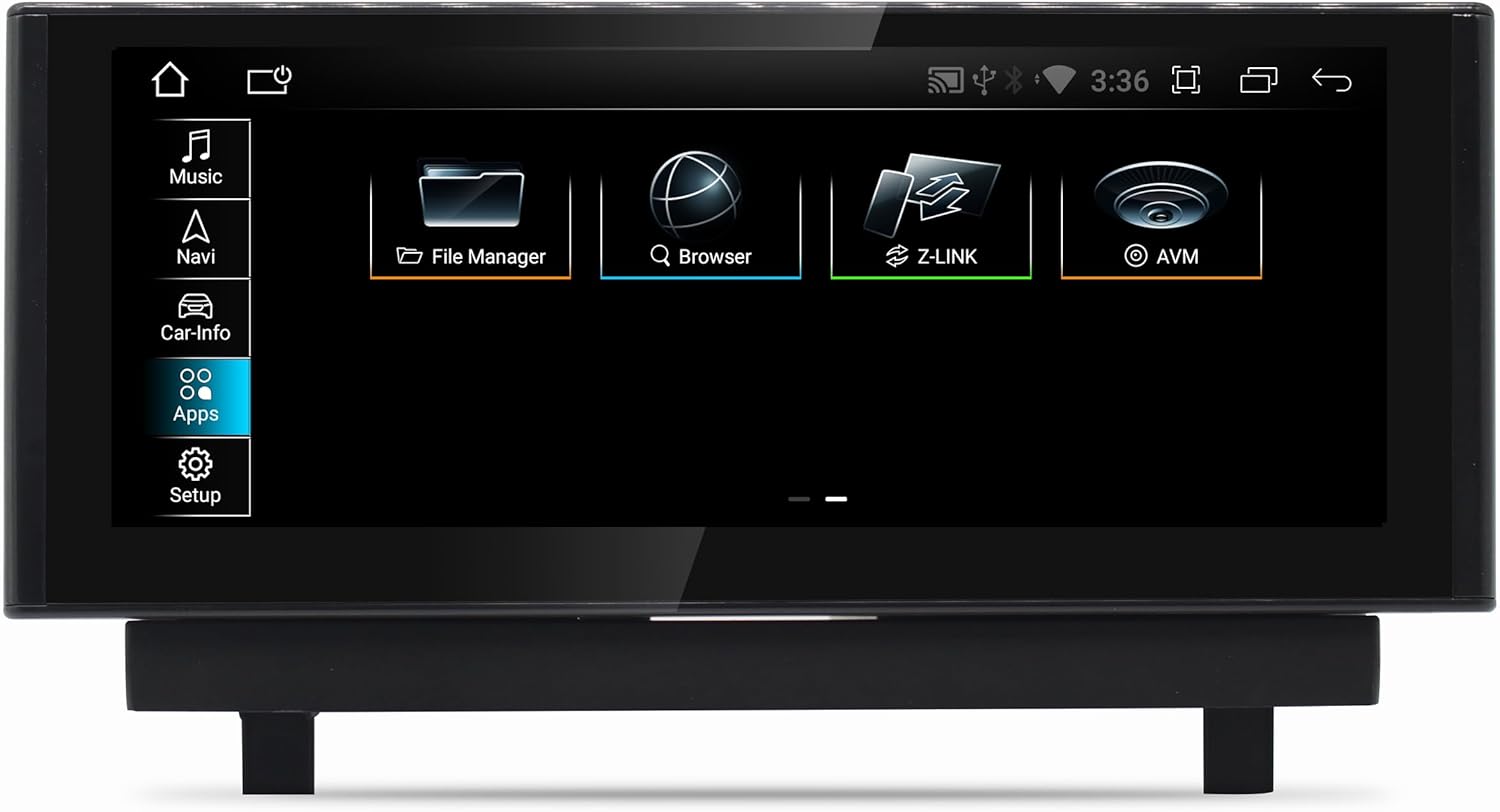
Image: The main Android interface, displaying core functions such as Music, Navigation, Vehicle Information, Applications, and System Setup.
5.2. Switching Between Systems
Easily switch between the original Audi MIB system and the Android system. This allows you to retain all original vehicle functionalities while gaining access to the Android features.
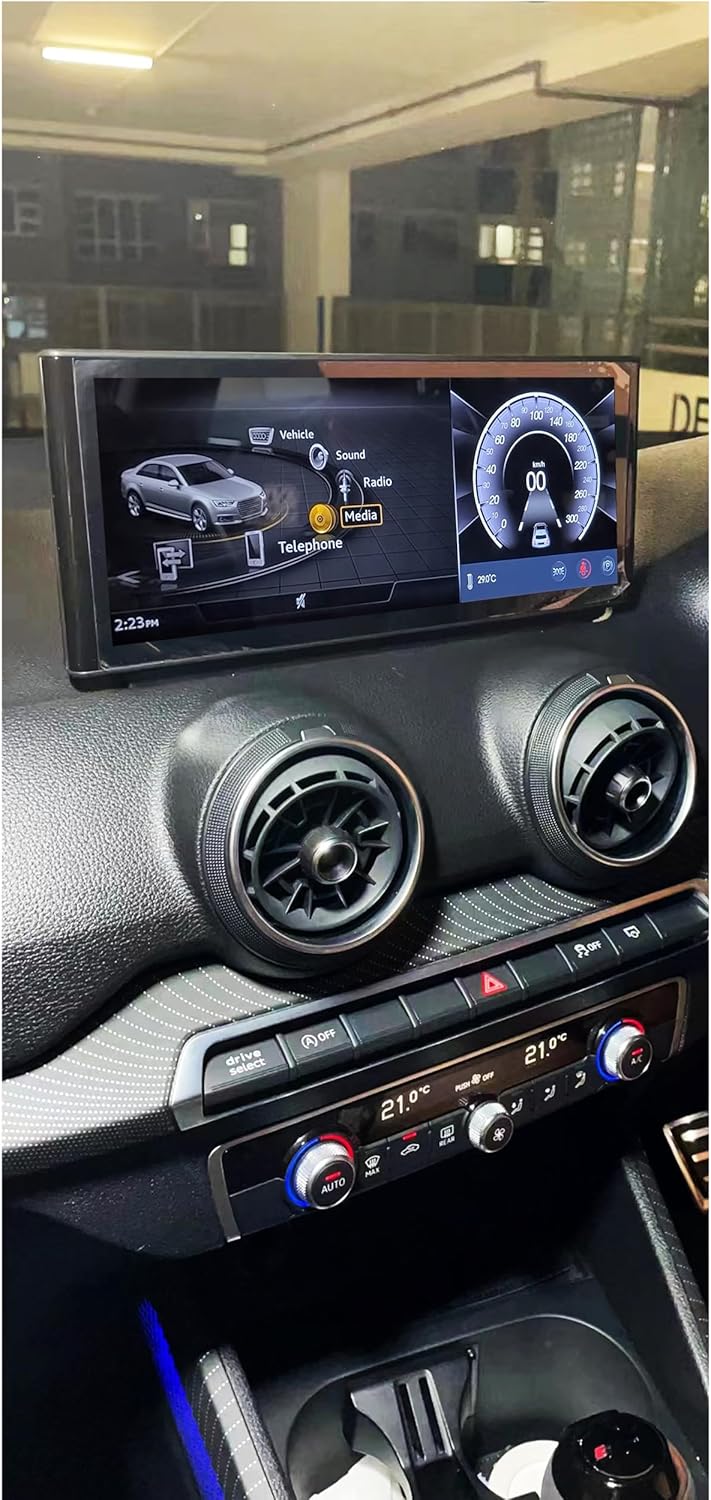
Image: The screen displaying the vehicle's original Audi MMI interface, demonstrating seamless integration and the ability to switch between systems.
5.3. Navigation
The integrated GPS receiver provides accurate positioning. Utilize pre-installed navigation applications or download your preferred navigation apps from the Google Play Store. The system supports 3D navigation and offers free map updates.
5.4. Wireless CarPlay and Android Auto
Connect your smartphone wirelessly to access CarPlay or Android Auto. This allows for seamless integration of your phone's navigation, music, calls, and messaging directly on the car's display.

Image: The Wireless CarPlay interface, showing navigation, media playback, and communication features accessible from your iPhone.

Image: The Android Auto interface, providing access to Google Maps, Spotify, and other Android applications from your compatible smartphone.
5.5. Multimedia Playback
The system supports various audio and video formats including 1080p, H264, AVI, RMVB, FLV, MKV for video, and MP3, WMA, FLAC, APE, AAC for audio. Play media from USB drives or stream via Bluetooth.

Image: A selection of Android applications available on the system, including web browsers, media players, and productivity tools.
5.6. Connectivity
- Wi-Fi: Connect to Wi-Fi hotspots or your smartphone's hotspot for internet access.
- 4G LTE: Insert a micro SIM card to enable 4G data connectivity for faster browsing and streaming.
- Bluetooth: Pair your phone for hands-free calling and audio streaming. The system also supports the vehicle's original Bluetooth.
5.7. Rearview Camera and Parking Assistance
The system supports original and aftermarket rearview cameras. It automatically switches to the camera view when reversing and integrates with parking assistance features.
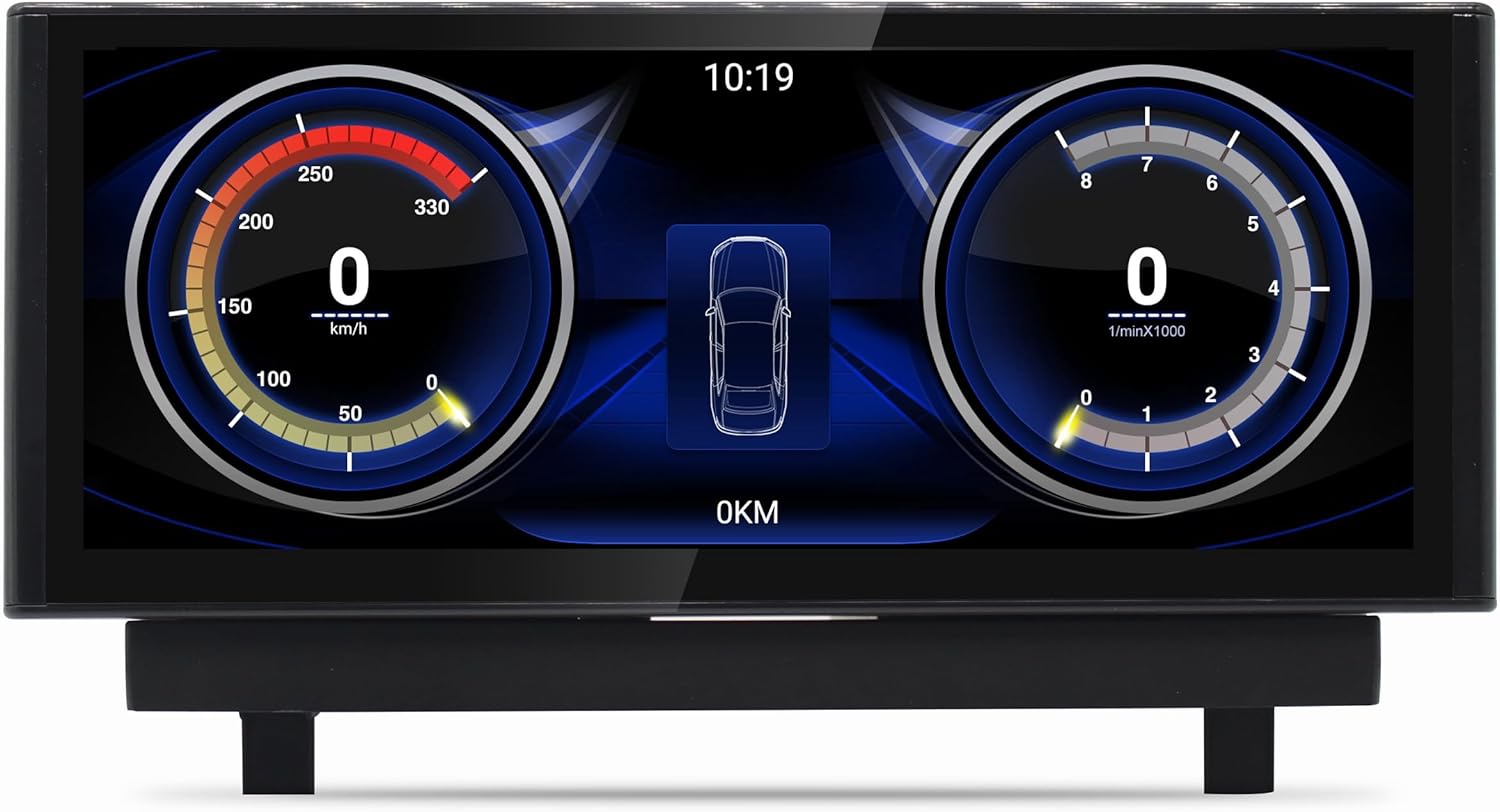
Image: The vehicle information display, showing digital gauges for speed and RPM, providing real-time data from the car's systems.
6. Maintenance
- Screen Cleaning: Use a soft, lint-free cloth slightly dampened with a screen cleaner or water. Avoid harsh chemicals.
- Software Updates: Periodically check for system updates in the settings menu to ensure optimal performance and access to the latest features.
- General Care: Avoid exposing the unit to extreme temperatures or direct sunlight for prolonged periods.
7. Troubleshooting
If you encounter issues, refer to the following common problems and solutions:
- No Power: Ensure all power cables are securely connected. Check vehicle fuses.
- No Sound: Verify volume settings on both the Android system and your vehicle's original audio system. Ensure AUX mode is correctly selected if required by your vehicle.
- GPS Signal Loss: Ensure the GPS antenna is mounted in a location with a clear view of the sky and is securely connected.
- Touchscreen Unresponsive: Try restarting the system. If the issue persists, perform a factory reset (note: this will erase all user data).
- CarPlay/Android Auto Not Connecting: Ensure Bluetooth and Wi-Fi are enabled on both the unit and your smartphone. Check for software updates on your phone and the unit.
- System Freezes/Lags: Close unnecessary background applications. Clear cache from time to time in system settings.
For persistent issues not covered here, please contact customer support.
8. Specifications
| Feature | Specification |
|---|---|
| Model Number | JFQ022 |
| Operating System | Android 13 |
| Processor | Qualcomm Snapdragon 665 (Octa-core: 4x 2 GHz + 4x 1.8 GHz) |
| Display Size | 10.25 inches |
| Display Resolution | 1920 x 720 Full HD |
| Display Type | Capacitive Touchscreen |
| RAM | 8GB LPDDR4 |
| Internal Storage | 128GB |
| GPU | Adreno 610 |
| LTE Modem | X12 |
| DSP | Hexagon 686 |
| Connectivity | Wi-Fi, Bluetooth, 4G LTE (SIM slot), USB |
| Navigation System | Integrated GPS |
| Smartphone Integration | Wireless CarPlay, Android Auto |
| Vehicle Compatibility | Audi Q2 GA MIB (2016-2020) |
9. Warranty and Support
Your Taffio Android Navigation GPS CarPlay Screen comes with a 2-year warranty from the date of purchase. Please retain your invoice as proof of purchase for warranty claims.
For technical support, troubleshooting assistance, or warranty inquiries, please contact the seller, REALMEDIASHOP, through the platform where you purchased the product. Provide your model number (JFQ022) and a detailed description of the issue to facilitate faster service.


